WooCommerce Category discounts apply promotional price reductions for the selected group of products chosen by store owners.
For example, offering a 15% discount on the Shoes category helps you promote selected items while protecting your overall profit margins.
This approach helps you move slow-selling inventory, run focused promotions, and protect profit margins on high-performing products. Instead of discounting your entire catalog, you gain precise control over where and how discounts are applied.
Category-specific discounts ensure that promotional pricing applies only to the selected product categories, while the rest of your inventory remains at its original price.
This level of control makes category-based discounting especially effective for inventory management, seasonal campaigns, and targeted marketing offers.
In this guide, you’ll learn:
- How to create product category discounts using WooCommerce’s built-in discount system
- How to set up advanced category-based pricing with the Disco Dynamic Pricing plugin
- Different types of category-specific discounts in WooCommerce
- Key benefits of category-based discounts for online stores
- Best practices for applying category-specific discounts in WooCommerce effectively
By the end of this guide, you’ll be able to implement precise, high-impact WooCommerce category discounts that align with your pricing strategy and business goals.
Table of Contents
WooCommerce Built-in Coupons for Basic Category Targeting
WooCommerce allows basic category targeting for coupons. It lets you select a product category and apply customized coupon codes for a discount. However, it does not support any advanced rules, such as quantity threshold, unless custom coding is used.
This is how the process works :
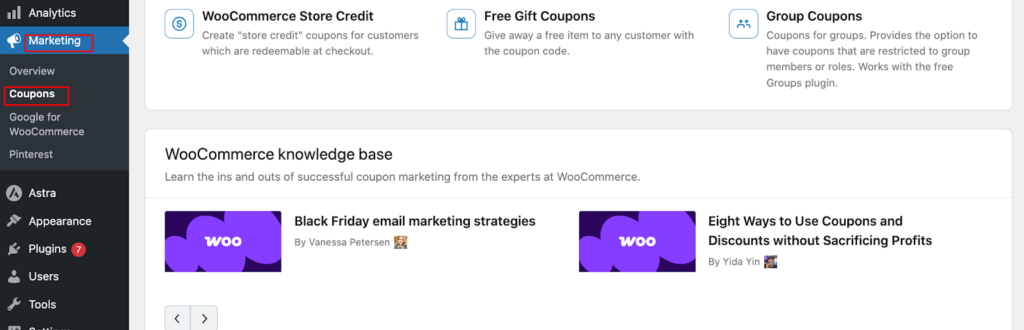
- From your WordPress dashboard, go to → Marketing → Coupon → Add new
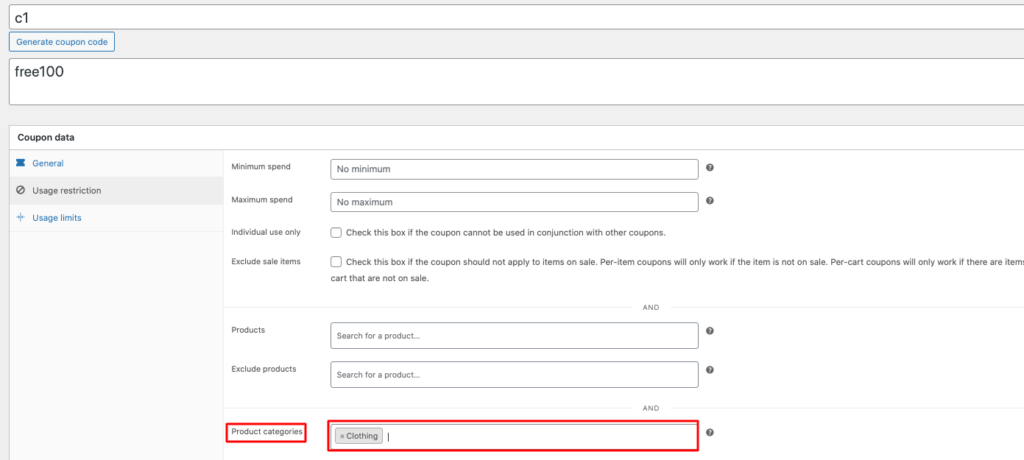
- Set Usage Restriction → Categories → Select the target one
- Test on the staging site to avoid live glitches.
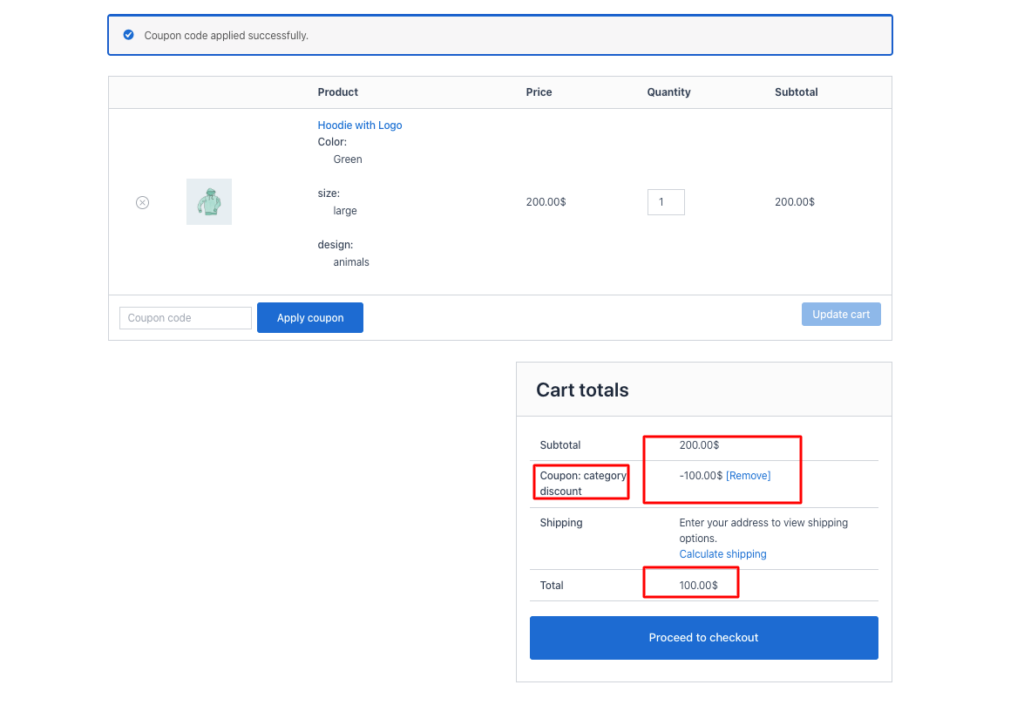
Note: WooCommerce’s built-in coupon system does not support rule-based or customized category discounts. To implement advanced discount strategies, use Disco – Dynamic Pricing & Discount Rules for WooCommerce. It enables unlimited smart campaigns with advanced conditions, automated scheduling, high scalability, and flexible discount configurations.
Guide to Implementing Different Types of Discounts in WooCommerce with the Discount Plugin
Creating different types of category-specific discounts is a smart strategy to enhance margin protection, customer acquisition, search engine and navigation benefits, and many more.
The following section showcases various types of category discounts, along with use cases created with the Disco – Dynamic Pricing & Discount Rules for WooCommerce.
How to create a percentage-based category discount in WooCommerce?
Example 1: 10 % discounts on the “ shoes ” category.
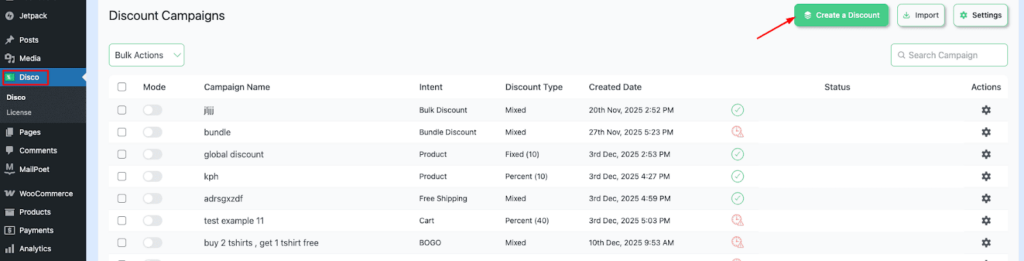
Step 1: Create a New Discount Rule
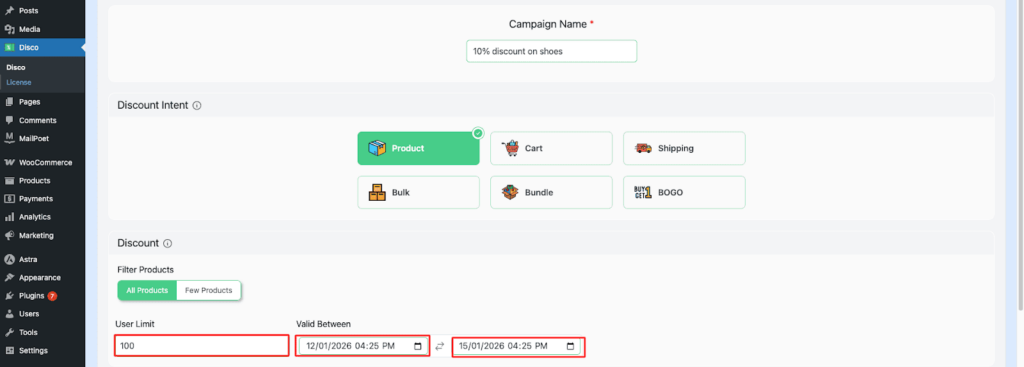
Step 2: Configure Campaign Details
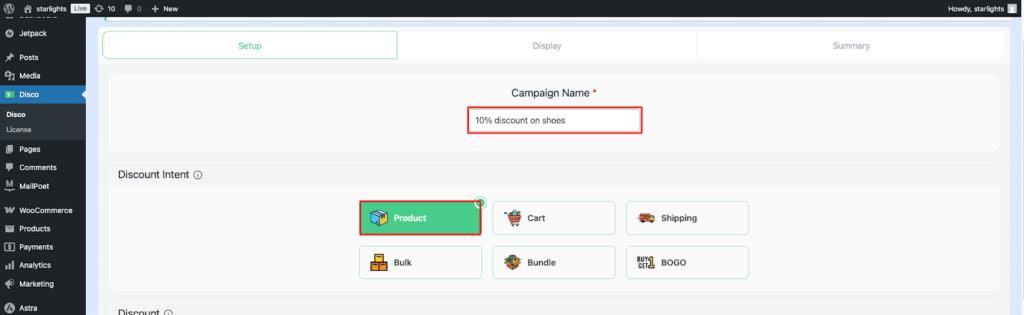
Enter a Campaign Name (for example, 10% Off Shoes) to easily identify the discount. Then, select Product Intent to specify that the discount applies to selected products or product categories within your store.
Step 3: Filter by Products
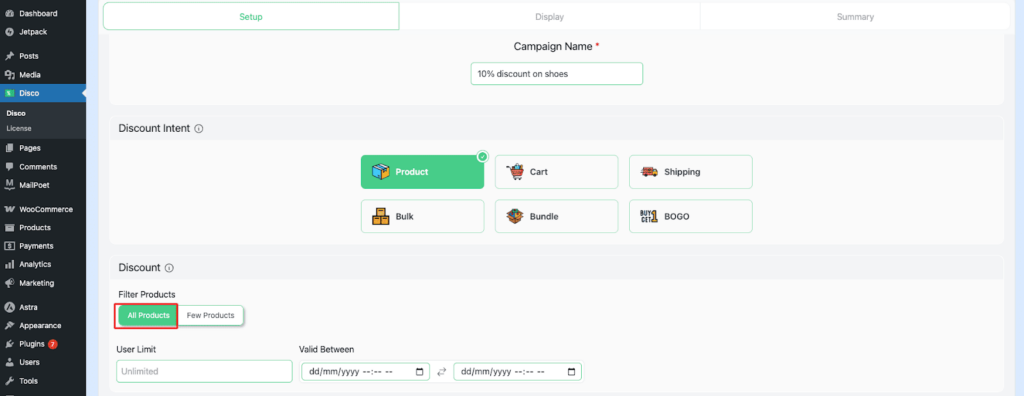
In the Filter section, choose Products to define which specific products the discount rule should apply to. This allows you to target individual items or selected All products for the campaign.
Step 4: Set User Limit and Validity Date
Configure the User Limit to control how many times a customer can use the discount. Then, set the Validity Date to define the start and end period for the campaign, ensuring the discount is applied only within the specified timeframe.
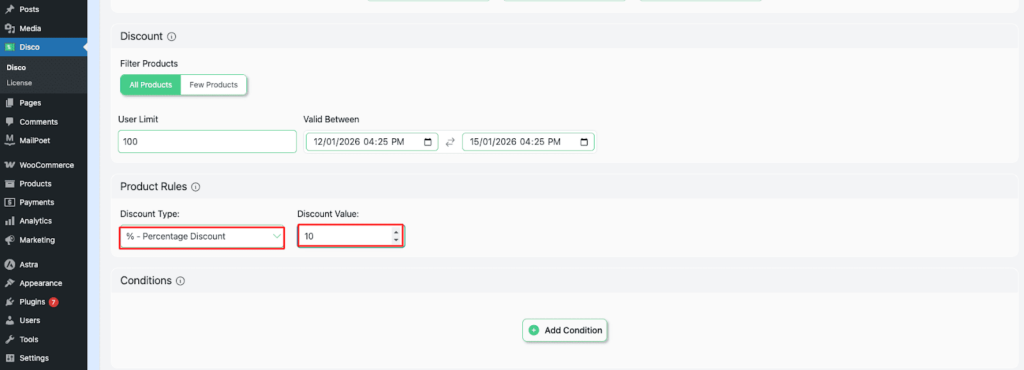
Step 5: Set Product Rules and Discount Value
Under Product Rules, select Percentage Discount and set the discount value to 10%. This ensures that eligible products receive a 10% price reduction when the campaign conditions are met.
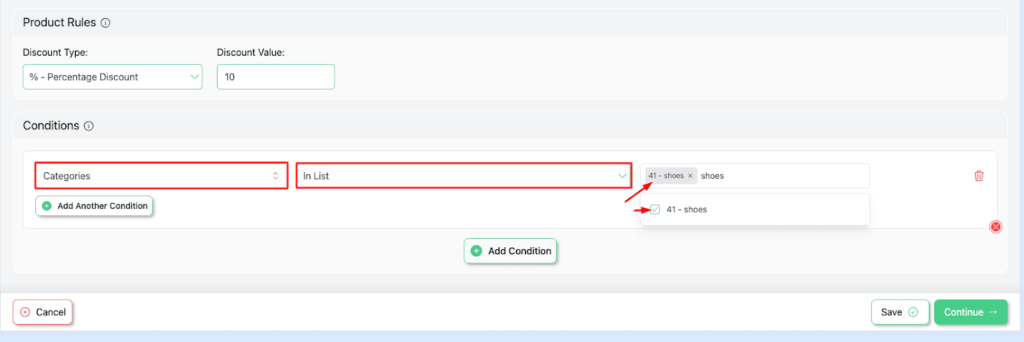
Step 6: Add Conditions for Category-Based Discount
In the Conditions section, add a rule to check the product category.
Set the condition as: If the “Shoes” category is in the cart or product list, then apply the discount.
This ensures the 10% discount is applied only to products that belong to the Shoes category.
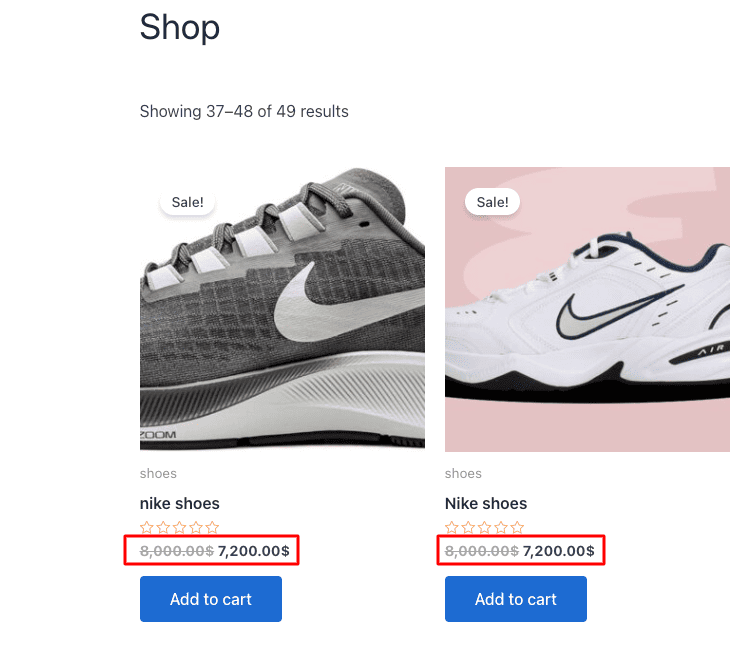
Step 7: Save and Verify the Discount
Click Save to activate the discount campaign. Then, visit your store and add a product from the Shoes category to the cart to verify that the 10% discount is applied correctly.
Read our full documentation guide on How to setup $20 off all category products.
How set up role-based category discounts?
Example 2: $20 off for VIP customers on a bag category
You have to follow all the steps that were done in the previous example, and then
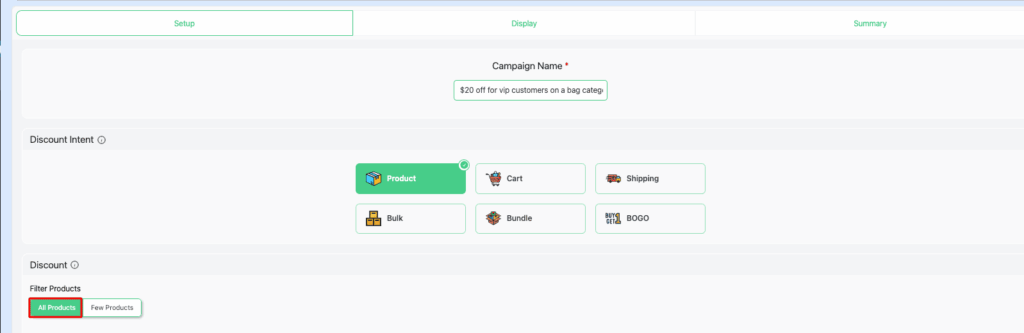
Step 1: Select All Products
In the Filter section, choose All Products. This ensures the discount rule applies to every product in your store. Later, we’ll restrict the products from the conditions section.
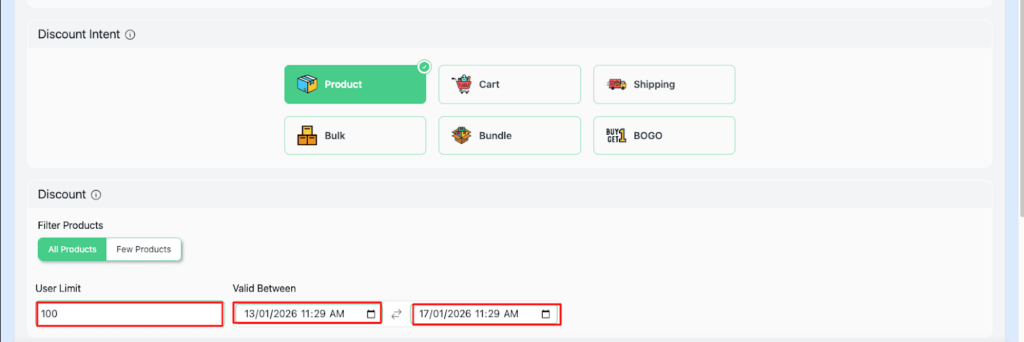
Step 2: Configure User Limit and Validity Date
Set the User Limit to 100, ensuring that only 100 customers can claim this offer. Then, define the Validity Date from 13/01/2026 to 17/01/2026, so the discount is active only during this specified period.
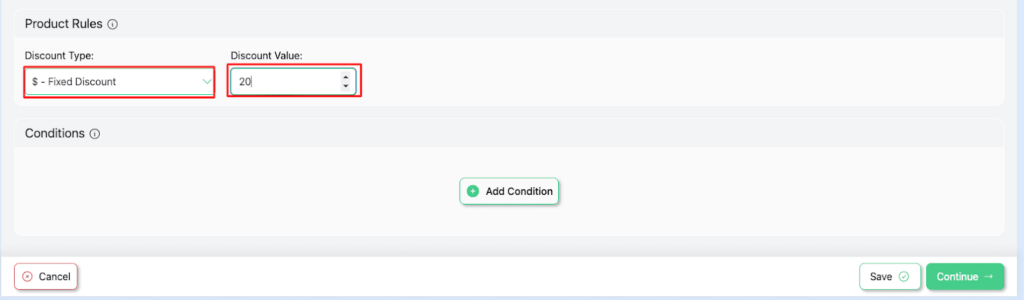
Step 3: Configure Product Rules
Under Product Rules, set the Discount Type to Percentage Discount and enter the Discount Value as 20%. This applies a 20% discount to the selected bag products when the rule conditions are met.
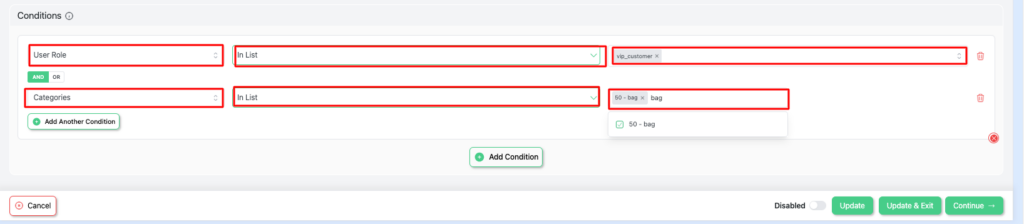
Step 4: Set User Role and Category Conditions
In the Conditions section, add the following rules:
- User Role → In List → VIP Customer
- Categories → In List → Bag
These conditions ensure the discount is applied only when a logged-in VIP Customer adds products from the Bag category to the cart.
Step 5: Verify the Discount in Your Store
Open your store and log in as a VIP Customer. Add one of the selected bag products to the cart and confirm that the 20% discount is applied correctly.
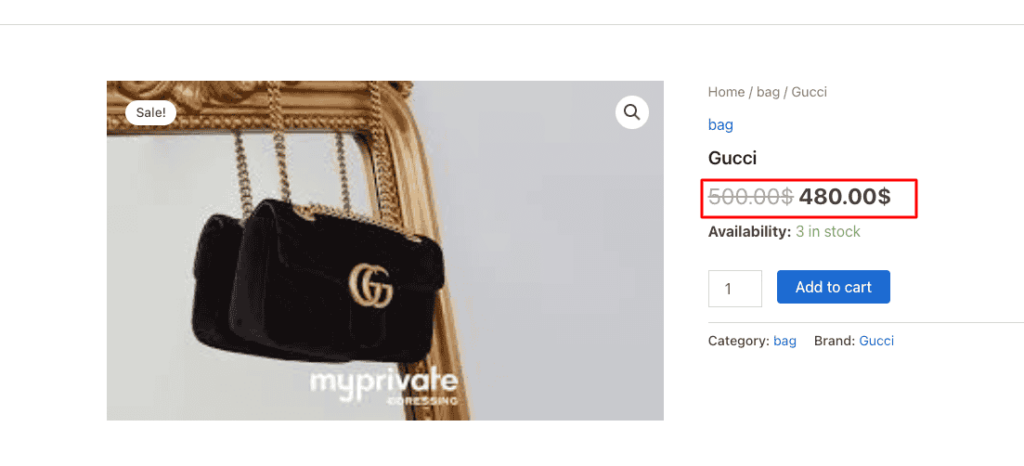
How can you apply a BOGO discount to selected product categories only?
Example 3: Buy any item from the Shoes category and receive 50% off any item from the Accessories category
Step 1: Choose the Discount Intent
Select BOGO (Buy One Get One) Intent as your discount intent.
This allows you to create a buy-one-get-one–style promotion, such as “Buy 1, Get 1 Free” or “Buy 1, Get 1 at a discount,” based on your campaign requirements.
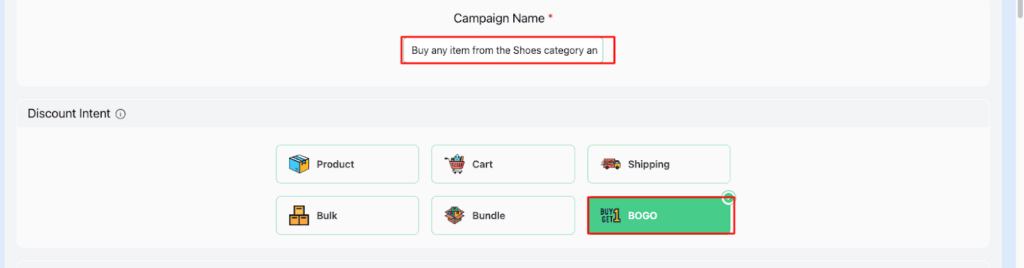
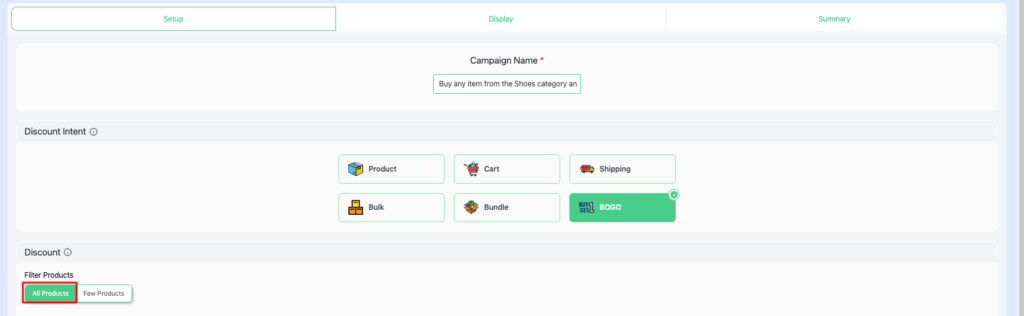
Step 2: Choose All Products
In the Filter section, select All Products. This allows the discount rule to apply to every product in your store, unless further limited by specific conditions.
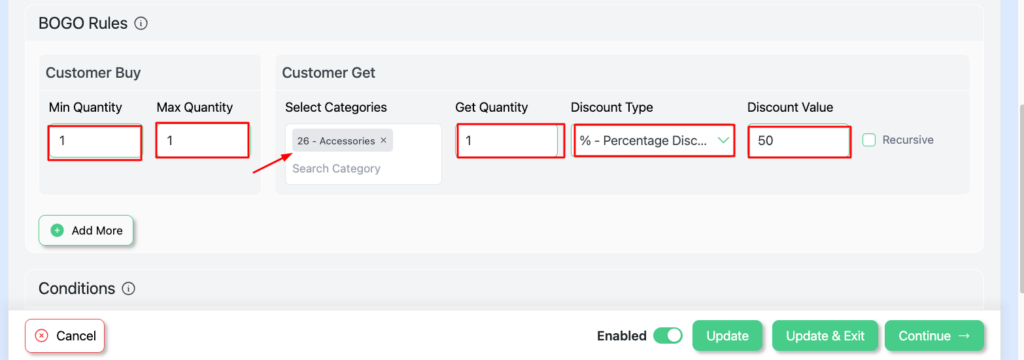
Step 3: Configure the BOGO Type
In the BOGO section, set the BOGO type to Buy X Get Y – Categories. This allows you to define category-based BOGO rules, where purchasing products from one category triggers a free or discounted product from another category.

Step 4: Define Buy and Get Rules
In the Customer Buy section, set the Minimum Quantity to 1 and the Maximum Quantity to 1.
In the Customer Gets section, select the Accessories category, set the Get Quantity to 1, choose Percentage Discount as the discount type, and enter 50% as the discount value.
This configuration applies a 50% discount on one accessory item when the customer buys one eligible product.
Step 5: Set Category Condition
In the Conditions section, add a rule for Categories → In List and select Shoes.
This ensures the discount is applied only when products from the Shoes category are included in the cart.
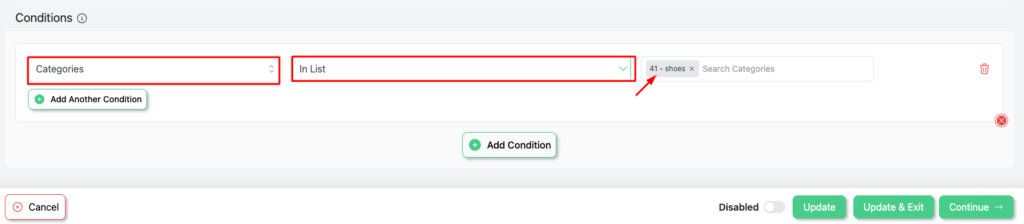
Step 6: Verify the BOGO Discount in Your Store
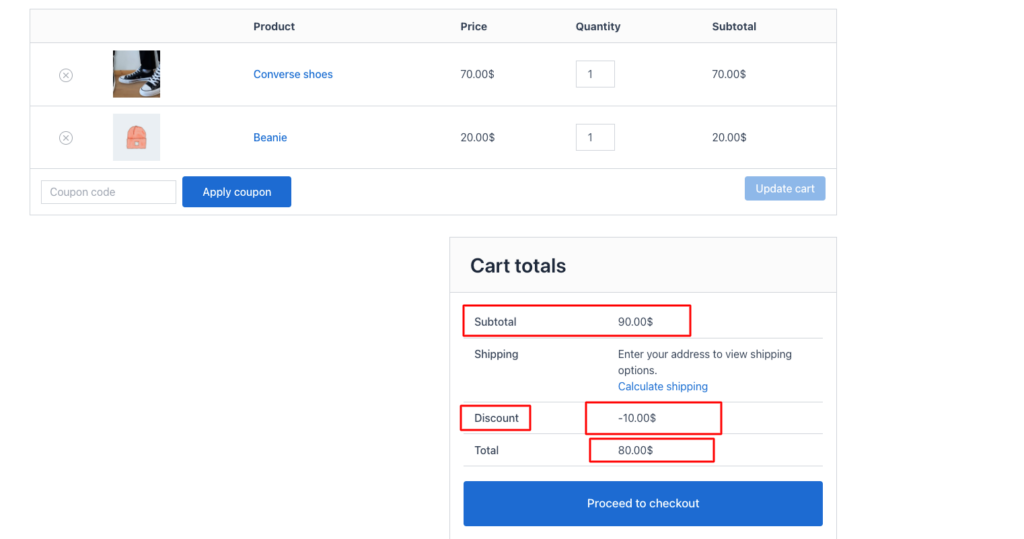
Visit your store and add one eligible Shoes product to the cart along with an item from the Accessories category. Confirm that the accessory item receives the 50% discount as configured in the BOGO rule.
Master WooCommerce’s How to Setup ”Buy X from category A and Y from category B” deals with our detailed feed.
How do you apply free shipping to selected product categories?
Example 4: Free shipping on all products from the “ skincare category ”
Step 1: Set Campaign Name and Discount Intent
To make your promotion easy to identify, begin by entering a campaign name
Then, set the Discount Intent to Free Shipping, which allows you to offer shipping cost reductions based on the rules and conditions you configure
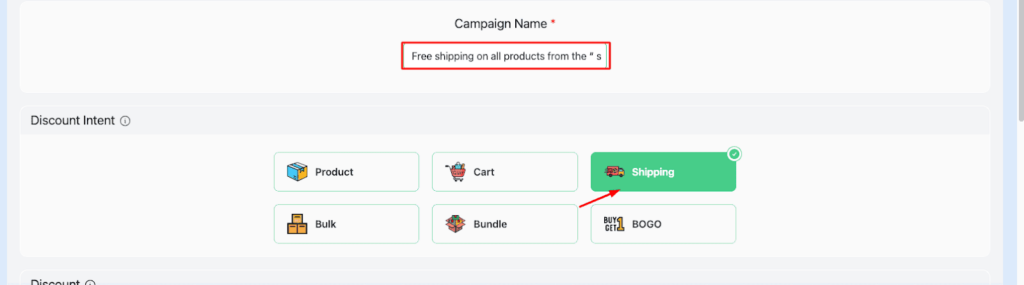
Step 2: Select Products and Refine with Conditions
In the Filter section, select All Products to apply the free shipping offer across your entire store. Next, use the Conditions section to refine when and how the free shipping discount should be applied.
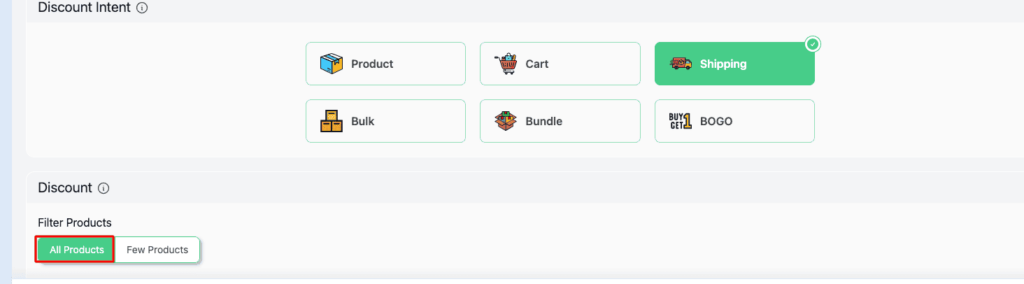
Step 3: Set Category Condition
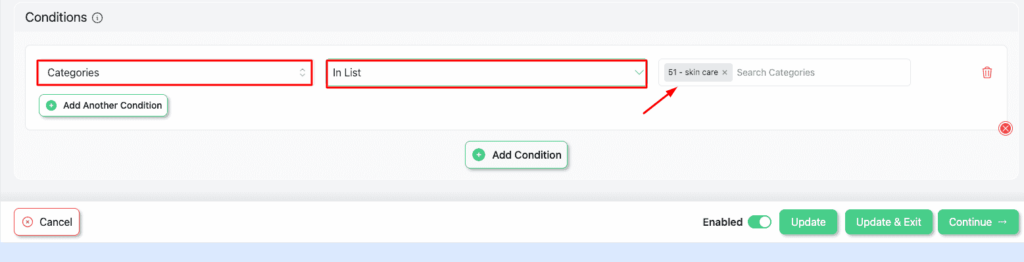
In the Conditions section, choose Categories → In List and select Skincare.
This ensures the free shipping offer is applied only when products from the Skincare category are included in the cart.
Step 4: Launch and Verify the Free Shipping Campaign
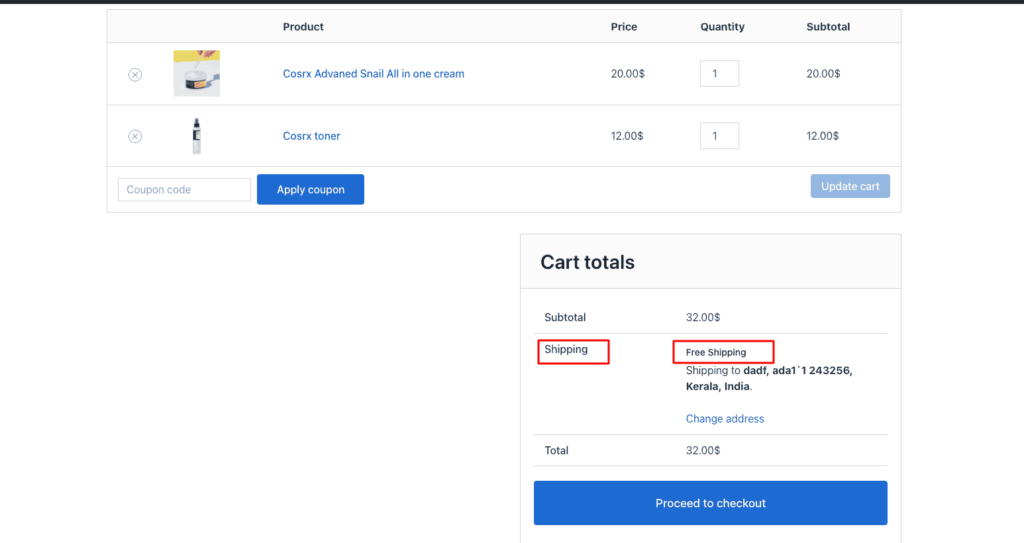
That’s it—your campaign is now launched and running. Visit your store and add a product from the Skincare category to the cart. You’ll see that free shipping is automatically applied at checkout.
Explore our full guide to How to Setup “Free shipping on Category A products” in WooCommerce.
How to set WooCommerce category discounts based on product quantity?
Example 5: Buy 3 or more books and save 20%
For this scenario, customers will receive a 20% discount on purchases of 3 or more books.
Step 1: Set Campaign Name and Discount Type
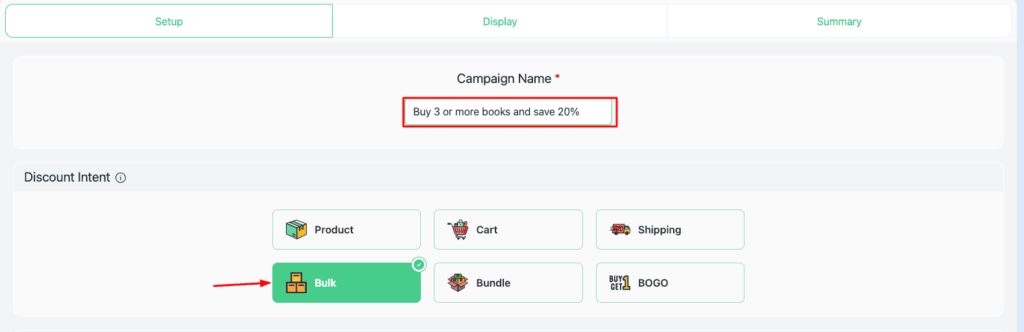
After entering your Campaign Name, select Bulk Discount as the discount type. This allows you to offer quantity-based discounts where savings increase as customers purchase more items.
Step 2: Select Products in the Filter Section
From the Filter section, choose All Products. This applies the bulk discount rule across your entire product catalog, allowing all products to qualify for the discount.

Step 3: Configure Bulk Discount Rules
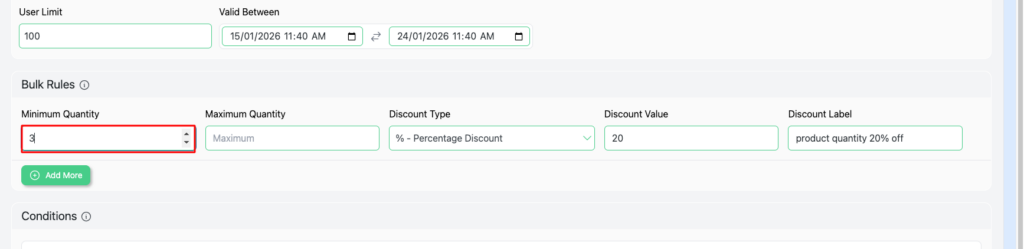
In the Bulk Rules section, set the Minimum Quantity to 1 and the Maximum Quantity to 1.
Choose Percentage Discount as the discount type, enter 20% as the discount value, and set the Discount Label to 20% Off.
This applies a 20% discount when the defined quantity conditions are met.
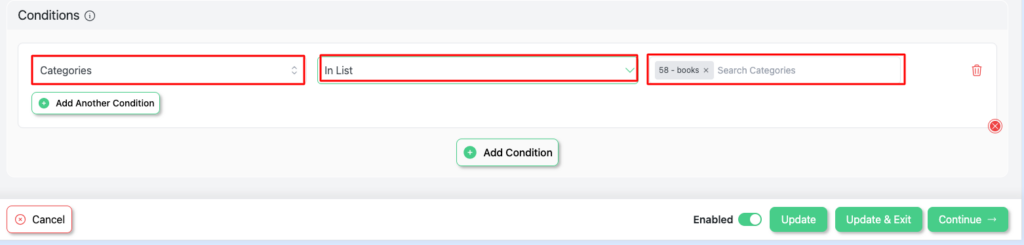
Step 4: Add Category Condition
In the Conditions section, set Categories → In List (Included) and select Books.
This ensures the bulk discount is applied only to products that belong to the Books category.
Step 5: Verify the Bulk Discount in the Shop
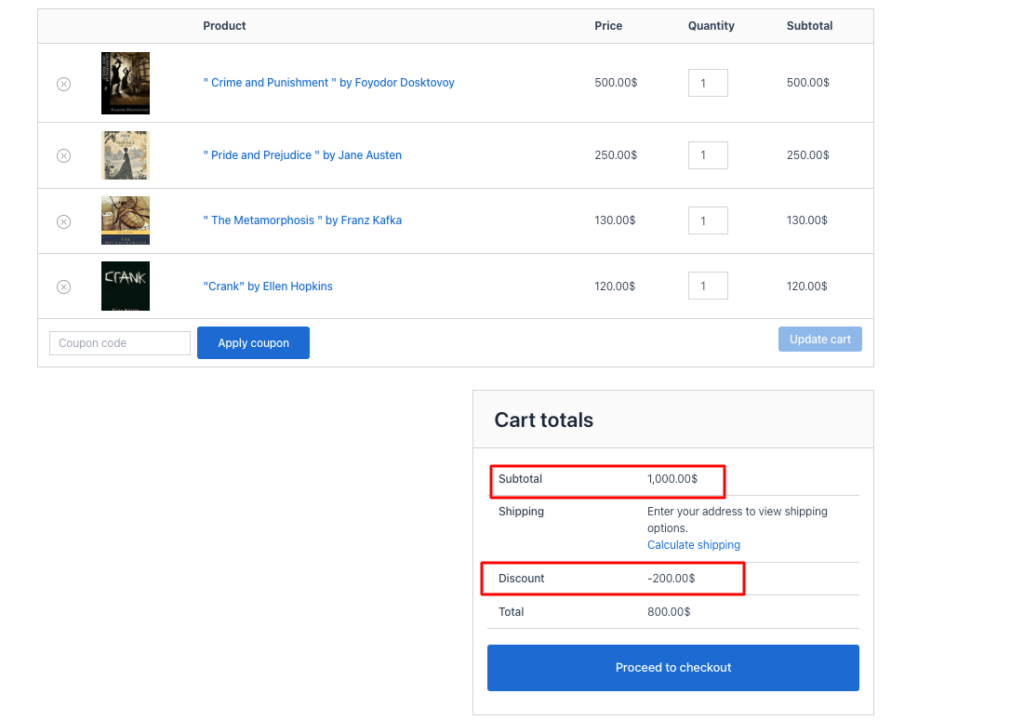
Visit your shop and browse products from the Books category. You’ll see the 20% Off bulk discount applied according to the promotion rules, confirming that the campaign is working as expected.
Dive into our detailed WooCommerce tutorial on“How to set up $10 Off for 5+ Units from Category A.”
How can I apply category-based discounts depending on the cart total?
Example 6: Get 10% discount on all “Gadgets” products when the cart total exceeds.
After following the steps from previous examples,
Step 1: Choose the Discount Intent
Select Cart-Based Intent as your discount intent. This allows you to apply discounts based on cart-level conditions such as subtotal, quantity, or specific product combinations.
Step 2: Select All Products
In the Filter section, choose All Products. This ensures the cart-based discount applies to the entire product catalog, regardless of which items are added to the cart.

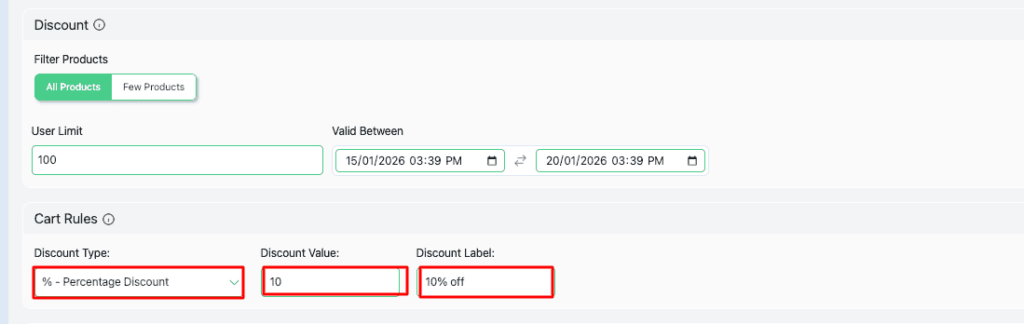
Step 3: Configure Cart Rules
In the Cart Rules section, set the Discount Type to Percentage Discount and enter the Discount Label as 10% Off. This defines how the cart-level discount will appear and be applied at checkout.
Step 4: Add Category Condition
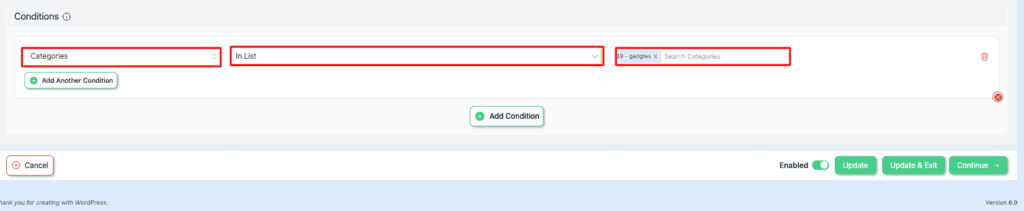
In the Conditions section, set Categories → In List and select Gadgets.
This ensures the 10% cart-based discount is applied only when products from the Gadgets category are added to the cart.
Step 5: Verify the Cart-Based Discount
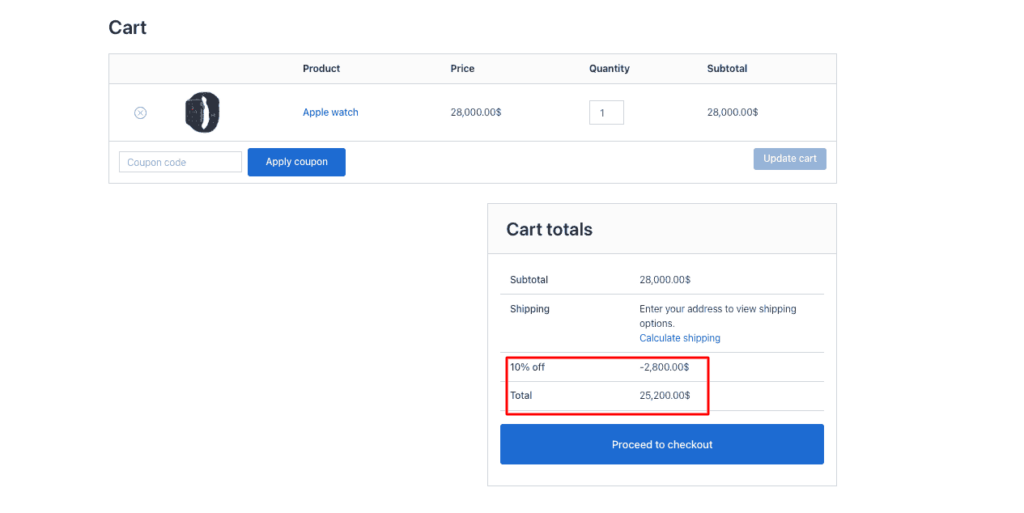
Visit your store and add a product from the Gadgets category to the cart. Review the cart or checkout page to confirm that the 10% Off cart-based discount is applied correctly.
Why should we apply category-specific discounts?
Unfortunately, the “All or Nothing” phenomenon does not work in business. Store-wide discount isn’t always the best strategy. As this might damage your profit margins, devalue your brand, and attract price-sensitive customers with low loyalty.
But here‘s what category-specific discounts can do :
- Targeted Marketing Campaign: Apply discounts only to the top underperforming categories. Like – “ Shoes ”, “ Electronics”. This will capture the attention of the customers to your desired products.
- Higher Average Order Value ( AOV): According to statistics, category-specific discounts with product bundling can increase 10-30% AOV.
- Inventory Clearance: Excess of inventory before seasonal promotion? Don’t worry, this method has you covered. It would clear out your slow-paced inventory in no time.
- Strengthened Customer Loyalty: Category-specific discounts can increase customer loyalty up to 43%
- Marketing Impact: Personalized Campaigns (e.g., Black Friday Electronics) can increase conversion up to 20-30%.
- Margin protection: It’s a smart strategy to protect margins and over-discounting products.
- SEO and Analytics Advantage: “ WooCommerce category discounts. ” Keywords like this might help optimize pages.
Best practices for an effective category discount campaign
- Use 30% threshold strategy: According to research studies conducted in 2026, it has been analyzed from consumer data that 30% has emerged as a powerful psychological trigger for customers.
- Define clear objectives: Stay proactive by planning for clearing old inventory, boosting average order value, driving sales to specific categories, and encouraging customers to cross-category purchases.
- Keep your message simple and clear: Design the offers so that the customers face no cognitive load grasping the offer. Such as “ 20% Off all clothes.”
- Add urgency: Create time-limited offers to create FOMO (Fear of Missing out) amongcustomers.
- Increase AOV with tiered category discounts: Gamifying the shopping experience could be the reason to drive a 20-30% increase in AOV.
- Use Early Bird flash sales for a specific category: Targeting specific timing by observing your customers could be a great strategy for boosting conversions.
- Monitor product margins: Avoid over-discounting your products to protect your margins.
Wrap up
Transform stagnant inventory to powerful revenue engines. Master the strategies for creating versatile category discounts for your online store for better results. Stick to the law of proving customer value while protecting margins.
FAQs
Can I apply a discount to only one product category in WooCommerce?
Yes, indeed. WooCommerce allows you to create a specific category discount from your own choosing, either through the limited features of coupons or the discount rules plugin.
Does WooCommerce support category-based discounts without plugins?
Unfortunately, WooCommerce’s built-in systems only allow basic category-based discounts. Options include a percentage or a fixed discount. For more advanced features, upgrade to a dynamic pricing plugin like Disco.
What’s the difference between category-specific and product-specific discounts?
Product-specific discounts refer to individual products or SKUs. Conversely, category-specific discounts refer to all products within a selected category.
Can I create a BOGO deal for a specific product category?
Yes, as long as category discount rules are followed. You can create BOGO deals, such as “ Buy 1 T-Shirt, Get 1 T-shirt free.”
Do category-based discounts affect SEO or site performance?
It does affect indirectly, such as enhancing user management, boosting conversions, and driving traffic to the optimized category page.