
disco logo
  • Features
  • Pricing
  • Compare
  • Resources
    • Blog
    • Documentation
    • Changelog
    • Contact/Support
    • Disco Community
Login Get Disco Pro

Getting Started

1
  • Installation Process of Disco Plugin (PRO And Free)

Product Intent Discounts

4
  • Set Up Product Intent Discounts
  • Example 1: $20 Off All ‘Men’ Category Products
  • Example 2: 5% Off Product X for a Limited Time
  • Example 3: Flat $50 Off on Products Over $500

Cart-Intent Discounts

4
  • Set up Cart Intent Discounts using Disco Plugin
  • Example 1: 20% Cart Discount on Selected Categories
  • Example 2: Offer 10% Cart Discount for 10+ Items (Cart Quantity)
  • Example 3 : Offer $10 Off Product X When Cart Has 3+ Items (In Stock)

Free Shipping Discount

4
  • Set Up Free Shipping with DIsco Plugin
  • Example 1: Free Shipping for Location ‘X’ Customers
  • Example 2: Free Shipping on Category “A” Products
  • Example 3: Free Shipping on Specific Product During Promotion

Bulk Intent Discount

4
  • Set Up Bulk Intent Discount with Disco Plugin
  • Example 1: Bulk Percentage Discounts on All Products by Quantity
  • Example 2: Offer 5% Bulk Discount on Product X for 3+ Units (October Only)
  • Example 3: Offer $10 Off on 5+ Units from Category ‘A’

Bundle Discount

1
  • Set Up Bundle Discount with Disco Plugin

Campaign Setup

6
  • Product Rules Explain with Example
  • Bundle Rules Explain with Example
  • Bulk Rules Explain with Example
  • Cart Rules Explain with Example
  • Discount Rules (Filter Products, User Limit, Valid Between, Discount Label)
  • Discount Intent

Conditions

9
  • Items Count (Entire Cart) vs Item Count 
  • Set Up Discounts According to Product Stock Quantity in WooCommerce
  • Apply Discounts on Selected Categories in WooCommerce 
  • Create a Discount on a Specific Product Attribute in WooCommerce
  • Set Up Discounts by Brand in WooCommerce with Disco Plugin
  • Tax and Shipping Based Discount Conditions
  • Price Based Discount Conditions
  • Product Attributes Based Discount Condition
  • Product/Cart Item Based Discount Conditions

Ticket Solutions

1
  • Discount Applies but No Visual Badge or Offer Displayed

BOGO

5
  • Buy X Product, Get Y Product at a Discounted Price
  • Buy X, Get Y Free (Different Product)
  • Buy X from Category A & Get Y from Category B
  • Set Up BOGO Discount (Buy 1 T-Shirt, Get 1 T-Shirt Free)
  • Buy X Get X at Discount (Buy 3 Coffee Mugs, Get 3rd One 50% Off)

Campaign Display

3
  • Display Product Badge in WooCommerce
  • Display Bundle Discount Table in WooCommerce 
  • Display Bulk Discount Table in WooCommerce
View Categories
  • Home
  • Documentation
  • Cart-Intent Discounts
  • Example 1: 20% Cart Discount on Selected Categories

Example 1: 20% Cart Discount on Selected Categories

< 1 min read

In this case, a 20% discount will be applied to products from specific categories. When customers add items from these categories to their cart, the discount is automatically applied at checkout.

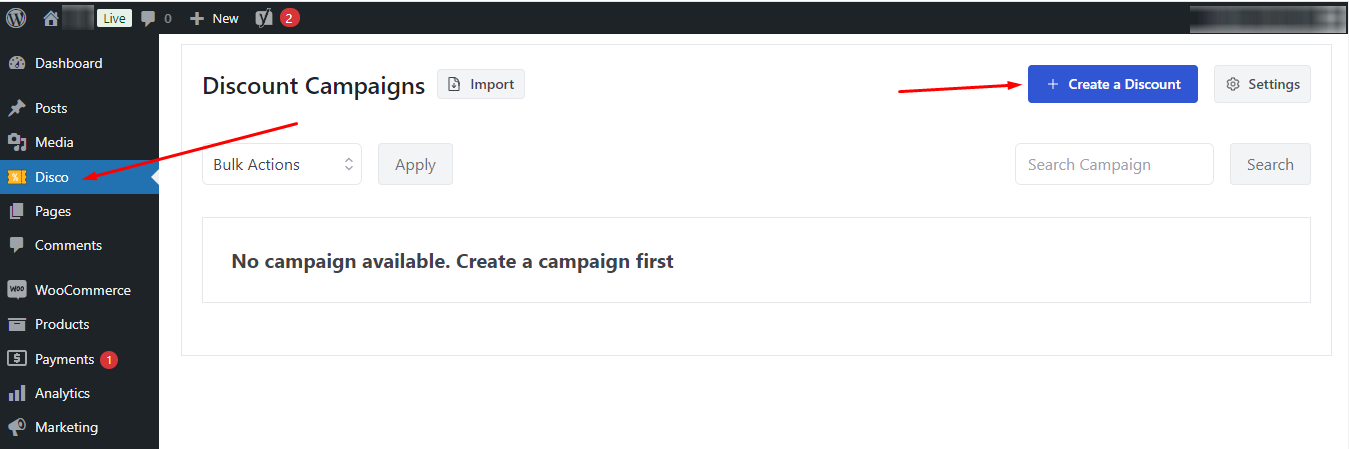
Step 1: On the Left side of your WordPress Panel you will find the ‘Disco’ menu. Click on it and select ‘Create a Discount’. 
AD 4nXc2H2L QRT8 7Dx5BYLMnpa4h163YGD5f21qYvJW1x4EmAk ndTz9HolyJ49ZSvfeJfo PrlYZ1UJa46pmV6AzLu 96z8heW

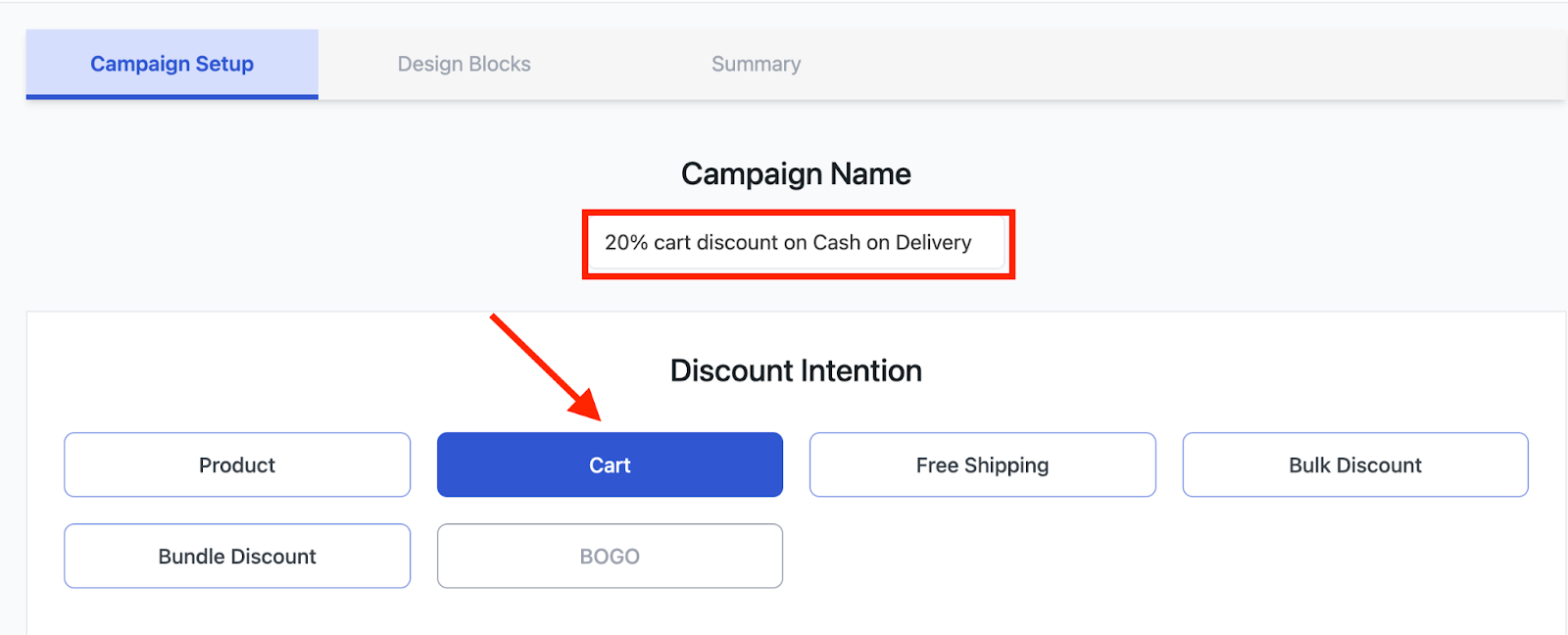
Step 2: It will take you to a new fresh window where you can set up different discount campaigns. So, give your discount campaign a name and choose the discount intention as a Cart. 
AD 4nXeEgVp9h1ofgTl35 8FYSwRaJTTsuYU2bls

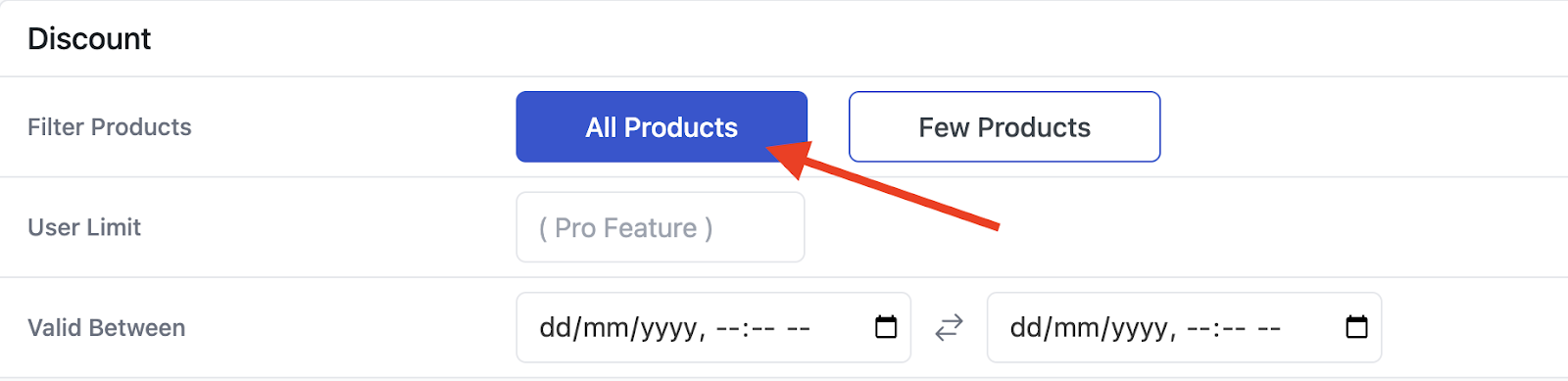
Step 3: Under the Discount tab, select All Products for now(we will select the specific category under the condition section later on). 
AD 4nXdcDzPNR0MsndOhygsVHWKKc BGt50ezeG7A7Lpi9ahkTZi92fqJEpswpucxisOwW2L74ih8wEjZGhvPbqGck4AwiCplgD7nlsjGGIGb300y4xeBxRlD3zY1ictDd7kZ7gi

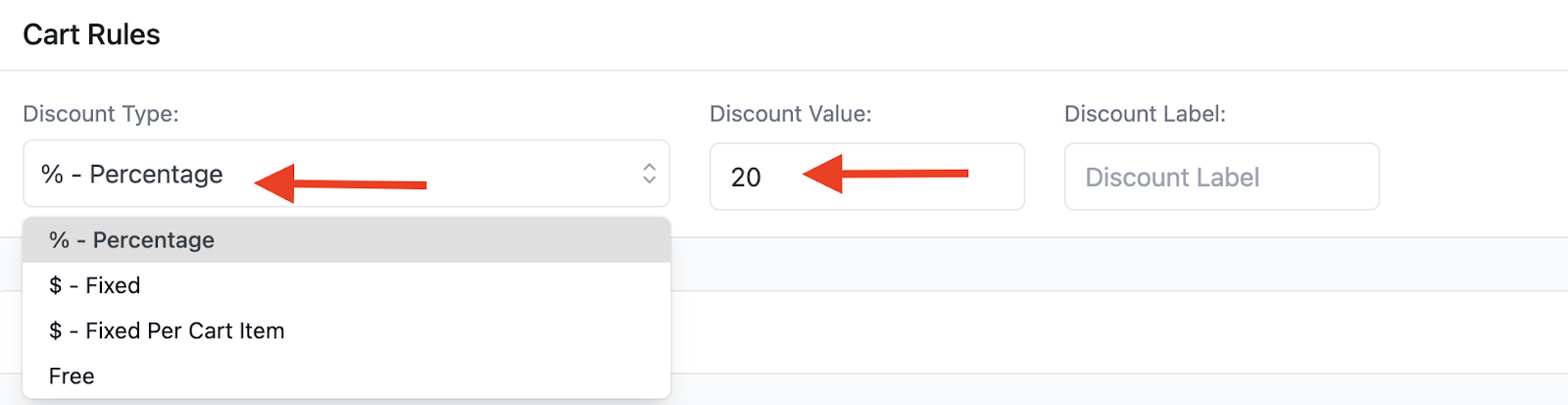
Step 4: Go to the Cart Rules section, select discount type as a percentage, and enter 20 in the value box.
AD 4nXcogOSo0E7tcUNbUTP8NYeaxgurLUfTDLR0n70ON15XYsQzJ561xs Yy9fFwJpAyQDpTJv

Step 5:  Go down below and from the “Conditions” section, click on “Add  Condition”. 

AD 4nXe NyiB1Yul6g 5A3JUdpIda82 PkycRNi4niaRk9aZAAfFQvi tMLO99lUZ1IMMrdc

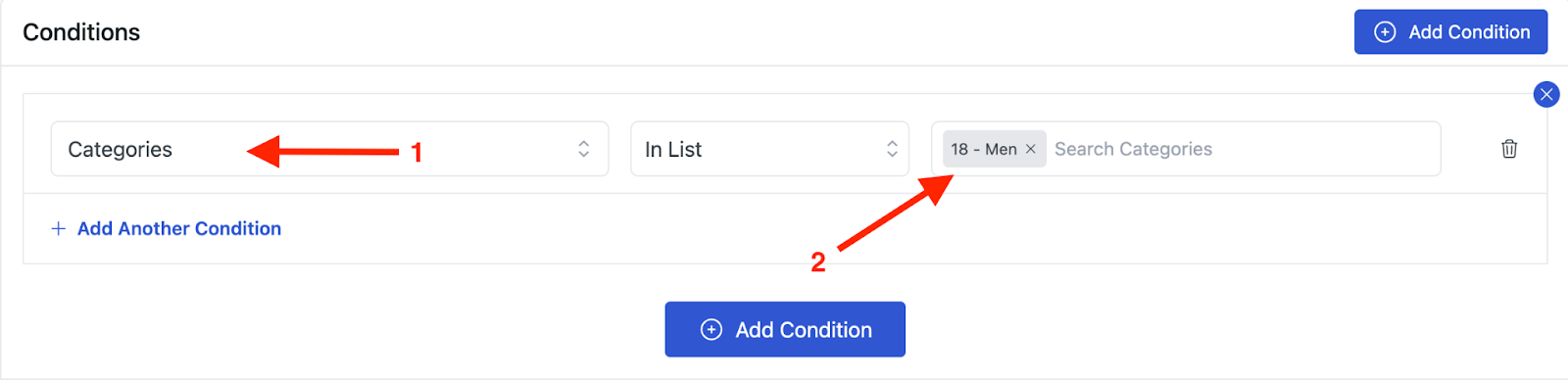
Step 6: Then Select the “Categories” filter and choose your Category.
AD 4nXcKjvuXIm EtVQ2Qp7h9TwyInCEPpH7keX0wYFlkuEvtGfbDGAflGRW9UY49MXyKvj2B9fawK9w

Step 7: For the final step, click on “Save & Exit” to start your Discount campaign. 

AD 4nXcBcDTmCluFV9fWz9U3rSBRMdqYTnqRKdFcXQzZDr0JUv1Am2h YO4oUNtBi9HUEthxqis0sqlYM7m MFybVKMEdEzSrw ylApk1XqkT0lt5KjvRnRm w8zO1gLOt6Kvw9Pat6Jp61dC

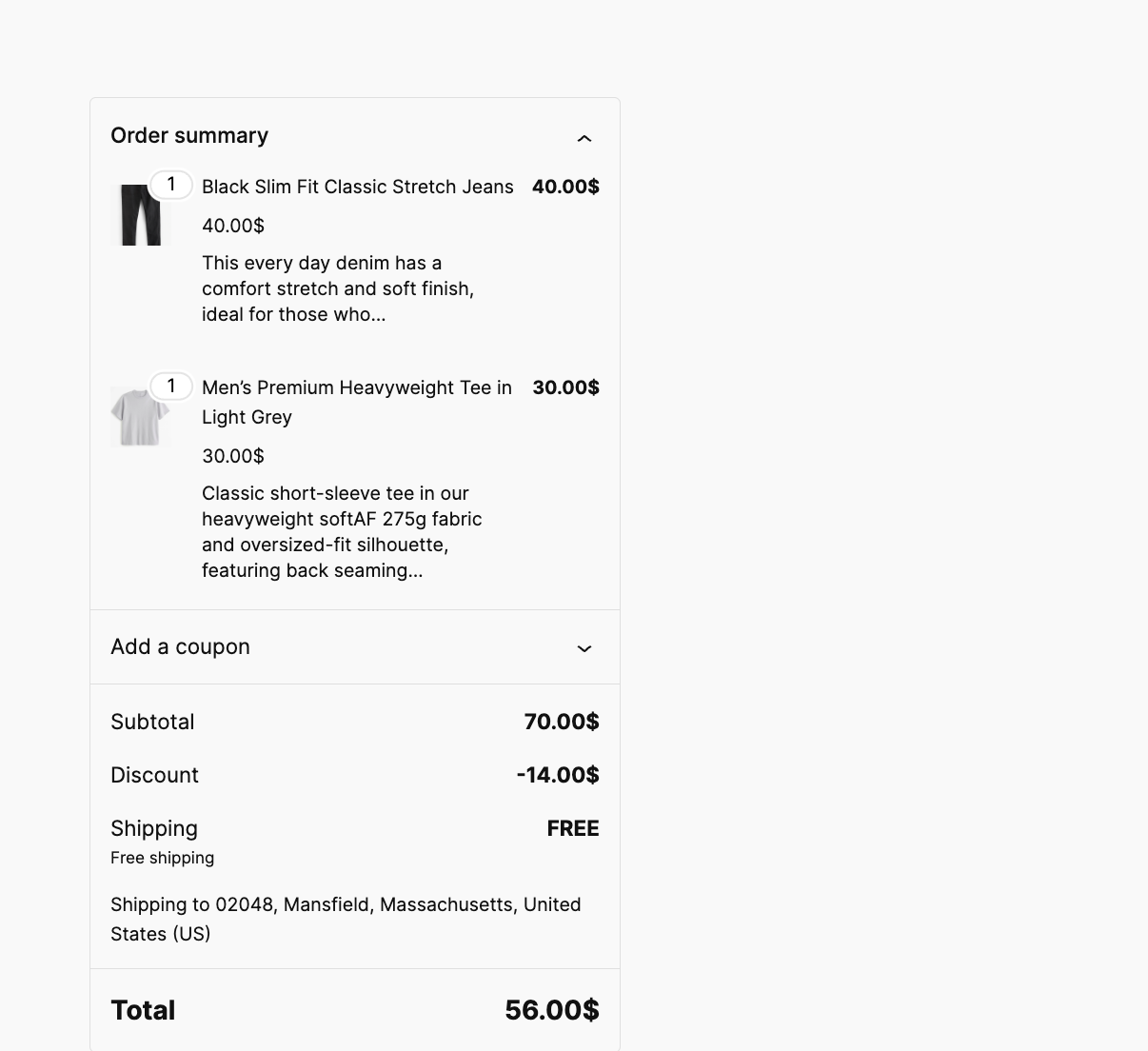
Now, whenever the customers select products from the “Men” category in their cart, a flat 20% discount will be applied. 
AD 4nXd5S 0wwzTR WThcdW5sU7p3D5WhFVTr3efZuFYVoaSur6B07akgZl9jXoFiZaiH z2w2VXTn3

What are your Feelings

  • Happy
  • Normal
  • Sad

Share This Article :

  • Facebook
  • X
  • LinkedIn
  • Pinterest
Set up Cart Intent Discounts using Disco PluginExample 2: Offer 10% Cart Discount for 10+ Items (Cart Quantity)

Leave a Comment Cancel Reply

disco logo

The best WooCommerce discount plugin for BOGO deals, bulk discounts, tiered pricing, user role pricing, and dynamic pricing rules.

Product

  • Features
  • Pricing
  • Free vs Pro
  • Documentation

Resources

  • Blog
  • Tutorials
  • FAQ
  • Changelog

Company

  • About WebAppick
  • Support
  • Feature Request
  • Disco Community

© 2026 Disco by WebAppick. All rights reserved.