This guide will explain how to use the Disco plugin’s “Tax and Shipping” conditions and offer different discounts.
1. Tax Class Based Condition #
The Tax Class condition allows you to apply discounts based on the tax classification assigned to your products.
In WooCommerce, tax classes help categorize products under different tax rules, such as Standard, Reduced Rate, or Zero Rate.
This condition is useful for tailoring discounts based on tax policies or offering promotions on tax-exempt or lower-taxed items.
Let’s offer a $10 discount on products under the Standard Rate Tax class.
Once you set up a fixed 10 USD discount, go to the Conditions section and follow these steps:
- Choose “Tax Class” as the filter.
- Set the method to “Contain”.
- Input the Keyword “Standard”.
- Save it.
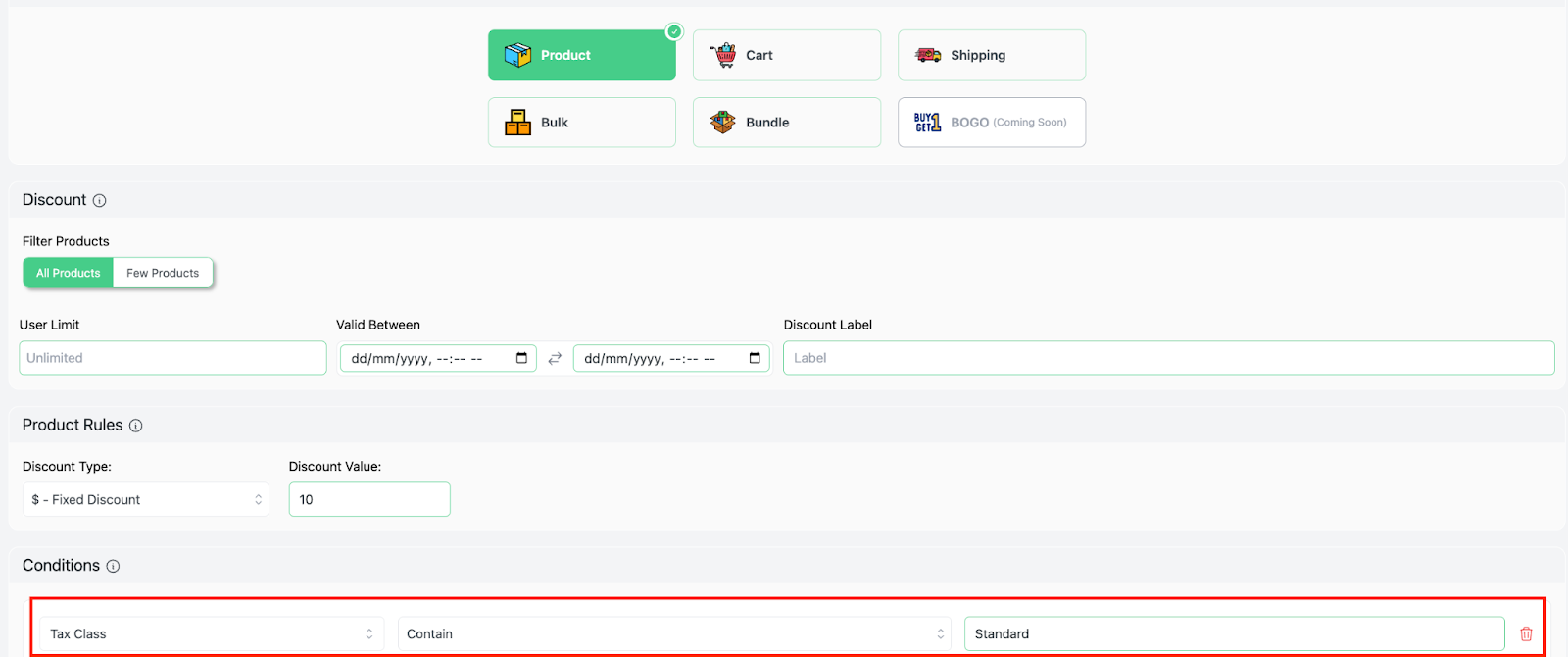
This setup ensures that the discount applies only to products categorized under the Standard Rate tax class.
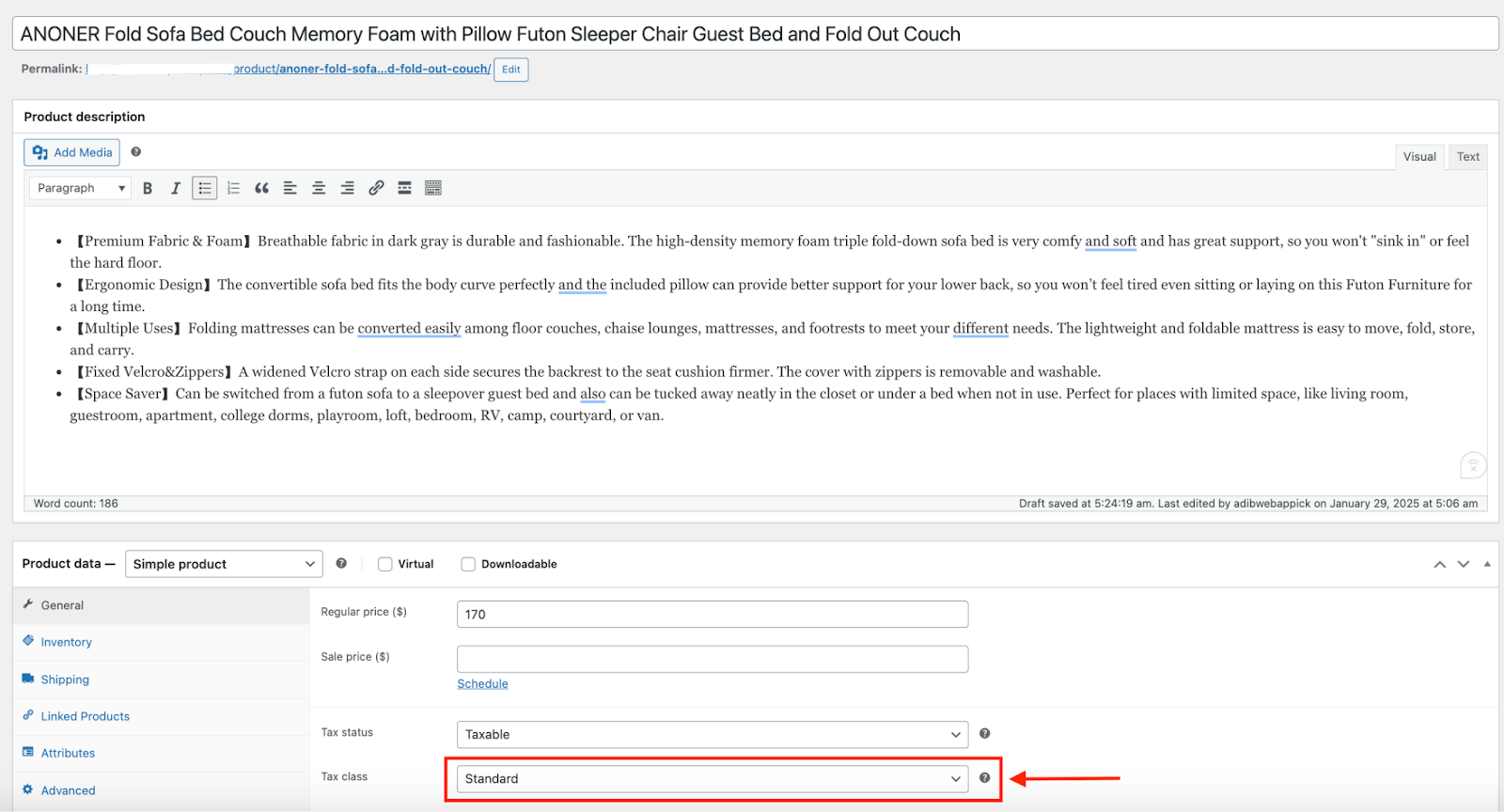
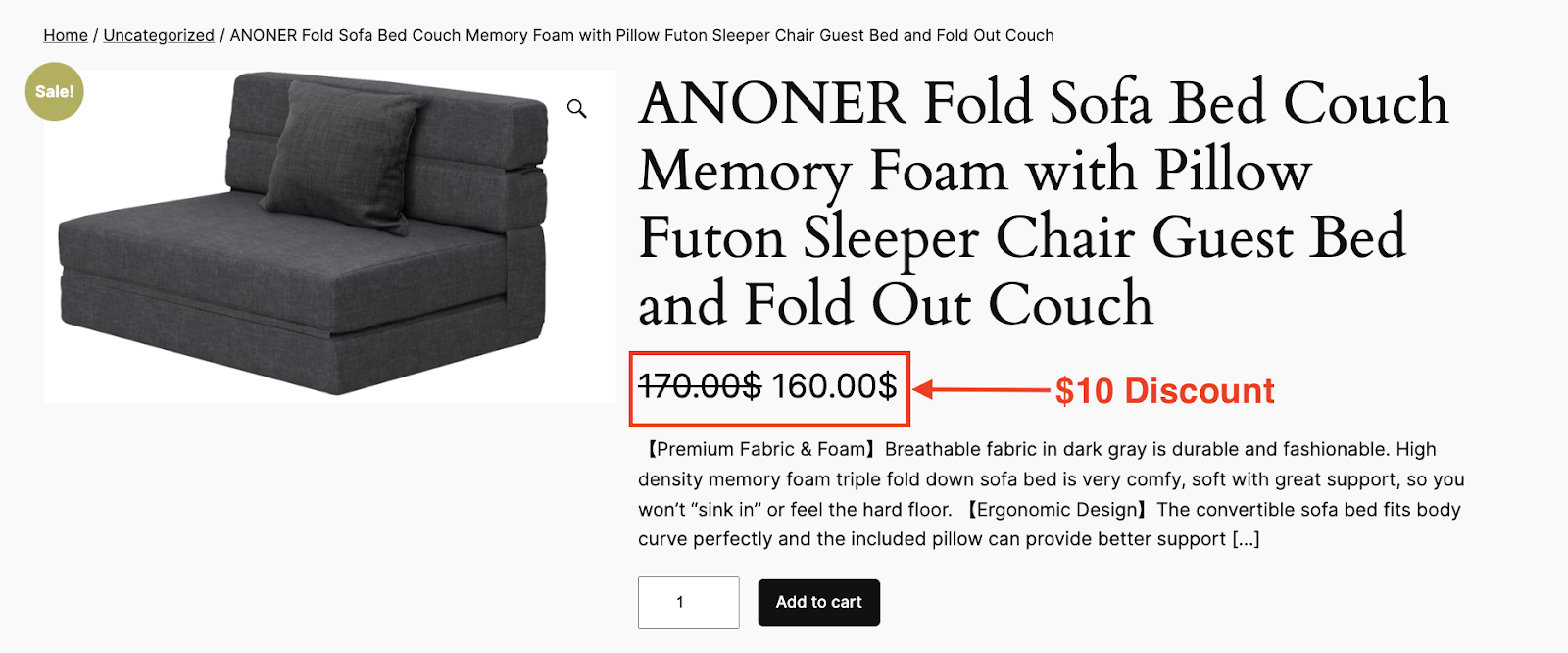
Here, our store sells furniture at the standard tax rate and if a product like “ANONER Fold Sofa Bed’ Winter Jacket” (priced at $170) falls under this tax class, it will receive a $10 discount, reducing the price to $160.
2. Tax Status Based Condition #
You can apply discounts based on whether a product is taxable or non-taxable using the Tax Status condition.
In WooCommerce, every product is assigned a tax status, which determines if taxes are applied during checkout. The available options are:
- Taxable – Standard products that are subject to tax.
- Shipping Only – Products that don’t have tax but may have taxable shipping charges.
- None – Fully tax-exempt products that do not incur any tax.
This condition is useful if you want to create tax-aware promotions, such as offering discounts specifically for tax-exempt products or products that are normally taxed.
Here’s an Example:
Let’s offer a 12% discount on all taxable products.
So, choose “All Products” and then set up a 12% discount. Go to the Conditions section and follow these steps:
- Choose “Tax Status” as the filter.
- Choose the method “Contain”.
- Input “Taxable” as the value.
- Save it.
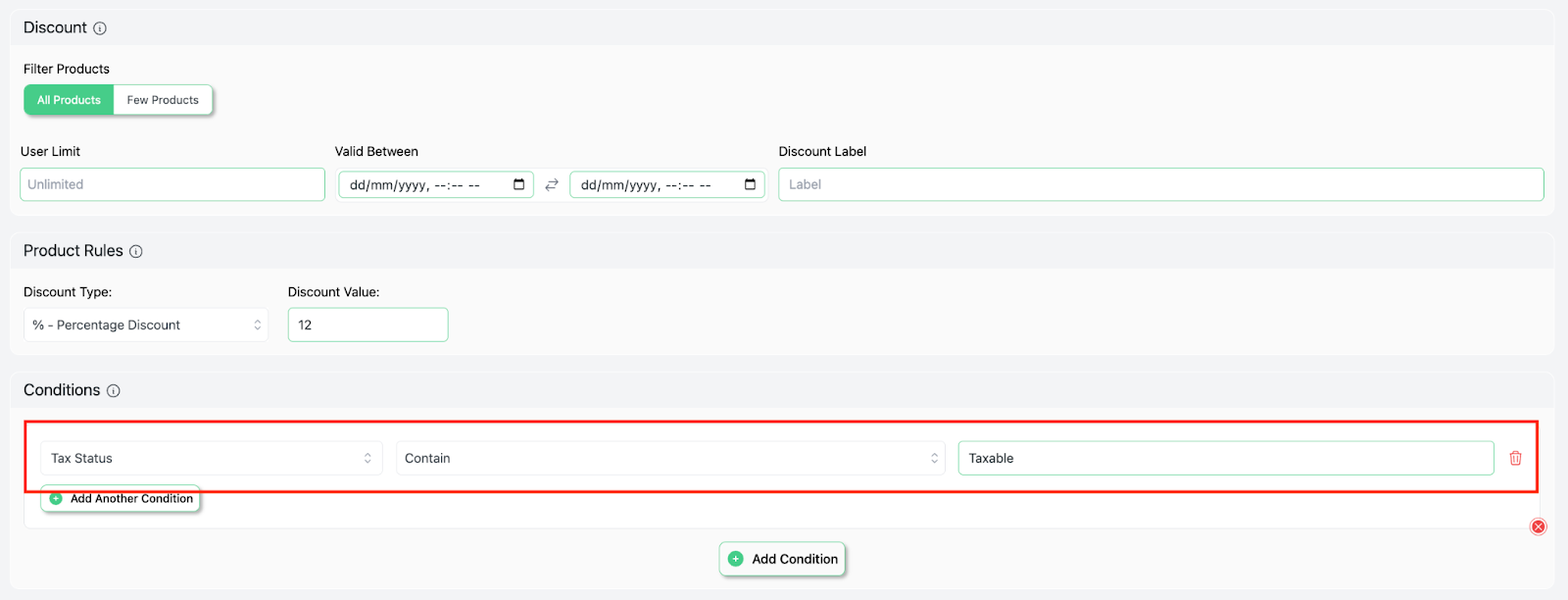
This setup ensures that the discount applies only to products that are taxable.
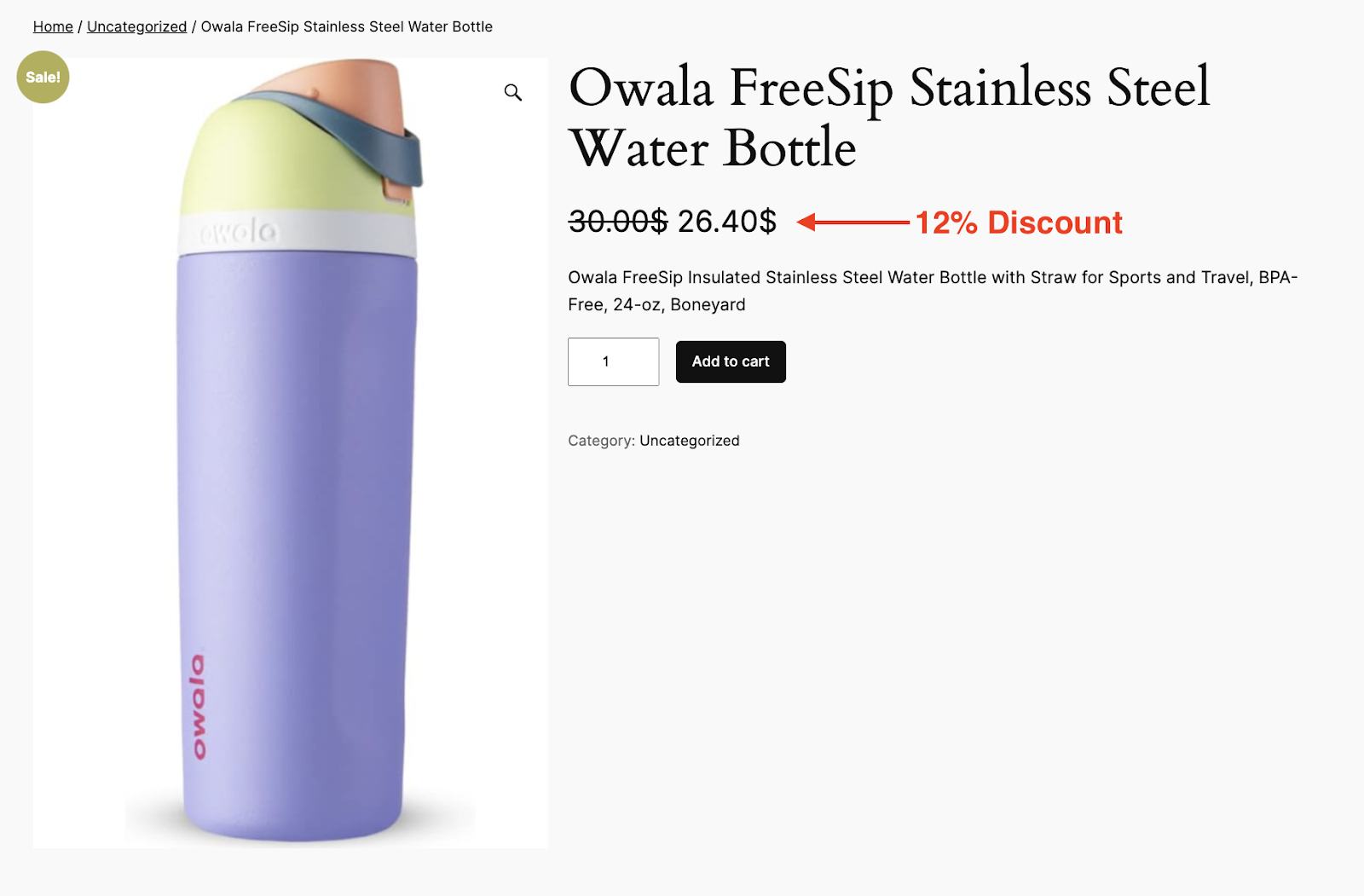
An “Owala FreeSip Stainless Steel Water Bottle” (priced at $30) that falls under the Taxable tax status.

So, it will now receive a 12% discount, reducing the price to $26.40.
3. Shipping Class Based Condition #
If you want to apply discounts based on the shipping classifications assigned to products, then the Shipping Class condition is for you.
In WooCommerce, shipping classes help categorize products with similar shipping rules, such as Standard or Heavy Shipping classes. This condition is useful for offering targeted discounts based on how a product is shipped.
For Instance:
Let’s offer a fixed $20 discount on products that belong to the Heavy Shipping Eligible class.
Once you set up a $20 discount, go to the Conditions section and follow these steps:
- Choose “Shipping Class” as the filter.
- Set the method to “Contain“.
- Input the keyword “Heavy” as the value.
- Save it.
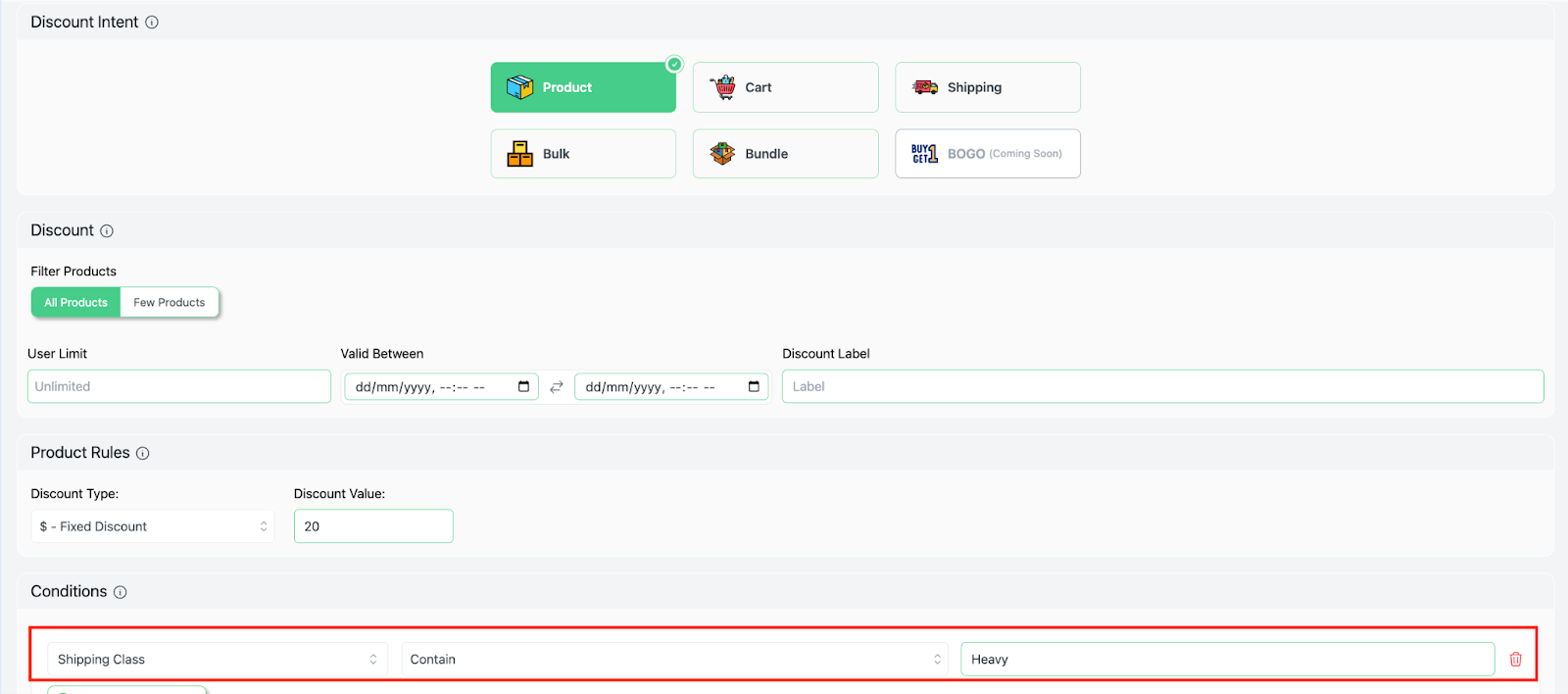
This setup ensures that the discount applies only to products classified as eligible for Heavy shipping classes.
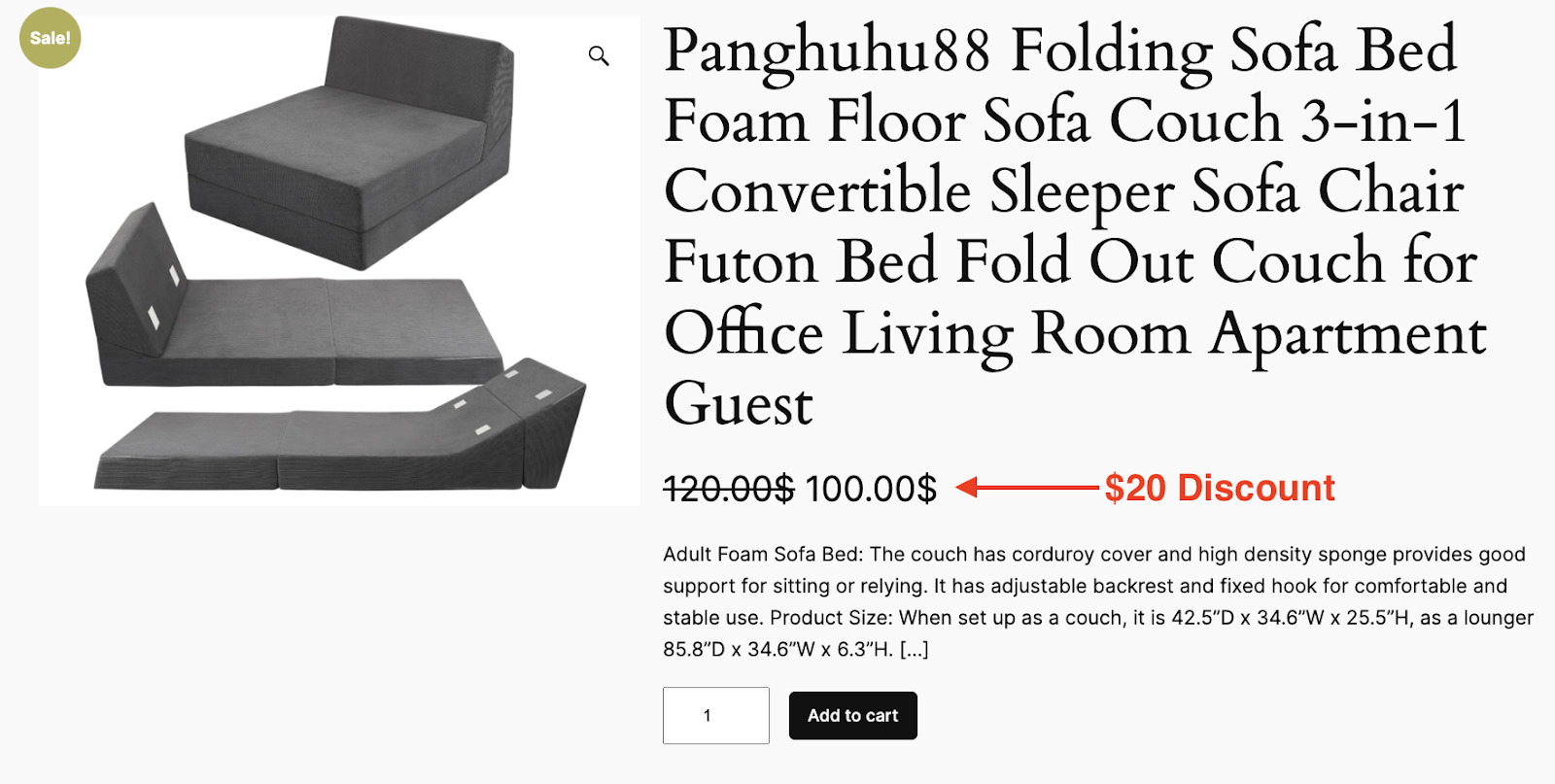
Now, our product “Panghuhu88 Folding Sofa Bed” falls under the ‘Heavy’ shipping class.
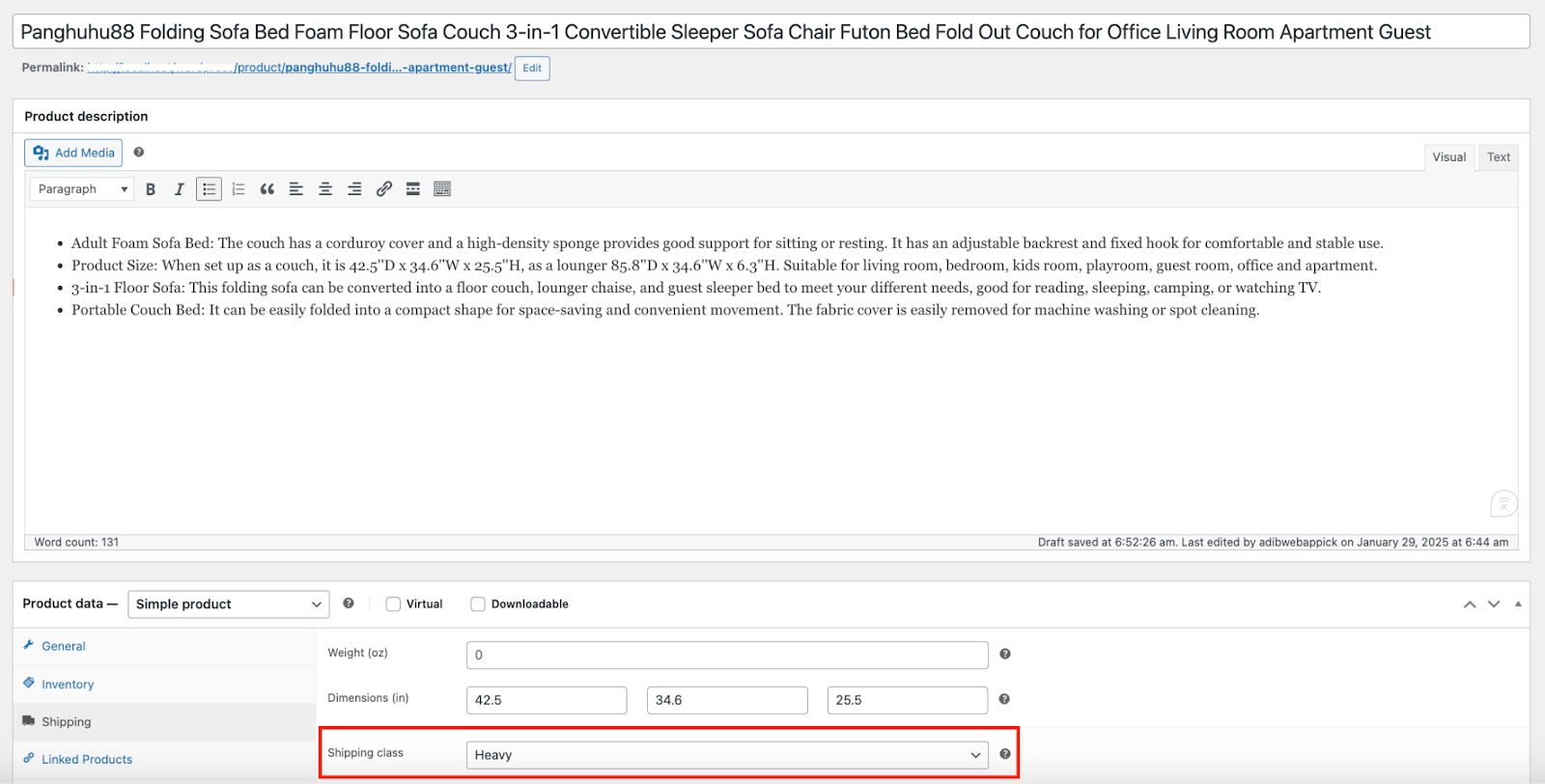
Therefore, it will get a $20 discount and the price will come down to $100 from $120.