The WooCommerce “Sale” badge is the label that appears on product cards (shop page, category page, product page) when a product has a discounted price.
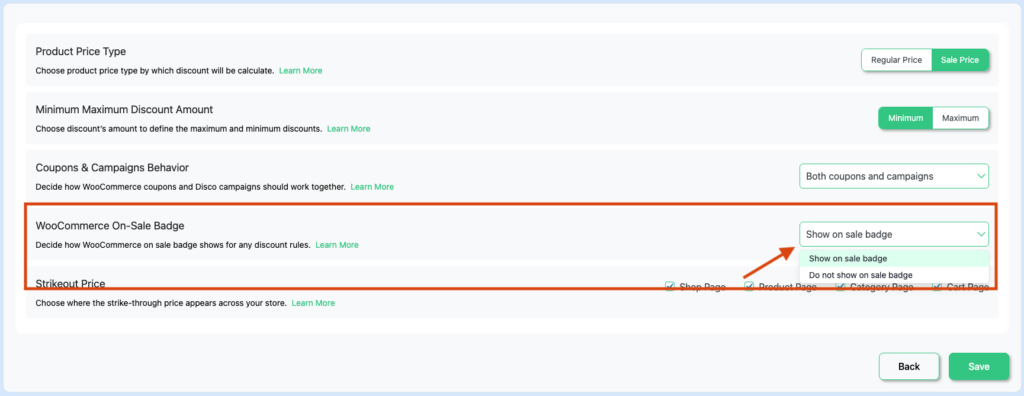
This setting controls whether that badge is shown when Disco campaigns are active.
How to Change It #
- Go to Disco → Settings
- Find WooCommerce On-Sale Badge
- Select an option from the dropdown
- Click Save
Options #
| Option | What It Does | Notes |
| Show on sale badge | The “Sale” badge is shown on any product whose current price is lower than its regular price — whether the discount comes from a WooCommerce sale price or a Disco campaign. | Default setting. |
| Do not show on sale badge | The “Sale” badge is always hidden — on every product, on every page, even if the product has a WooCommerce native sale price or an active Disco campaign discount. | Use this if you don’t want the “Sale” badge to appear anywhere in your store. |
📌 The default is “Show on sale badge”. If you have never changed this setting, the Sale badge appears on any product that has a lower current price than its regular price.
Show on Sale Badge #
The “Sale” badge appears on a product when its current price is lower than its regular price. This includes:
- Products with a WooCommerce native sale price set
- Products discounted by an active Disco campaign
For variable products, the badge appears if any purchasable variation has a discounted price.
Do Not Show on Sale Badge #
The “Sale” badge is hidden across your entire store. It will not appear on any product — even if the product has a WooCommerce native sale price or is being discounted by an active Disco campaign.
⚠️ This option hides the Sale badge completely — including for products that have a WooCommerce sale price set directly on the product, not just Disco campaign discounts.
📌 Note: This setting only controls the Sale badge visibility. It does not affect whether the discounted price itself is shown or applied.


