When Disco applies a discount to a product, it can show the original price with a strikethrough next to the new discounted price — for example:
$100.00 $80.00
This setting lets you choose which pages of your store show this strikethrough price. You can turn it on or off individually for each page type using checkboxes.
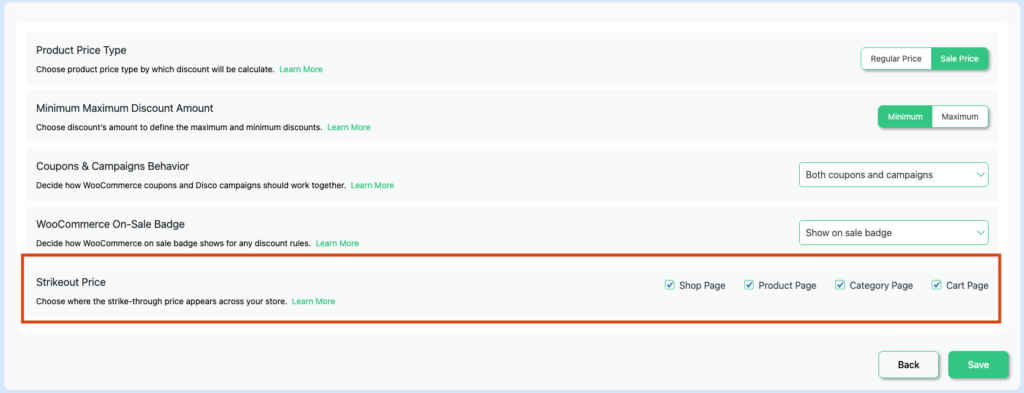
How to Change It ? #
- Go to Disco → Settings
- Find Strikeout Price
- Check or uncheck each page type as needed
- Click Save
📌 All four checkboxes are checked by default — the strikethrough price is shown on all pages when Disco is first installed.
Page Options #
| Checkbox | Where It Applies | Default |
| Shop Page | The main store/shop listing page. | Checked by default |
| Product Page | The single product detail page. | Checked by default |
| Category Page | Product category and product tag pages. | Checked by default |
| Cart Page | The cart page and the checkout page. | Checked by default |
📌 Note: The Cart Page checkbox also applies to the checkout page — both are treated as the same page type.
Checked vs Unchecked #
Checked — the strikethrough price is shown on that page. The original price appears crossed out next to the discounted price.
Unchecked — only the discounted price is shown on that page. The original price is hidden — no strikethrough.
📌 Note: Unchecking a page only hides the strikethrough display. The discount is still applied — the shopper still pays the discounted price.


