disco logo
  • Features
  • Pricing
  • Compare
  • Resources
    • Blog
    • Documentation
    • Changelog
    • Contact/Support
    • Disco Community
Login Get Disco Pro

Getting Started

1
  • Installation Process of Disco Plugin (PRO And Free)

Product Intent Discounts

4
  • Set Up Product Intent Discounts
  • Example 1: $20 Off All ‘Men’ Category Products
  • Example 2: 5% Off Product X for a Limited Time
  • Example 3: Flat $50 Off on Products Over $500

Cart-Intent Discounts

4
  • Set up Cart Intent Discounts using Disco Plugin
  • Example 1: 20% Cart Discount on Selected Categories
  • Example 2: Offer 10% Cart Discount for 10+ Items (Cart Quantity)
  • Example 3 : Offer $10 Off Product X When Cart Has 3+ Items (In Stock)

Free Shipping Discount

4
  • Set Up Free Shipping with DIsco Plugin
  • Example 1: Free Shipping for Location ‘X’ Customers
  • Example 2: Free Shipping on Category “A” Products
  • Example 3: Free Shipping on Specific Product During Promotion

Bulk Intent Discount

4
  • Set Up Bulk Intent Discount with Disco Plugin
  • Example 1: Bulk Percentage Discounts on All Products by Quantity
  • Example 2: Offer 5% Bulk Discount on Product X for 3+ Units (October Only)
  • Example 3: Offer $10 Off on 5+ Units from Category ‘A’

Bundle Discount

1
  • Set Up Bundle Discount with Disco Plugin

Campaign Setup

6
  • Product Rules Explain with Example
  • Bundle Rules Explain with Example
  • Bulk Rules Explain with Example
  • Cart Rules Explain with Example
  • Discount Rules (Filter Products, User Limit, Valid Between, Discount Label)
  • Discount Intent

Conditions

9
  • Items Count (Entire Cart) vs Item Count 
  • Set Up Discounts According to Product Stock Quantity in WooCommerce
  • Apply Discounts on Selected Categories in WooCommerce 
  • Create a Discount on a Specific Product Attribute in WooCommerce
  • Set Up Discounts by Brand in WooCommerce with Disco Plugin
  • Tax and Shipping Based Discount Conditions
  • Price Based Discount Conditions
  • Product Attributes Based Discount Condition
  • Product/Cart Item Based Discount Conditions

Ticket Solutions

1
  • Discount Applies but No Visual Badge or Offer Displayed

BOGO

5
  • Buy X Product, Get Y Product at a Discounted Price
  • Buy X, Get Y Free (Different Product)
  • Buy X from Category A & Get Y from Category B
  • Set Up BOGO Discount (Buy 1 T-Shirt, Get 1 T-Shirt Free)
  • Buy X Get X at Discount (Buy 3 Coffee Mugs, Get 3rd One 50% Off)

Campaign Display

6
  • Display Text Highlight in WooCommerce
  • Display Countdown Timer in WooCommerce
  • Display Cart Notice in WooCommerce
  • Display Product Badge in WooCommerce
  • Display Bundle Discount Table in WooCommerce 
  • Display Bulk Discount Table in WooCommerce

Compatible Plugins

5
  • CURCY – Multi Currency for WooCommerce
  • FOX – Currency Switcher (WOOCS)
  • WPML + WooCommerce Multilingual
  • Aelia Currency Switcher
  • ACF – Advanced Custom Fields

Settings

5
  • Product Price Type – Settings
  • Minimum Maximum Discount Amount – Settings
  • Coupons & Campaigns Behavior – Settings
  • WooCommerce On-Sale Badge – Settings
  • Strikeout Price
View Categories
  • Home
  • Documentation
  • Settings
  • Minimum Maximum Discount Amount – Settings

Minimum Maximum Discount Amount – Settings

1 min read

Sometimes a product matches more than one active campaign at the same time. When that happens, Disco needs to decide which discount to apply. This setting controls that decision.
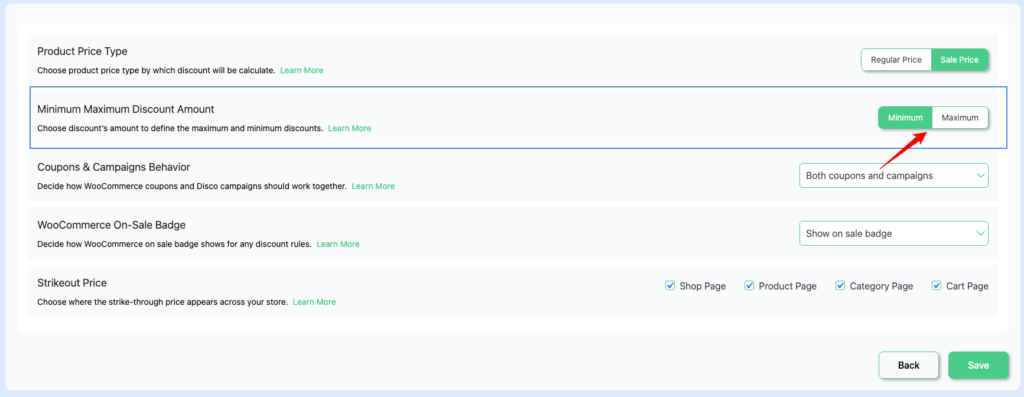
Minimum Maximum Discount Amount
  • Minimum — apply the smaller discount  (default)
  • Maximum — apply the larger discount

How to Change It #

  • Go to Disco → Settings
  • Find Minimum Maximum Discount Amount
  • Select Minimum or Maximum
  • Click Save

Example #

You have two Product intent campaigns running at the same time:

  • Campaign A — 20% off all products
  • Campaign B — 30% off the T-shirts category only

A shopper visits a T-shirt product page. Both campaigns match this product.

  • Minimum selected → shopper gets 20% off
  • Maximum selected → shopper gets 30% off

For any other product (not a T-shirt), only Campaign A matches, so 20% off is applied regardless of this setting.

Important: Same Intent Campaign Type Only #

This setting only works when both campaigns are the same intent type – for example, two Product intent campaigns, or two Cart intent campaigns.

It does not work across different campaign types. For example:

  • Campaign A — Product campaign, 50% off
  • Campaign B — Cart campaign, 70% off

Even if you set Minimum, Disco will not compare these two — they are different intent campaign types and always run independently. The Minimum / Maximum setting has no effect between them.

📌 In short: Minimum / Maximum only decides between two or more campaigns of the same intent that both match the same product. Different intent campaign types always apply separately.

What are your Feelings

  • Happy
  • Normal
  • Sad

Share This Article :

  • Facebook
  • X
  • LinkedIn
  • Pinterest
Product Price Type – SettingsCoupons & Campaigns Behavior – Settings

Leave a Comment Cancel Reply

Table of Contents
  • How to Change It
  • Example
  • Important: Same Intent Campaign Type Only
disco logo

The best WooCommerce discount plugin for BOGO deals, bulk discounts, tiered pricing, user role pricing, and dynamic pricing rules.

Product

  • Features
  • Pricing
  • Free vs Pro
  • Documentation

Resources

  • Blog
  • Tutorials
  • FAQ
  • Changelog

Company

  • About
  • Support
  • Feature Request
  • Disco Community

© 2026 Disco by WebAppick. All rights reserved.