Product price type (available in free and pro) tells Disco which price to use as the base when calculating discounts. Every product in WooCommerce has a Regular Price.
Some also have a Sale Price – the reduced price shown with a strikethrough. Disco needs to know which one to start from.
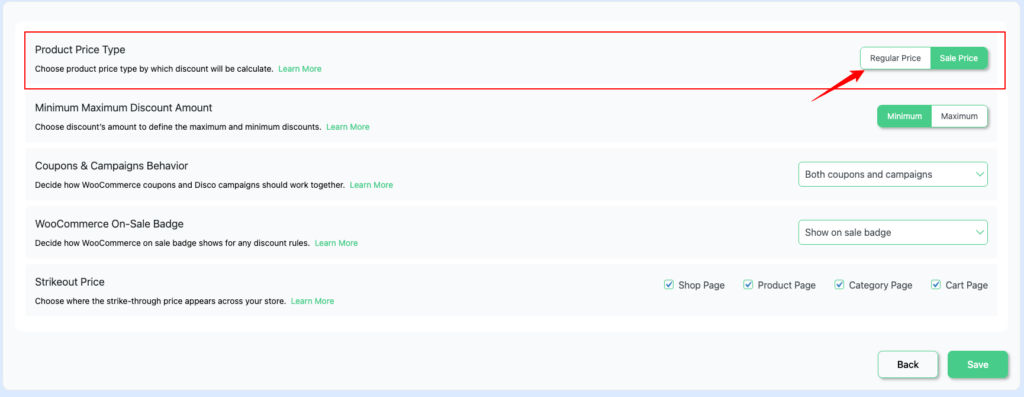
The Two Options #
| Regular Price | Disco calculates the discount against the original full price of the product – the “Regular price” field in WooCommerce. This is the most common choice. |
| Sale Price | Disco calculates the discount against the sale price already set on the product in WooCommerce. Use this to stack a Disco discount on top of an existing sale. |
Note: If a product does not have a WooCommerce sale price set, Disco will automatically fall back and calculate the discount from its Regular Price instead.
How It Works? #
A product has a Regular Price of $100 and a Sale Price of $80. You create a Disco campaign with 10% off.
| Setting | Base Price | Customer Pays |
|---|---|---|
| Regular Price | $100 | $90 (10% off $100) |
| Sale Price | $80 | $72 (10% off $80) |
Examples: #
Regular Price: You run a clothing store with a weekend flash sale: 20% off everything. Your products only have a Regular Price set ($50 each). Disco applies 20% off $50 – customers pay $40. Clean and predictable.
Sale Price: A pair of earbuds has a Regular Price of $60 and a WooCommerce Sale Price of $45. You want VIP members to get an extra 10% off. With Sale Price selected, Disco applies 10% off $45 – VIP members pay $40.50, stacking both discounts automatically.


