Advanced Custom Fields (ACF) is one of the most popular WordPress plugins for adding custom data fields to posts, pages, and products. When ACF is active alongside Disco Pro, your ACF product fields automatically appear as selectable conditions in the Disco campaign – allowing you to target and apply discounts based on any custom field value attached to your WooCommerce products.
| 📌 Note: ACF field conditions are a Disco Pro feature — Requires Disco Pro. |
Requirements #
- Disco Free v1.3.0 or later
- Disco Pro v1.1.0 or later
- Advanced Custom Fields (ACF) — free or Pro version, any recent release
- At least one ACF field group is assigned to WooCommerce products
Step-by-Step Setup #
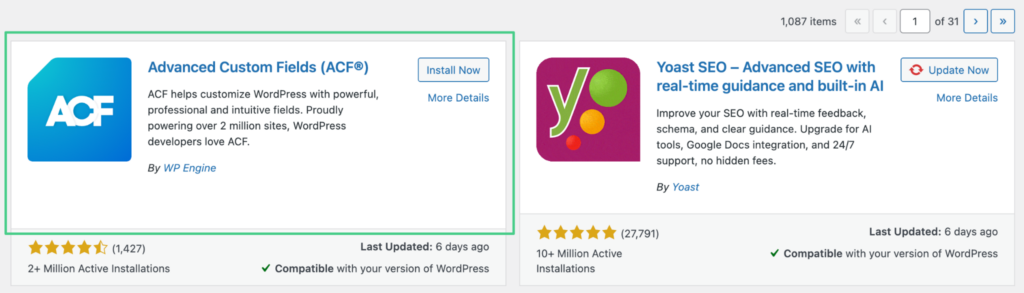
Step 1: Install and Activate ACF
- Go to WordPress Admin → Plugins → Add New
- Search for Advanced Custom Fields
- Click Install Now then Activate
Step 2: Create an ACF Field Group for Products
- Go to Custom Fields → Add New
- Create a new field group (e.g. “Product Extra Data”)
- For example a text field called product_material or a select field called product_season
- Under Location Rules, set the rule to Post Type → is equal to → Product
- Click Publish to save the field group
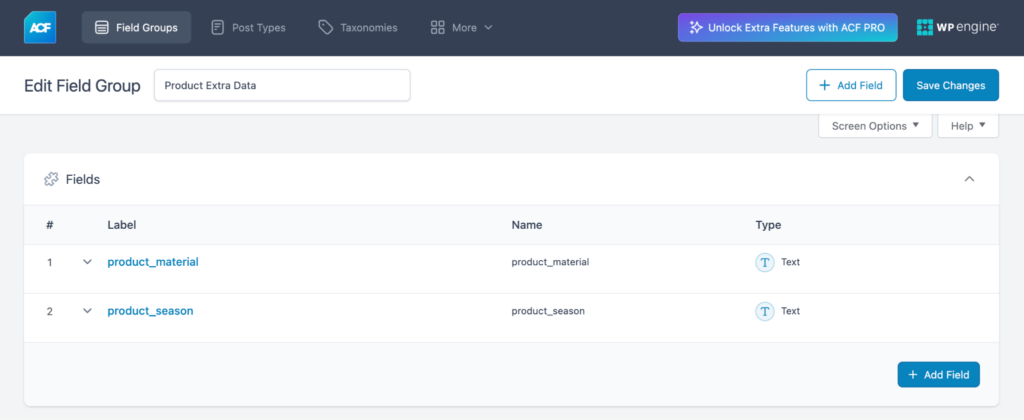
| ⚠️ Important: Disco reads ACF fields using the field’s name (slug), not its label. Make sure you use clear, consistent field names when creating your ACF fields — these are what appear in the Disco condition dropdown. |
Step 3: Populate ACF Field Values on Your Products
- Go to Products and open any product
- Scroll down to the ACF field group you created
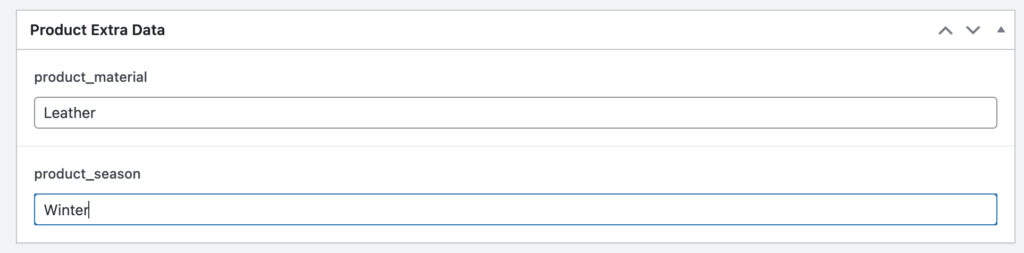
- Fill in the field values (e.g. Material = “Leather”, Season = “Winter”)
- Click Update to save the product
Step 4: Install and Activate Disco Pro
- Install and activate Disco Free from the WordPress plugin repository
- Upload and activate the Disco Pro add-on
- Enter your license key under Disco → License and activate it
Step 5: Use ACF Fields as Campaign Conditions
- Go to Disco → Create Discount
- In the Conditions section, click Add Condition
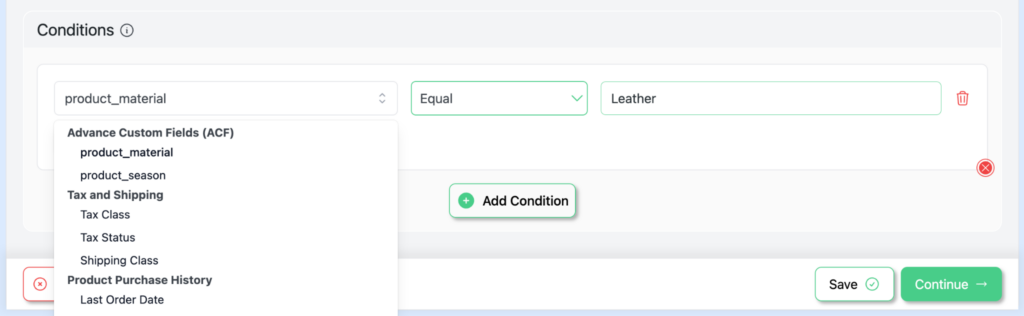
- Open the condition attribute dropdown — scroll to the Advanced Custom Fields (ACF) option group
- Select the ACF field you want to use (e.g. product_material)
- Choose an operator (e.g. equals, contains, not equals) and enter a value (e.g. “Leather”)
- Save and publish the campaign
| 📌 Note: ACF fields only appear in the condition dropdown if ACF is active and at least one field group with fields exists. If no fields appear, check that ACF is active and that your field group has been published with fields assigned to Products. |
Example Use Cases #
Here are some practical examples of how ACF fields can be used as Disco campaign conditions:
| ACF Field Name | Example Use Case |
| product_material | Applies 15% off to all products where the Material field equals “Leather.” |
| product_season | Triggers a campaign only when the Season ACF field equals “Winter.” |
| bundle_eligible | Applies a bundle discount only when a custom “bundle_eligible” checkbox field is checked (value = 1) |
| vendor_id | Restricts a campaign to products belonging to a specific vendor ID stored in an ACF field |
Result #
Once ACF is active and your field groups are configured, your custom product fields will automatically appear as condition options in every Disco campaign. This allows you to build highly targeted discount rules based on any custom data you store on your products — far beyond what standard WooCommerce product attributes alone can provide.
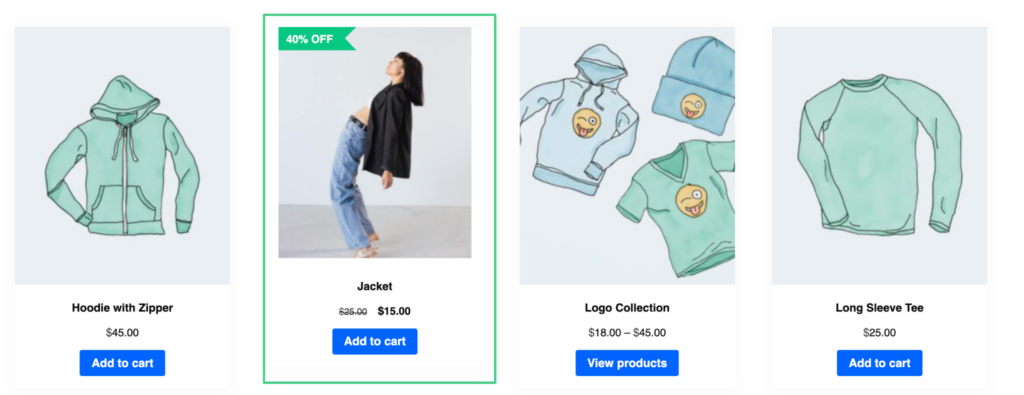
Example: A “40% off all Leather products” campaign — create a condition where acf_fields_product_material equals “Leather”, and Disco will automatically apply the discount only to products where that ACF field value matches.