
disco logo
  • Features
  • Pricing
  • Compare
  • Resources
    • Blog
    • Documentation
    • Changelog
    • Contact/Support
    • Disco Community
Login Get Disco Pro

Getting Started

1
  • Installation Process of Disco Plugin (PRO And Free)

Product Intent Discounts

4
  • Set Up Product Intent Discounts
  • Example 1: $20 Off All ‘Men’ Category Products
  • Example 2: 5% Off Product X for a Limited Time
  • Example 3: Flat $50 Off on Products Over $500

Cart-Intent Discounts

4
  • Set up Cart Intent Discounts using Disco Plugin
  • Example 1: 20% Cart Discount on Selected Categories
  • Example 2: Offer 10% Cart Discount for 10+ Items (Cart Quantity)
  • Example 3 : Offer $10 Off Product X When Cart Has 3+ Items (In Stock)

Free Shipping Discount

4
  • Set Up Free Shipping with DIsco Plugin
  • Example 1: Free Shipping for Location ‘X’ Customers
  • Example 2: Free Shipping on Category “A” Products
  • Example 3: Free Shipping on Specific Product During Promotion

Bulk Intent Discount

4
  • Set Up Bulk Intent Discount with Disco Plugin
  • Example 1: Bulk Percentage Discounts on All Products by Quantity
  • Example 2: Offer 5% Bulk Discount on Product X for 3+ Units (October Only)
  • Example 3: Offer $10 Off on 5+ Units from Category ‘A’

Bundle Discount

1
  • Set Up Bundle Discount with Disco Plugin

Campaign Setup

6
  • Product Rules Explain with Example
  • Bundle Rules Explain with Example
  • Bulk Rules Explain with Example
  • Cart Rules Explain with Example
  • Discount Rules (Filter Products, User Limit, Valid Between, Discount Label)
  • Discount Intent

Conditions

9
  • Items Count (Entire Cart) vs Item Count 
  • Set Up Discounts According to Product Stock Quantity in WooCommerce
  • Apply Discounts on Selected Categories in WooCommerce 
  • Create a Discount on a Specific Product Attribute in WooCommerce
  • Set Up Discounts by Brand in WooCommerce with Disco Plugin
  • Tax and Shipping Based Discount Conditions
  • Price Based Discount Conditions
  • Product Attributes Based Discount Condition
  • Product/Cart Item Based Discount Conditions

Ticket Solutions

1
  • Discount Applies but No Visual Badge or Offer Displayed

BOGO

5
  • Buy X Product, Get Y Product at a Discounted Price
  • Buy X, Get Y Free (Different Product)
  • Buy X from Category A & Get Y from Category B
  • Set Up BOGO Discount (Buy 1 T-Shirt, Get 1 T-Shirt Free)
  • Buy X Get X at Discount (Buy 3 Coffee Mugs, Get 3rd One 50% Off)

Campaign Display

3
  • Display Product Badge in WooCommerce
  • Display Bundle Discount Table in WooCommerce 
  • Display Bulk Discount Table in WooCommerce
View Categories
  • Home
  • Documentation
  • Bulk Intent Discount
  • Example 1: Bulk Percentage Discounts on All Products by Quantity

Example 1: Bulk Percentage Discounts on All Products by Quantity

3 min read

  • Ordering 2 to 5 Units of a Product – 5% Bulk Discount
  • Ordering 6 to 10 Units of a Product – 10% Bulk Discount
  • Ordering 11 to 15 Units of a Product – 15% Bulk Discount
  • Ordering 16 or More Units of a Product – 20% Bulk Discount

In this scenario, a customer purchasing 2 to 5 units of a product will receive a 5% discount. If they buy 6 to 10 the discount increases to 10%. Similarly, if they purchase 11 to 15 items of a product they will get a 15% discount. And buying 16 or more items will get them a 20% bulk discount. 

Step 1: Click on the ‘Disco’ Menu from the left side of your WordPress Dashboard and then select  “Create a Discount”. 
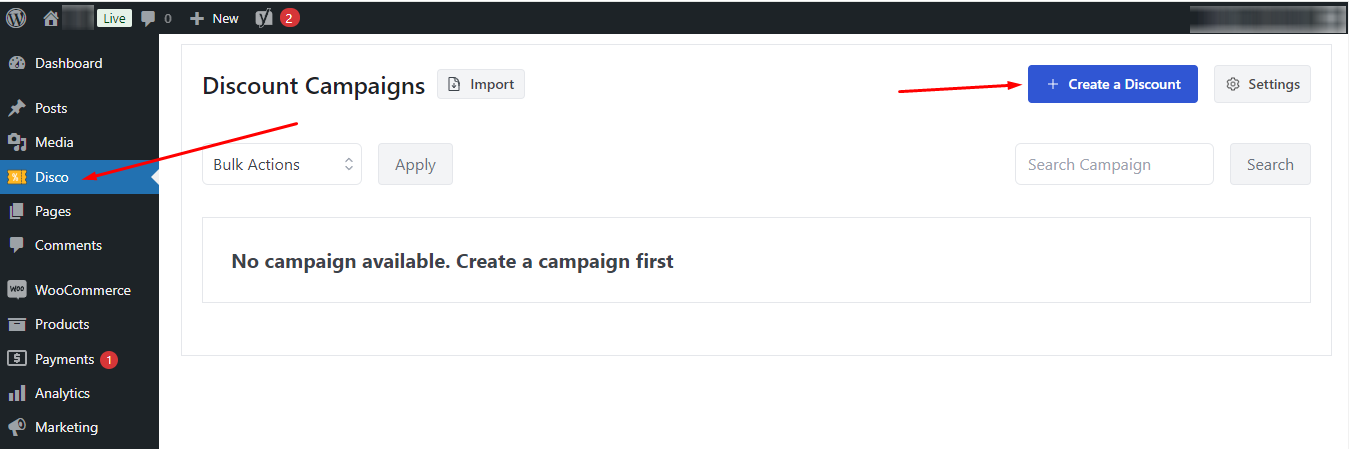
image 88

Step 2: It will take you to a fresh new window where you can set up your discount campaign. Start by giving your discount campaign a name and select the Discount intention(type) as “Bulk Discount”.  
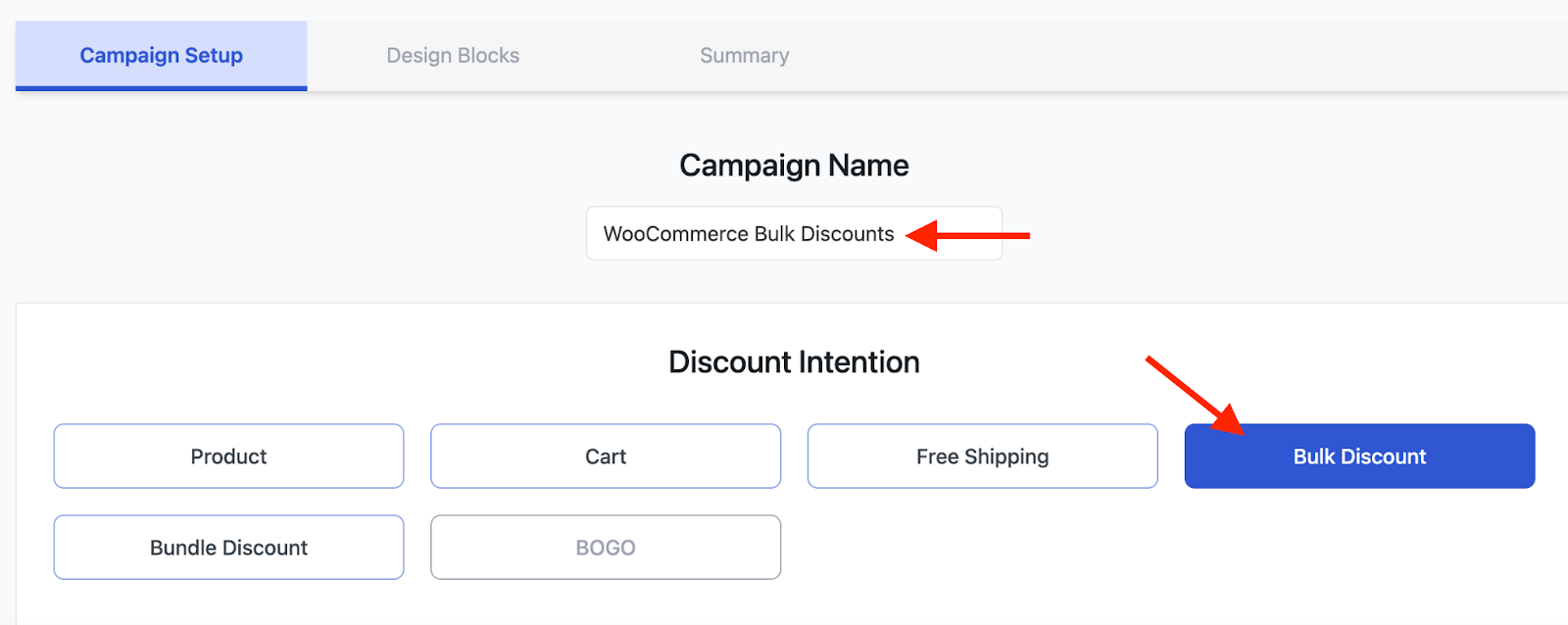
image 89

Step 3: After that, you will find the Discount section. From there select “All Products”. 

image 87

Step 4: Next, head to the “Bulk Rules” section. To set the first rule—5% off for orders between 2 to 5 units—enter 2 in the Minimum Quantity field and 5 in the Maximum Quantity field. This will easily set the order quantity limit from 2 to 5.

image 84

Step 5: After that, you should choose the “Discount Type” as Percentage and input the discount value as 5. 
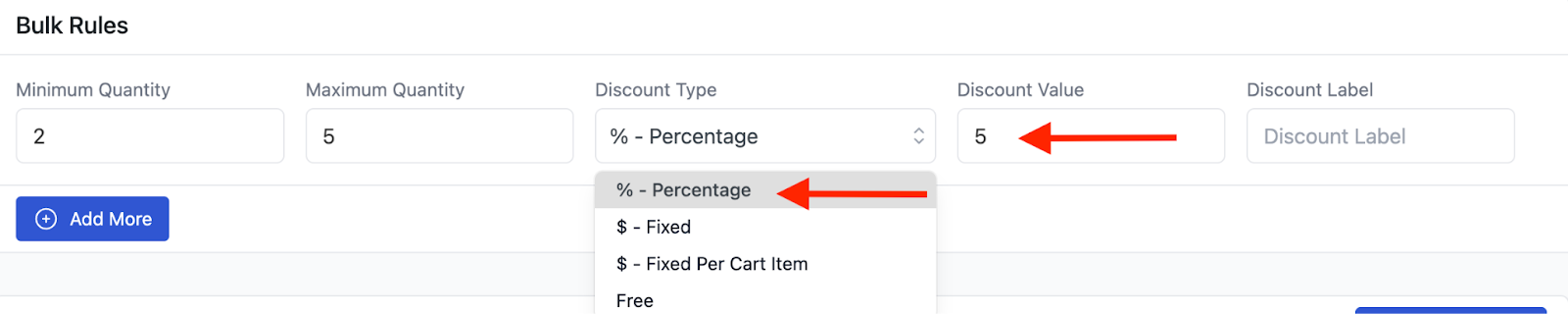
image 90

Step 6: Now, to add the second rule, click on “Add More”. 

image 86

Step 7: Once you click on it you will find another similar section. Here, we will add the second rule. 

To put a 10% discount on 6 to 10 items of any product, input the values “6” and “10” on the “Minimum Quantity” Field and “Maximum Quantity” fields respectively. Then add the discount type as “Percentage” and input the discount value “10”. 
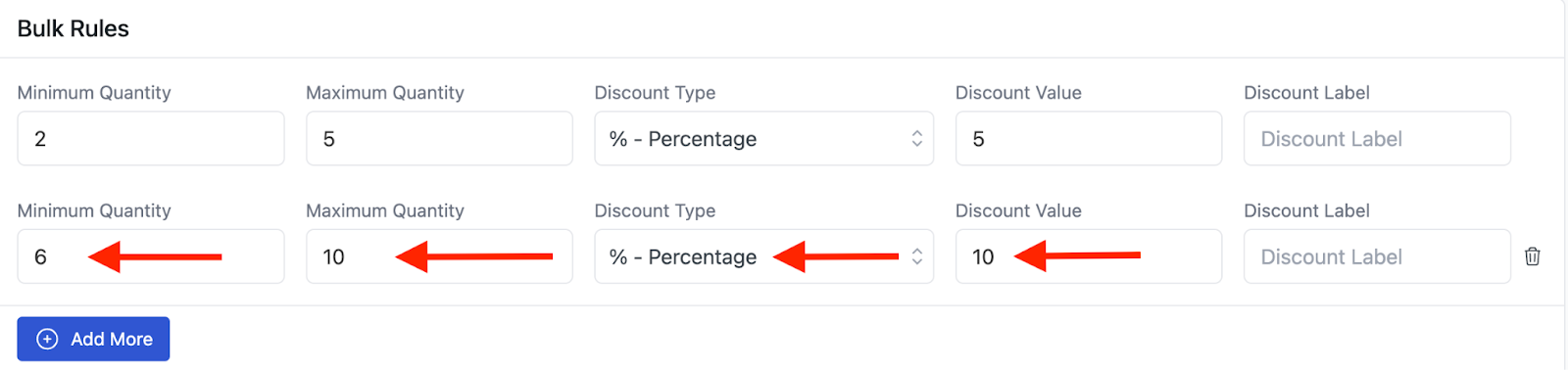
image 91

Step 8: Click on the “Add More” button again. To apply a 15% Discount on ordering 11 to 15 units of a product, the minimum Quantity should be 11 and the Maximum Quantity should be 15. After that, select “Percentage” as the discount type and give the discount value as 15. 
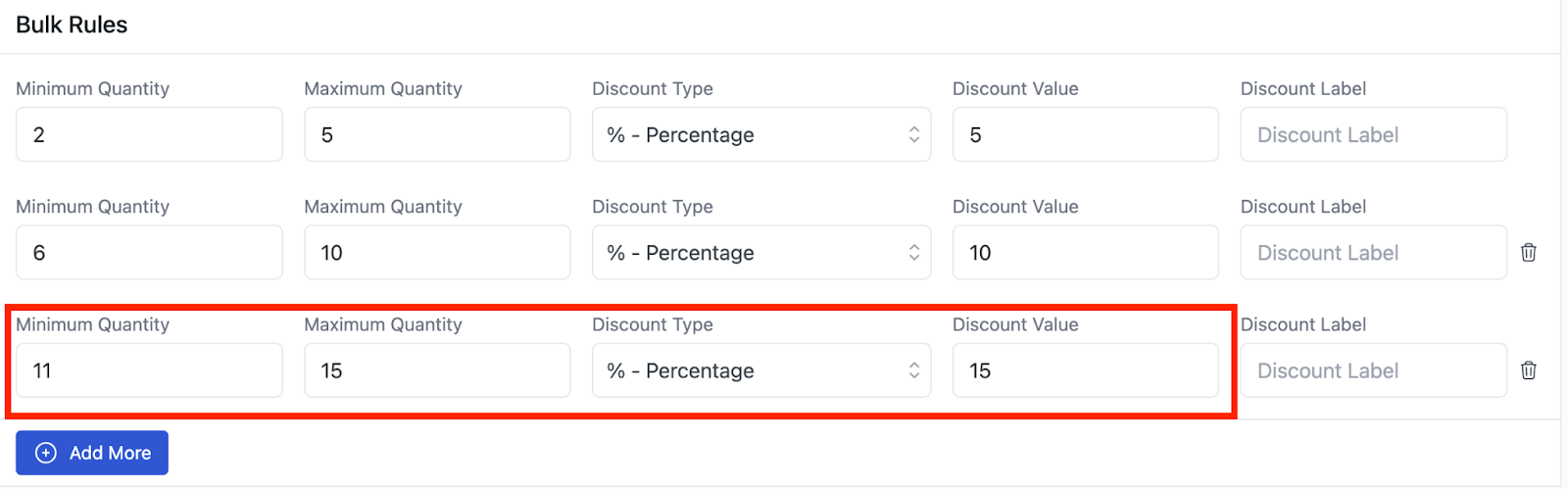
image 92

Step 9: Click on “Add More” again to add the last rule(16 to Unlimited Items- 20% Bulk Discount). Now, in the Minimum Quantity field add the number 16. But in this case, keep the Maximum Quantity field empty- it means for an unlimited number of products.

Then, select “Percentage” as the discount type as usual and add the value 20. 

image 93

Here’s how the entire “Bulk Rules” section would look-
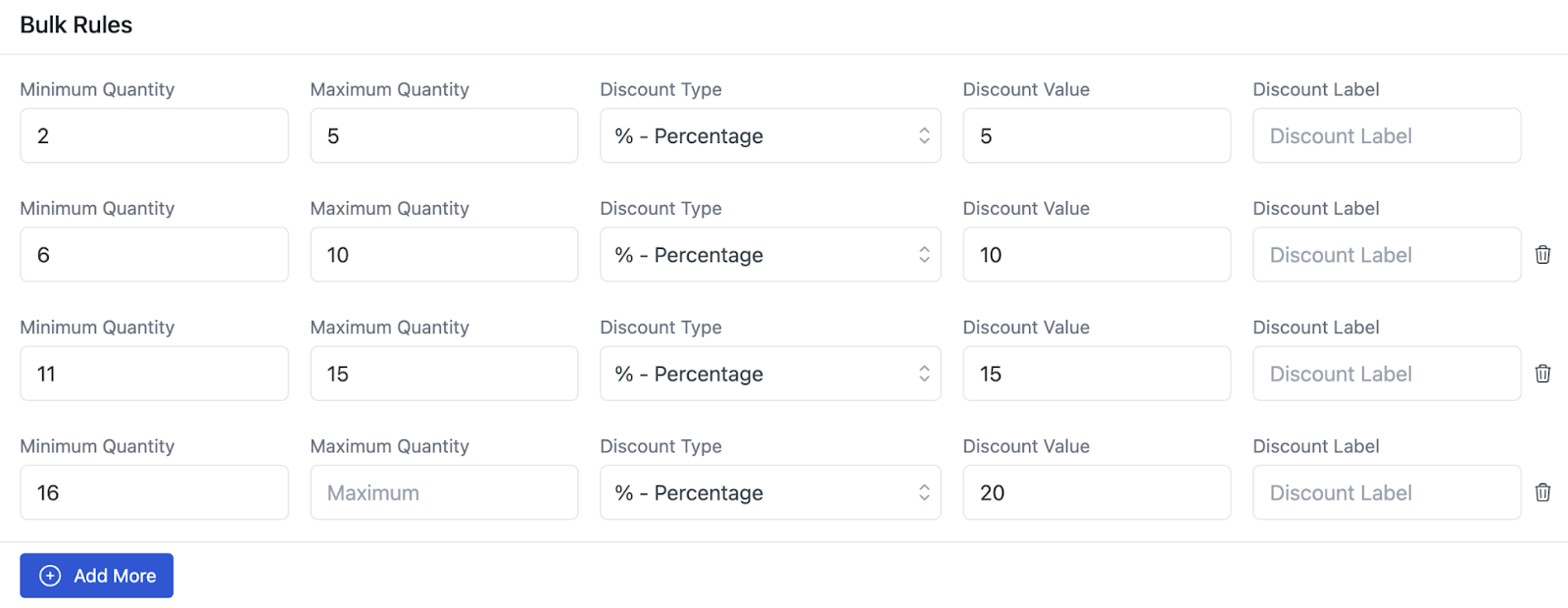
image 94

Step 10: Once you are done setting up these four bulk discount rules, click on the “Save & Exit” button to run your campaign. 

image 85

Now, if someone orders anywhere between 2 to 5 units of a product, they are going to get a 5% discount on it.  
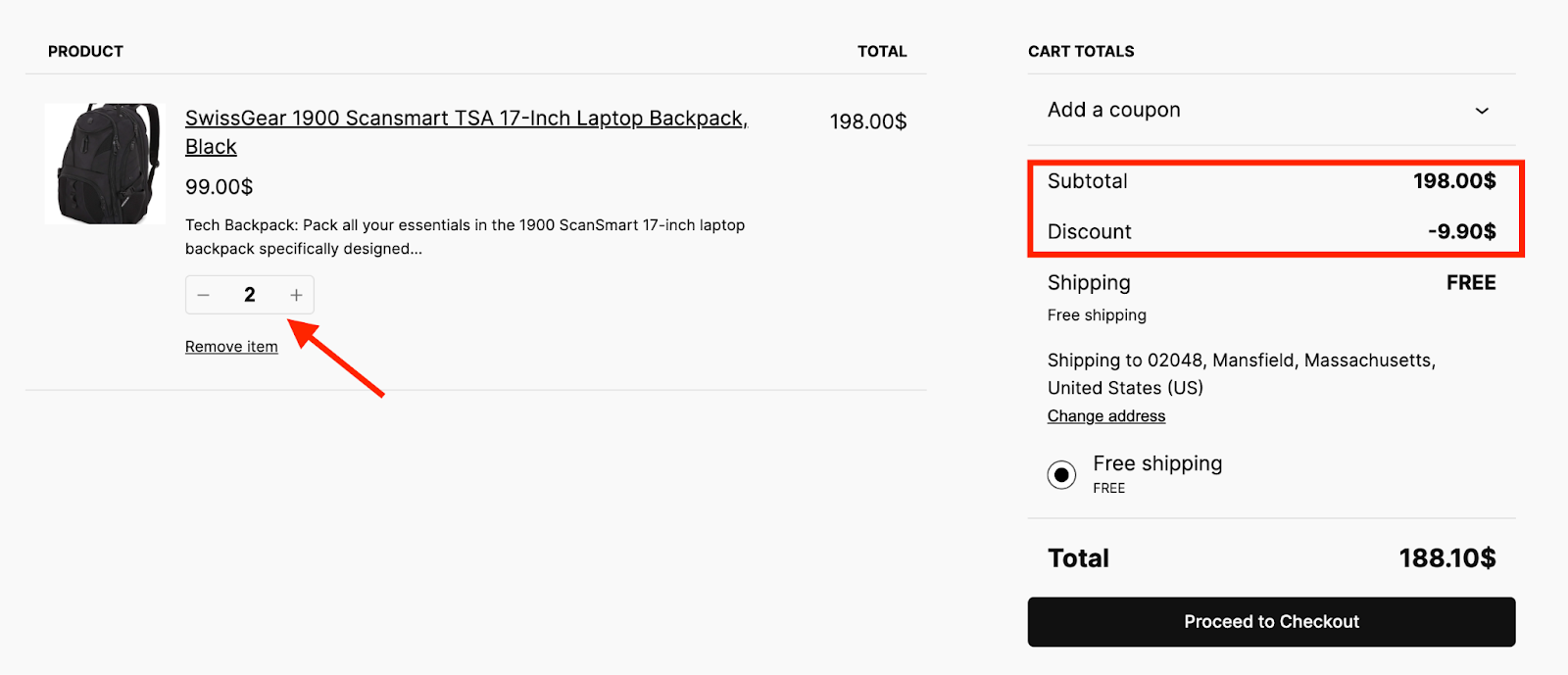
image 98

Again, if they order the same product for anywhere between 6 to 10 units, they will get a 10% discount on it. 
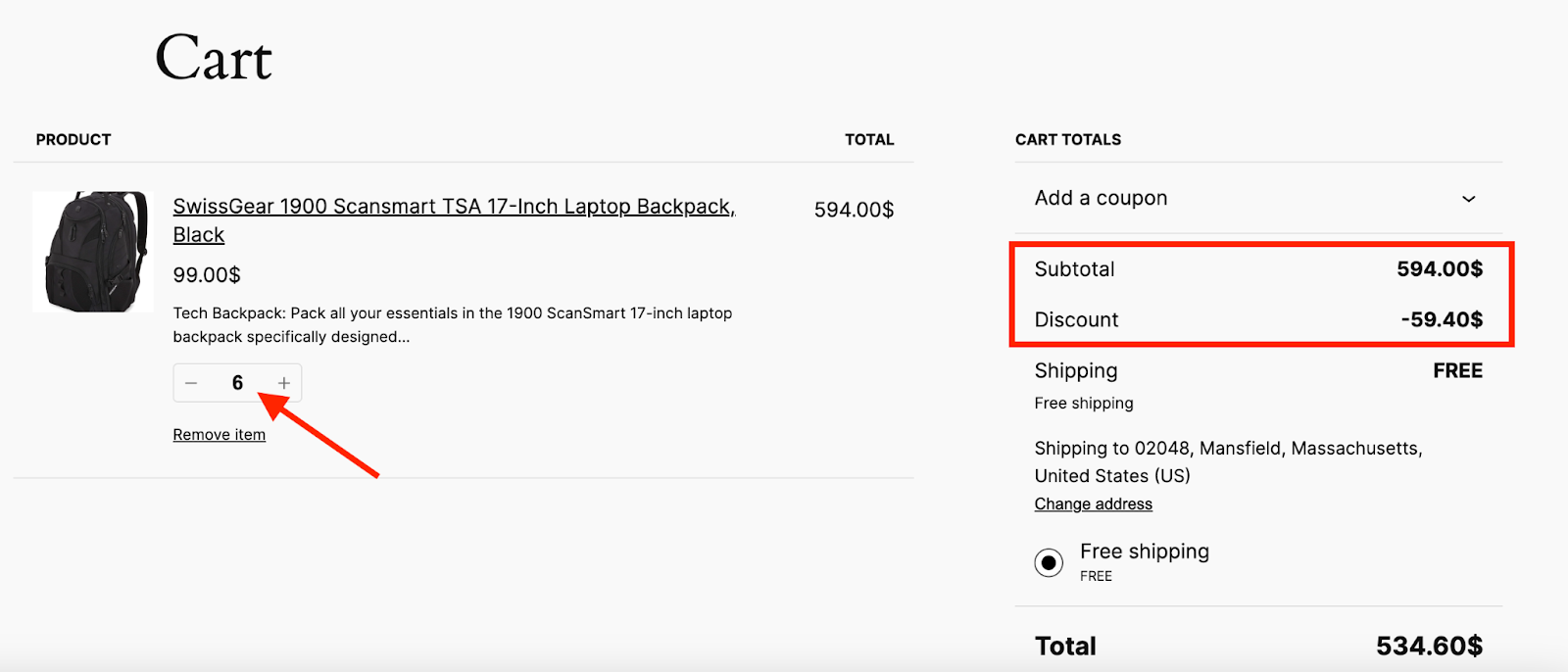
image 96

As you can see in the above picture, if someone orders 5 Laptop backpacks for $594, they will get a 10% discount of $59.40. 

Similarly, ordering between 11 and 15 units of the same product will grant the customer a 15% discount.
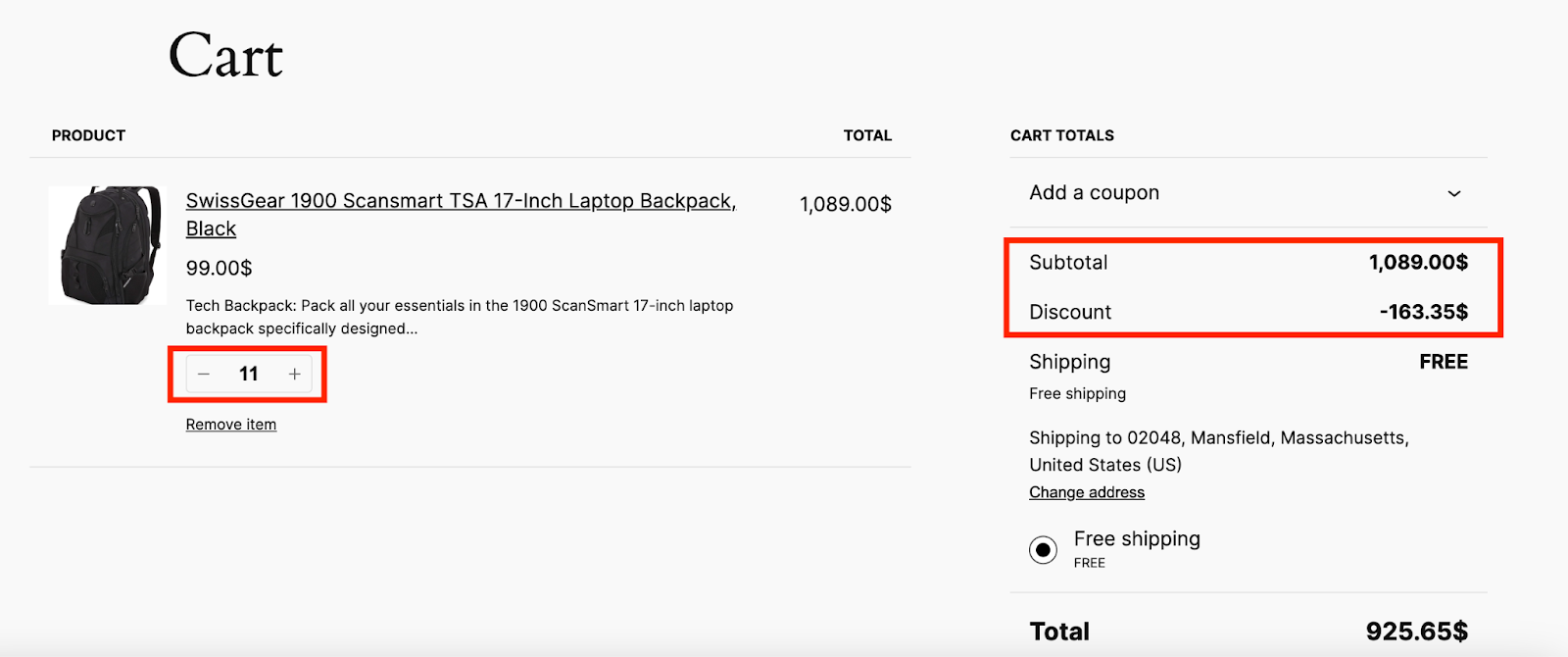
image 97

Finally, if a customer orders 16 or more units of the product, he or she will get a huge 20% bulk discount on it. 
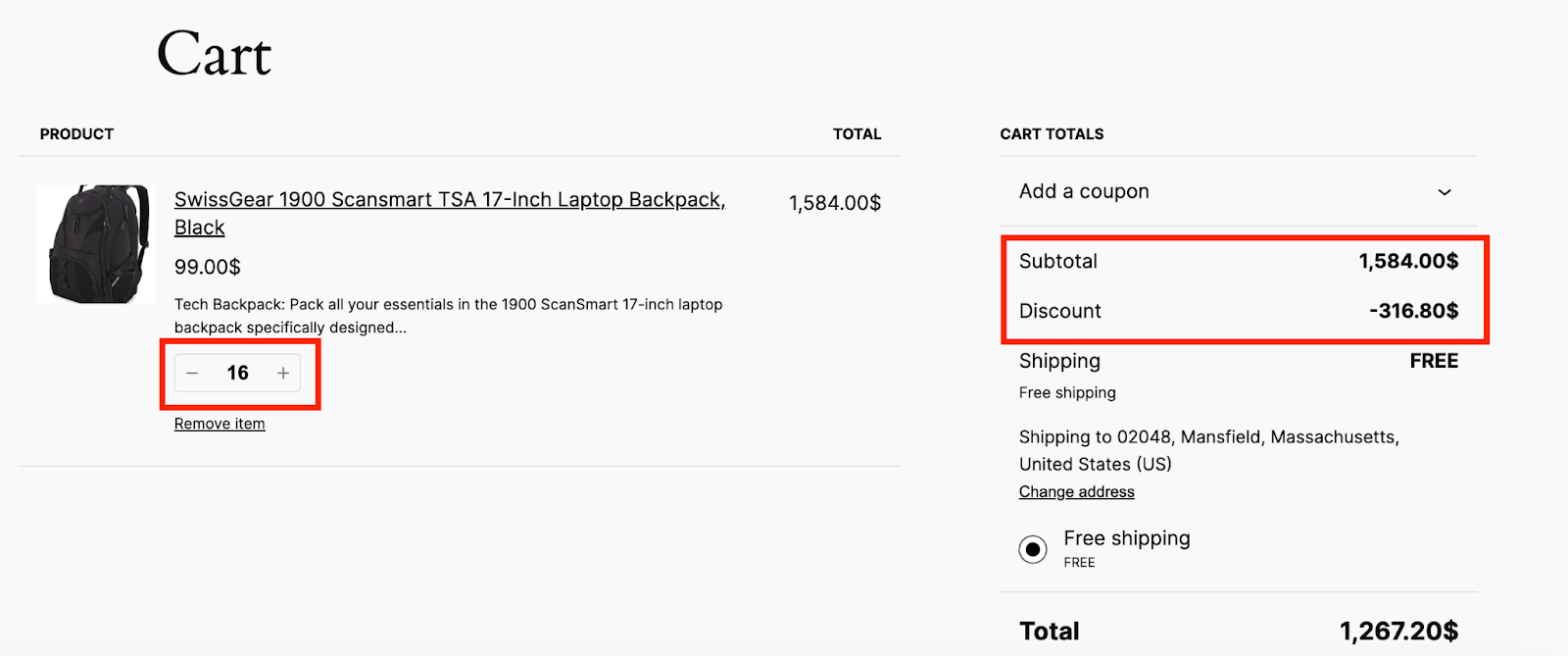
image 95

As shown in the above picture, by purchasing 16 units of the laptop backpack, the customer received a 20% discount ($316.80) on the total order value of $1,584. This brought the final price down to $1,267.20.

What are your Feelings

  • Happy
  • Normal
  • Sad

Share This Article :

  • Facebook
  • X
  • LinkedIn
  • Pinterest
Set Up Bulk Intent Discount with Disco PluginExample 2: Offer 5% Bulk Discount on Product X for 3+ Units (October Only)

Leave a Comment Cancel Reply

disco logo

The best WooCommerce discount plugin for BOGO deals, bulk discounts, tiered pricing, user role pricing, and dynamic pricing rules.

Product

  • Features
  • Pricing
  • Free vs Pro
  • Documentation

Resources

  • Blog
  • Tutorials
  • FAQ
  • Changelog

Company

  • About WebAppick
  • Support
  • Feature Request
  • Disco Community

© 2026 Disco by WebAppick. All rights reserved.