
disco logo
  • Features
  • Pricing
  • Compare
  • Resources
    • Blog
    • Documentation
    • Changelog
    • Contact/Support
    • Disco Community
Login Get Disco Pro

Getting Started

1
  • Installation Process of Disco Plugin (PRO And Free)

Product Intent Discounts

4
  • Set Up Product Intent Discounts
  • Example 1: $20 Off All ‘Men’ Category Products
  • Example 2: 5% Off Product X for a Limited Time
  • Example 3: Flat $50 Off on Products Over $500

Cart-Intent Discounts

4
  • Set up Cart Intent Discounts using Disco Plugin
  • Example 1: 20% Cart Discount on Selected Categories
  • Example 2: Offer 10% Cart Discount for 10+ Items (Cart Quantity)
  • Example 3 : Offer $10 Off Product X When Cart Has 3+ Items (In Stock)

Free Shipping Discount

4
  • Set Up Free Shipping with DIsco Plugin
  • Example 1: Free Shipping for Location ‘X’ Customers
  • Example 2: Free Shipping on Category “A” Products
  • Example 3: Free Shipping on Specific Product During Promotion

Bulk Intent Discount

4
  • Set Up Bulk Intent Discount with Disco Plugin
  • Example 1: Bulk Percentage Discounts on All Products by Quantity
  • Example 2: Offer 5% Bulk Discount on Product X for 3+ Units (October Only)
  • Example 3: Offer $10 Off on 5+ Units from Category ‘A’

Bundle Discount

1
  • Set Up Bundle Discount with Disco Plugin

Campaign Setup

6
  • Product Rules Explain with Example
  • Bundle Rules Explain with Example
  • Bulk Rules Explain with Example
  • Cart Rules Explain with Example
  • Discount Rules (Filter Products, User Limit, Valid Between, Discount Label)
  • Discount Intent

Conditions

9
  • Items Count (Entire Cart) vs Item Count 
  • Set Up Discounts According to Product Stock Quantity in WooCommerce
  • Apply Discounts on Selected Categories in WooCommerce 
  • Create a Discount on a Specific Product Attribute in WooCommerce
  • Set Up Discounts by Brand in WooCommerce with Disco Plugin
  • Tax and Shipping Based Discount Conditions
  • Price Based Discount Conditions
  • Product Attributes Based Discount Condition
  • Product/Cart Item Based Discount Conditions

Ticket Solutions

1
  • Discount Applies but No Visual Badge or Offer Displayed

BOGO

5
  • Buy X Product, Get Y Product at a Discounted Price
  • Buy X, Get Y Free (Different Product)
  • Buy X from Category A & Get Y from Category B
  • Set Up BOGO Discount (Buy 1 T-Shirt, Get 1 T-Shirt Free)
  • Buy X Get X at Discount (Buy 3 Coffee Mugs, Get 3rd One 50% Off)

Campaign Display

3
  • Display Product Badge in WooCommerce
  • Display Bundle Discount Table in WooCommerce 
  • Display Bulk Discount Table in WooCommerce

Compatible Plugins

5
  • CURCY – Multi Currency for WooCommerce
  • FOX – Currency Switcher (WOOCS)
  • WPML + WooCommerce Multilingual
  • Aelia Currency Switcher
  • ACF – Advanced Custom Fields
View Categories
  • Home
  • Documentation
  • BOGO
  • Buy X Get X at Discount (Buy 3 Coffee Mugs, Get 3rd One 50% Off)

Buy X Get X at Discount (Buy 3 Coffee Mugs, Get 3rd One 50% Off)

2 min read

Here, the example “Buy 3 coffee mugs, get the 3rd one 50% free” rule applies to the ( Buy X, GET X), BOGO-style discount rule created by the Disco plugin. 

It was designed to increase the average order value by rewarding customers in diverse ways. 

Here, for example, if a customer buys 2 coffee mugs, there will be a 50% discount on the 3rd coffee mug if the customer decides to buy.

Setup Steps :   #

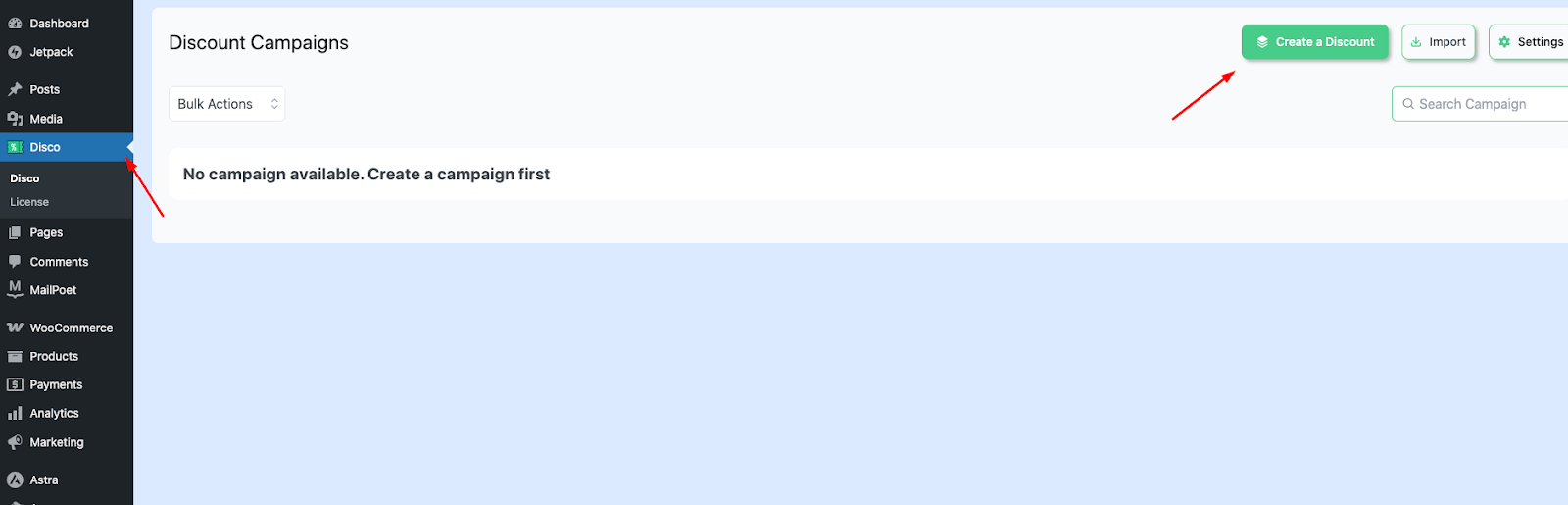
Step 1: Click on the Disco menu from the left side of your Dashboard, then in the upper corner, click on Create a discount. 
AD 4nXfL0oYBbjCGV500VfITzEQSc3kNgPAeYVYFIgQcDAOb07Pd52xodJ19enVDlie8GY2rPoNJHeQBJGdpIRVq9YpZlsyCMQv3JN

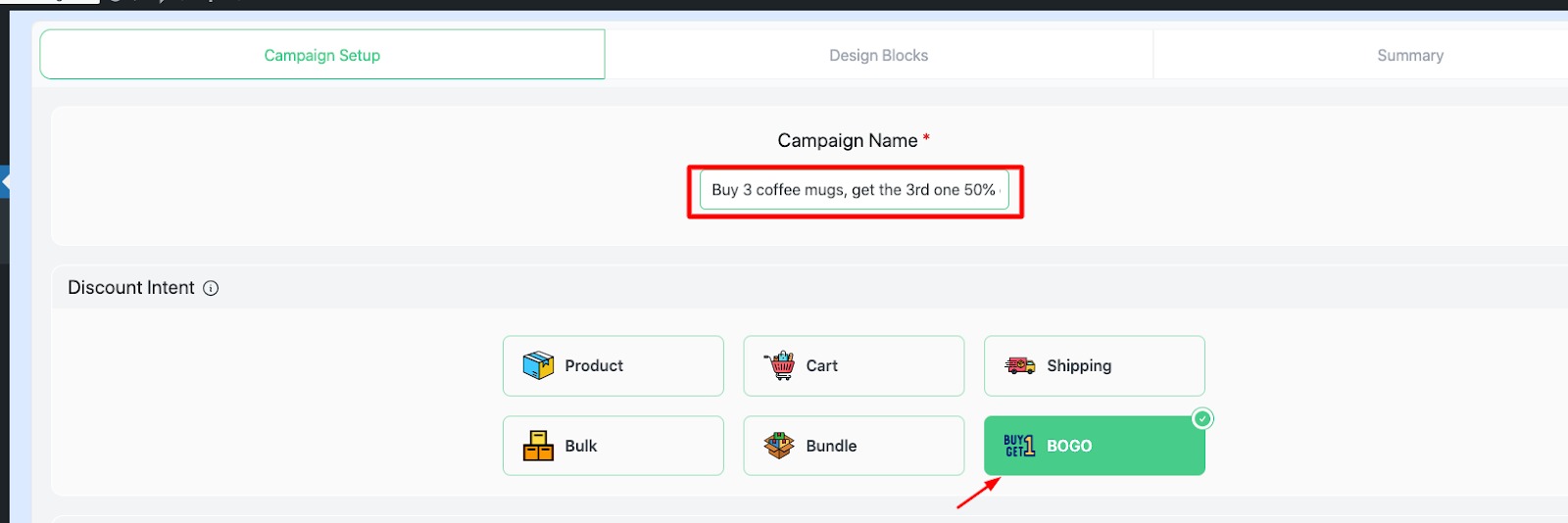
Step 2: Write down a unique name for the “ Campaign Name. “ And then select your discount intention as ‘Bogo “ 
AD 4nXciSTZm1mA7YrVJS9lNG8RANxnTcOsRHYAlVIdICX6IwwYdwv6Rz0FlaGvssp OtDsYb5qMPiEiOy0r4ftPFmM4wWmF2zgHwhFAHeDirvfQsIn8YRJsUSC2g HlbAfdqYiDNdE4A

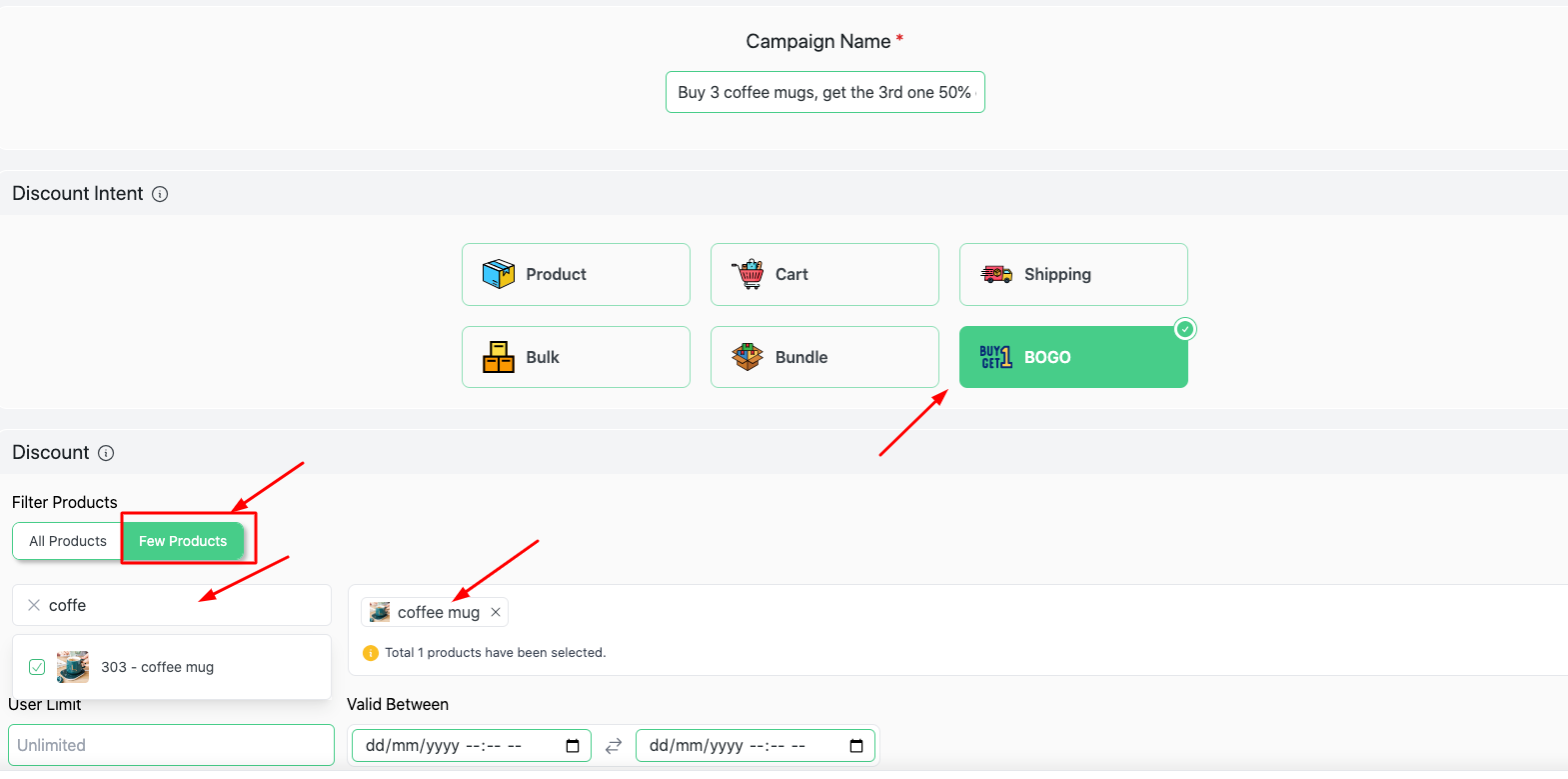
Step 3: Scroll down and you’ll find the “ Discount ” section.

Here, the customer has two options: “all products ” or “a few products ’’ If the customer selects “all products,”  This BOGO rule will apply to every kind of product in his shop.

On the other hand, if the customer selects “a few products,”  this will indicate a specific group of products.

 Here, we’ll choose “Coffee mug”
AD 4nXen0sFnSUcX5ejV ZZK4Qfdw2LDL6 Mm5MPt2glhm89USYlDSBmWJb98tfQU7FS9thJpiu3GEehaq 6S XV p OgfWcZU pkUy4scATmmSnQYii CGLLXIk M6YnIgLWRrR4pimHw

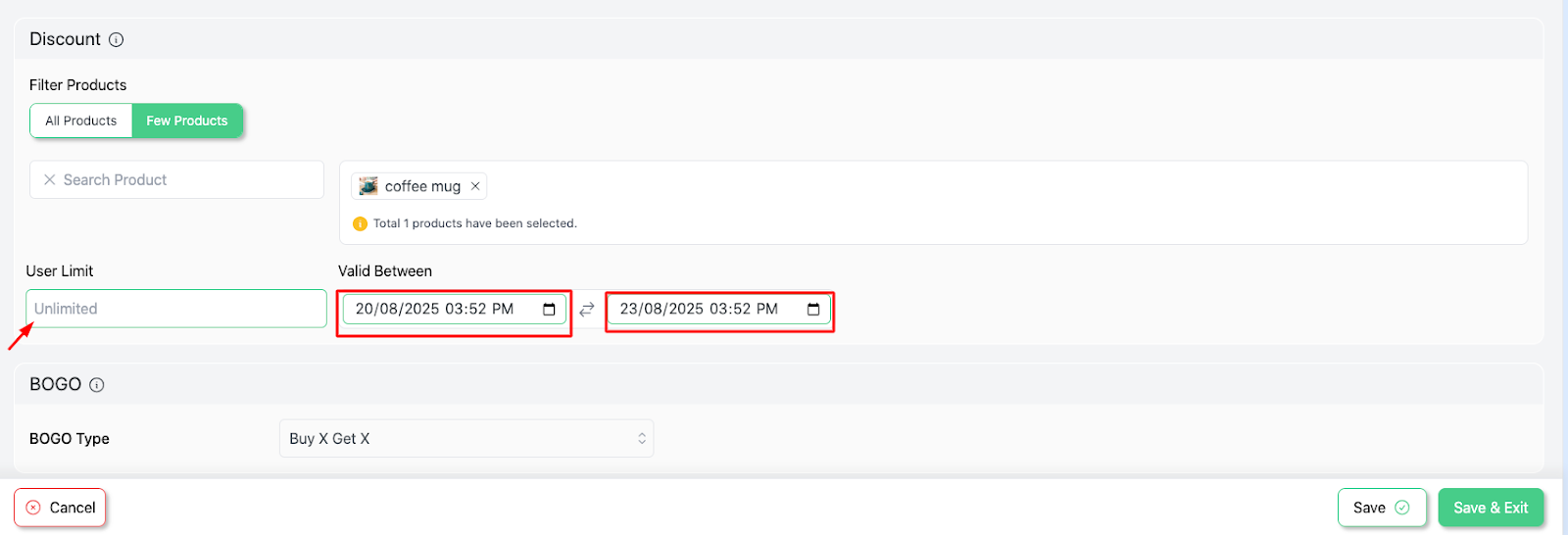
Step 4: Shown in the down below, you would find “user limit ” and validity date.

Here we’ll enter -20 as the user limit, and we’ll keep it valid between 20/08/25 to 23/08/25.
AD 4nXcFBJ0G4QI4WfVRg0Nv 9z0uBnDlDE9lsLMO9frHLi8dKr1uT56m3lKib6f8xbasA78lZkVl4L5F7jr2h4vhKyb vmhbruQTvz6pfViRSZSBIjMCCif0FBDc4avlpMON2ejZsv51g

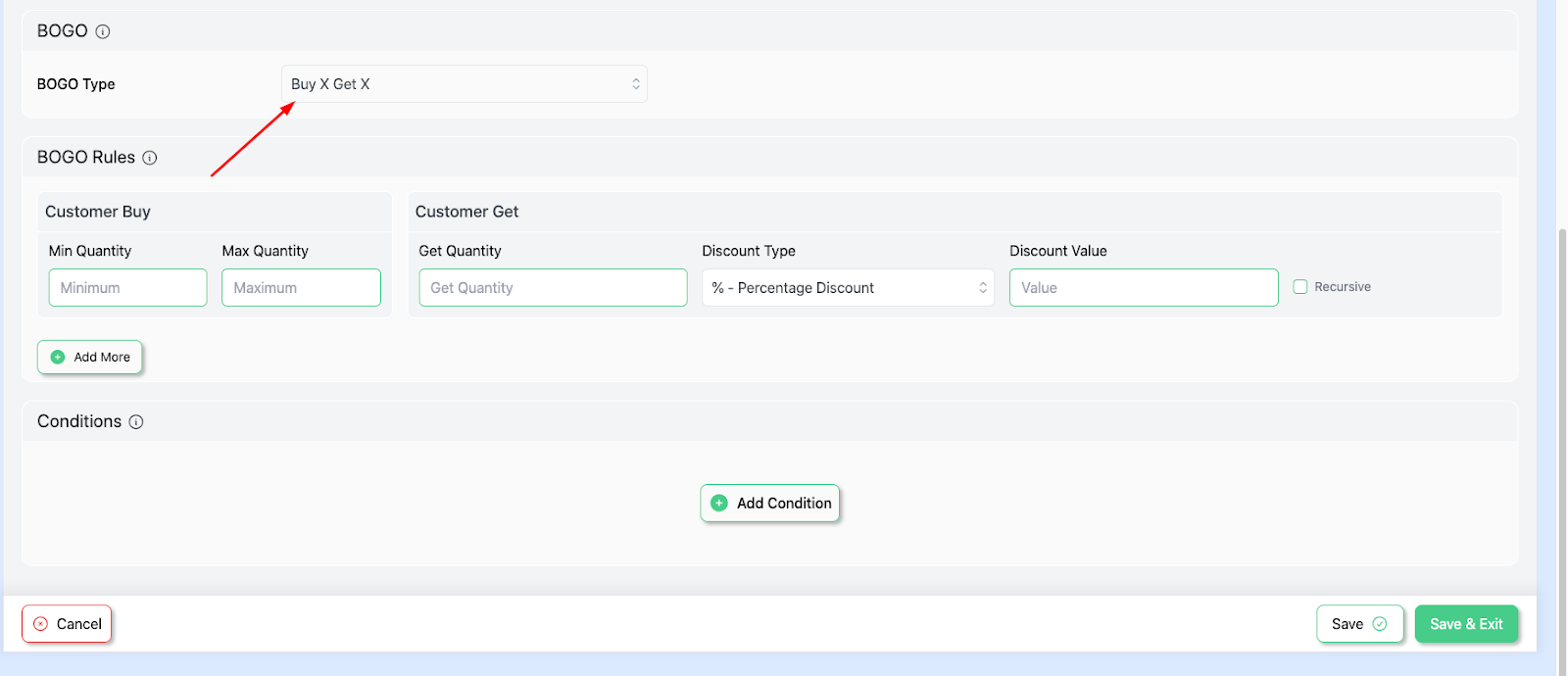
Step 5: Next , you’ll see the “ BOGO section ” , choose your BOGO Type as the “ Buy X Get X ” option .

Since we’ll be giving away the same type of product at a 50% discount.
AD 4nXey8Y1gRPfCVzeZWY3a4TBmz4KPYn lr3lXgzRTHR0iNIfMO9Q3kG1rXvwC1TD 5iKZBC VvwZw IpJF7QM5w jlltHnIIuIv1w3Xt8 o8E4Mz1hsTOdjM14 PjopuuHDNchnihOA

Step 6: For the next segment, we have BOGO rules.  Here we’ll find “ Customer Buy ”

And the “ Customer Get ” section. Since we want to offer 50% off on the 3rd purchase, we’ll enter Min Quantity as 3 and leave the Max Quantity blank ”.

Here, the “ blank ” refers to an unlimited number .
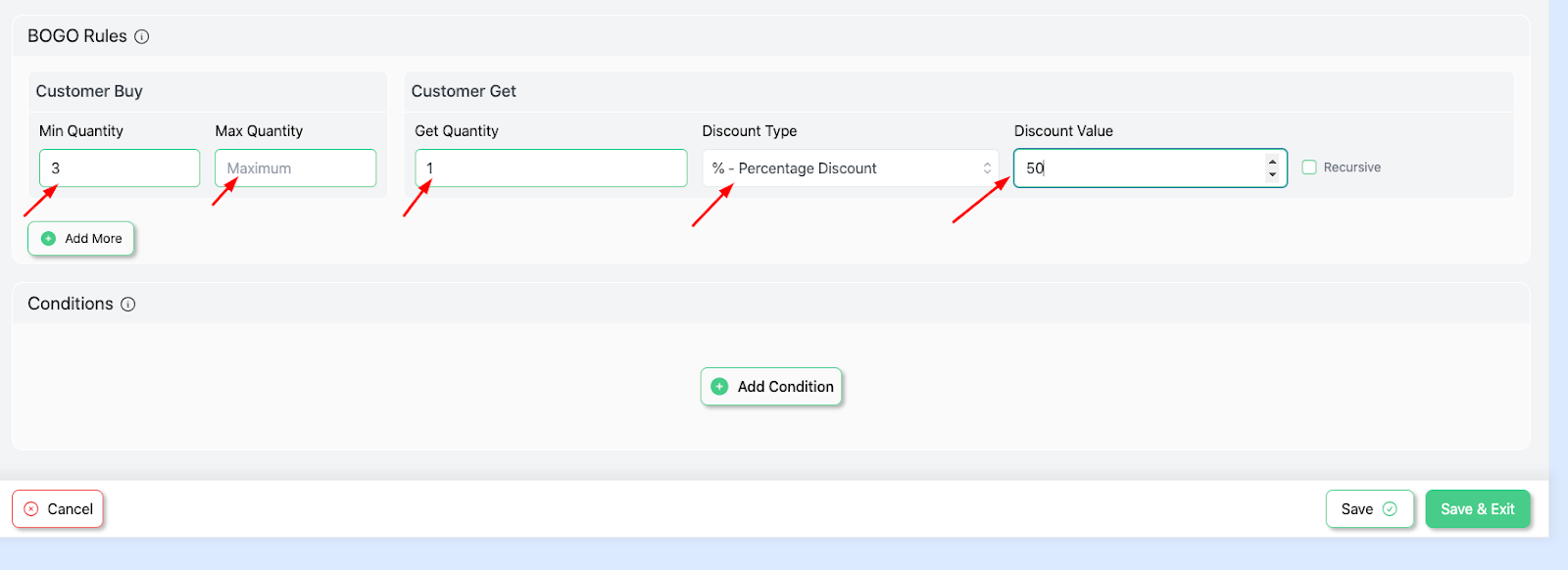
AD 4nXcT AqPMrDgCfkibD3qTXKBvcenrXJy3F0De0yHzC9rOSGoa8NMO5SCHFp3oFemWxQndHX tc6Ll4lMn5E5OzcHzQJJCuw9nvjJW4vCjqS0he

For the “  Customer Get ” section, we’ll enter Get Quantity as -1, discount type- percentage discount, and add discount value as -50. 

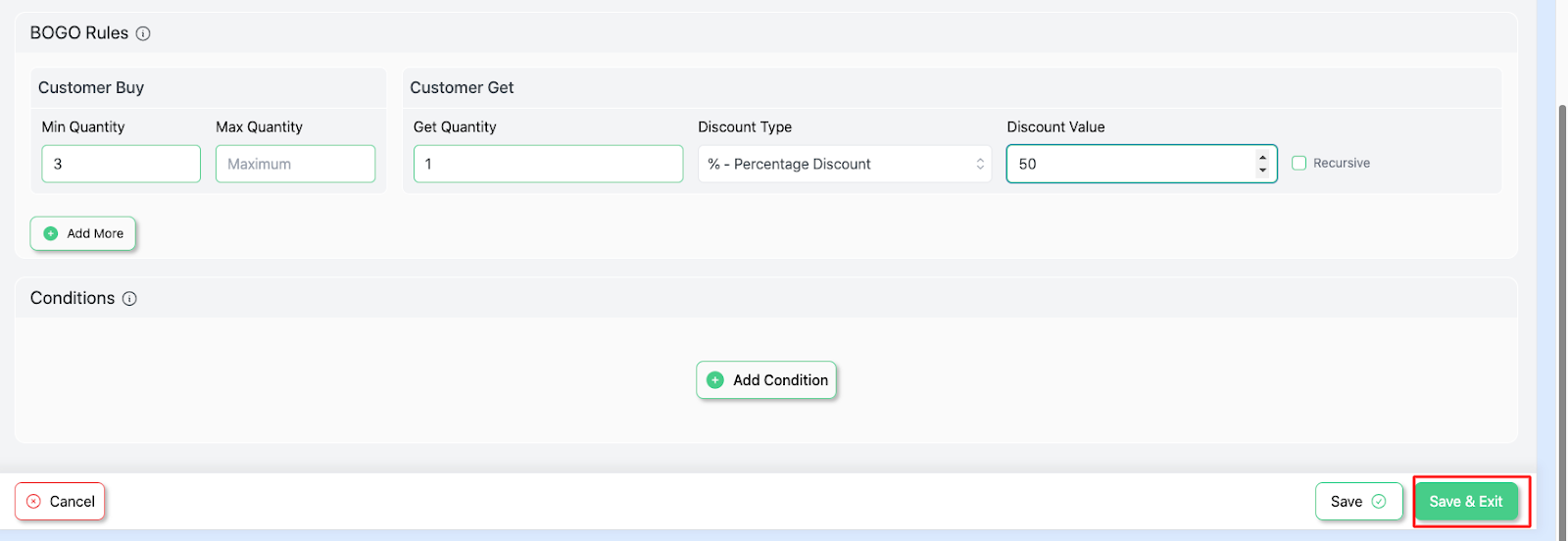
Step 7: Save and update to run your campaign.
AD 4nXc2er5hcQr 4PHRdQWb8uMW8vg3CnHg6oaQUW40idnlLwI99mO3Cgpu7RpOjyHPikbgaUBBet9 wcsNY42C2w

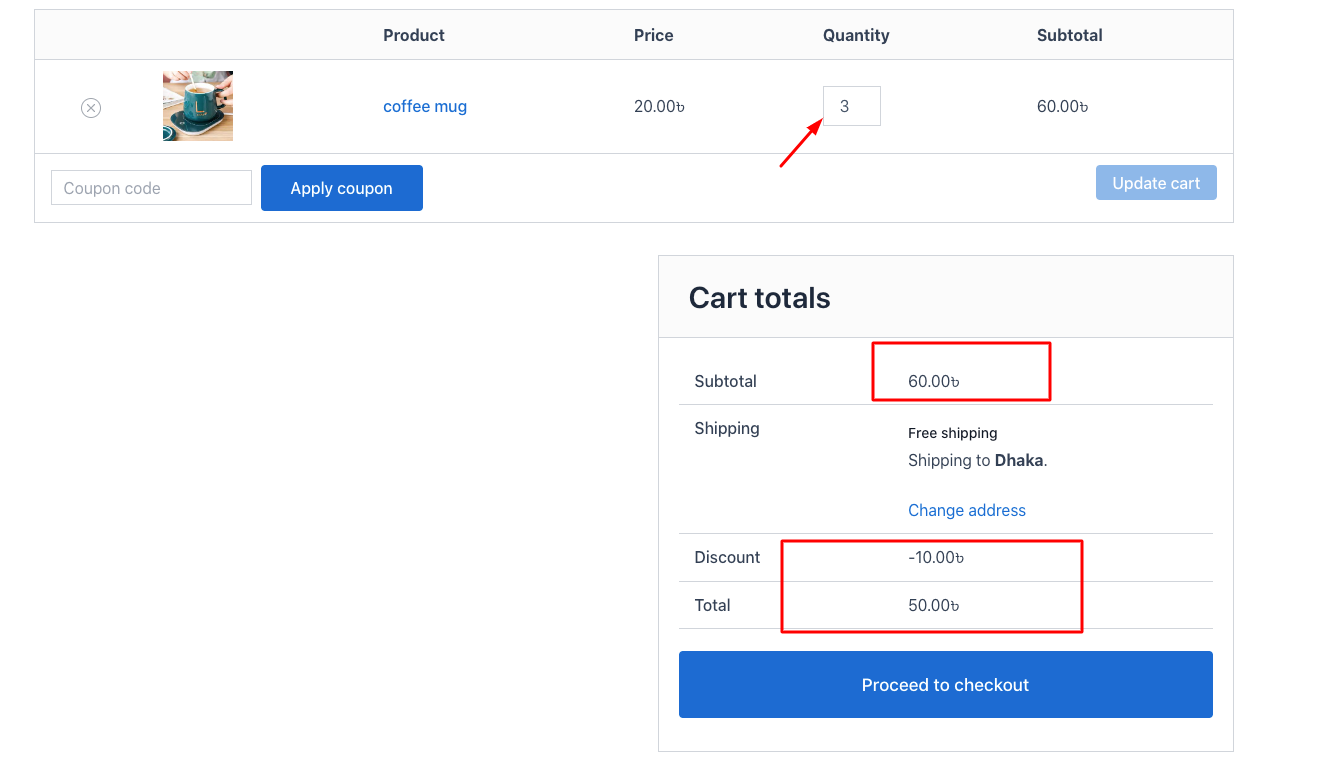
Step 8: For this example, we would add 3 coffee mugs to the cart to check if the discount offer works.

This will lead to results as this : 
AD 4nXeeXXtfGmuq To9EL2OXapGbjPWXL9WOBQ2HCOFJaHkVHXXpAlNEsuY8poVM2EJCEhdA1y EQXEY2fLToNpWZGn88gPXnaCeBtGqFHH9bJXYNwiUmSG79LnFD5rtRKMgSyJrGW6BQ

Get More Revenue with Disco Plugin #

Disco – WooCommerce Dynamic Pricing and Discounts is a smart pricing plugin that lets you create flexible discount rules—like bulk discounts, BOGO deals, and cart-based offers—to boost sales and conversions. It combines advanced rules with a simple setup for WooCommerce stores.

Try Free Version

What are your Feelings

  • Happy
  • Normal
  • Sad

Share This Article :

  • Facebook
  • X
  • LinkedIn
  • Pinterest
Set Up BOGO Discount (Buy 1 T-Shirt, Get 1 T-Shirt Free)Buy X Product, Get Y Product at a Discounted Price

Leave a Comment Cancel Reply

Table of Contents
  • Setup Steps :  
disco logo

The best WooCommerce discount plugin for BOGO deals, bulk discounts, tiered pricing, user role pricing, and dynamic pricing rules.

Product

  • Features
  • Pricing
  • Free vs Pro
  • Documentation

Resources

  • Blog
  • Tutorials
  • FAQ
  • Changelog

Company

  • About WebAppick
  • Support
  • Feature Request
  • Disco Community

© 2026 Disco by WebAppick. All rights reserved.