disco logo
  • Features
  • Pricing
  • Compare
  • Resources
    • Blog
    • Documentation
    • Changelog
    • Contact/Support
    • Disco Community
Login Get Disco Pro

Getting Started

1
  • Installation Process of Disco Plugin (PRO And Free)

Product Intent Discounts

4
  • Set Up Product Intent Discounts
  • Example 1: $20 Off All ‘Men’ Category Products
  • Example 2: 5% Off Product X for a Limited Time
  • Example 3: Flat $50 Off on Products Over $500

Cart-Intent Discounts

4
  • Set up Cart Intent Discounts using Disco Plugin
  • Example 1: 20% Cart Discount on Selected Categories
  • Example 2: Offer 10% Cart Discount for 10+ Items (Cart Quantity)
  • Example 3 : Offer $10 Off Product X When Cart Has 3+ Items (In Stock)

Free Shipping Discount

4
  • Set Up Free Shipping with DIsco Plugin
  • Example 1: Free Shipping for Location ‘X’ Customers
  • Example 2: Free Shipping on Category “A” Products
  • Example 3: Free Shipping on Specific Product During Promotion

Bulk Intent Discount

4
  • Set Up Bulk Intent Discount with Disco Plugin
  • Example 1: Bulk Percentage Discounts on All Products by Quantity
  • Example 2: Offer 5% Bulk Discount on Product X for 3+ Units (October Only)
  • Example 3: Offer $10 Off on 5+ Units from Category ‘A’

Bundle Discount

1
  • Set Up Bundle Discount with Disco Plugin

Campaign Setup

6
  • Product Rules Explain with Example
  • Bundle Rules Explain with Example
  • Bulk Rules Explain with Example
  • Cart Rules Explain with Example
  • Discount Rules (Filter Products, User Limit, Valid Between, Discount Label)
  • Discount Intent

Conditions

9
  • Items Count (Entire Cart) vs Item Count 
  • Set Up Discounts According to Product Stock Quantity in WooCommerce
  • Apply Discounts on Selected Categories in WooCommerce 
  • Create a Discount on a Specific Product Attribute in WooCommerce
  • Set Up Discounts by Brand in WooCommerce with Disco Plugin
  • Tax and Shipping Based Discount Conditions
  • Price Based Discount Conditions
  • Product Attributes Based Discount Condition
  • Product/Cart Item Based Discount Conditions

Ticket Solutions

1
  • Discount Applies but No Visual Badge or Offer Displayed

BOGO

5
  • Buy X Product, Get Y Product at a Discounted Price
  • Buy X, Get Y Free (Different Product)
  • Buy X from Category A & Get Y from Category B
  • Set Up BOGO Discount (Buy 1 T-Shirt, Get 1 T-Shirt Free)
  • Buy X Get X at Discount (Buy 3 Coffee Mugs, Get 3rd One 50% Off)

Campaign Display

3
  • Display Product Badge in WooCommerce
  • Display Bundle Discount Table in WooCommerce 
  • Display Bulk Discount Table in WooCommerce

Compatible Plugins

5
  • CURCY – Multi Currency for WooCommerce
  • FOX – Currency Switcher (WOOCS)
  • WPML + WooCommerce Multilingual
  • Aelia Currency Switcher
  • ACF – Advanced Custom Fields
View Categories
  • Home
  • Documentation
  • Compatible Plugins
  • CURCY – Multi Currency for WooCommerce

CURCY – Multi Currency for WooCommerce

2 min read

CURCY (Multi Currency for WooCommerce) is a popular currency switcher plugin that lets shoppers browse and pay in their preferred currency. When CURCY is active alongside Disco Pro, all discount amounts and price-based conditions automatically convert to match the shopper’s selected currency — so your campaigns work correctly no matter which currency is displayed.

📌 Note: This compatibility is built into Disco Pro automatically. No extra configuration is needed — simply have both plugins installed and active.

Requirements #

  • Disco Free v1.3.0 or later
  • Disco Pro v1.1.0 or later
  • CURCY – Multi Currency for WooCommerce (any recent version)
  • WooCommerce installed and active

Step-by-Step Setup #

Step 1: Install and Activate CURCY

  1. Go to WordPress Admin → Plugins → Add New
  2. Search for CURCY – Multi Currency for WooCommerce
  3. Click Install Now then Activate


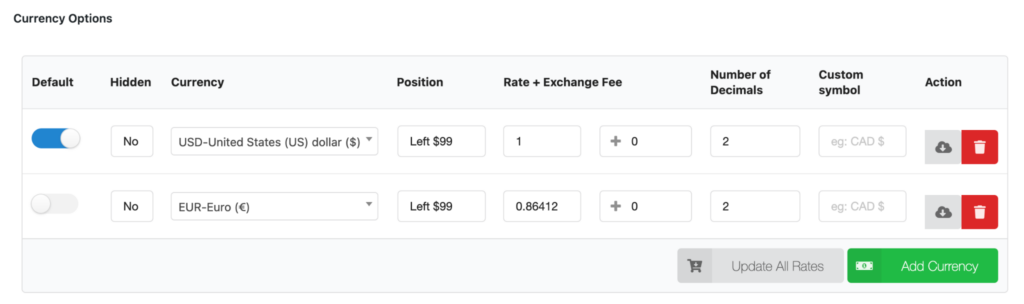
Step 2: Configure Your Currencies in CURCY

  1. Go to WooCommerce → Multi Currency
  2. Add the currencies your store should support (e.g. USD, EUR, GBP)
  3. Set exchange rates for each currency — either manually or enable auto-update
  4. Save your settings
image 23
⚠️  Important: Make sure your WooCommerce base currency is correctly set under WooCommerce → Settings → General. Disco uses the base currency for all discount calculations before converting.

Step 3: Install and Activate Disco Pro

  1. Upload and activate Disco Free from the WordPress plugin repository
  2. Upload and activate Disco Pro add-on
  3. Enter your license key under Disco → License and activate it

Step 4: Create a Campaign in Disco

  1. Go to Disco → Create Discount
  2. Choose your campaign type (e.g. Percentage, Fixed, Bulk)
  3. Set your discount rules, conditions, and product filters as normal
  4. Publish the campaign

No special currency settings are needed inside Disco. The CURCY compatibility layer handles all conversion automatically in the background.
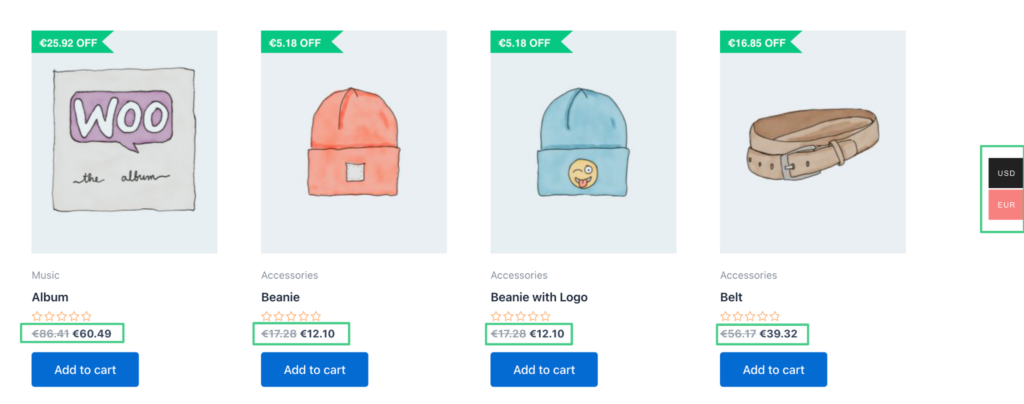
image 24

Result #

Once both plugins are active and your campaigns are live, shoppers will see correctly converted discount amounts and prices as they switch currencies — with no extra setup required on your end.

Example: A “$10 off when cart subtotal exceeds $100” campaign — when a shopper switches to EUR, Disco automatically evaluates their cart against €92 and shows a €9.20 discount.
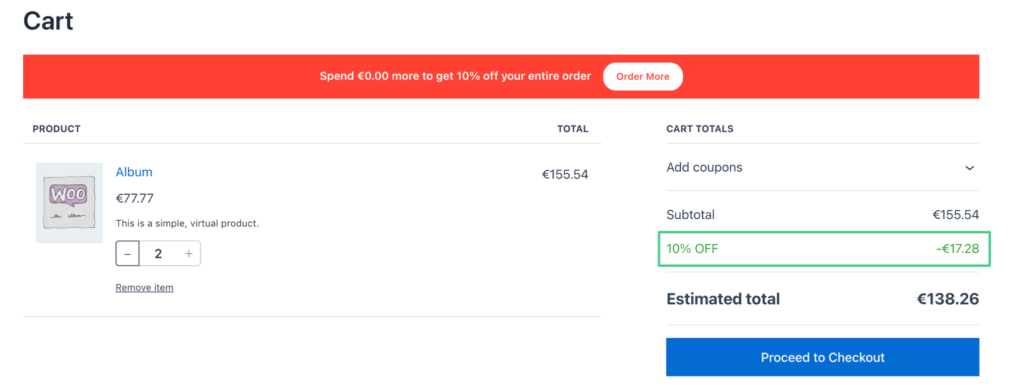
image 22
📌 Note: Currency conversion accuracy depends entirely on the exchange rates configured in CURCY. Disco uses whatever rates CURCY provides — always keep your CURCY exchange rates up to date for accurate discount display.

What are your Feelings

  • Happy
  • Normal
  • Sad

Share This Article :

  • Facebook
  • X
  • LinkedIn
  • Pinterest
ACF – Advanced Custom FieldsFOX – Currency Switcher (WOOCS)

Leave a Comment Cancel Reply

Table of Contents
  • Requirements
  • Step-by-Step Setup
  • Result
disco logo

The best WooCommerce discount plugin for BOGO deals, bulk discounts, tiered pricing, user role pricing, and dynamic pricing rules.

Product

  • Features
  • Pricing
  • Free vs Pro
  • Documentation

Resources

  • Blog
  • Tutorials
  • FAQ
  • Changelog

Company

  • About WebAppick
  • Support
  • Feature Request
  • Disco Community

© 2026 Disco by WebAppick. All rights reserved.