
Bundle discounts help you offer attractive product combinations at a better price, encouraging customers to buy more in a single purchase.
With the Disco – WooCommerce Discount Plugin, you can easily create bundle deals and display a clear discount table on your product pages.
In this example, we will set up the Bundle discount rule and display for: 10 units → 5% OFF, 15 units → 10% OFF, 20+ units → 15% OFF
Follow the steps below to create and display this bundle discount table.
Step 1: Create a Bundle Discount Rule #
- Go to your WordPress dashboard.
- Navigate to Disco → Discount Rules.
- Enter a Campaign Name (example: Bundle Deal – Save More).
- Select Bundle Discount as your discount type.
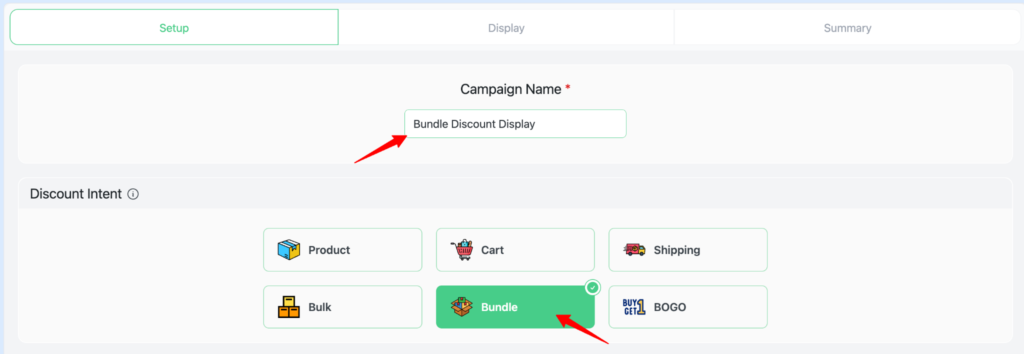
Step 2: Filter Products for the Bundle Discount #
You can choose:
- All Products
- Specific Products
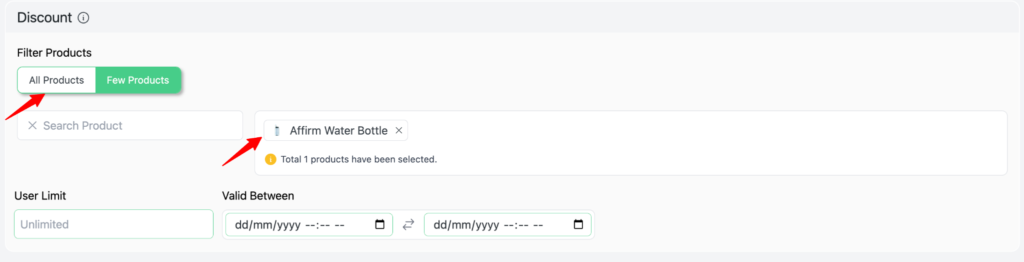
Use the product filter options to select which items must be purchased together to receive the discount.
Step 3: Set Bundle Discount Conditions #
Now configure the bundle quantity tiers and discounts for this example:
Bundle Tier 1
- Buy Quantity: 10
- Discount: 5% OFF
Bundle Tier 2
- Buy Quantity: 15
- Discount: 10% OFF
Bundle Tier 3
- Buy Quantity: 20+
- Discount: 15% OFF
To set these tiers:
- Set the Bundle rules.
- Select Bundle Quantity Condition.
- Enter the required quantity and assign the discount percentage.
- Repeat for all tiers.
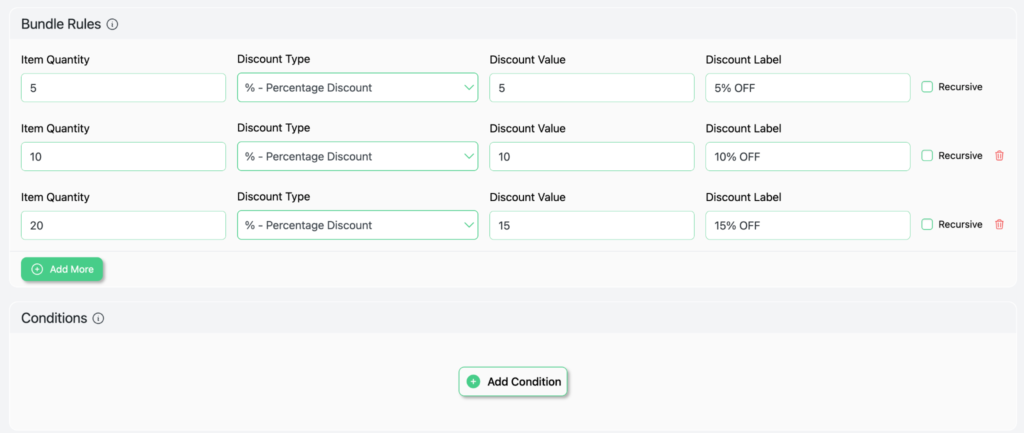
Click Continue to set the bundle discount display.
Step 4: Enable and Customize the Bundle Discount Table #
To display the bundle discounts clearly on the product page:
Enable Bundle Table.
Click Edit Now to customize the layout.
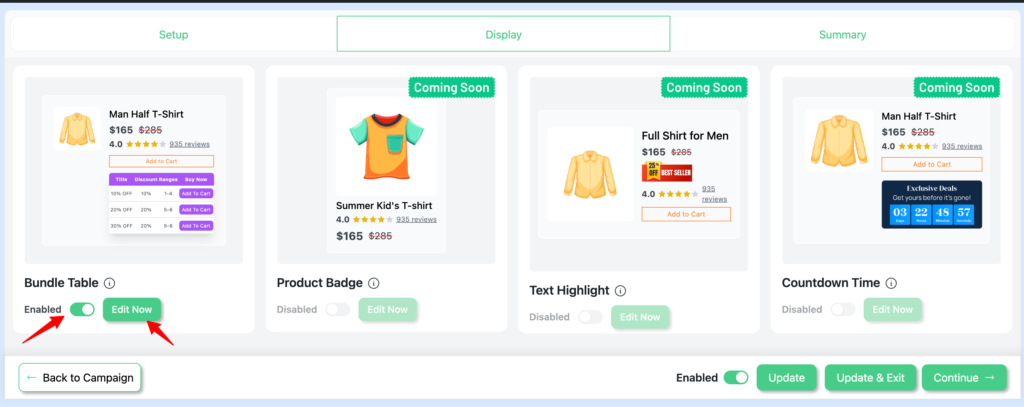
Choose a pre-made table design or customize your own.
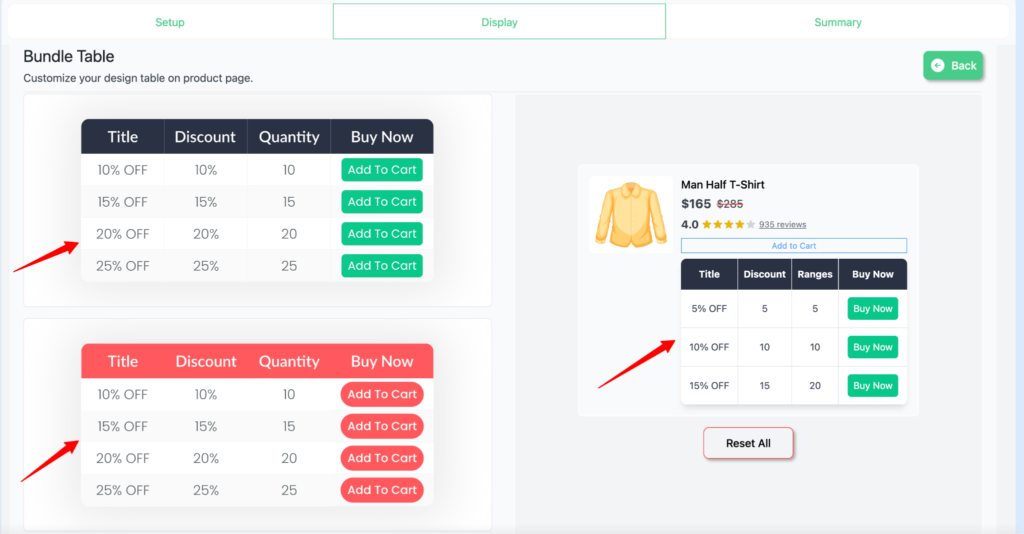
You can fully customize the bundle discount table to match your brand’s look and feel. Available customizations include:
- Colors
- Fonts
- Label texts
- Button Colors
- Highlighting the best offer
- Table spacing and alignment
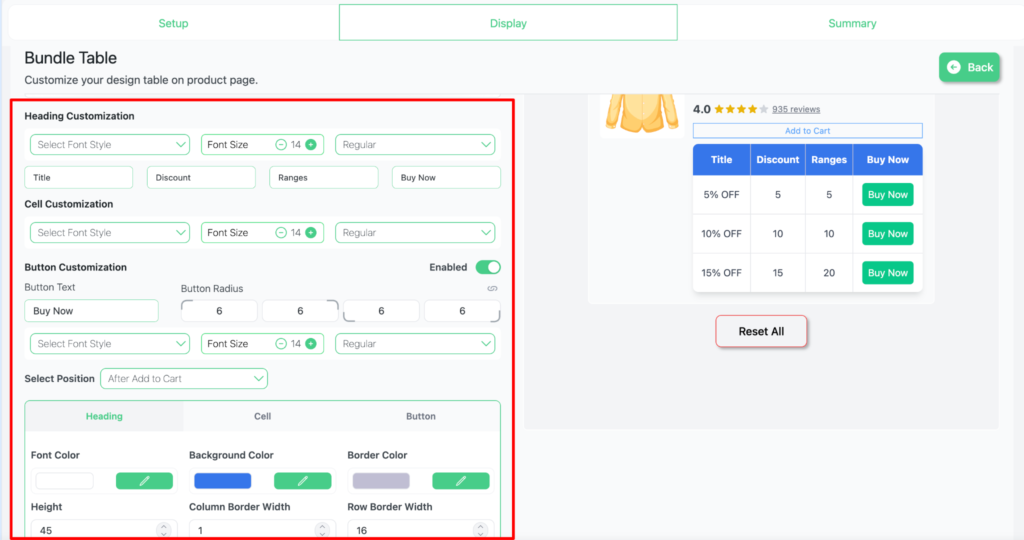
This makes the discount table easy to read and visually consistent with your brand.
Step 5: Review the Campaign Summary #
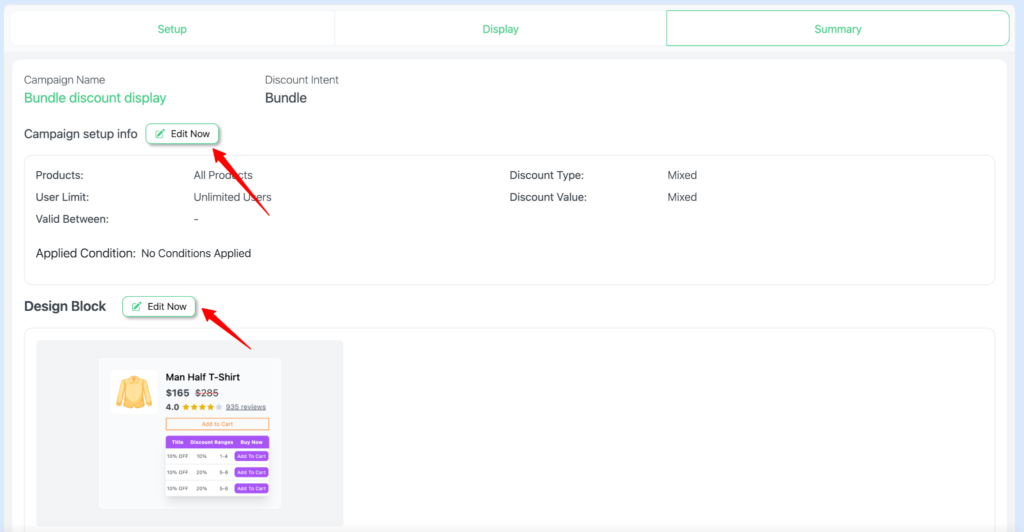
The Summary section displays all the settings you have configured for this bundle discount.
To update any information, click ‘Edit Now’ to make changes.
Step 6: Test the Discount on the Product Page #
Once saved, open the related product page.
You will now see the Bundle Discount Table showing:
- Buy 10 units → 5% OFF
- Buy 15 units → 10% OFF
- Buy 20+ units → 15% OFF
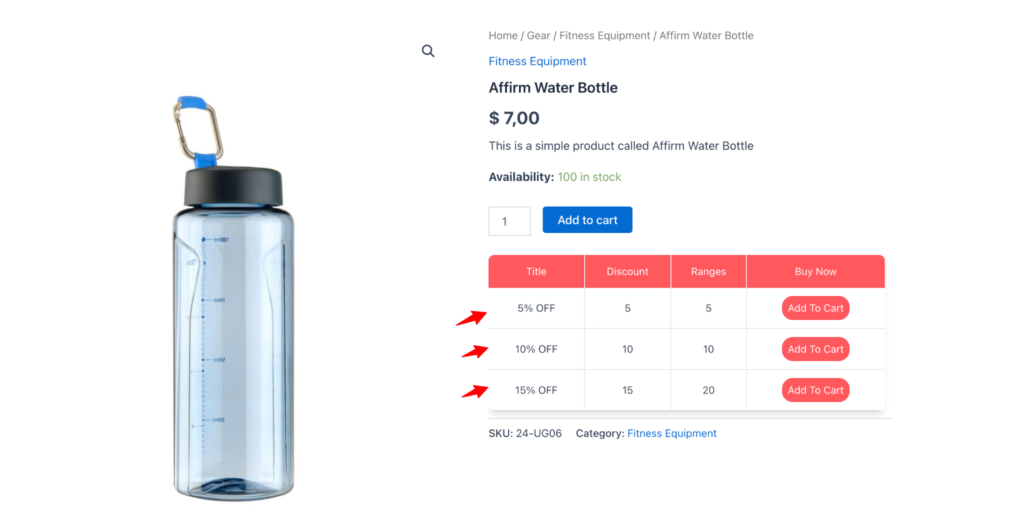
This helps customers instantly understand the savings and encourages higher quantity purchases.
📌 Note: You can create any dynamic bundle discount in Disco, using custom conditions, product filters, user restrictions, date limits, and more.


