disco logo
  • Features
  • Pricing
  • Compare
  • Resources
    • Blog
    • Documentation
    • Changelog
    • Contact/Support
    • Disco Community
Login Get Disco Pro

Getting Started

1
  • Installation Process of Disco Plugin (PRO And Free)

Product Intent Discounts

4
  • Set Up Product Intent Discounts
  • Example 1: $20 Off All ‘Men’ Category Products
  • Example 2: 5% Off Product X for a Limited Time
  • Example 3: Flat $50 Off on Products Over $500

Cart-Intent Discounts

4
  • Set up Cart Intent Discounts using Disco Plugin
  • Example 1: 20% Cart Discount on Selected Categories
  • Example 2: Offer 10% Cart Discount for 10+ Items (Cart Quantity)
  • Example 3 : Offer $10 Off Product X When Cart Has 3+ Items (In Stock)

Free Shipping Discount

4
  • Set Up Free Shipping with DIsco Plugin
  • Example 1: Free Shipping for Location ‘X’ Customers
  • Example 2: Free Shipping on Category “A” Products
  • Example 3: Free Shipping on Specific Product During Promotion

Bulk Intent Discount

4
  • Set Up Bulk Intent Discount with Disco Plugin
  • Example 1: Bulk Percentage Discounts on All Products by Quantity
  • Example 2: Offer 5% Bulk Discount on Product X for 3+ Units (October Only)
  • Example 3: Offer $10 Off on 5+ Units from Category ‘A’

Bundle Discount

1
  • Set Up Bundle Discount with Disco Plugin

Campaign Setup

6
  • Product Rules Explain with Example
  • Bundle Rules Explain with Example
  • Bulk Rules Explain with Example
  • Cart Rules Explain with Example
  • Discount Rules (Filter Products, User Limit, Valid Between, Discount Label)
  • Discount Intent

Conditions

9
  • Items Count (Entire Cart) vs Item Count 
  • Set Up Discounts According to Product Stock Quantity in WooCommerce
  • Apply Discounts on Selected Categories in WooCommerce 
  • Create a Discount on a Specific Product Attribute in WooCommerce
  • Set Up Discounts by Brand in WooCommerce with Disco Plugin
  • Tax and Shipping Based Discount Conditions
  • Price Based Discount Conditions
  • Product Attributes Based Discount Condition
  • Product/Cart Item Based Discount Conditions

Ticket Solutions

1
  • Discount Applies but No Visual Badge or Offer Displayed

BOGO

5
  • Buy X Product, Get Y Product at a Discounted Price
  • Buy X, Get Y Free (Different Product)
  • Buy X from Category A & Get Y from Category B
  • Set Up BOGO Discount (Buy 1 T-Shirt, Get 1 T-Shirt Free)
  • Buy X Get X at Discount (Buy 3 Coffee Mugs, Get 3rd One 50% Off)

Campaign Display

6
  • Display Text Highlight in WooCommerce
  • Display Countdown Timer in WooCommerce
  • Display Cart Notice in WooCommerce
  • Display Product Badge in WooCommerce
  • Display Bundle Discount Table in WooCommerce 
  • Display Bulk Discount Table in WooCommerce

Compatible Plugins

5
  • CURCY – Multi Currency for WooCommerce
  • FOX – Currency Switcher (WOOCS)
  • WPML + WooCommerce Multilingual
  • Aelia Currency Switcher
  • ACF – Advanced Custom Fields
View Categories
  • Home
  • Documentation
  • Campaign Display
  • Display Countdown Timer in WooCommerce

Display Countdown Timer in WooCommerce

1 min read

Countdown Timer is a Pro feature that displays a live ticking timer on your product pages. It creates urgency around your active discount — showing customers exactly how much time is left before the offer expires.

Once you’ve created a campaign with an end date, follow these steps to enable and customize the Countdown Timer.

Step 1: Go to the Display Tab #

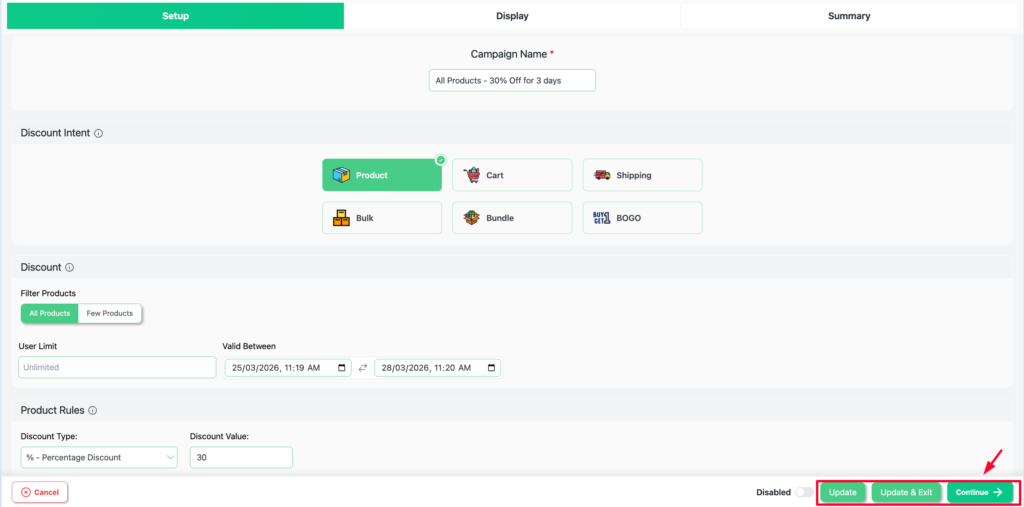
After setting up your campaign, click the continue button at the bottom of the campaign setup.
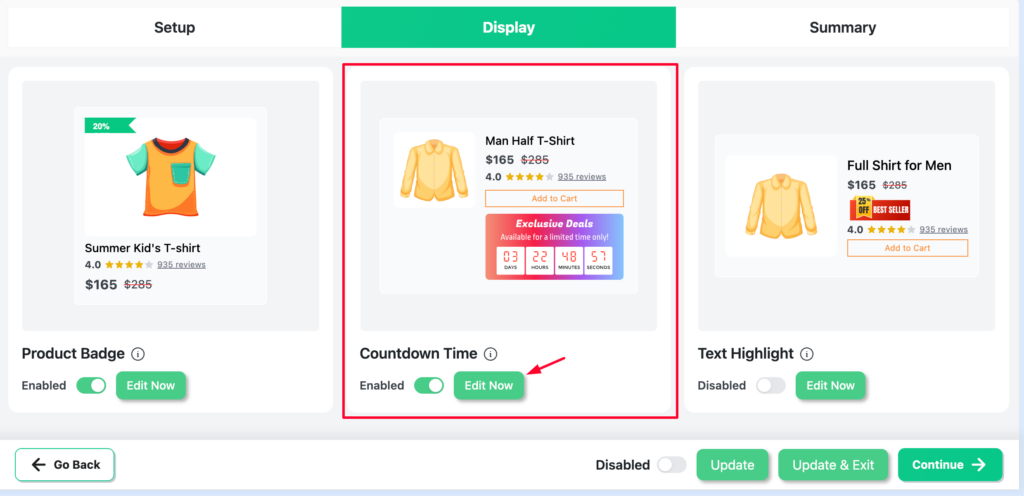
Display tab showing all available Design Blocks

Step 2: Enable Countdown Timer #

  • Locate the Countdown Time block
  • Toggle it to Enabled
  • Click Edit Now to open the customizer
Countdown Timer block with toggle Enabled and Edit Now button

Step 3: Choose a Countdown Design #

Select one of the 4 pre-built countdown designs as your starting point:

  • Pink gradient with bold digits
  • Orange solid with compact layout
  • Dark / navy with bright digit boxes
  • Purple gradient with dot separators

All designs are fully customizable after selection.
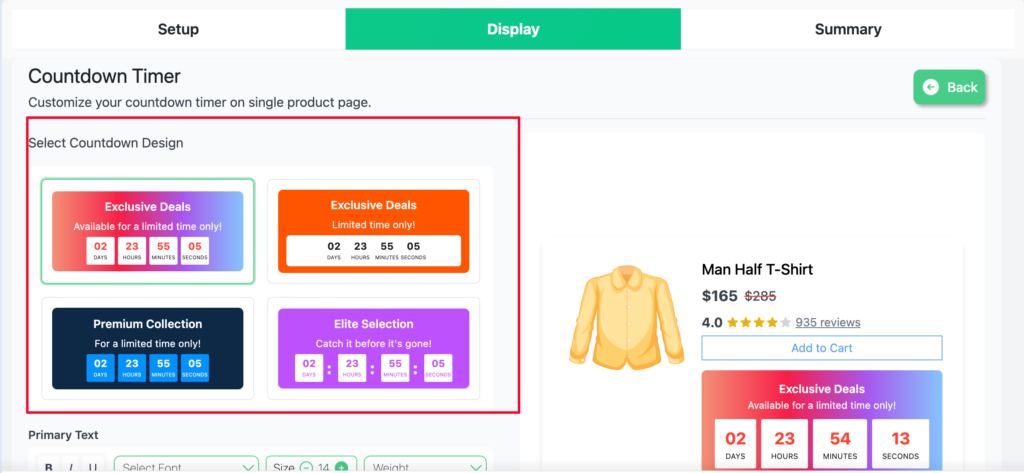
4 pre-built countdown design templates

Step 4: Add Primary and Secondary Text #

You can add two lines of text above the countdown boxes to give customers context:

  • Primary Text — the main heading, e.g. “Exclusive Deals”
  • Secondary Text — a supporting line, e.g. “Available for a limited time only!”

Both fields support font, size, and weight controls. Leave them blank to show the timer only.
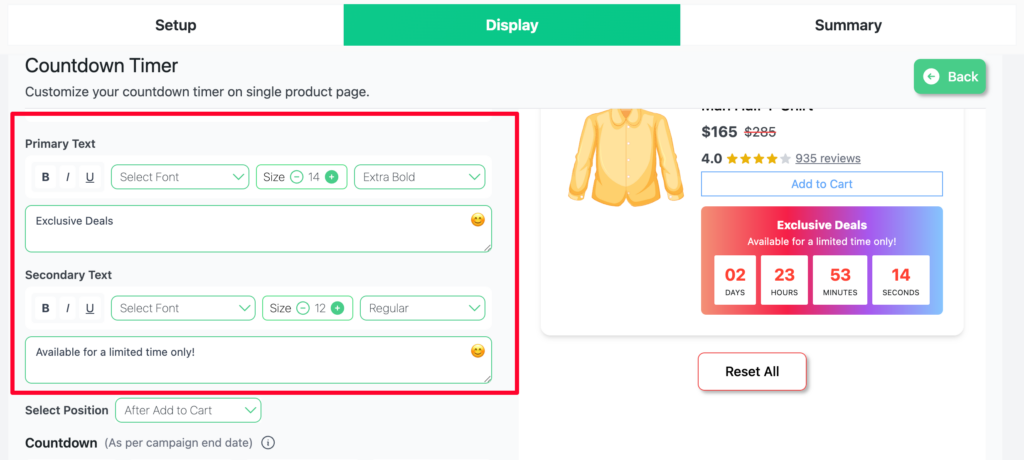
Primary Text and Secondary Text fields with font controls

Step 5: Set the Display Position #

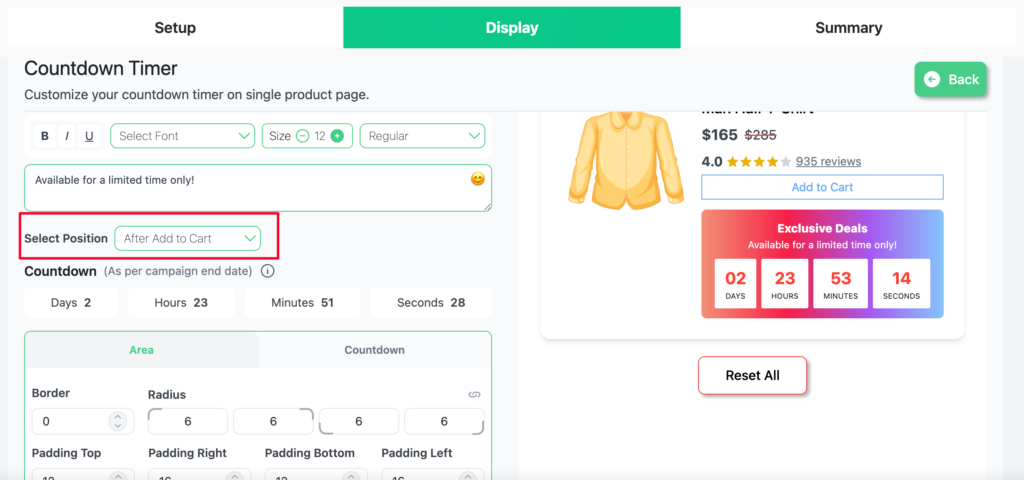
Use the Select Position dropdown to choose where the timer appears on the product page:

  • Before Add to Cart
  • After Add to Cart
  • Before Product Title
  • After Product Title
Select Position dropdown on the Countdown Timer editor

Step 6: Style the Timer #

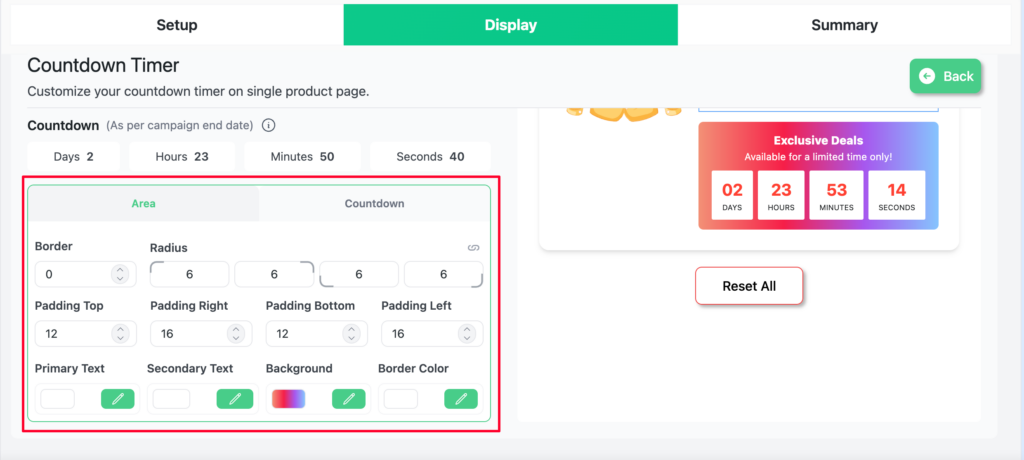
The style controls are split into two tabs — Area and Countdown:

Area tab — controls the overall container:

  • Border & Radius — border width and corner roundness
  • Padding — spacing inside the container (Top, Right, Bottom, Left)
  • Primary Text / Secondary Text — text colors
  • Background — solid color or gradient

Countdown tab — controls the individual time boxes:

  • Box background color, border, and radius
  • Digit color, size, and weight
  • Label color and size (Days, Hours, Minutes, Seconds)
  • Separator style between boxes
Countdown Timer style controls Area tab and Countdown tab

Step 7: Save and Publish #

  • Click Update to save
  • Ensure the campaign Enabled toggle is on
  • Click Publish to go live

Result: Countdown Timer on the Product Page #

Open a product page covered by the campaign. The Countdown Timer will appear at the selected position, ticking down in real time toward the campaign end date.

“Exclusive Deals — Available for a limited time only! 01 : 23 : 59 : 22”
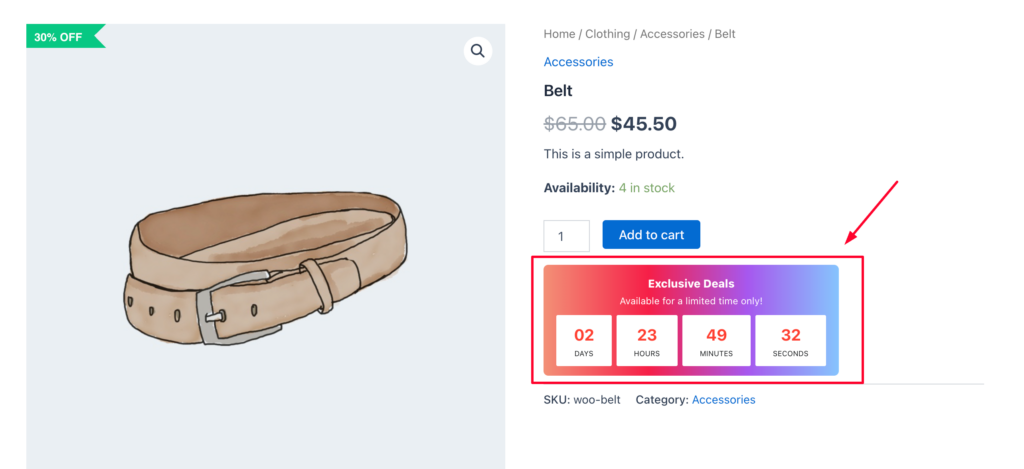
Product page showing the live Countdown Timer with days, hours, minutes, seconds

📌 Note: The Countdown Timer requires a campaign end date (Valid Between) to display. It automatically hides when the timer reaches zero — no manual intervention needed. Countdown Timer is a Pro-only feature — requires Disco Pro

What are your Feelings

  • Happy
  • Normal
  • Sad

Share This Article :

  • Facebook
  • X
  • LinkedIn
  • Pinterest
Display Text Highlight in WooCommerceDisplay Cart Notice in WooCommerce

Leave a Comment Cancel Reply

Table of Contents
  • Step 1: Go to the Display Tab
  • Step 2: Enable Countdown Timer
  • Step 3: Choose a Countdown Design
  • Step 4: Add Primary and Secondary Text
  • Step 5: Set the Display Position
  • Step 6: Style the Timer
  • Step 7: Save and Publish
  • Result: Countdown Timer on the Product Page
disco logo

The best WooCommerce discount plugin for BOGO deals, bulk discounts, tiered pricing, user role pricing, and dynamic pricing rules.

Product

  • Features
  • Pricing
  • Free vs Pro
  • Documentation

Resources

  • Blog
  • Tutorials
  • FAQ
  • Changelog

Company

  • About WebAppick
  • Support
  • Feature Request
  • Disco Community

© 2026 Disco by WebAppick. All rights reserved.