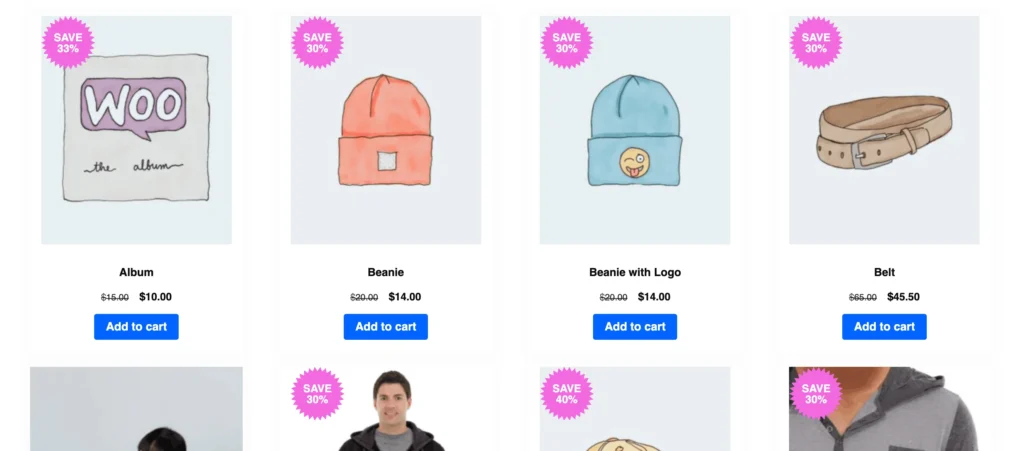
Product Badge is a feature that displays a visual badge directly on your product images. It instantly highlights your active discount with a bold, eye-catching label — drawing attention before shoppers even click on the product.
📌 Note: Product Badge is only available in the Disco Pro version. Upgrade to the Disco Pro now
Once you’ve created a campaign, follow these steps to enable and customize the Product Badge.
Step 1: Go to the Campaign Display #
After setting up your product intent campaign, click the continue button at the bottom of the campaign editor.
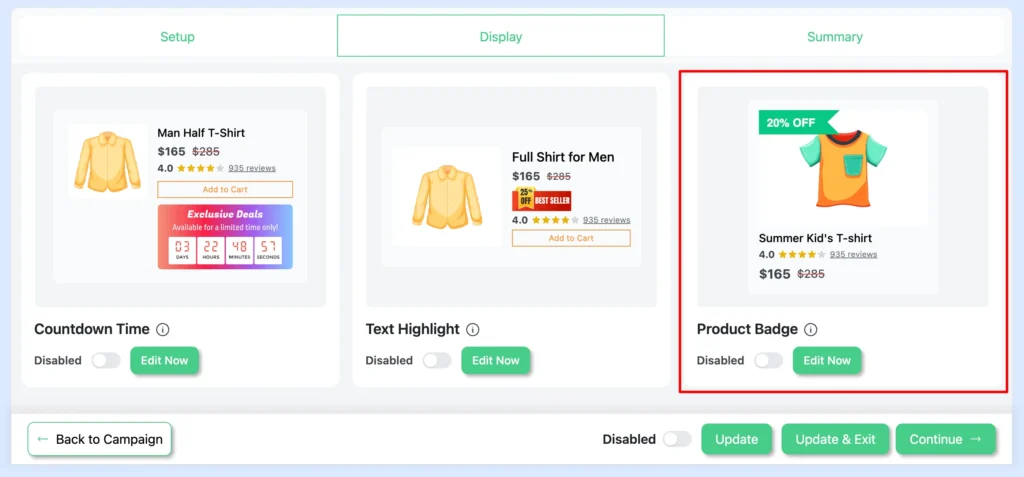
Step 2: Enable Product Badge #
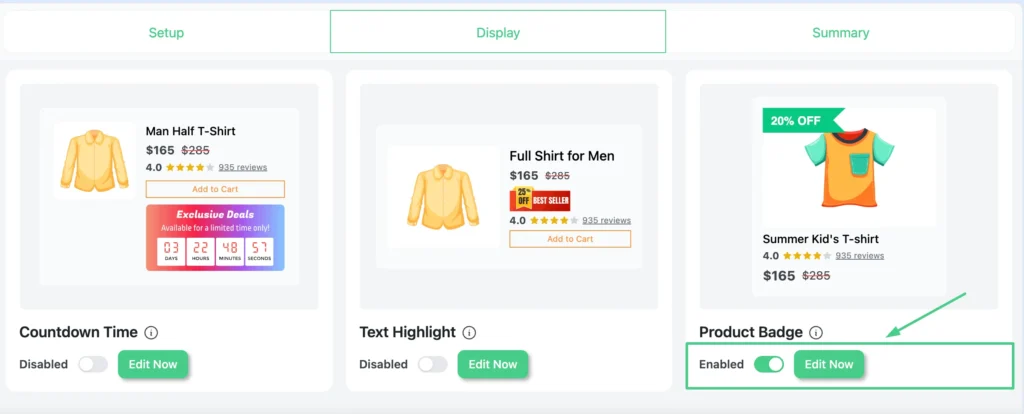
- Locate the Product Badge block
- Toggle it to Enabled
- Click Edit Now to open the customizer
Step 3: Select a Badge Design #
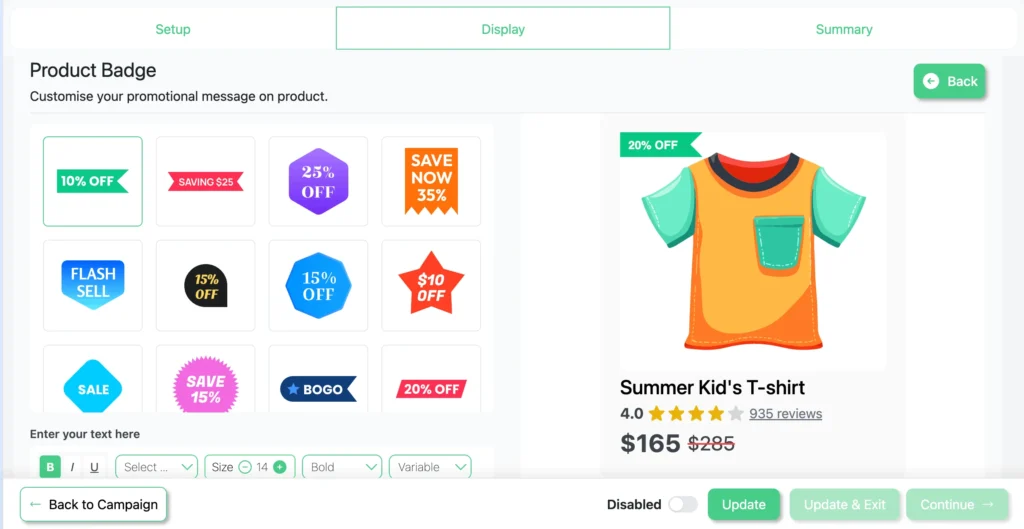
Choose from a grid of pre-built badge designs. There are two types available:
- Editable — fully customizable CSS-based badges (shapes, colors, text). Includes 16 designs: arrows, ribbons, hexagons, stars, circles, banners, and more.
- Value Editable — SVG-based badges with the discount value overlaid. Includes 12 illustrated designs. (Coming Soon)
- Own Badge — Upload your own custom badge image and display it on the products (Coming Soon)
Click any design in the grid to select it. The live preview on the right updates instantly.
Step 4: Write the Badge Text with Placeholders #
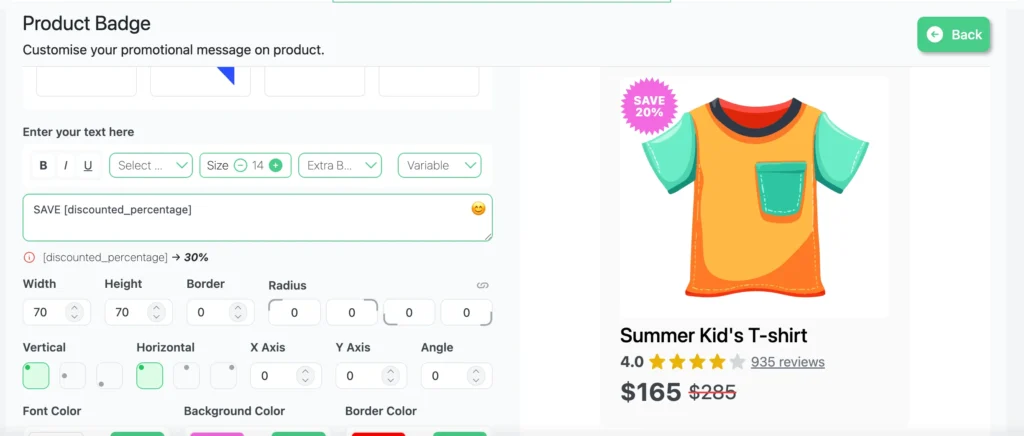
In the text field below the badge grid, enter your badge message. Use placeholders to insert dynamic discount values automatically:
| Placeholder | What It Inserts | Example |
| [discounted_percentage] | The campaign discount percentage | 30% |
| [discounted_amount] | The discount as a currency value | $25.00 |
Example: “SAVE [discounted_percentage] “
Output: “SAVE 30%”
Below the text field, Disco shows a live preview of what each placeholder resolves to based on your campaign rules.
You can also control the text style using the Bold, Italic, Underline buttons, and set the Font, Size, and Weight from the dropdowns.
Step 5: Set Badge Size and Shape #
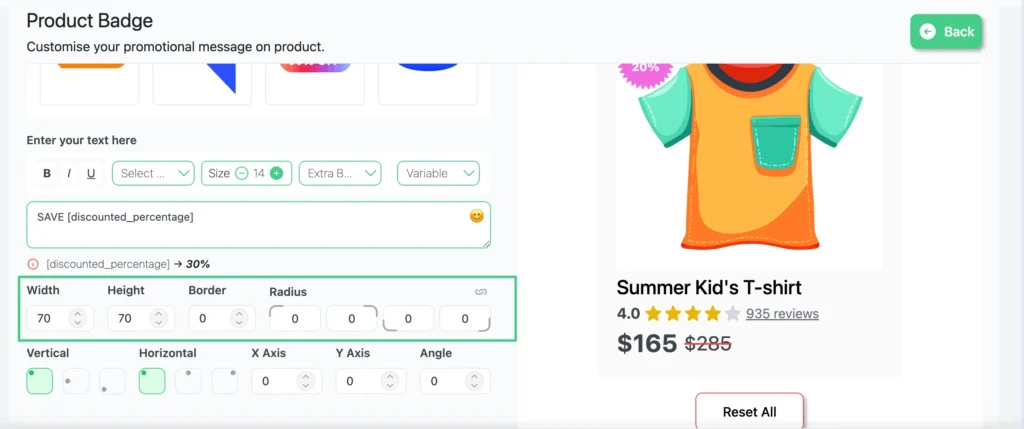
Use the size controls to adjust the badge dimensions and shape. These controls are available for Editable badges (disabled for Value Editable):
- Width — badge width in pixels (1–300px)
- Height — badge height in pixels (1–100px)
- Border — border width around the badge (0–100px)
- Radius — corner roundness, with individual control per corner (linked or unlinked)
Step 6: Set the Badge Position #
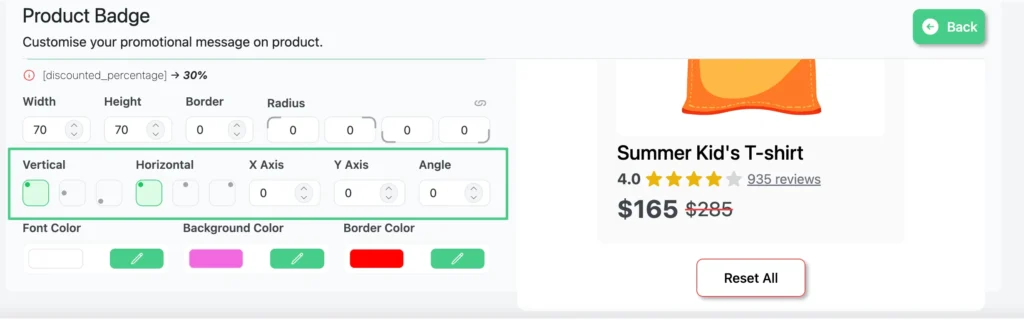
Use the position controls to place the badge precisely on the product image:
- Vertical — snap the badge to the Top, Middle, or Bottom of the image
- Horizontal — snap the badge to the Left, Center, or Right of the image
- X Axis — fine-tune the horizontal offset in pixels (0–100)
- Y Axis — fine-tune the vertical offset in pixels (0–100)
- Angle — rotate the badge (-360° to 360°)
Step 7: Style the Badge Colors #
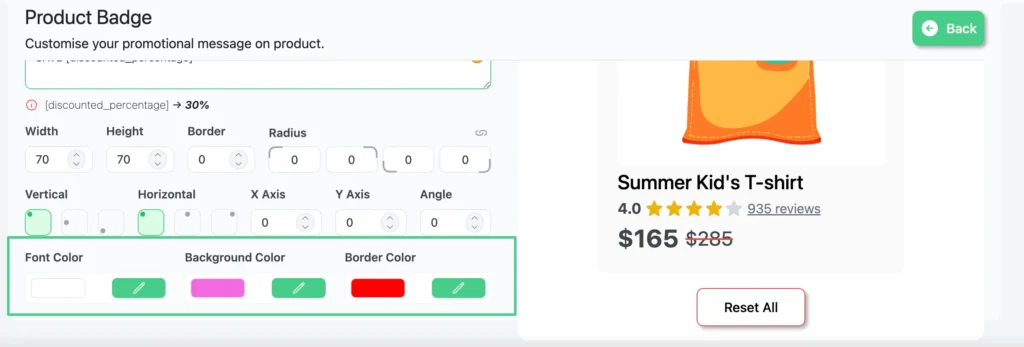
Use the color pickers to match the badge to your store’s branding. These are available for Editable badges (Background and Border Color are disabled for Value Editable):
- Font Color — color of the badge text
- Background Color — fill color of the badge
- Border Color — color of the badge border (visible if Border > 0)
Step 8: Save and Publish #
- Click Update to save/ Its also has autosave
- Ensure the campaign Enabled toggle is on
- Click continue to go summary page for publish the discount campaign
Result: Product Badge on the Product Image #
Visit any product page covered by the campaign. The Product Badge will appear overlaid on the product image, showing your promotional message with the discount value automatically filled in.
| “SAVE 20%” badge displayed on the product image — top-left corner, pink starburst design |