
Displaying bulk discounts on your WooCommerce store helps customers clearly understand how much they can save when buying in larger quantities.
The Disco Pro – WooCommerce Dynamic Pricing & Discount Rules Plugin makes this process simple by letting you show quantity-based price breaks directly on product pages or in the cart.
Follow the steps below to display bulk discounts using Disco:
Step 1: Enable Bulk Discount Rule #
We will set up the discount rule and display for this example: 1–5 units → 5% OFF, 6–10 units → 10% OFF, 11+ units → 15% OFF.
To display bulk discounts with the Disco plugin, start by creating your discount campaign.
- Go to Disco → Discount Rules.
- Click Add New Rule.
- Enter a Campaign Name (example: Bulk Discount).
- Select Bulk Discount as the discount type.

Choose where the discount will apply by using product filters:
- All products
- Specific products
We select Specific products
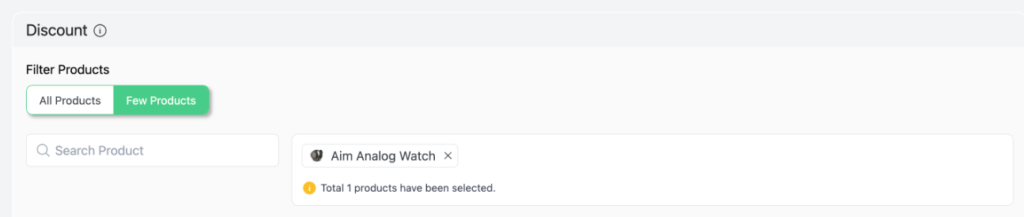
Now Set the User Limit and Validity. You can define:
- User Limit (e.g., specific, or unlimited)
- Valid Date Range if the offer is time-based

Set up Bulk Discount Rules Now, and add the tiered rules for quantity-based discounts. For this campaign, we are creating three pricing tiers:
Tier 1
- Buy Minimum Quantity: 1
- Maximum Quantity: 5
- Discount Type: Percentage
- Discount Amount: 5% OFF
Tier 2
- Buy Minimum Quantity: 6
- Maximum Quantity: 10
- Discount Type: Percentage
- Discount Amount: 10% OFF
Tier 3
- Buy Minimum Quantity: 11+
- Maximum Quantity: Leave blank or set a large number (e.g., 9999)
- Discount Type: Percentage
- Discount Amount: 15% OFF
Each tier defines how much discount customers receive based on the number of items they purchase.
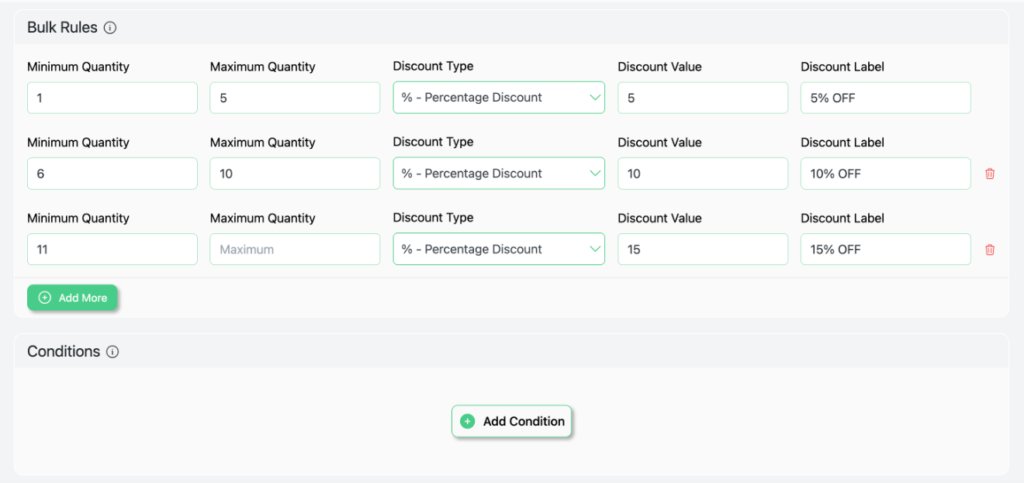
Once your rules are created, click Continue to move to the Campaign Display steps.
📝 Note: You can set any dynamic bulk discount using Add Condition —quantity, users, product filters, categories, cart conditions, and more. Disco gives you full flexibility to create advanced tiered pricing rules.
Step 2: Configure Discount Display #
Once your bulk discount rules are created, you need to enable the Bulk Table so customers can clearly see the pricing tiers on the product page.
Now, Enable the Bulk Table
- Toggle Bulk Table to ON.
- To customize the table layout, click Edit Now.
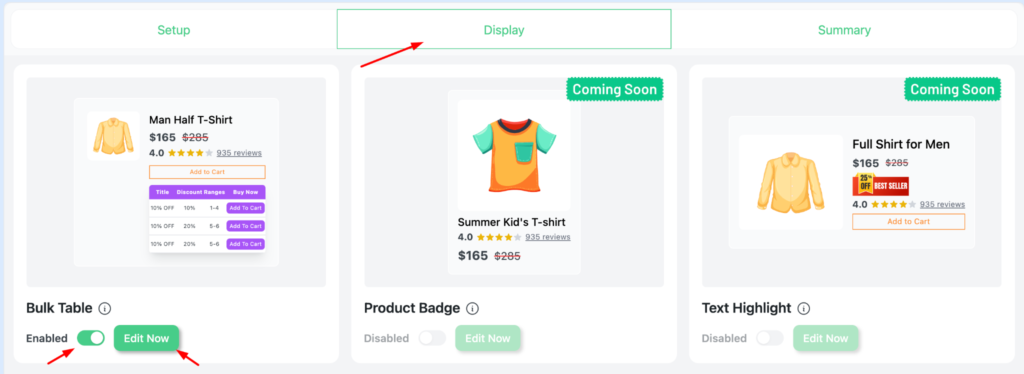
Choose a Pre-made Bulk Table Design.
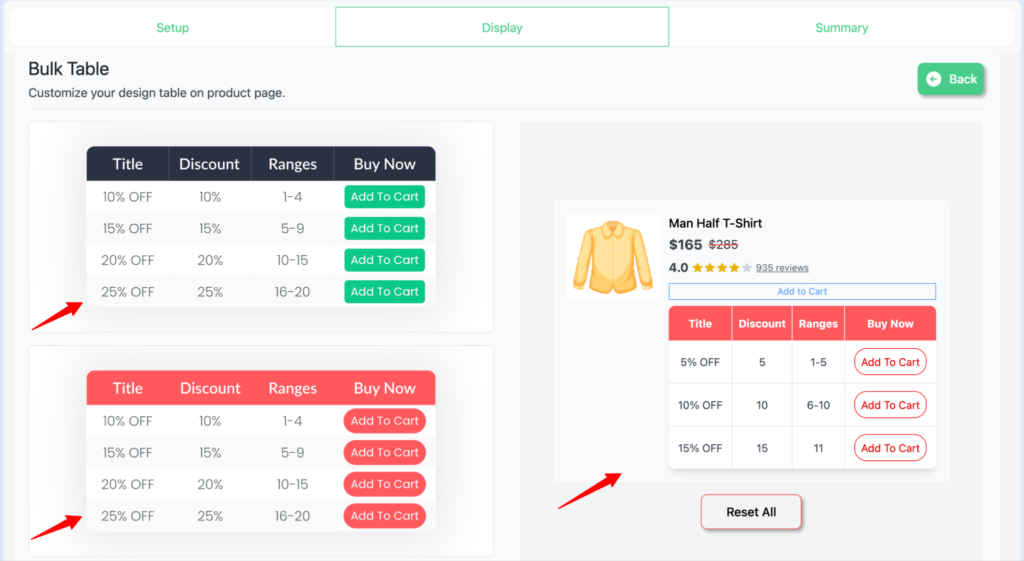
Disco Plugin provides several pre-made Bulk Table layouts. You can select any template that fits your store’s style, including:
- Simple pricing table
- Tiered comparison layout
- Highlighted best-offer table
- Minimal clean layout
Customize the Table Appearance
You can fully customize the bulk discount table to match your brand’s look and feel. Available customizations include:
- Table colors
- Font size and style
- Button text (e.g., “Add to cart, Buy More, Save More”)
- Highlight color for the best discount tier
- Price or savings display format
- Border, spacing, and alignment
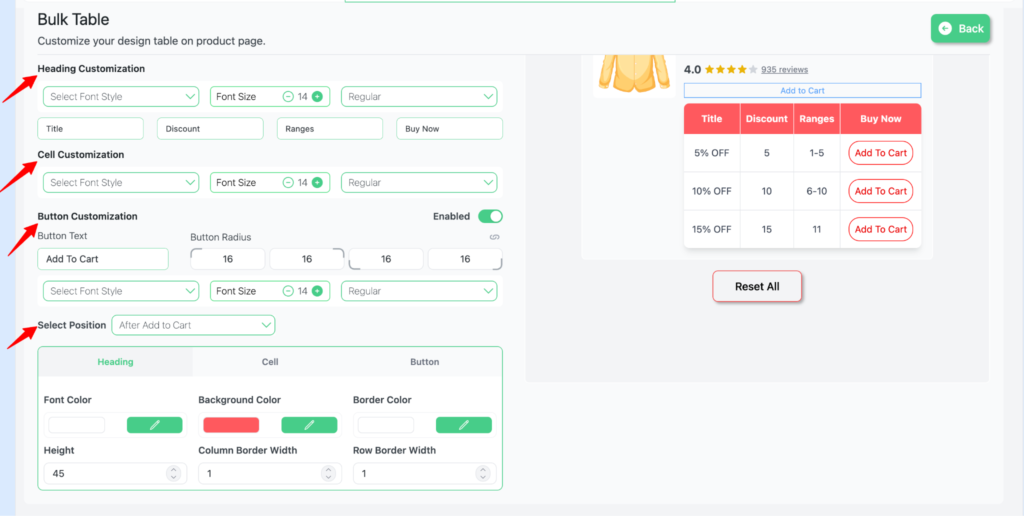
This ensures your bulk pricing table is visually appealing, easy to understand, and aligned with your brand visibility.
Step 3: Summarize Your Campaign #
Here you can review a full summary of everything you’ve set for this campaign. If you need to change anything, simply click Edit Now to update the configuration.
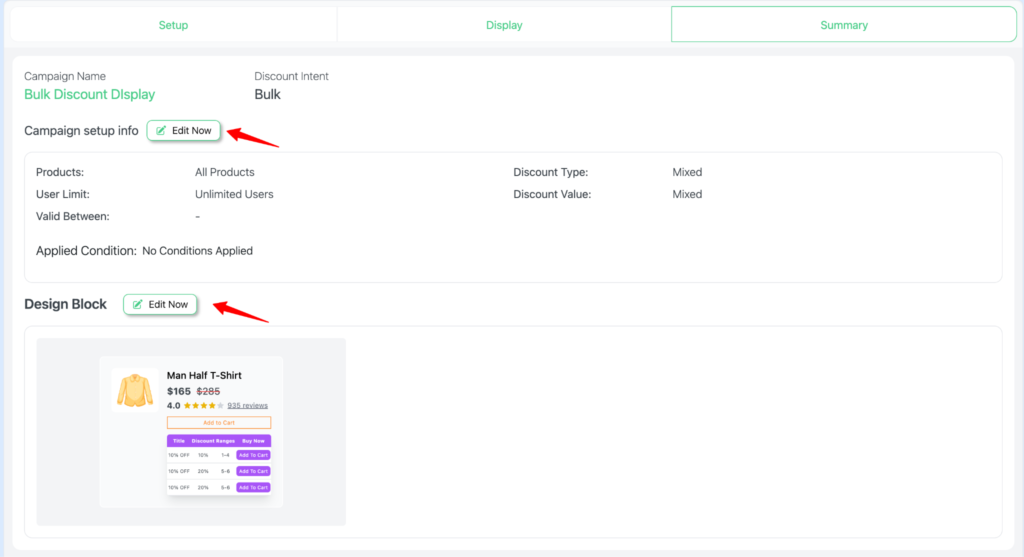
Now we will test our campaign on the product page. Here, you can see the bulk discount display we just created in action.


