
disco logo
  • Features
  • Pricing
  • Compare
  • Resources
    • Blog
    • Documentation
    • Changelog
    • Contact/Support
    • Disco Community
Login Get Disco Pro

Getting Started

1
  • Installation Process of Disco Plugin (PRO And Free)

Product Intent Discounts

4
  • Set Up Product Intent Discounts
  • Example 1: $20 Off All ‘Men’ Category Products
  • Example 2: 5% Off Product X for a Limited Time
  • Example 3: Flat $50 Off on Products Over $500

Cart-Intent Discounts

4
  • Set up Cart Intent Discounts using Disco Plugin
  • Example 1: 20% Cart Discount on Selected Categories
  • Example 2: Offer 10% Cart Discount for 10+ Items (Cart Quantity)
  • Example 3 : Offer $10 Off Product X When Cart Has 3+ Items (In Stock)

Free Shipping Discount

4
  • Set Up Free Shipping with DIsco Plugin
  • Example 1: Free Shipping for Location ‘X’ Customers
  • Example 2: Free Shipping on Category “A” Products
  • Example 3: Free Shipping on Specific Product During Promotion

Bulk Intent Discount

4
  • Set Up Bulk Intent Discount with Disco Plugin
  • Example 1: Bulk Percentage Discounts on All Products by Quantity
  • Example 2: Offer 5% Bulk Discount on Product X for 3+ Units (October Only)
  • Example 3: Offer $10 Off on 5+ Units from Category ‘A’

Bundle Discount

1
  • Set Up Bundle Discount with Disco Plugin

Campaign Setup

6
  • Product Rules Explain with Example
  • Bundle Rules Explain with Example
  • Bulk Rules Explain with Example
  • Cart Rules Explain with Example
  • Discount Rules (Filter Products, User Limit, Valid Between, Discount Label)
  • Discount Intent

Conditions

9
  • Items Count (Entire Cart) vs Item Count 
  • Set Up Discounts According to Product Stock Quantity in WooCommerce
  • Apply Discounts on Selected Categories in WooCommerce 
  • Create a Discount on a Specific Product Attribute in WooCommerce
  • Set Up Discounts by Brand in WooCommerce with Disco Plugin
  • Tax and Shipping Based Discount Conditions
  • Price Based Discount Conditions
  • Product Attributes Based Discount Condition
  • Product/Cart Item Based Discount Conditions

Ticket Solutions

1
  • Discount Applies but No Visual Badge or Offer Displayed

BOGO

5
  • Buy X Product, Get Y Product at a Discounted Price
  • Buy X, Get Y Free (Different Product)
  • Buy X from Category A & Get Y from Category B
  • Set Up BOGO Discount (Buy 1 T-Shirt, Get 1 T-Shirt Free)
  • Buy X Get X at Discount (Buy 3 Coffee Mugs, Get 3rd One 50% Off)

Campaign Display

3
  • Display Product Badge in WooCommerce
  • Display Bundle Discount Table in WooCommerce 
  • Display Bulk Discount Table in WooCommerce
View Categories
  • Home
  • Documentation
  • Product Intent Discounts
  • Example 3: Flat $50 Off on Products Over $500

Example 3: Flat $50 Off on Products Over $500

< 1 min read

For this example, we will apply a fixed discount to all products whose price exceeds a specified amount. 

Step 1: Navigate to the Disco Menu >> Create a Discount. Enter a campaign name and, select ‘Product’ as the Discount Intention. 

AD 4nXe gQ3NpOU HbD8YYbGOabKdbYLy0gQjz yWu8XdmandeV8X866qdc8iPNjOuxN Ch8Ales7tZKNLrbJgtTnX bNNhQIhq7xUqpHCOrJaEUU 17ytQtpOfhHQUYbAMvc7 B8KnEpUrZbHWjcaMRZAMFc8I?key=0WKbJ6GKGhAa2Lww58b8Mw

Step 2: Choose ‘All Products’ from the Discount section. 

Step 3: Then from the Product rules price, choose “fixed” as the discount type and put the value as $50. 

AD 4nXeM9mZyzlQfyxpsMcUSnDiGcmlfCFu0FVWELAZQLkcP32EfN6Q8qigJVzjC8 I 8hn94o uJl iPkoHTsfEQisl6SBezCu4vr9KgVmZQdnylVwYwbt HA6IvqUhqSglzAFc6d44Stl0TPW QROCKb7SiNA?key=0WKbJ6GKGhAa2Lww58b8Mw

Step 4: From the conditions section, Select “Add a condition”. 

AD 4nXesWGUEHGDbzA LkRcYW2rUoFMvroCV9kxdI7ZtSfvdA oPH4SGG4xpTvshV0cj7AAywyDY4monMmGheksHlxCXPUT

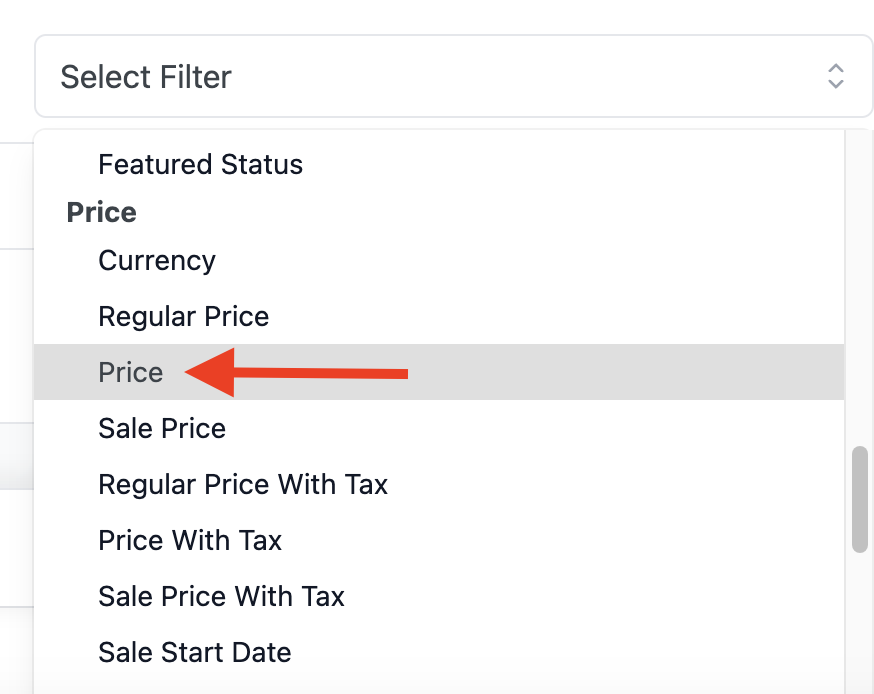
Step 5: Choose “Price” from the “Select Filter” tab. 
AD 4nXfKBzJpB6 Xu89nylmFOGZQDYifeiIlGCN83C1C5G bl6 Ilvexzdqd7F2iLm8X EAAc0cATQridr8R2BmStCDHt5Z

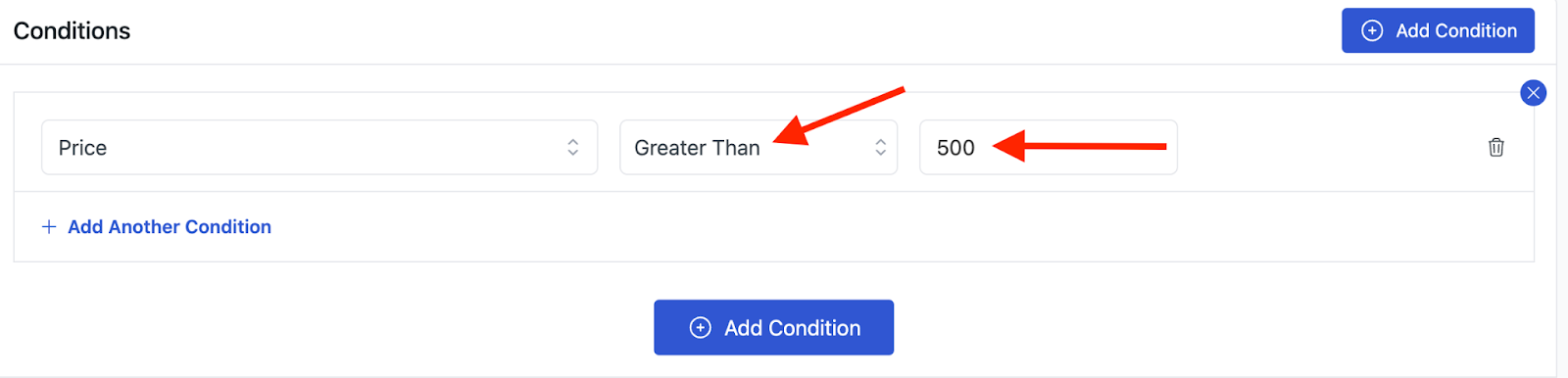
Step 6: Now, add your value to be greater than 500. 
AD 4nXfrpTK0Hb7gA7momYD sqYOjHut5CQo4PROzPWDhPb9IZpmDRbyNQGPq2molEiqypeOqRL1SSinVuQ8lRFA0fy382M9fBTleUKathNfE W7NHXx9Om1ev Y0Fbo 4qbLMoSKXZMB7krVJV6 w NHFUp6J8?key=0WKbJ6GKGhAa2Lww58b8Mw

Step 7: In the final step, simply click on the “Save & Exit” button to run your campaign. 

AD 4nXdMWuwdAbwN0bItI vdZVmjBKdkYq gHOAEtJRfQ3 uABheafnW1eX9o y4ppaJlKtZM6XsGB2zDegEkRj77HNKrEps1za7ftmT2FtlvZ4Py3Eq6 bPHC0RKFVs V6So4vVSVVBZGE6gBln7v1q2r7BhIHo?key=0WKbJ6GKGhAa2Lww58b8Mw

Presented below, you will get to see that our product “Apple iPhone 14 Pro Max” whose price exceeds $500 is getting a $50 discount. 

AD 4nXd

What are your Feelings

  • Happy
  • Normal
  • Sad

Share This Article :

  • Facebook
  • X
  • LinkedIn
  • Pinterest
Example 2: 5% Off Product X for a Limited TimeSet Up Product Intent Discounts

Leave a Comment Cancel Reply

disco logo

The best WooCommerce discount plugin for BOGO deals, bulk discounts, tiered pricing, user role pricing, and dynamic pricing rules.

Product

  • Features
  • Pricing
  • Free vs Pro
  • Documentation

Resources

  • Blog
  • Tutorials
  • FAQ
  • Changelog

Company

  • About WebAppick
  • Support
  • Feature Request
  • Disco Community

© 2026 Disco by WebAppick. All rights reserved.