
disco logo
  • Features
  • Pricing
  • Compare
  • Resources
    • Blog
    • Documentation
    • Changelog
    • Contact/Support
    • Disco Community
Login Get Disco Pro

Getting Started

1
  • Installation Process of Disco Plugin (PRO And Free)

Product Intent Discounts

4
  • Set Up Product Intent Discounts
  • Example 1: $20 Off All ‘Men’ Category Products
  • Example 2: 5% Off Product X for a Limited Time
  • Example 3: Flat $50 Off on Products Over $500

Cart-Intent Discounts

4
  • Set up Cart Intent Discounts using Disco Plugin
  • Example 1: 20% Cart Discount on Selected Categories
  • Example 2: Offer 10% Cart Discount for 10+ Items (Cart Quantity)
  • Example 3 : Offer $10 Off Product X When Cart Has 3+ Items (In Stock)

Free Shipping Discount

4
  • Set Up Free Shipping with DIsco Plugin
  • Example 1: Free Shipping for Location ‘X’ Customers
  • Example 2: Free Shipping on Category “A” Products
  • Example 3: Free Shipping on Specific Product During Promotion

Bulk Intent Discount

4
  • Set Up Bulk Intent Discount with Disco Plugin
  • Example 1: Bulk Percentage Discounts on All Products by Quantity
  • Example 2: Offer 5% Bulk Discount on Product X for 3+ Units (October Only)
  • Example 3: Offer $10 Off on 5+ Units from Category ‘A’

Bundle Discount

1
  • Set Up Bundle Discount with Disco Plugin

Campaign Setup

6
  • Product Rules Explain with Example
  • Bundle Rules Explain with Example
  • Bulk Rules Explain with Example
  • Cart Rules Explain with Example
  • Discount Rules (Filter Products, User Limit, Valid Between, Discount Label)
  • Discount Intent

Conditions

9
  • Items Count (Entire Cart) vs Item Count 
  • Set Up Discounts According to Product Stock Quantity in WooCommerce
  • Apply Discounts on Selected Categories in WooCommerce 
  • Create a Discount on a Specific Product Attribute in WooCommerce
  • Set Up Discounts by Brand in WooCommerce with Disco Plugin
  • Tax and Shipping Based Discount Conditions
  • Price Based Discount Conditions
  • Product Attributes Based Discount Condition
  • Product/Cart Item Based Discount Conditions

Ticket Solutions

1
  • Discount Applies but No Visual Badge or Offer Displayed

BOGO

5
  • Buy X Product, Get Y Product at a Discounted Price
  • Buy X, Get Y Free (Different Product)
  • Buy X from Category A & Get Y from Category B
  • Set Up BOGO Discount (Buy 1 T-Shirt, Get 1 T-Shirt Free)
  • Buy X Get X at Discount (Buy 3 Coffee Mugs, Get 3rd One 50% Off)

Campaign Display

3
  • Display Product Badge in WooCommerce
  • Display Bundle Discount Table in WooCommerce 
  • Display Bulk Discount Table in WooCommerce
View Categories
  • Home
  • Documentation
  • Cart-Intent Discounts
  • Example 2: Offer 10% Cart Discount for 10+ Items (Cart Quantity)

Example 2: Offer 10% Cart Discount for 10+ Items (Cart Quantity)

1 min read

In this example, a 10% discount is applied when the total number of individual items in the cart reaches 10 or more, regardless of product type. This encourages customers to add more products to their cart to qualify for the discount, boosting overall sales volume.

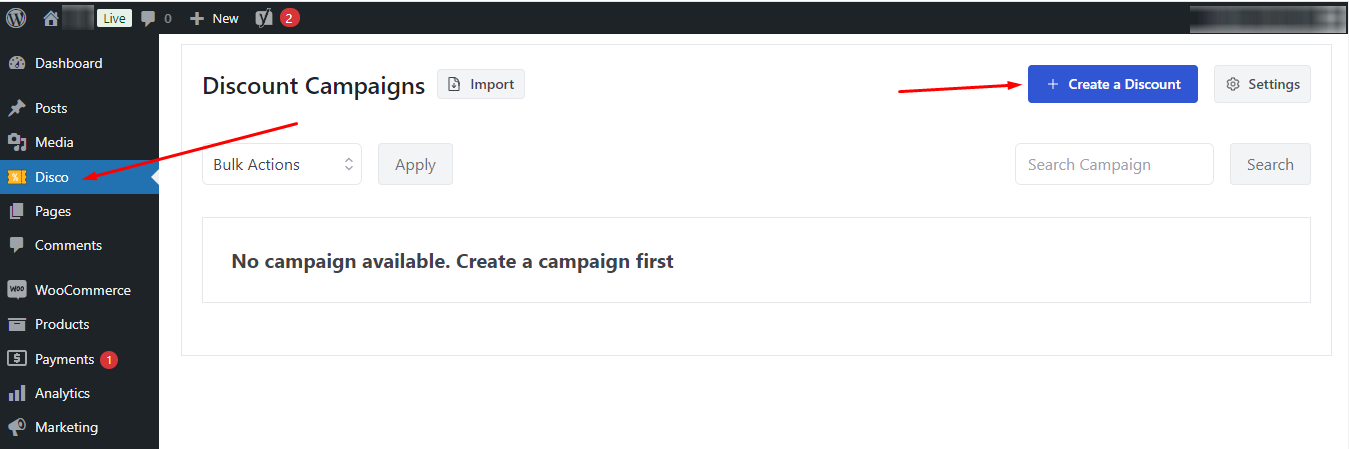
Step 1: Click on the ‘Disco’ menu and select ‘Create a Discount’. 
AD 4nXc2H2L QRT8 7Dx5BYLMnpa4h163YGD5f21qYvJW1x4EmAk ndTz9HolyJ49ZSvfeJfo PrlYZ1UJa46pmV6AzLu 96z8heW

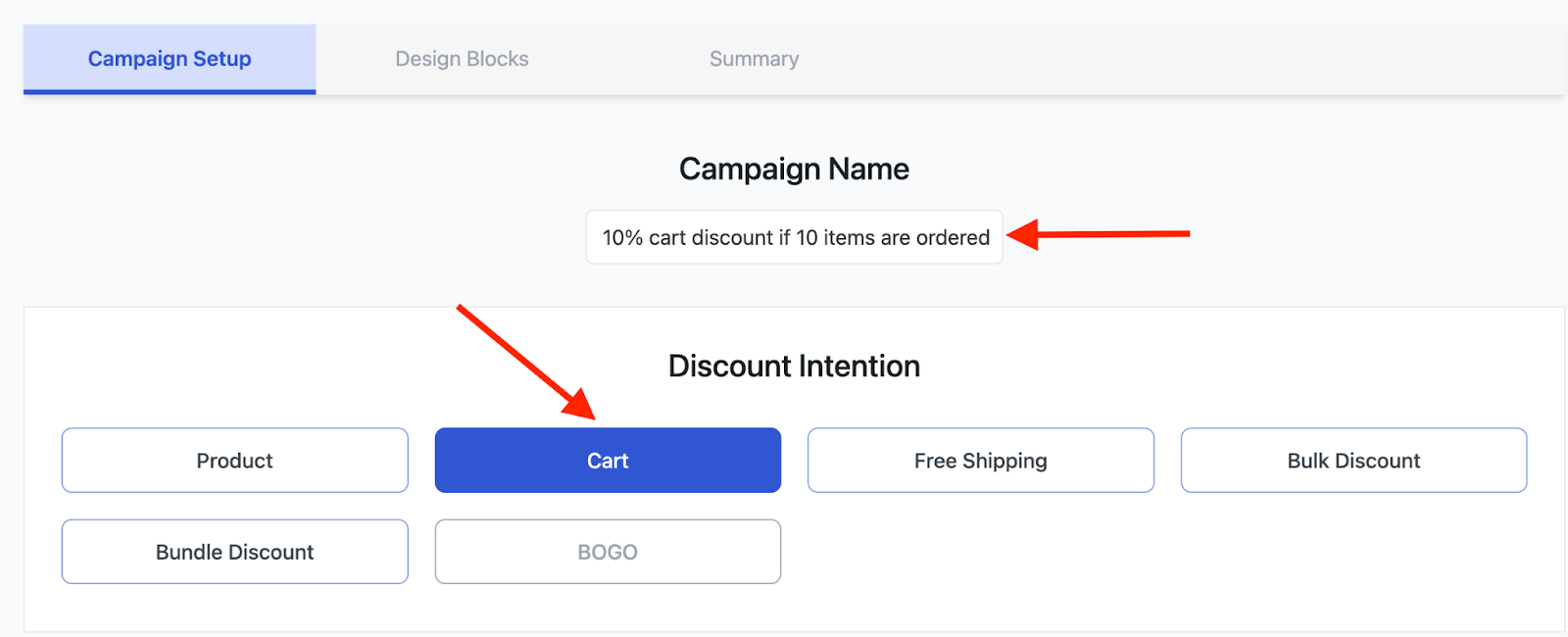
Step 2: There, give your discount campaign a name and choose ‘Cart’ as the Discount Intention (Type) to apply cart-based discounts. 
AD 4nXdZHeu8 jTQj15XypENue7diCDaDB Yy82BghYNXmaHUGpxJChMIih69kcbqEo7DBoCmMX9 S578d917q1p 1cpCQk3XrWUONI28hPLTAz9kV52AJvymGnswU9oSh4OF9NbyJWP6BZ5gTNyz 1RdIyQDo

Step 3: Scroll down and from the “Discount” section select “All products”.

AD 4nXcofKOBs VsiJOeDmcr2lkl2kxWrUgtETozbtpKj4bRPig 7y1zni63osL1 V

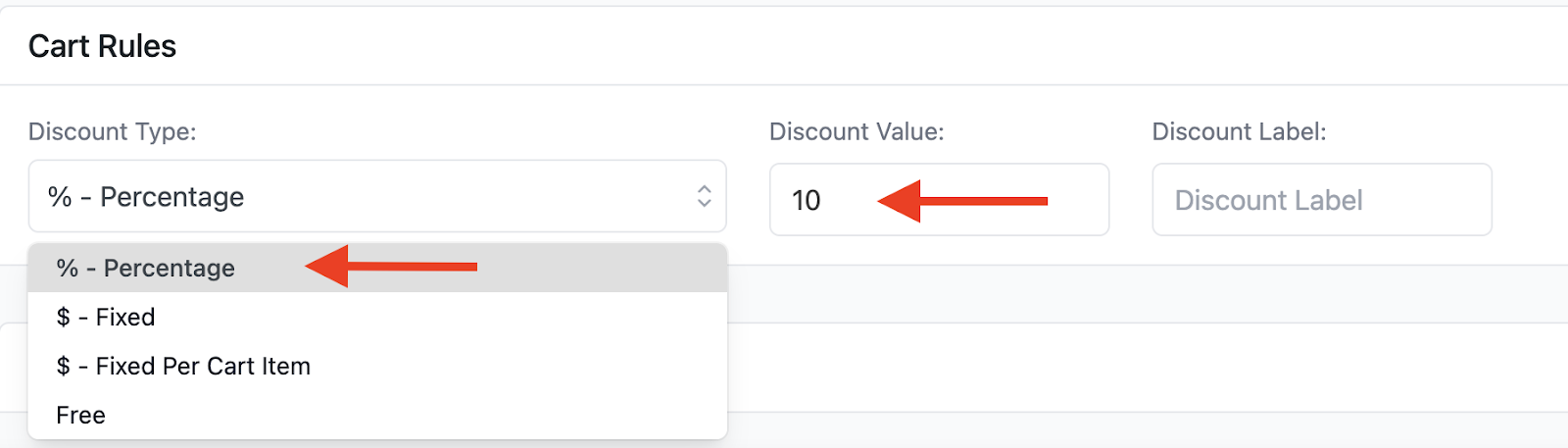
Step 4: After that, you will find the “Cart Rules” section. Select Percentage Discounts and input your desired value. 
AD 4nXcTjzU0GbrqbUStujta4bogg2p IakyxKtJvgUyP9XVh MCsfhSsSfzciF5TrfyON3Dz5tyZgCVC2 jPvVeOddqS6Hh7zx90iydytXZN

Step 5: Now to set up the condition that the customer has to order a total of 10 products, click on “Add condition”. 

AD 4nXdWWtR ioHmjmgR WsZ464wVO1RrnPOt95IC8tEJzVFV9pLCJSztKbRhyAZTYfJw94zTklbSiNMU77ar9 3hEz ucH0ss61rR7d7dfEKHiI

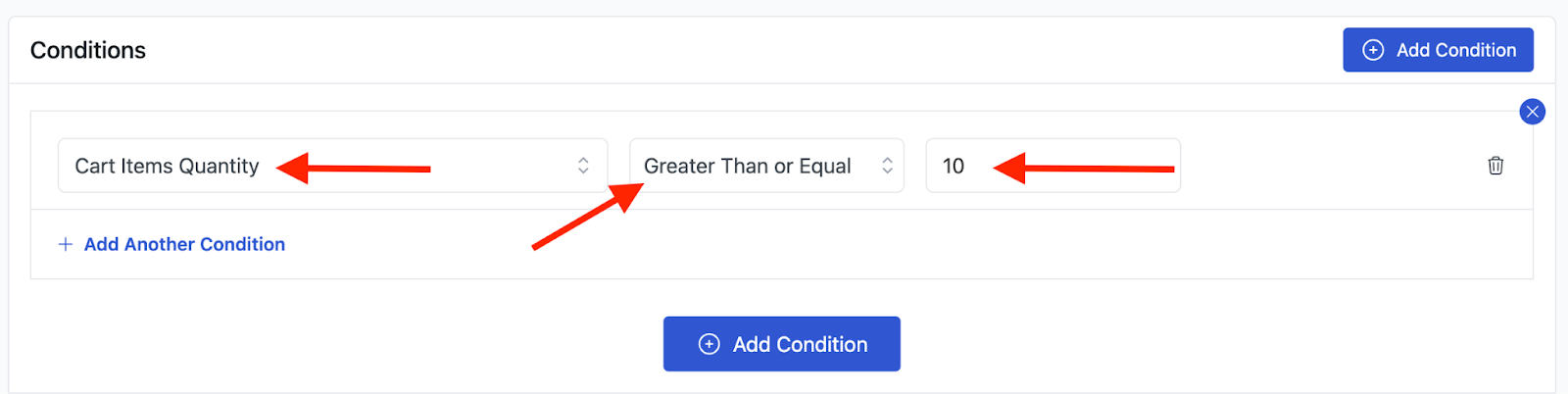
Step 6: After that, add the condition “Cart Items Quantity” from the condition filters. Now, we are setting the discount for at least 10 products. So, choose the “Greater Than or Equal” option and enter the value. 
AD 4nXfhJOMR352hLJgx4cdjL0JpcA 79LRF7ldKRKBRs6mT3bLp1IxSWyn0MysztA1HqK udgPjRTiTr3CJkEmPESFv35fI904vfyu0kLcT 57j2EdCqloux7oI3s81 5DH4

Step 7: The last step is to click on the “Save & Exit” button to launch your campaign. 

AD 4nXcBcDTmCluFV9fWz9U3rSBRMdqYTnqRKdFcXQzZDr0JUv1Am2h YO4oUNtBi9HUEthxqis0sqlYM7m MFybVKMEdEzSrw ylApk1XqkT0lt5KjvRnRm w8zO1gLOt6Kvw9Pat6Jp61dC

Whenever the customers select 10 or more items in their cart, they will get a flat 10% discount. 
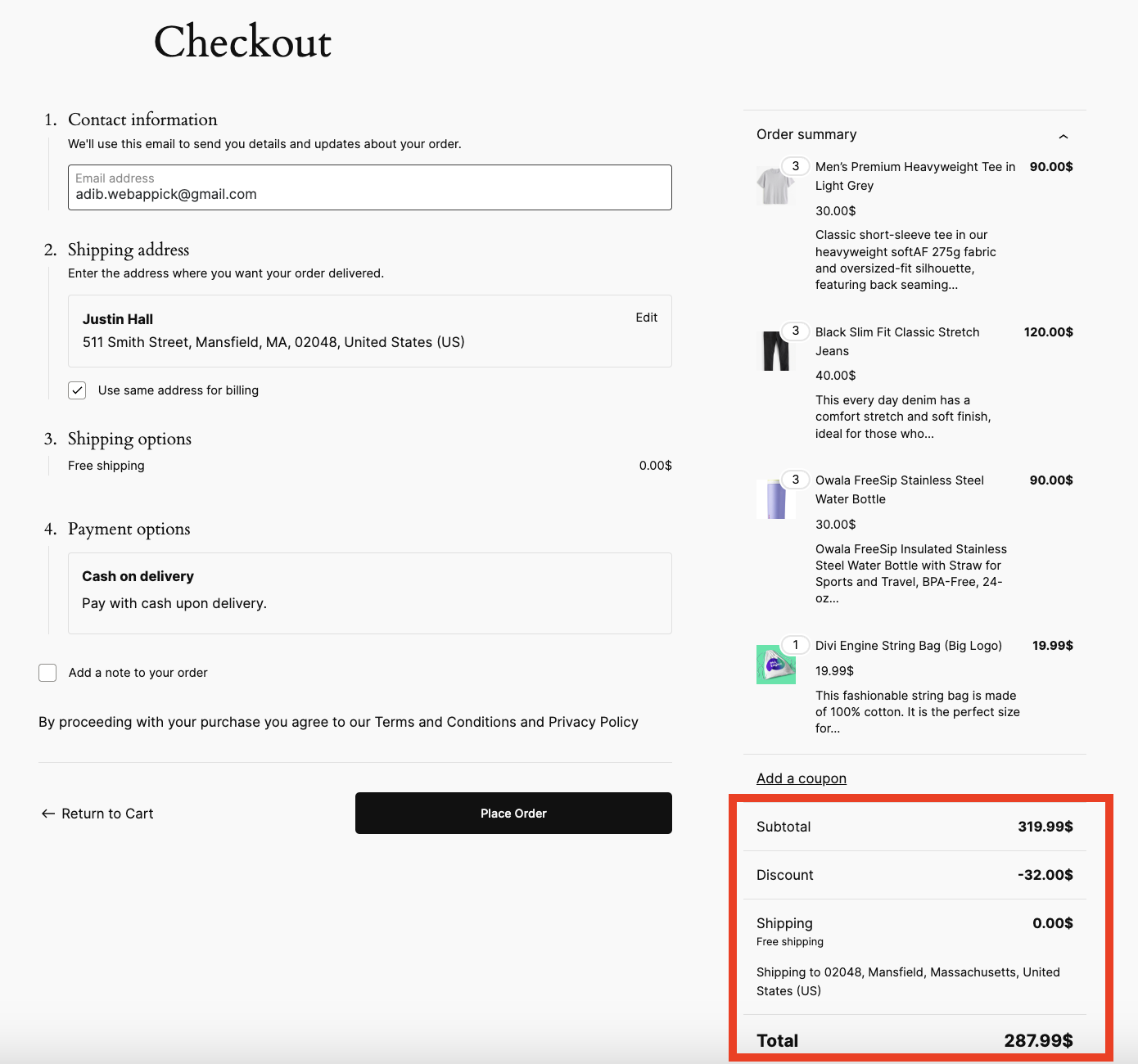
AD 4nXcldwzagKNxmmklS6

What are your Feelings

  • Happy
  • Normal
  • Sad

Share This Article :

  • Facebook
  • X
  • LinkedIn
  • Pinterest
Example 1: 20% Cart Discount on Selected CategoriesExample 3 : Offer $10 Off Product X When Cart Has 3+ Items (In Stock)

Leave a Comment Cancel Reply

disco logo

The best WooCommerce discount plugin for BOGO deals, bulk discounts, tiered pricing, user role pricing, and dynamic pricing rules.

Product

  • Features
  • Pricing
  • Free vs Pro
  • Documentation

Resources

  • Blog
  • Tutorials
  • FAQ
  • Changelog

Company

  • About WebAppick
  • Support
  • Feature Request
  • Disco Community

© 2026 Disco by WebAppick. All rights reserved.