
disco logo
  • Features
  • Pricing
  • Compare
  • Resources
    • Blog
    • Documentation
    • Changelog
    • Contact/Support
    • Disco Community
Login Get Disco Pro

Getting Started

1
  • Installation Process of Disco Plugin (PRO And Free)

Product Intent Discounts

4
  • Set Up Product Intent Discounts
  • Example 1: $20 Off All ‘Men’ Category Products
  • Example 2: 5% Off Product X for a Limited Time
  • Example 3: Flat $50 Off on Products Over $500

Cart-Intent Discounts

4
  • Set up Cart Intent Discounts using Disco Plugin
  • Example 1: 20% Cart Discount on Selected Categories
  • Example 2: Offer 10% Cart Discount for 10+ Items (Cart Quantity)
  • Example 3 : Offer $10 Off Product X When Cart Has 3+ Items (In Stock)

Free Shipping Discount

4
  • Set Up Free Shipping with DIsco Plugin
  • Example 1: Free Shipping for Location ‘X’ Customers
  • Example 2: Free Shipping on Category “A” Products
  • Example 3: Free Shipping on Specific Product During Promotion

Bulk Intent Discount

4
  • Set Up Bulk Intent Discount with Disco Plugin
  • Example 1: Bulk Percentage Discounts on All Products by Quantity
  • Example 2: Offer 5% Bulk Discount on Product X for 3+ Units (October Only)
  • Example 3: Offer $10 Off on 5+ Units from Category ‘A’

Bundle Discount

1
  • Set Up Bundle Discount with Disco Plugin

Campaign Setup

6
  • Product Rules Explain with Example
  • Bundle Rules Explain with Example
  • Bulk Rules Explain with Example
  • Cart Rules Explain with Example
  • Discount Rules (Filter Products, User Limit, Valid Between, Discount Label)
  • Discount Intent

Conditions

9
  • Items Count (Entire Cart) vs Item Count 
  • Set Up Discounts According to Product Stock Quantity in WooCommerce
  • Apply Discounts on Selected Categories in WooCommerce 
  • Create a Discount on a Specific Product Attribute in WooCommerce
  • Set Up Discounts by Brand in WooCommerce with Disco Plugin
  • Tax and Shipping Based Discount Conditions
  • Price Based Discount Conditions
  • Product Attributes Based Discount Condition
  • Product/Cart Item Based Discount Conditions

Ticket Solutions

1
  • Discount Applies but No Visual Badge or Offer Displayed

BOGO

5
  • Buy X Product, Get Y Product at a Discounted Price
  • Buy X, Get Y Free (Different Product)
  • Buy X from Category A & Get Y from Category B
  • Set Up BOGO Discount (Buy 1 T-Shirt, Get 1 T-Shirt Free)
  • Buy X Get X at Discount (Buy 3 Coffee Mugs, Get 3rd One 50% Off)

Campaign Display

3
  • Display Product Badge in WooCommerce
  • Display Bundle Discount Table in WooCommerce 
  • Display Bulk Discount Table in WooCommerce
View Categories
  • Home
  • Documentation
  • Cart-Intent Discounts
  • Example 3 : Offer $10 Off Product X When Cart Has 3+ Items (In Stock)

Example 3 : Offer $10 Off Product X When Cart Has 3+ Items (In Stock)

1 min read

In this example, a $10 discount is applied to Product “X” when the customer has at least 3 different product items in their cart, ensuring that Product “X” is available for purchase.

Step 1: At first, go to Dico Menu>>Create a discount. Give the discount campaign a name and select the “Discount Intention” as “Cart”. 

AD 4nXfT9asLJo6tn5ufigmbjdY8tIFYuS2pv3 3MHyn0cr8r oU7XSd2BdVSfwpS6Va0EqfW eOUR9X

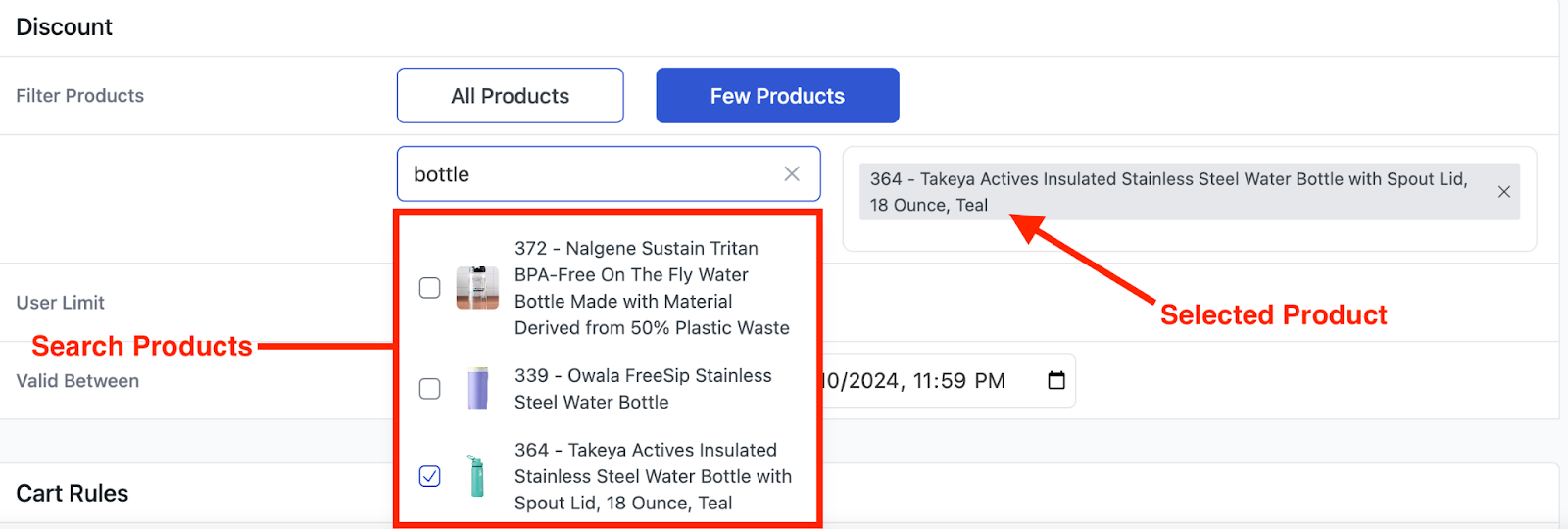
Step 2: Then from the “Discount” section, select a few products and then choose your desired product. We have chosen our product “Takeya Actives Insulated Stainless Steel Water Bottle”. 
AD 4nXd0HtXQmY4biOZxo2EWUXQRnpet0Wm 9A2 0s3DYYrm2LHQ3M VNGH8iB9m

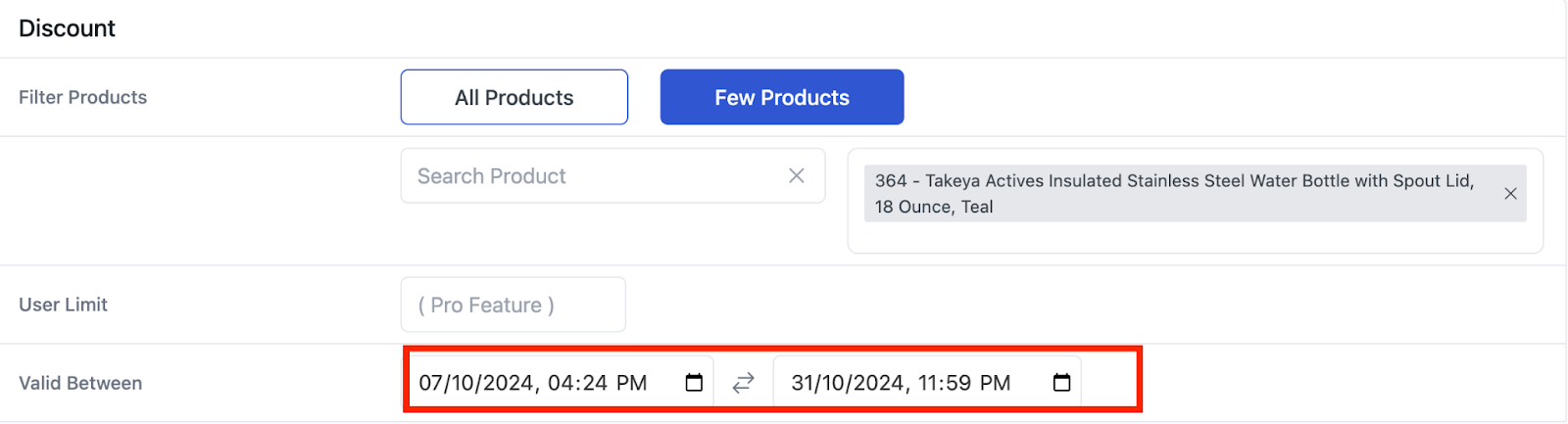
Step 3: Also, you can select a date validity for the discount campaign in the “Valid Between” field. (Optional)
AD 4nXdicnZ9yDzr2M V27Ni7lW30b8nXJDmyflm3xFter7rVuzKiKc31lWNcKbDkS0aUypPhicu2Zd wAj8fOjf1jXgBWOkScpsRssC

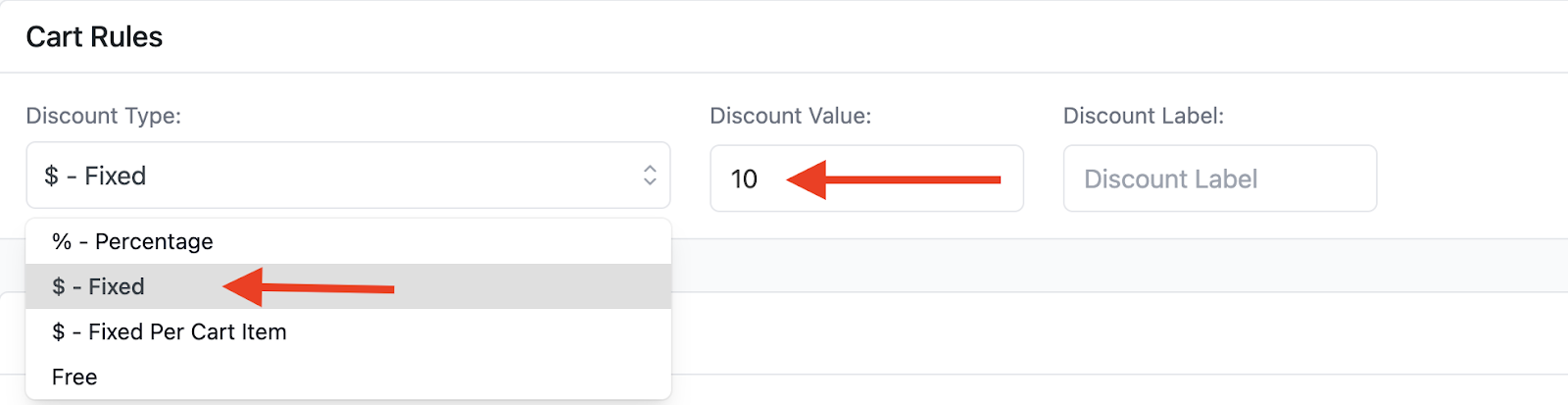
Step 4: Now, from the “Cart rules” section, select “Fixed discount” and set the value to $10. 
Step 5: Now we will add two conditions. The cart item count and stock status. To add them,  click on “Add Condition”. 

AD 4nXdyIipWLHpkwPWcN0h4pxTSWbTUfTYJVnoyFCQt

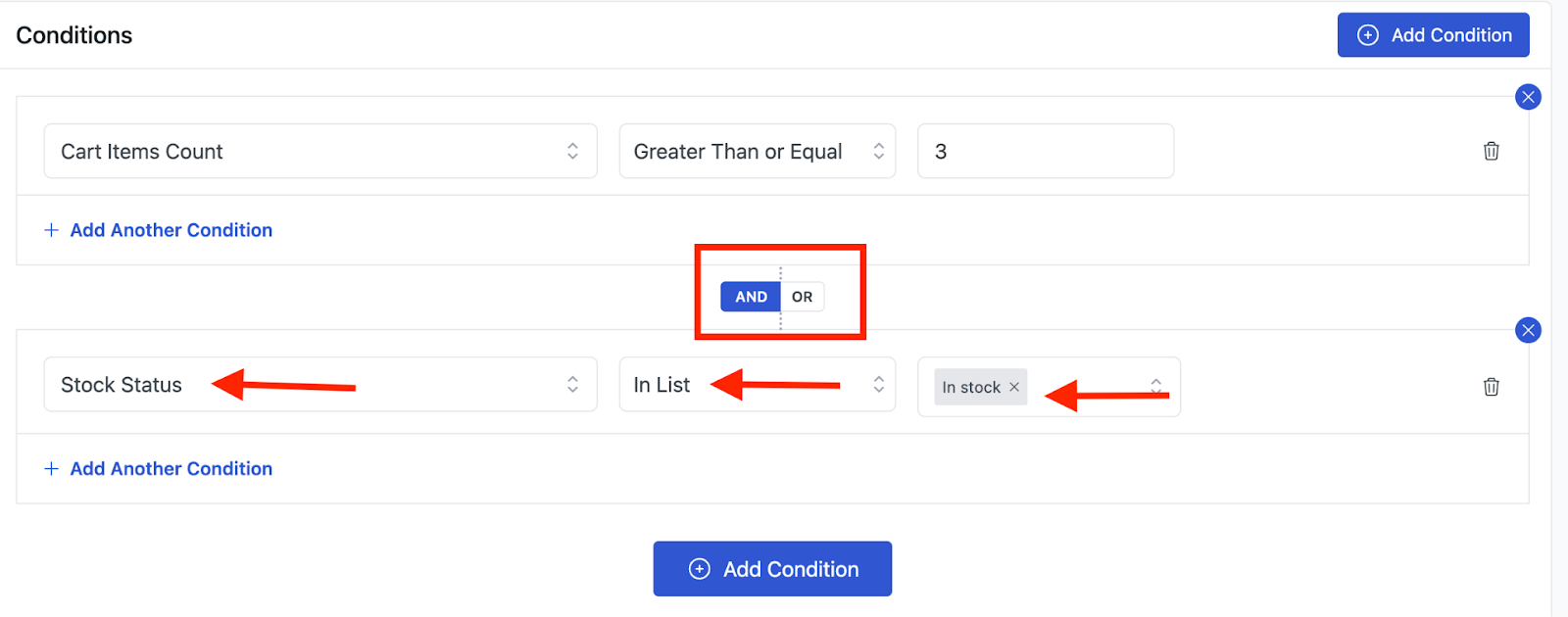
Step 6: For the first condition, select “Cart Items Count” from the condition filters. Then select “Greater than or Equal” and add the value 3. 

AD 4nXd8BLLb0ZiGuiBTJ8ogXK16VCPLWAMbj95N74r6R7kD5J ZVUYJNil9bmoJjoS0PSPmr5Kdi DXms1cMxyax6hjuuCeaK pKNtn

Step 7: For the second condition, choose “Stock Status” from the condition filters. Then select “In List” and add in stock. Now to keep these two conditions together, from the “And/Or” option, make sure to enable the “And” option. 
Step 8: Click on “Save & Exit” to start the campaign. 

AD 4nXeAlQY3 WhzVmrGu8s2P4Ef8y9xGJjJIKqeWm6V4

Here’s how your WooCommerce cart page will apply the discount when a customer orders 3 individual products including the water bottle when it is available in stock. 

AD 4nXc I7JIR8Y yxT4l6x3GxOEsUG 3tAcREUh9mAr2nHegVtS ncxXI3BIZWMW YdncnbWlCSVDJb4EdlWr3 WgerdzP1Njl9DZGcU9aJEG2k9TlrDBJEFKJC1pYqRs7sBmJh97

As you can see, the customer ordered 3 product items, a Men’s t-shirt, jeans, and the water bottle. As the water bottle was in stock and the total cart item count was 3, he or she got a $10 discount on the water bottle and the total price. 

What are your Feelings

  • Happy
  • Normal
  • Sad

Share This Article :

  • Facebook
  • X
  • LinkedIn
  • Pinterest
Example 2: Offer 10% Cart Discount for 10+ Items (Cart Quantity)Set up Cart Intent Discounts using Disco Plugin

Leave a Comment Cancel Reply

disco logo

The best WooCommerce discount plugin for BOGO deals, bulk discounts, tiered pricing, user role pricing, and dynamic pricing rules.

Product

  • Features
  • Pricing
  • Free vs Pro
  • Documentation

Resources

  • Blog
  • Tutorials
  • FAQ
  • Changelog

Company

  • About WebAppick
  • Support
  • Feature Request
  • Disco Community

© 2026 Disco by WebAppick. All rights reserved.