The following conditions let you apply discounts based on the prices of your products.
1. Currency Based Condition #
Many people use multi-currencies in their WooCommerce stores. If you are one of them, then this condition filter is for you. It lets you apply discounts on the basis of the currencies your customers use.
This condition filter is an excellent option for running targeted promotions in specific regions or tailoring offers for different currencies.
Example: Offering a $30 discount exclusively for customers paying in USD.
Once you set up a $30 discount, go to the Conditions section and follow these steps:
- Choose “Currencies” as the filter.
- Select the method as ‘Equal’.
- Input USD
- Save it.
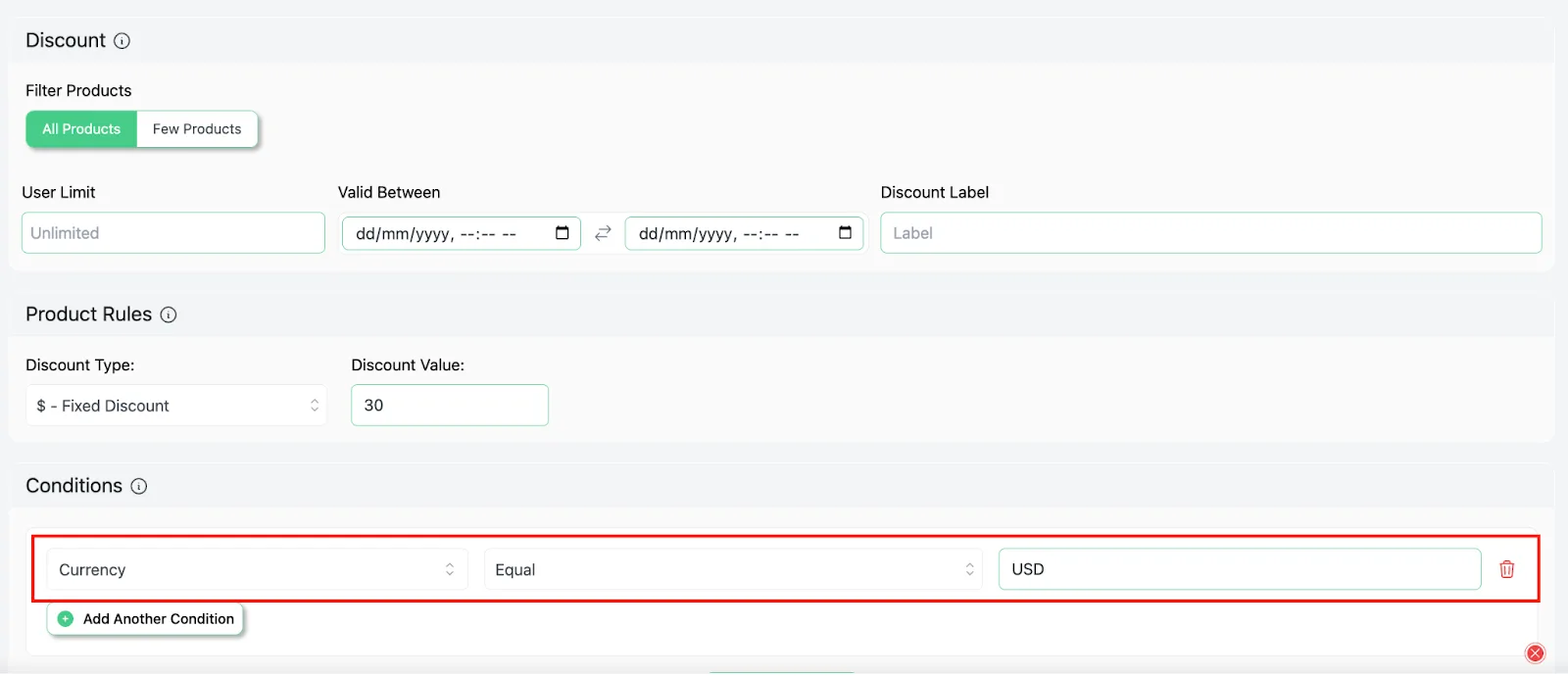
This setup ensures the discount applies only to transactions made in USD.
Now, any customers who buy the product using USD will automatically receive a 10% discount.
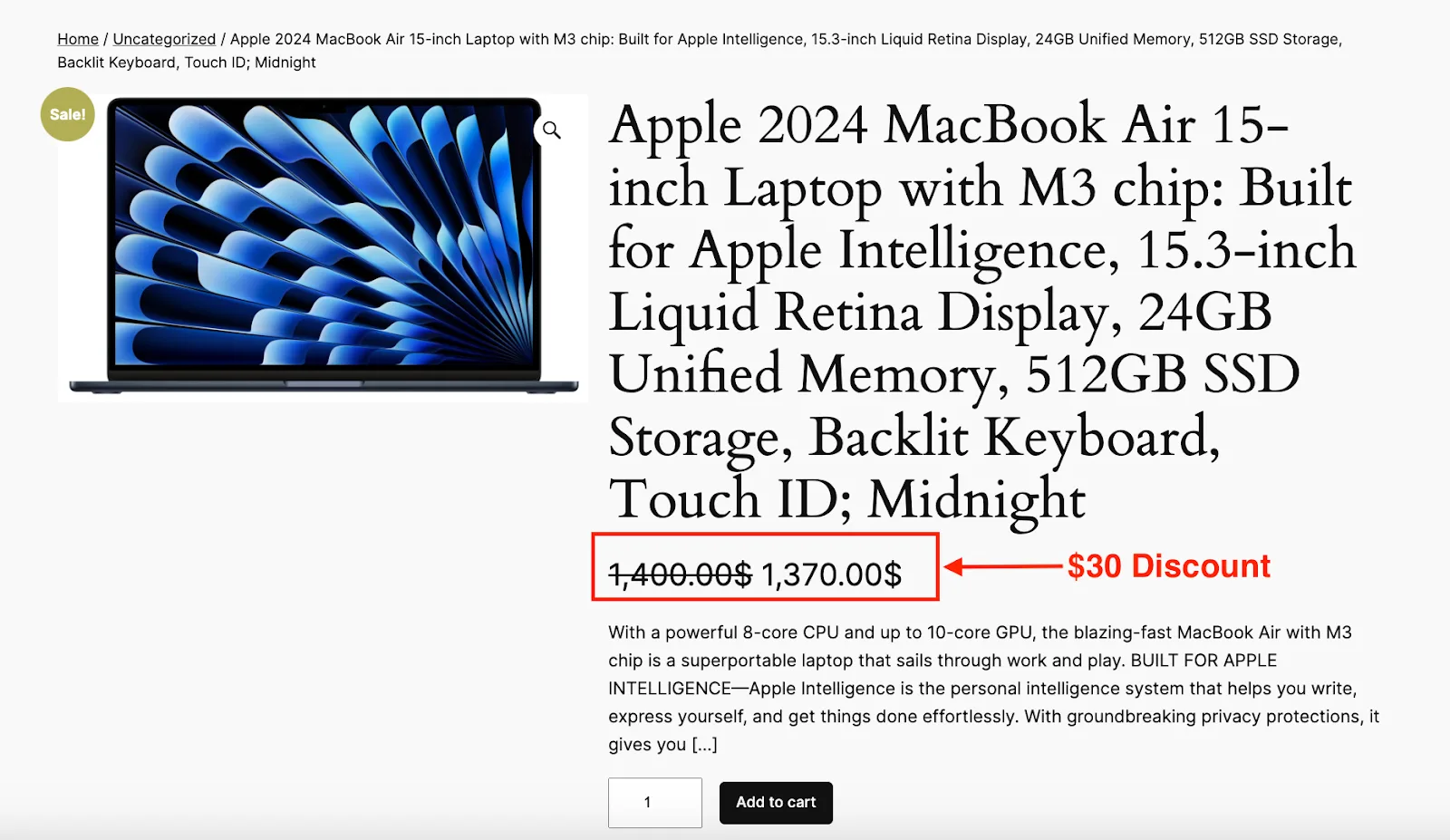
This strategy is ideal for incentivizing purchases in specific regions, tailoring promotions for international customers, and boosting sales in select currencies.
2. Regular Price Based Condition #
This condition allows you to apply discounts based on the regular price of your products. It’s an excellent option for offering targeted promotions on higher or lower-priced items in your store.
To give you an instance:
Let’s offer a 15% discount on products with a regular price greater than $100.
Once you set up a 15% discount, go to the Conditions section and follow these steps:
- Choose “Regular Price” as the filter.
- The method should be ‘Greater Than’.
- Enter 100 as the value.
- Save it.
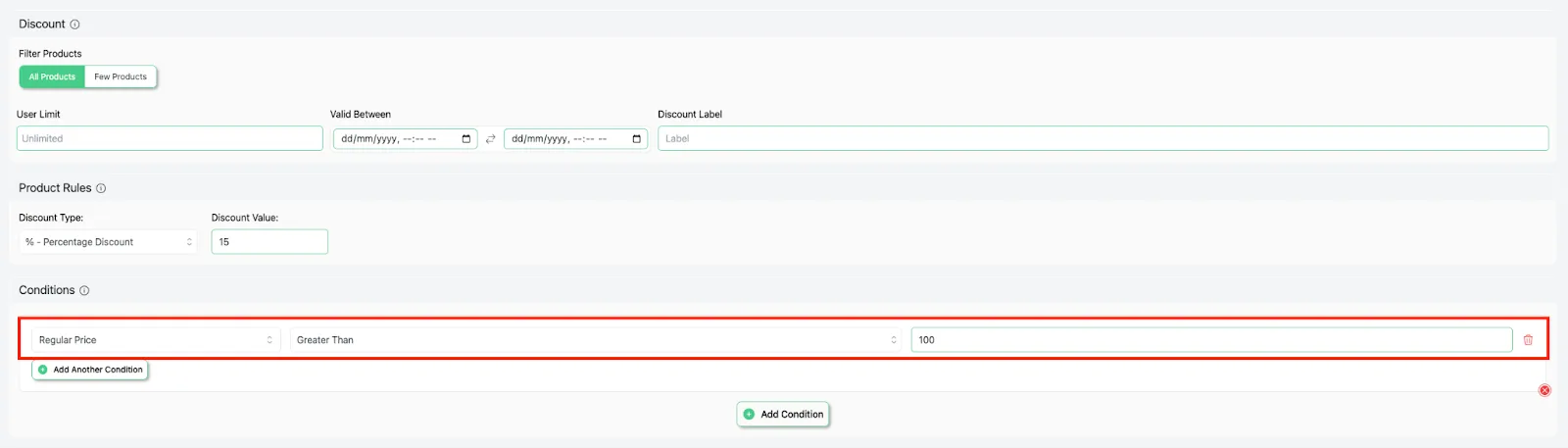
This setup ensures the discount applies only to products priced higher than $100.
Now, the products which have a regular price of more than $100, will get a 15% discount.
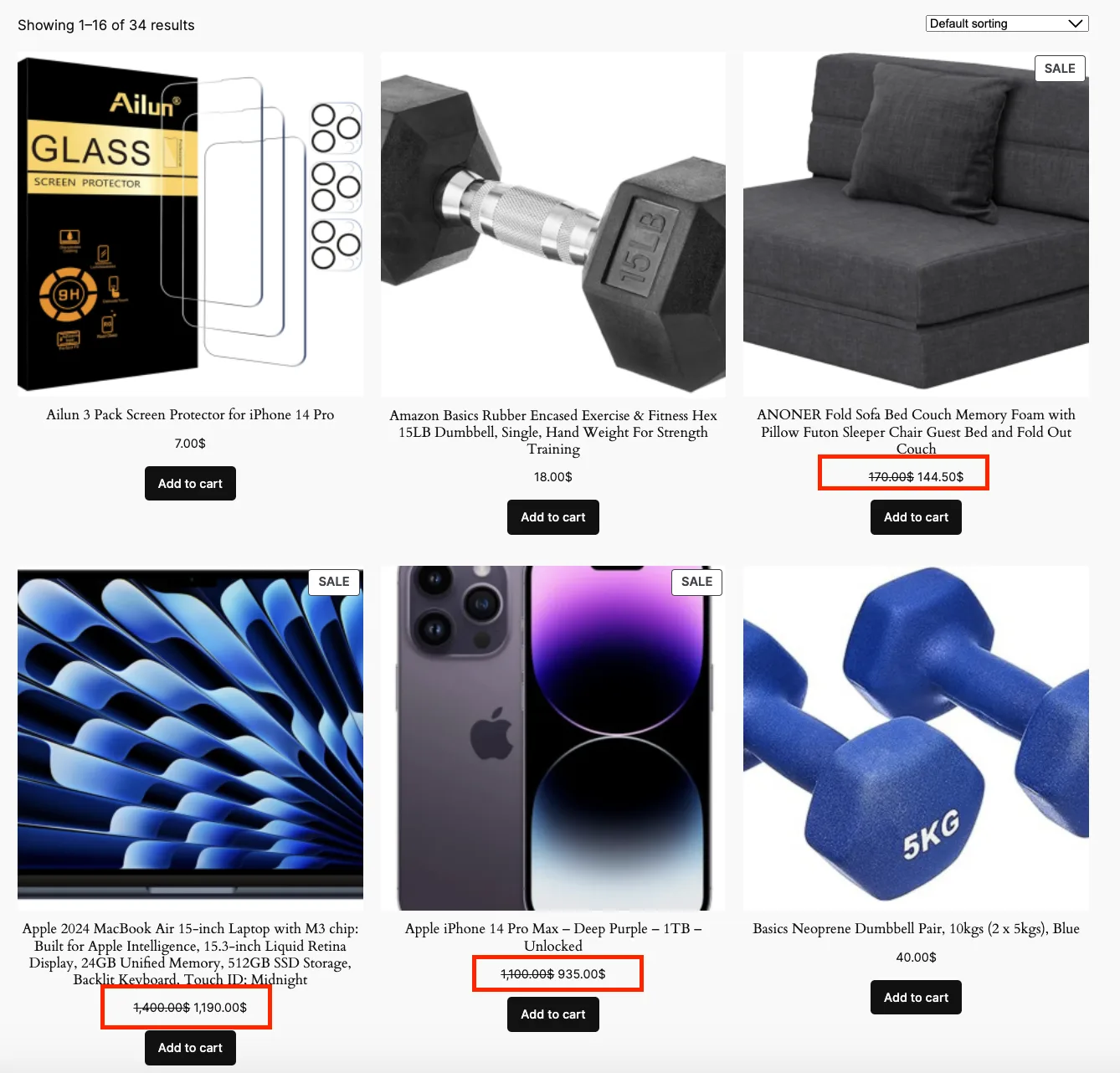
This strategy is ideal for promoting premium items and encouraging customers to invest in higher-value products.
3. Price Based Condition #
The Price condition in the Disco plugin allows you to set discounts based on the price of products in your WooCommerce store.
Now here’s the thing! If a product has a sale price, the discount will be applied to the sale price, offering additional savings to customers during a promotion or sale.
But, if a product doesn’t have a sale price set, the discount will apply to the regular (original) price, ensuring that discounts are still applied even if a product is not currently on sale.
So, you can use this condition if your products are both on sale and at their regular price.
Example:
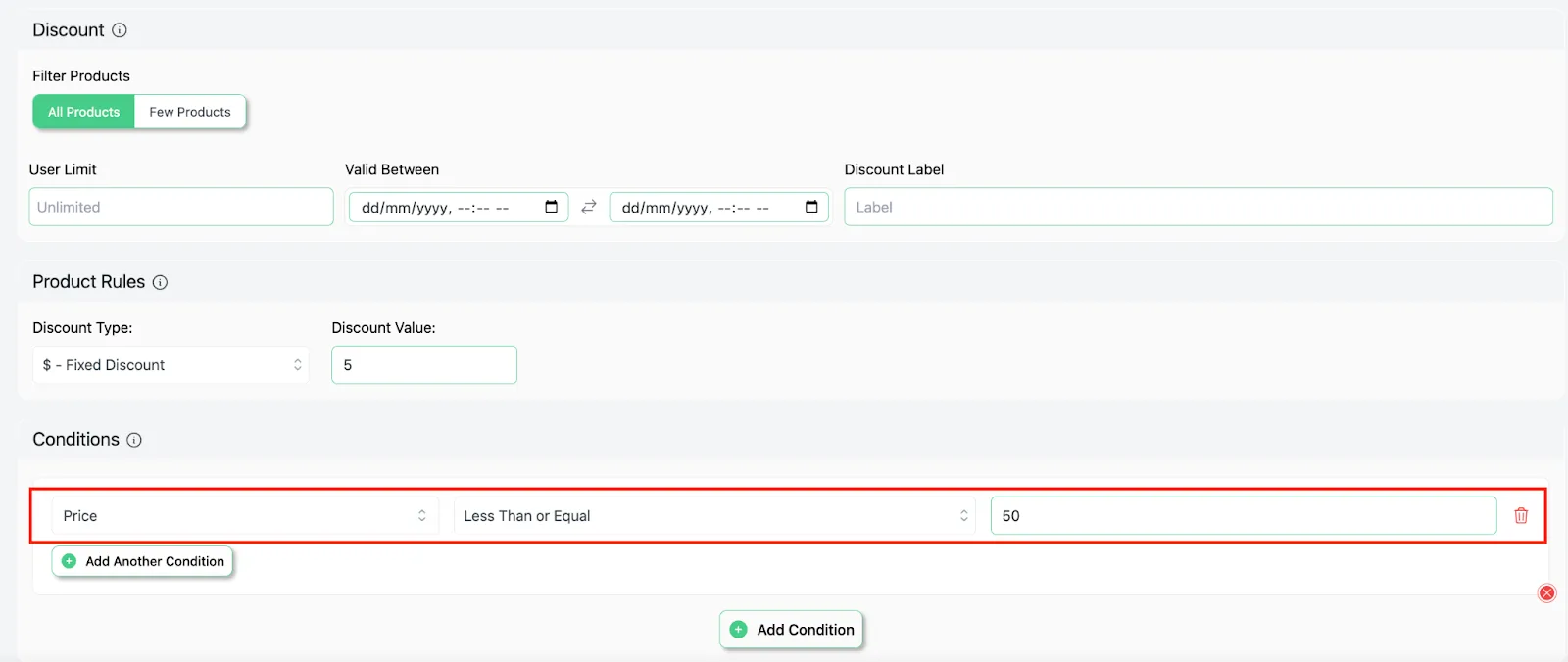
Let’s say you’re offering a $5 discount on products priced under $50.
First of all, select all the products of your store and then set up a fixed discount of 5 USD. Then in the conditions section:
- Choose “Price” as the filter.
- The method should be ‘Less Than’.
- Enter 50 as the value.
- Save it.
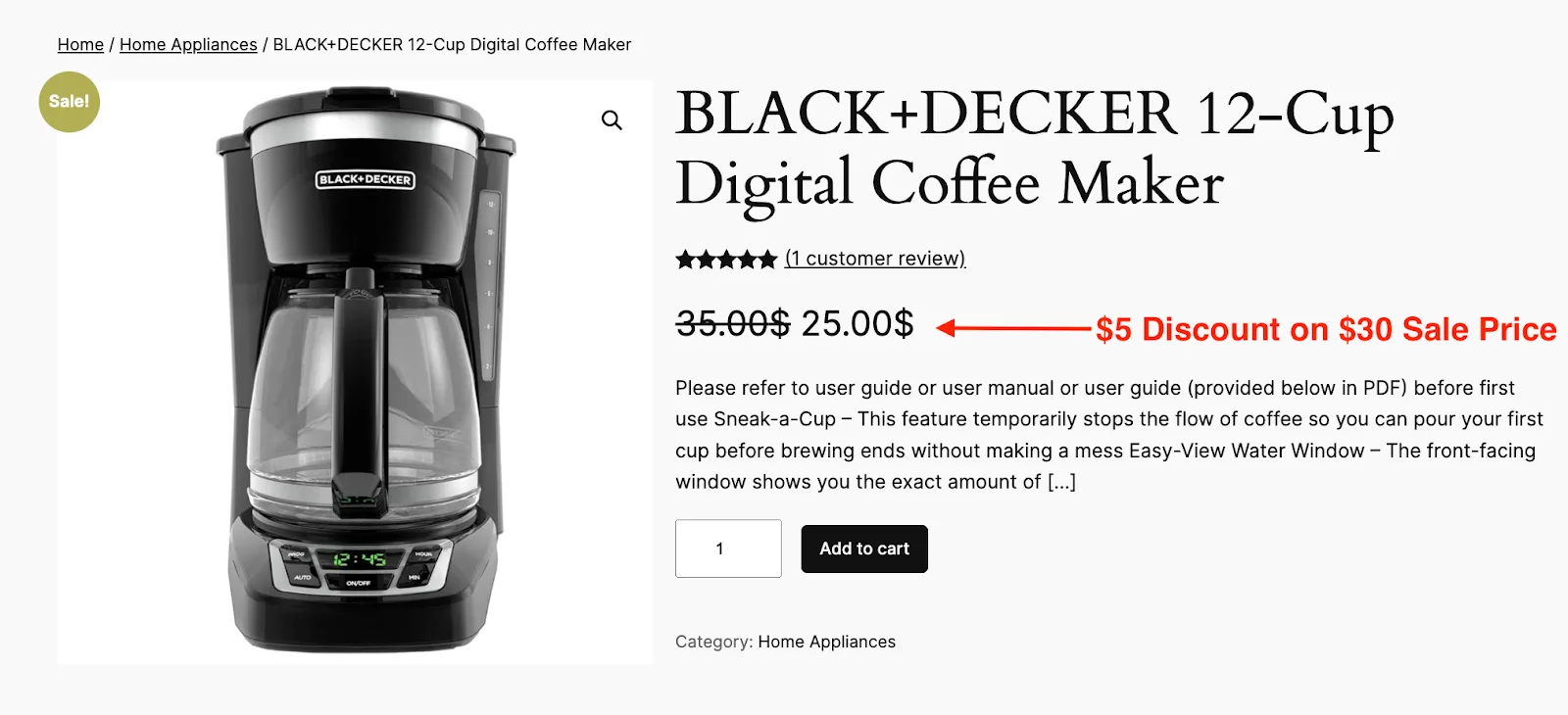
Product 1: Regular Price = $35, Sale Price = $30
A $5 discount applies to the Sale Price of $30, reducing the price to $25. Since it’s under $50, the discount is applied.
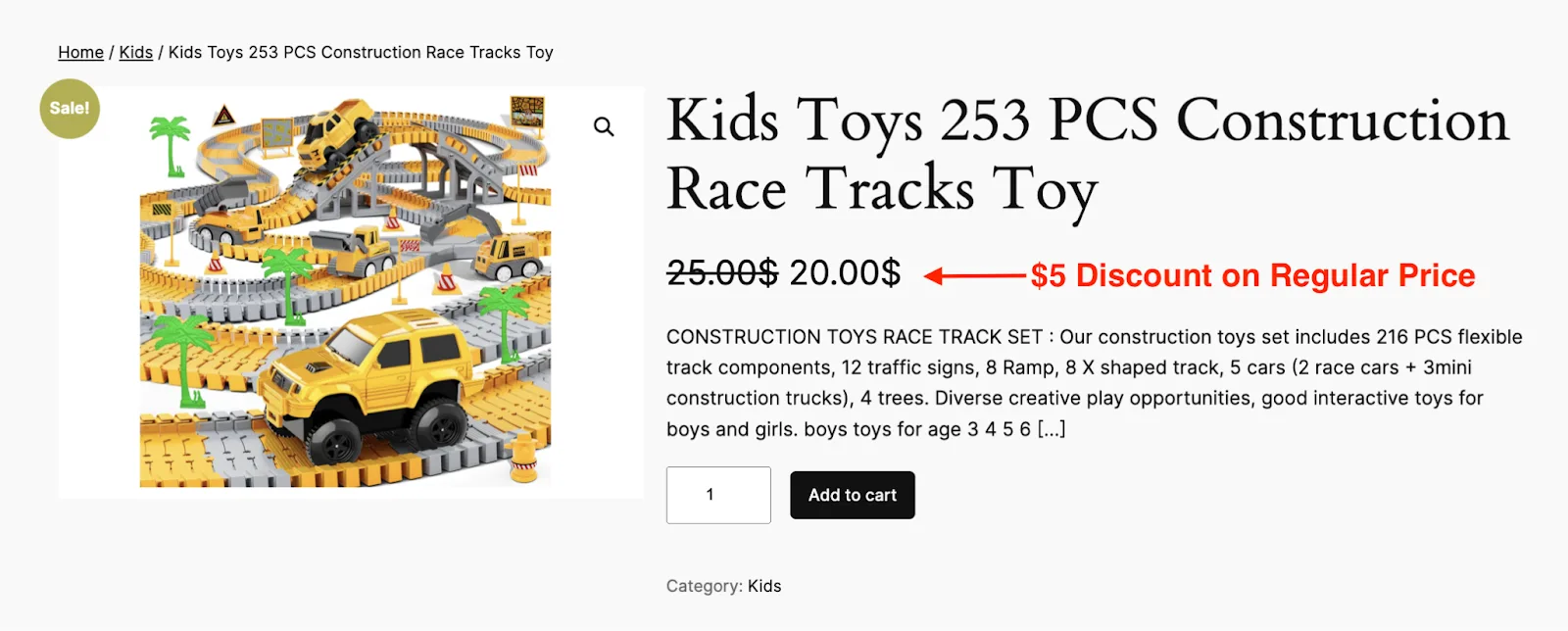
Product 2: Regular Price = $45, No Sale Price
A $5 discount applies to the Regular Price of $25, reducing the price to $20. This also qualifies because the price is under $50.
Product 3: Regular Price = $85, No Sale Price
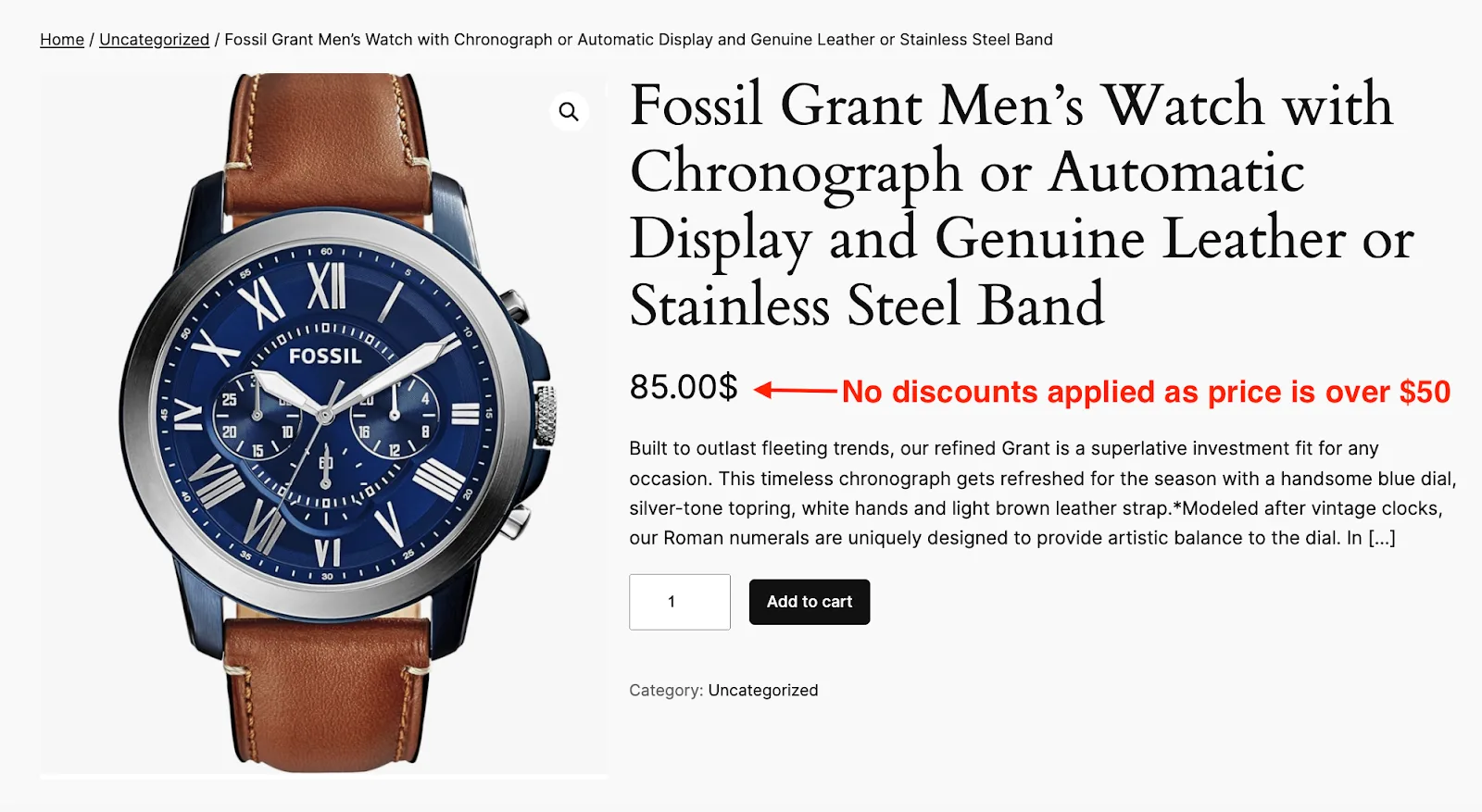
A $5 discount does not apply because the price is above $50, even though it’s the regular price.
4. Sale Price Based Condition #
The Sale Price condition in the Disco plugin allows you to target products with an active sale price. Discounts will only apply if the product has a sale price set in WooCommerce.
Example:
Let’s offer a 10% discount on all products with a sale price of at least $20 or more than that.
So, set up a 10% discount first, and then in the conditions section do the following:
- Select the Sale Price Filter
- The method should be Greater Than or Equal
- Input the value 20
- Save it
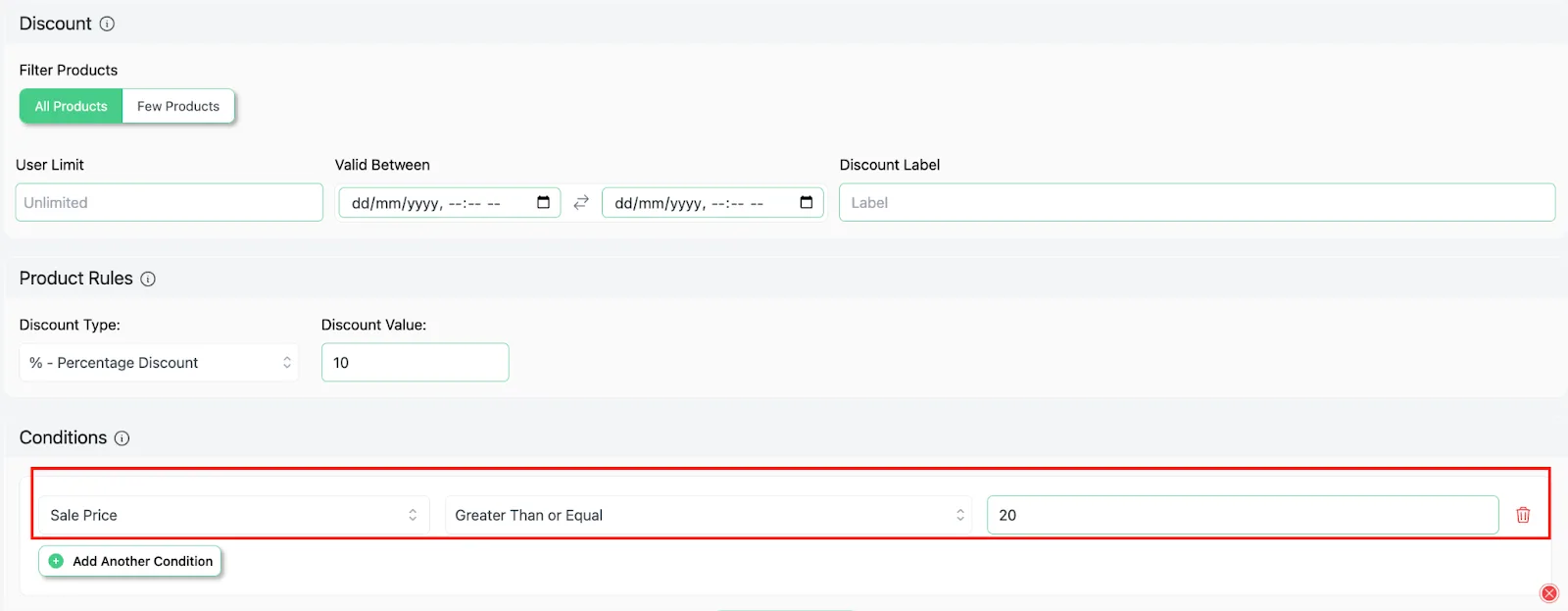
Now, the products which are on sale and cost at least $20 or more than that, will get a 10% discount.
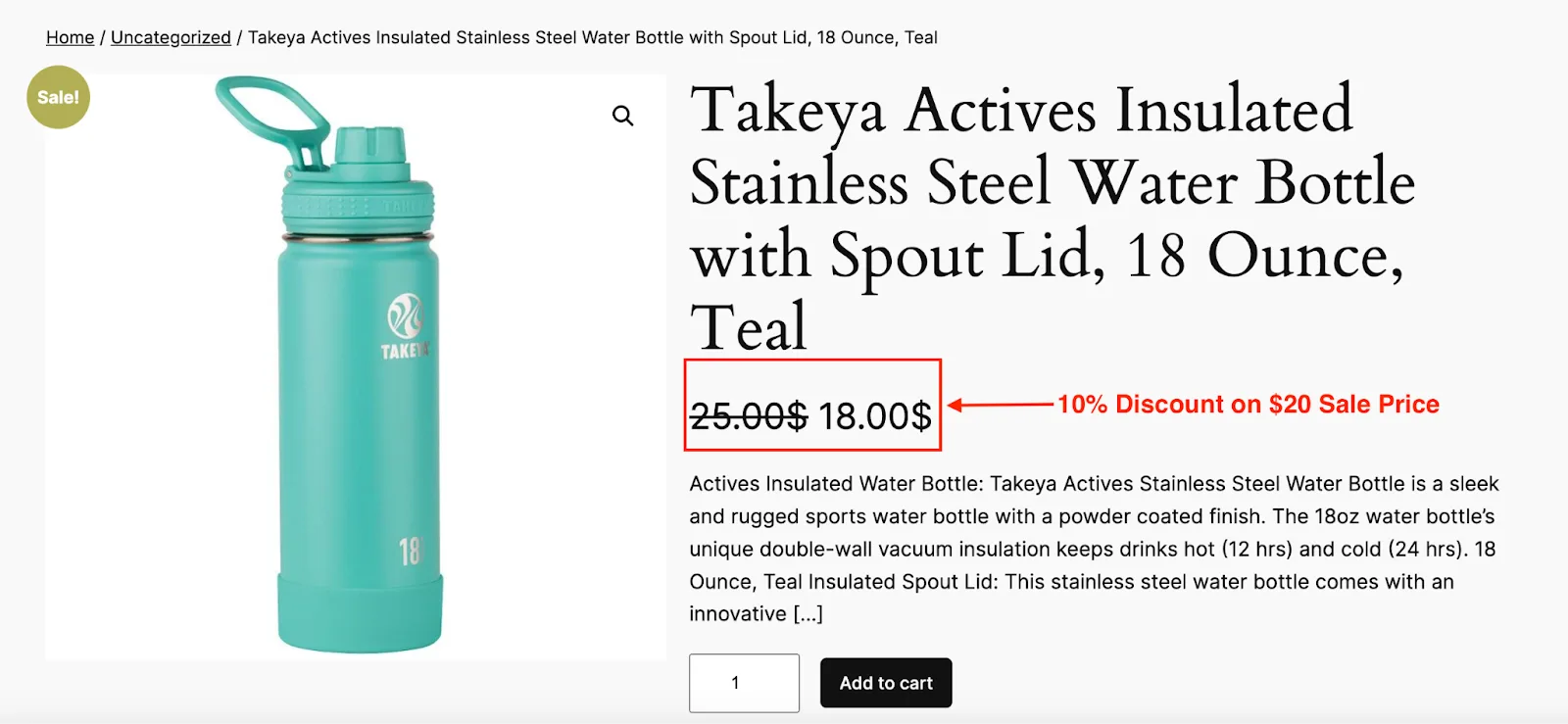
As you can see, our product “Takeya Water Bottle” had a regular price of $25, but it was on sale for $20. Now, because of these settings, an additional 10% discount has been applied.
5. Regular Price with Tax Based Condition #
The Regular Price with Tax condition allows you to apply discounts based on the regular price of a product, including tax. This is particularly useful if you want to consider the full price, including any tax amounts, to determine whether a discount should apply.
For example:
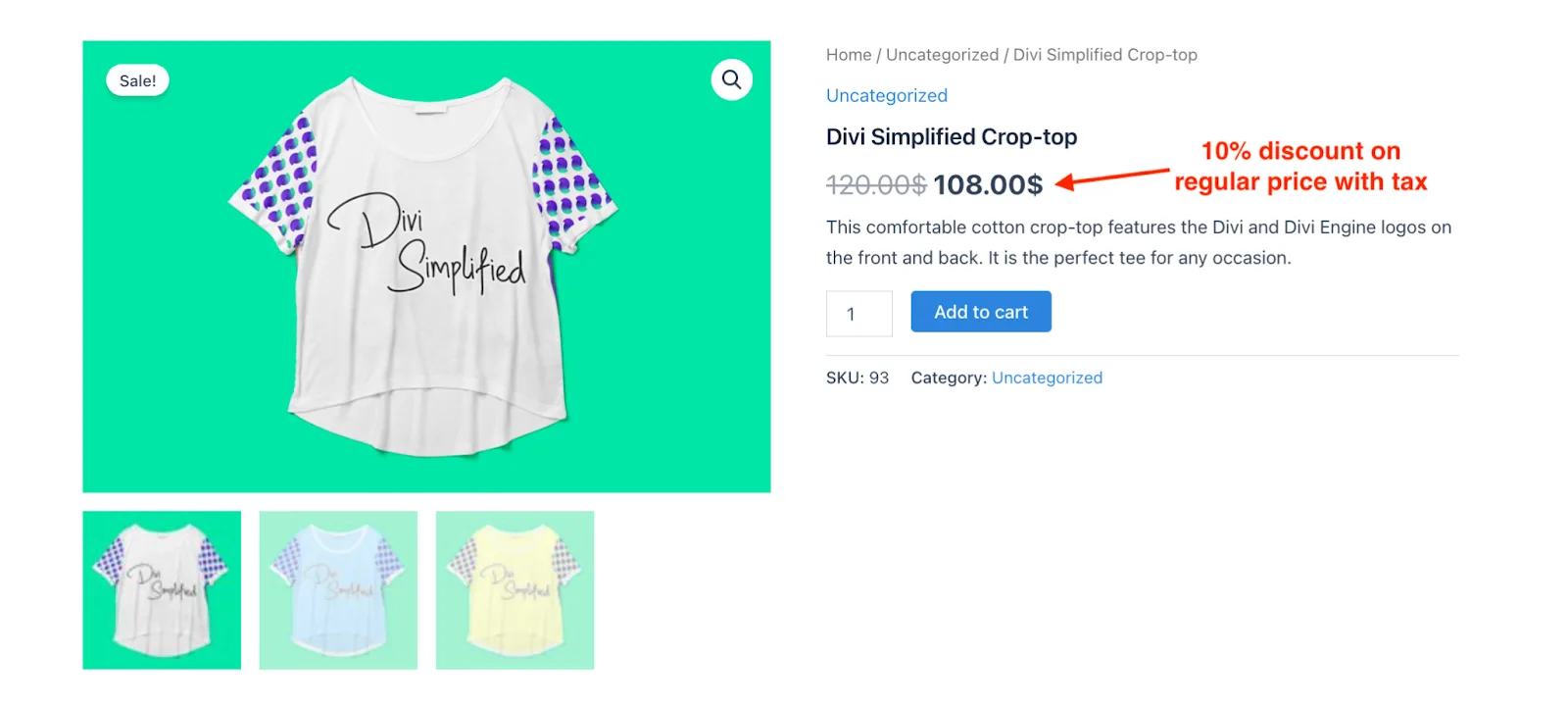
Let’s offer a 10% discount on products where the regular price with tax is equal to or greater than $50.
Now, in our WooCommerce store, the price has been set up including the tax. So, the discount will apply to the total price.
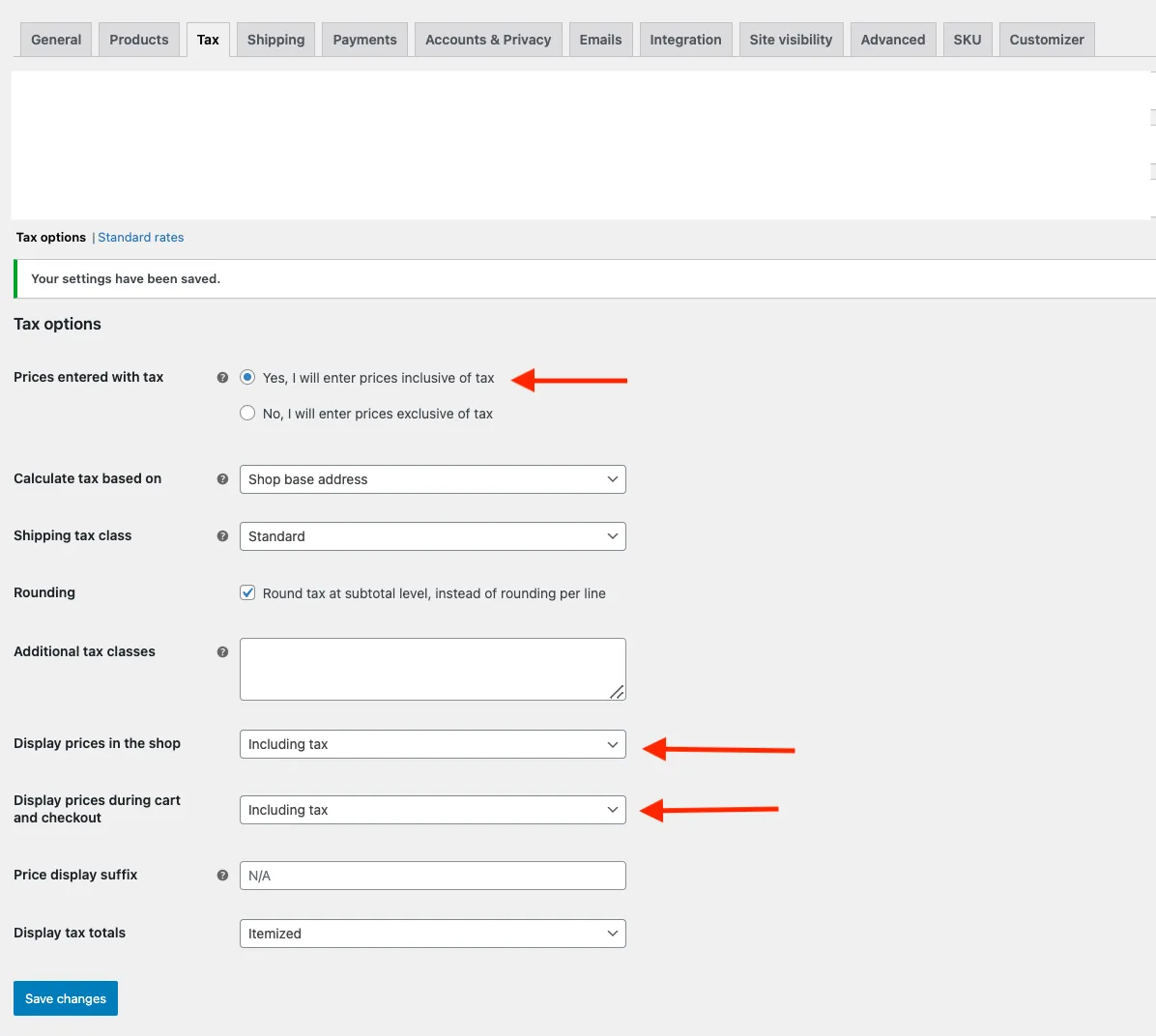
Once you set up a 10% discount, go to the Conditions section and follow these steps:
- Choose “Regular Price with Tax” as the filter.
- Set the method to “Greater Than or Equal”.
- Enter 50 as the value.
- Save it.
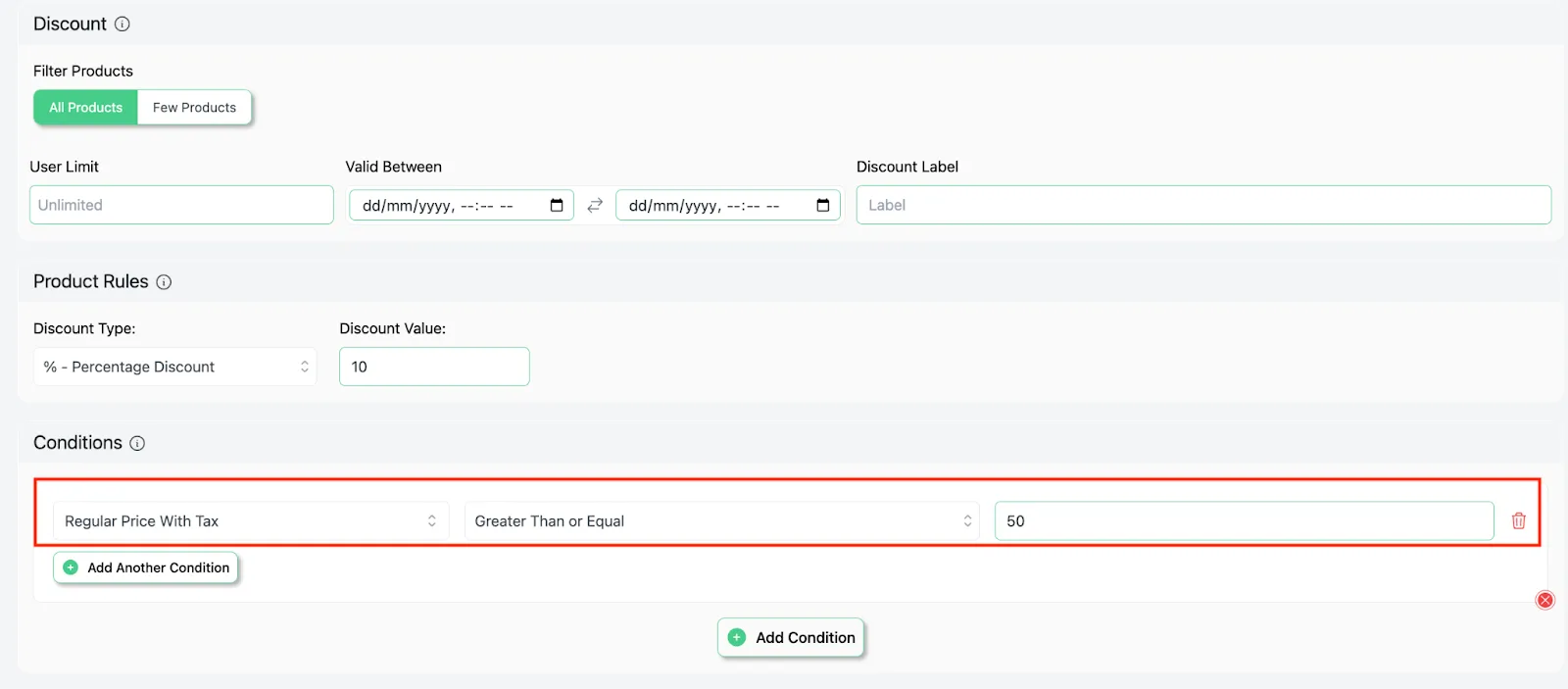
Now, a 10% discount will be applied to products that have a regular price with tax equal to or greater than $50.
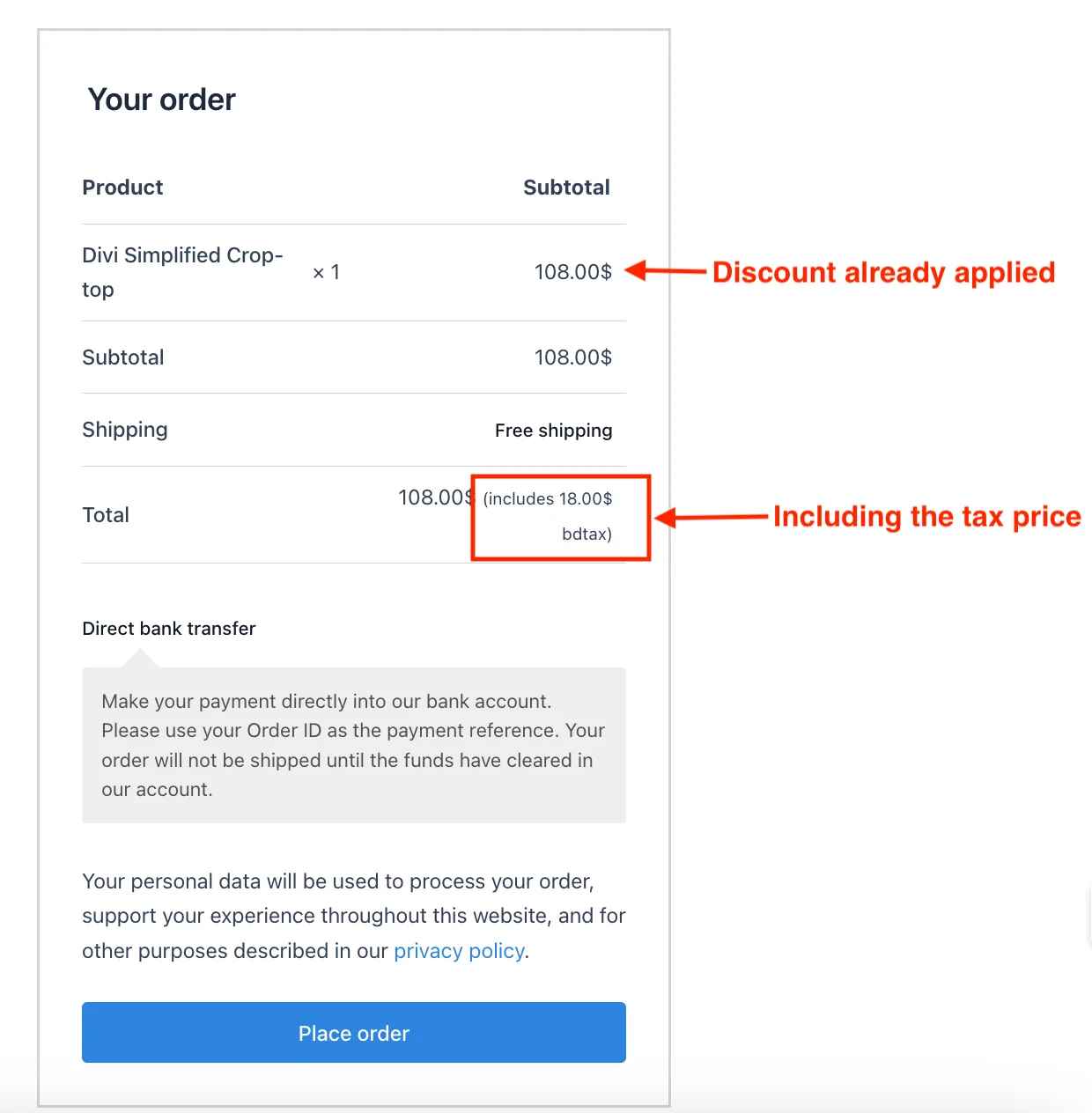
On the final checkout page, the price will be shown including the discount and the tax price.
6. Price With Tax Based Condition #
The Price with Tax condition allows you to apply discounts based on the sale price with tax of a product if it exists.
However, if no sale price is set, the discount will apply to the regular price, including tax.
This is useful for offering discounts that are dynamically applied based on whether a product is on sale or not. In our store, prices already include taxes.
Check out this Example:
Let’s offer a $25 discount on products that have a price range of anywhere between $50 to $500. Keep in mind that, this includes both the sale price (if available) and regular price with tax.
The first thing you should do is choose ‘All Products’. Then, offer a fixed discount of $25. Now, in the Conditions section:
- Choose “Price with Tax” as the filter.
- Set the method to “Between”.
- Enter values from 50 to 500.
- Save it.
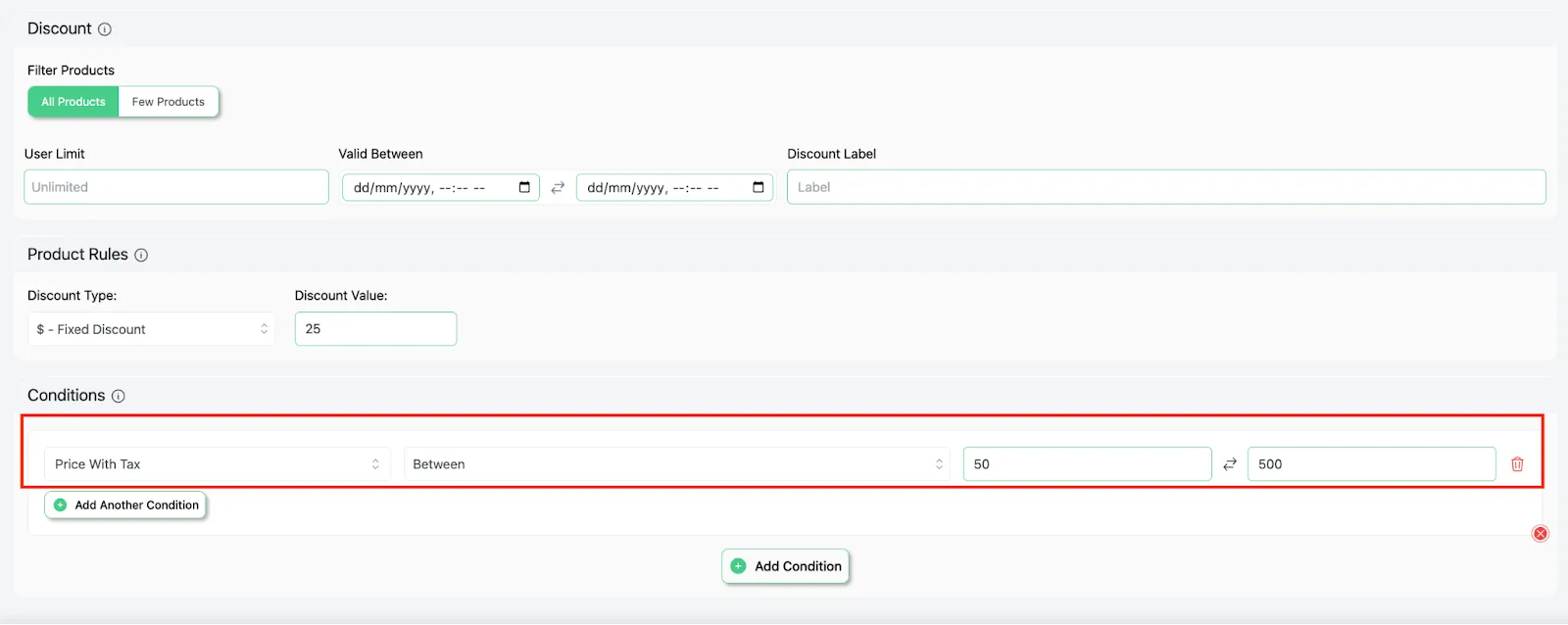
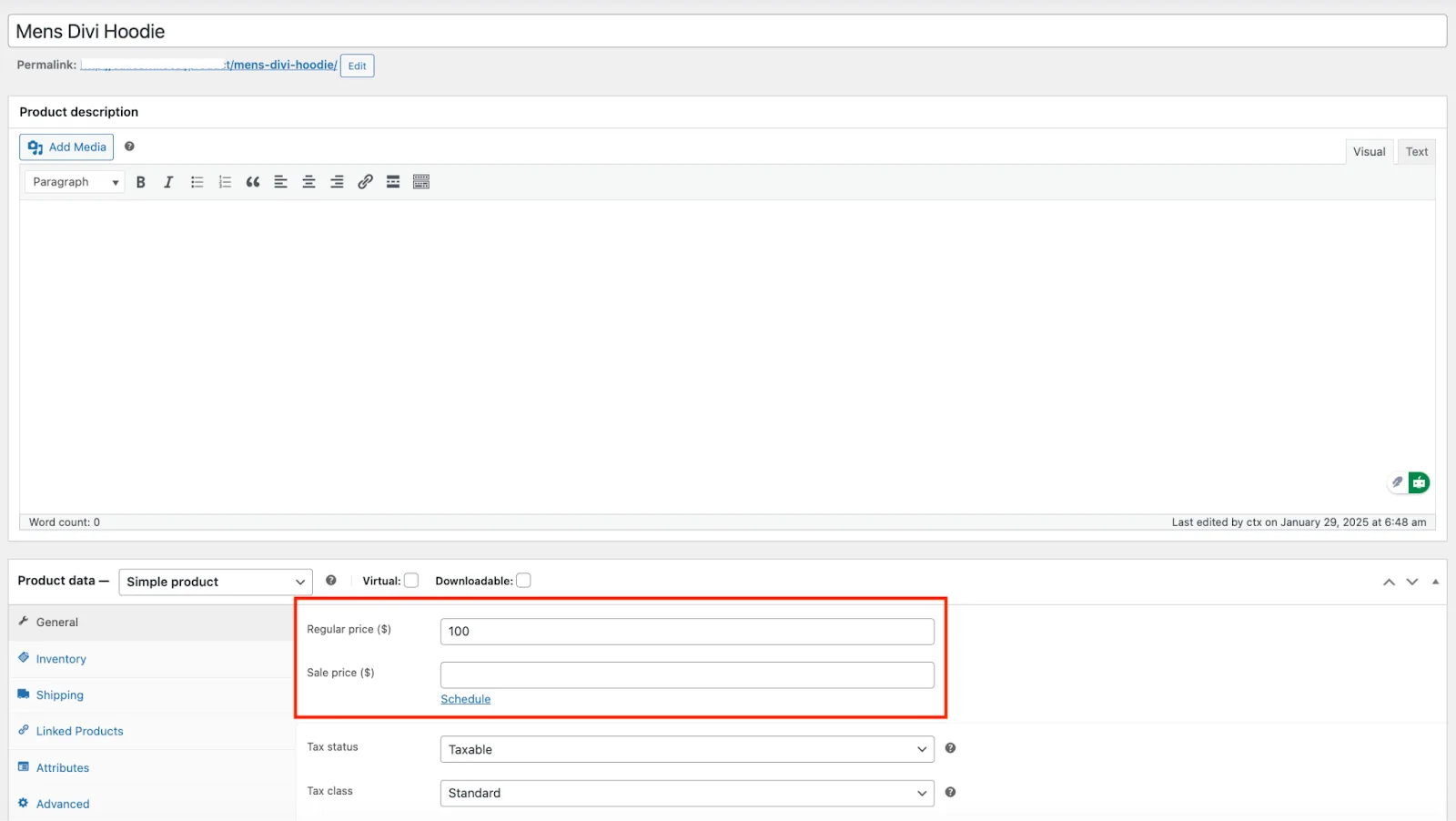
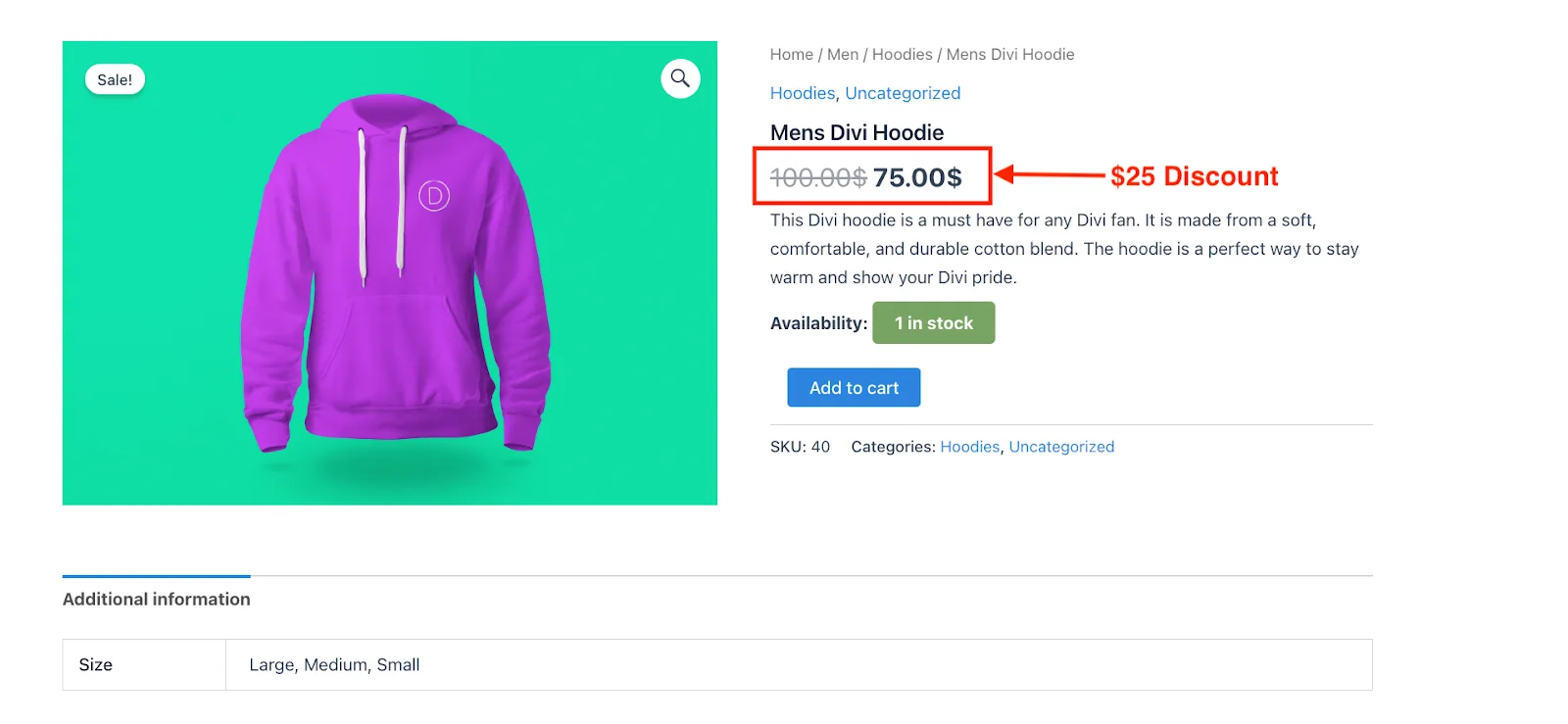
This setup ensures the discount applies only to products with a price (including tax) between $50 and $500. You can see below that our product ‘Mens Divi Hoodie’ does not have a sale price.
But it has a regular price of $100 which falls between $50 to $500. So, the discount will automatically apply to the regular price.
So, a $25 discount has been applied and the price has been reduced to $75.
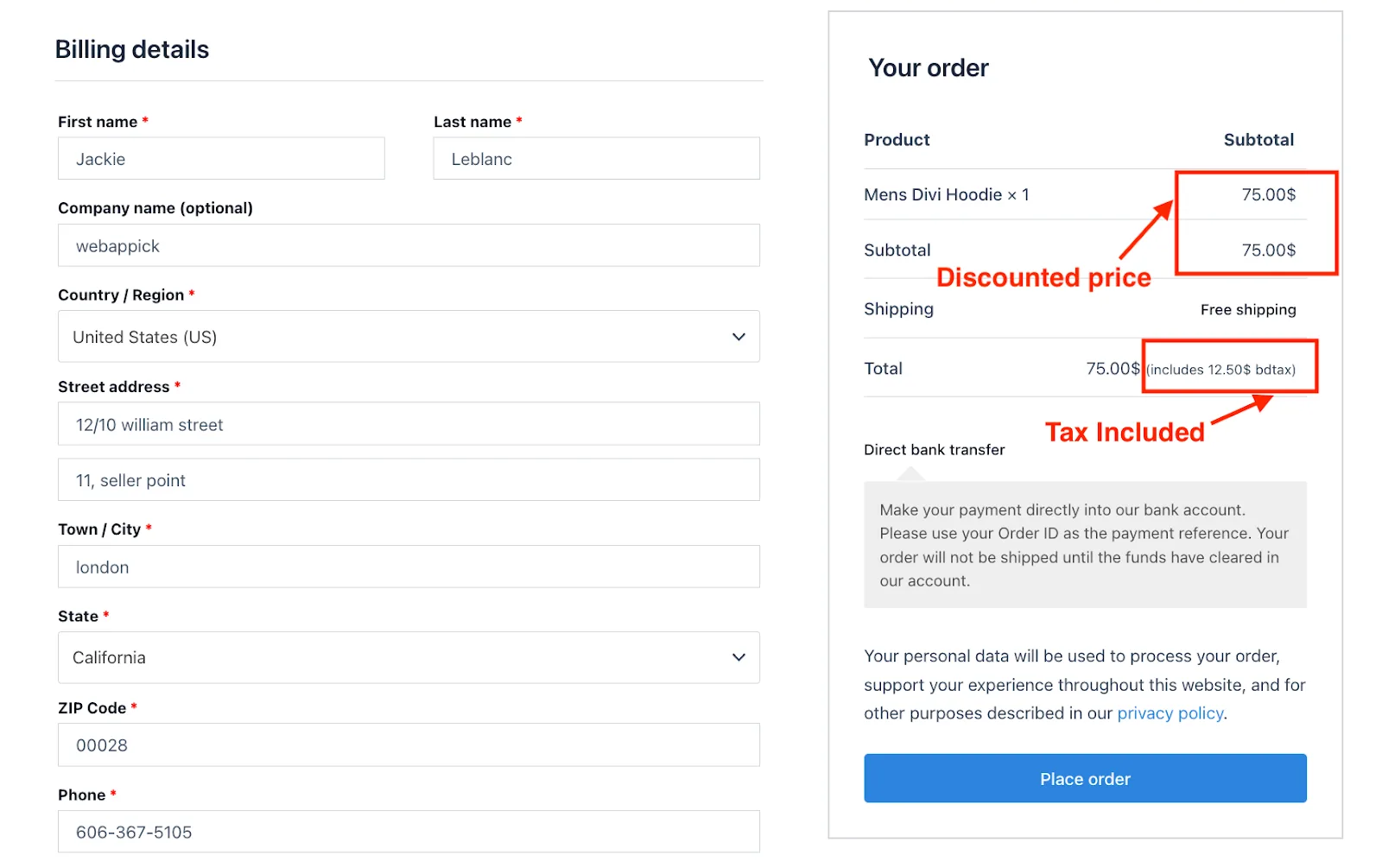
On the final checkout page, the price will be shown including the discount and the tax price.
7. Sale Price with Tax Based Condition #
If you want to apply discounts based on the sale price, including tax then the “Sale Price with Tax” is for you. This condition can be really helpful as it ensures that promotions are applied specifically to discounted items.
In our store, the prices already include the taxes. So, the discount will be applied to the total price.
Have a look at this Example.
Let’s offer a $7 discount on products where the sale price (including tax) is $500 or less.
Once you set up a $7 discount, go to the Conditions section and follow these steps:
- Choose “Sale Price with Tax” as the filter.
- Set the method to “Less Than or Equal”.
- Enter 500 as the value.
- Save it.
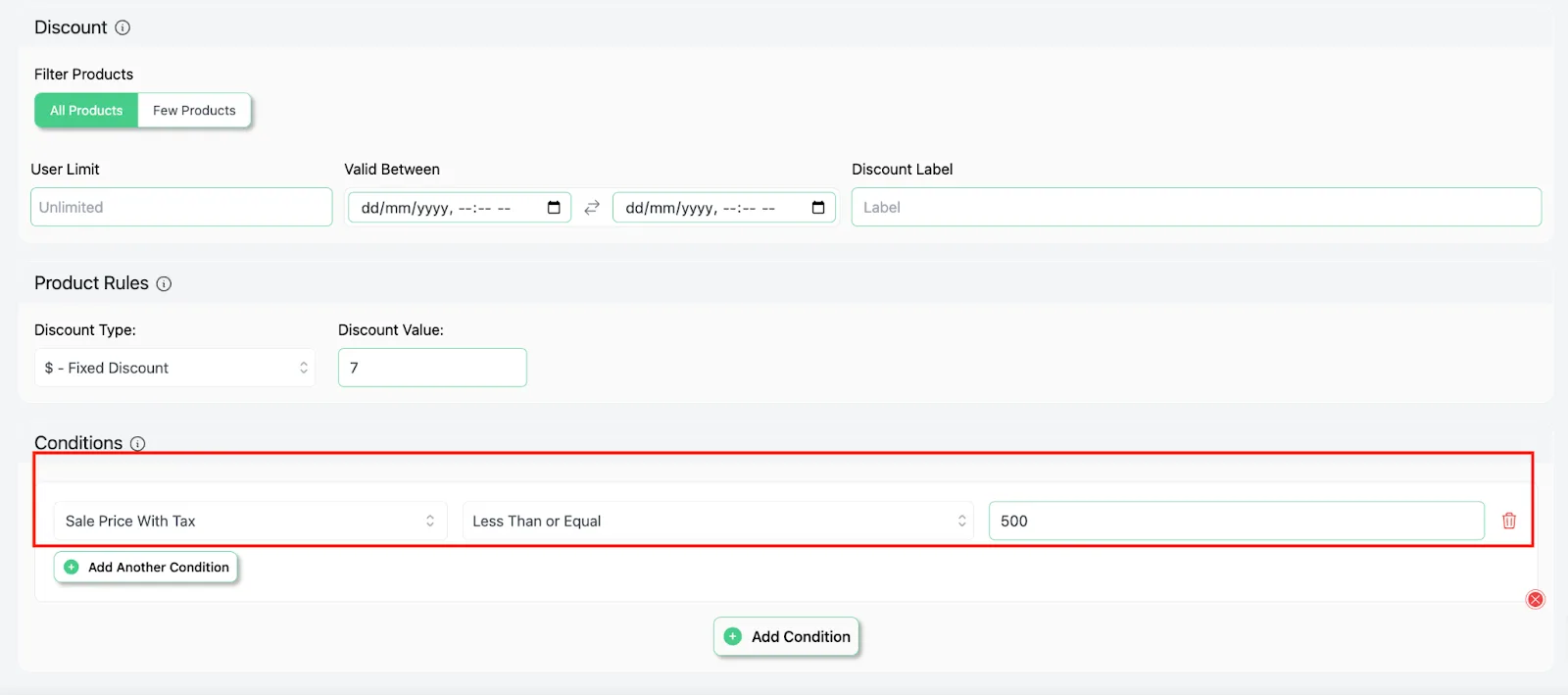
This setup ensures that the discount only applies to the sale price, including tax.
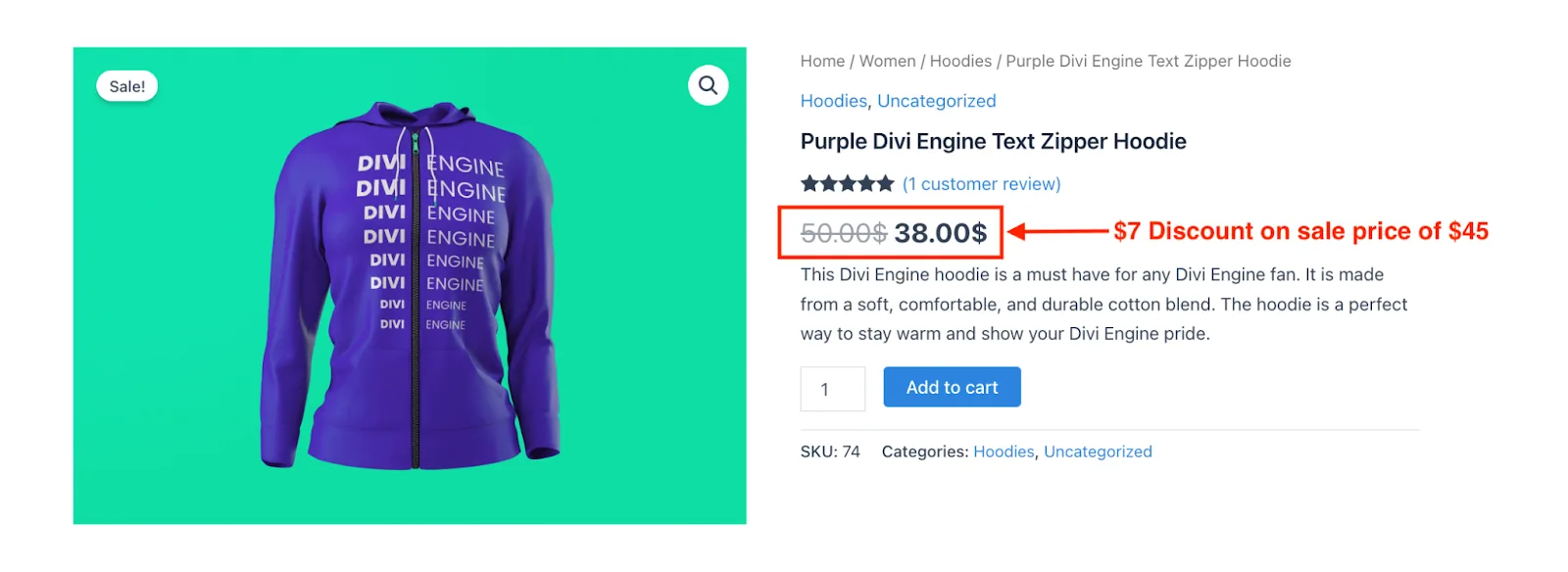
Now, one of our products “Purple Divi Engine Text Zipper Hoodie” has a regular price of $50. But it is on sale for $45. So, as the sale price is less than $500, the discount will apply to it.
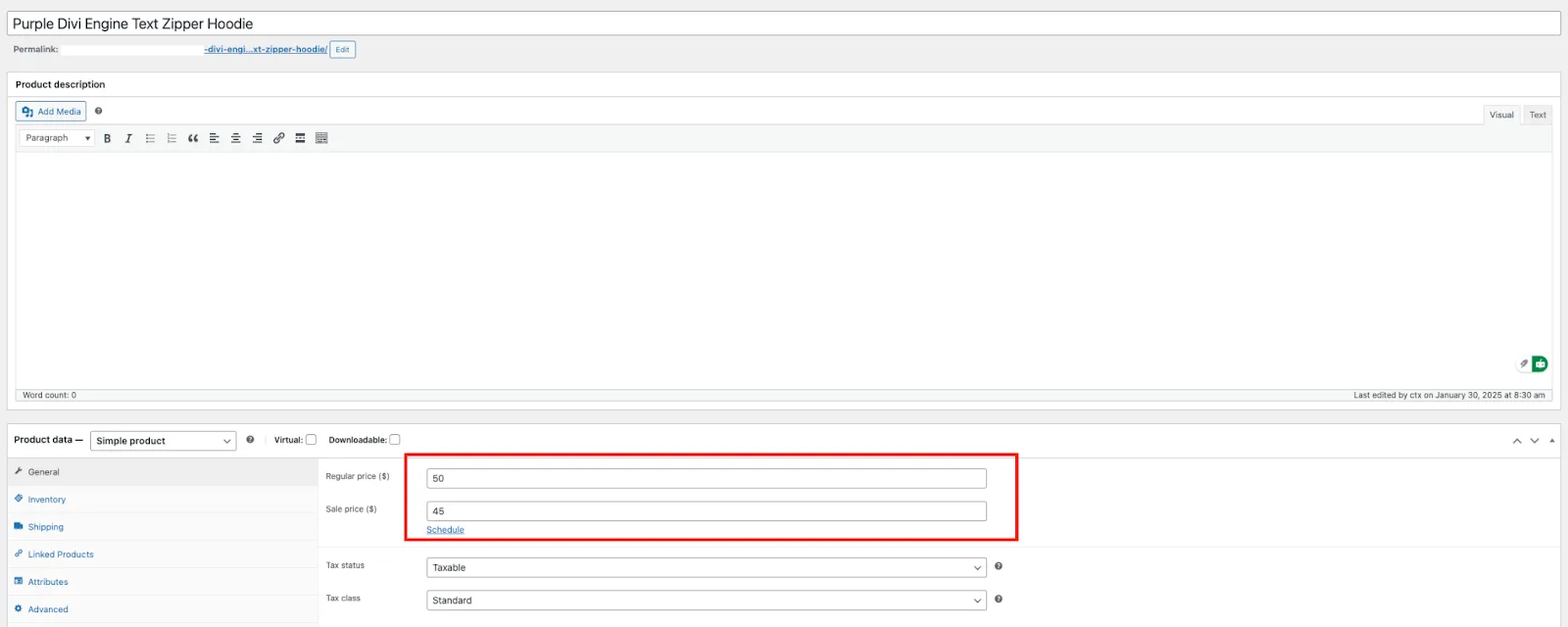
In the picture below, you will find out that the $7 discount has been successfully activated at the sale price of $45.
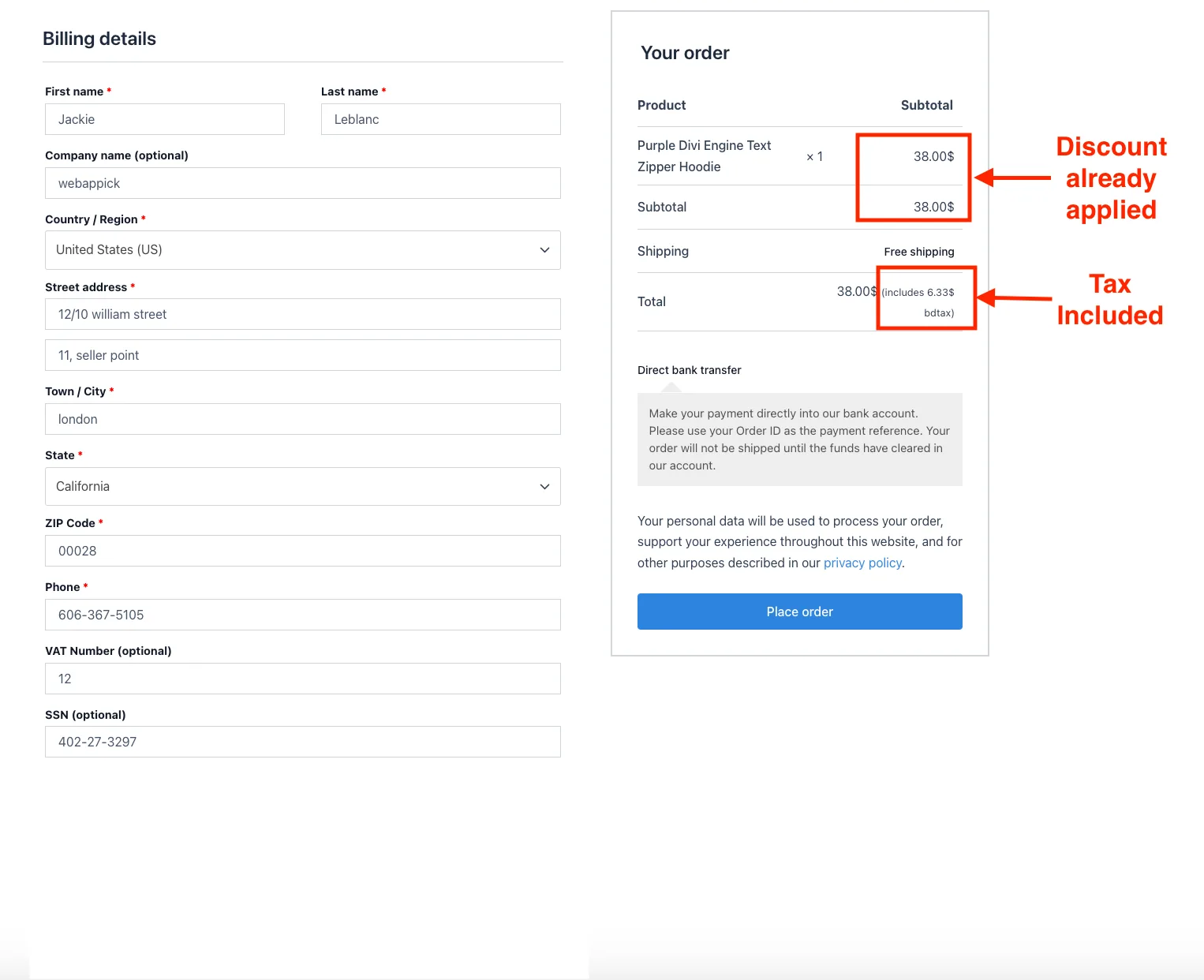
On the final checkout page, the price will be shown including the discount and the tax price.
8. Sale Start Date Based Condition #
The sale start date condition helps you to provide discounts based on the starting date of a product’s sale price. It’s an excellent way to reward customers for purchasing items whose sales began within a specific time frame.
To give you an instance:
Let’s offer a 25% discount on products where the sale price started anywhere between January 1, 2025, and January 31, 2025.
Once you set up a 25% discount, go to the Conditions section and follow these steps:
- Choose “Sale Start Date” as the filter.
- Set the method to “Date Between”.
- Enter January 1, 2025, as the start date.
- Enter January 31, 2025, as the end date.
- Save it.
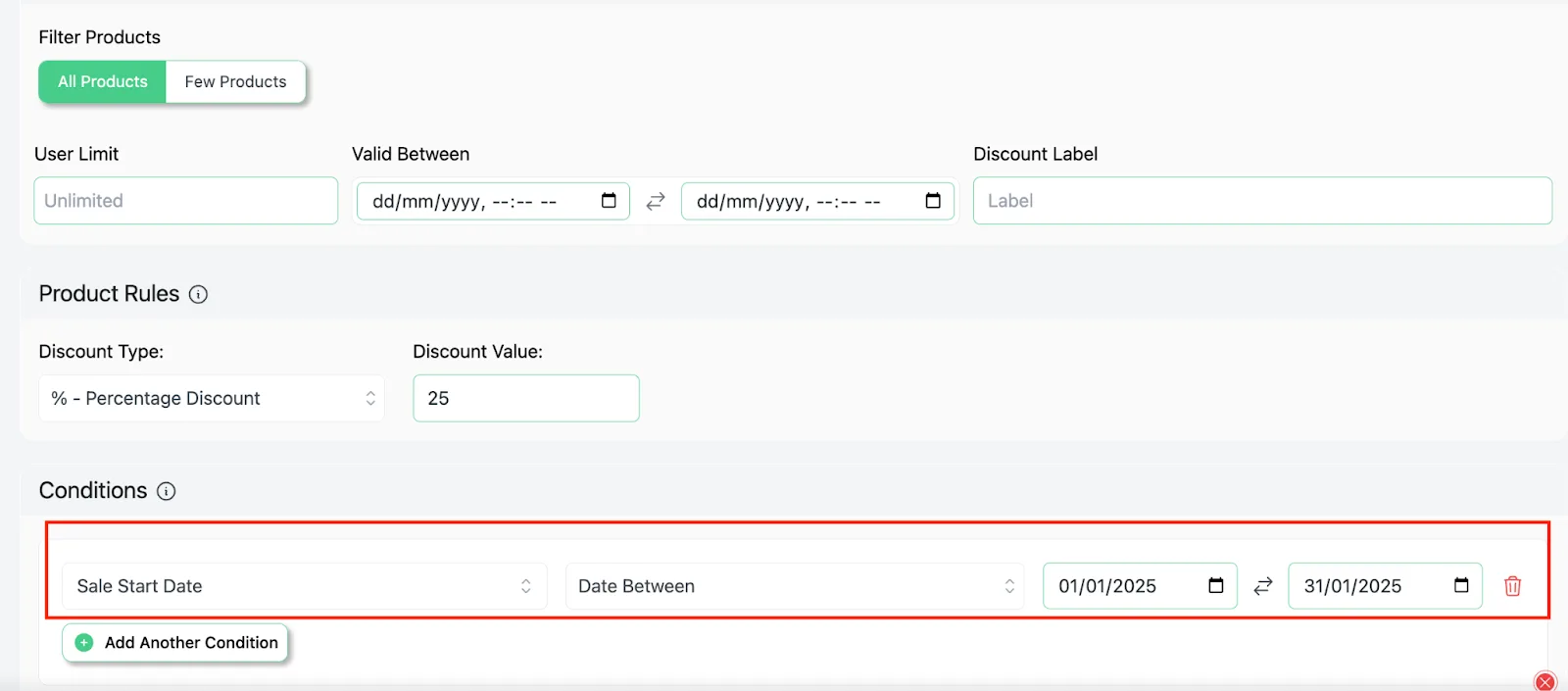
This setup ensures the discount applies only to products where the sale price started during the specified date range.
Now, any products with a sale price starting between January 1, 2025, and January 31, 2025, will automatically receive an additional 25% discount.
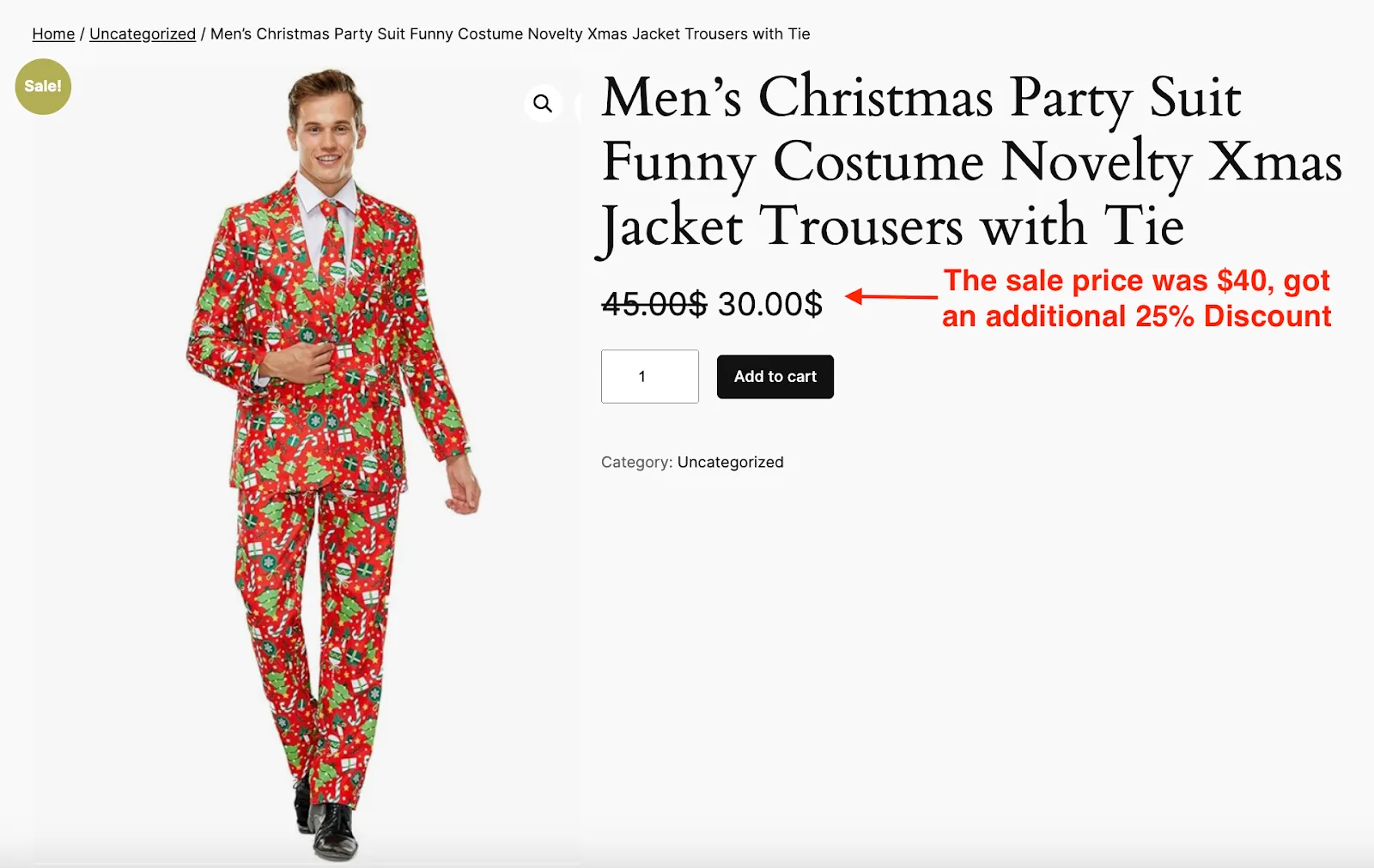
One of our products “Men’s Christmas Party Suit Funny Costume Novelty Xmas Jacket Trousers with Tie” had a sale price(from $45 to $40) starting from 01.01.2025.
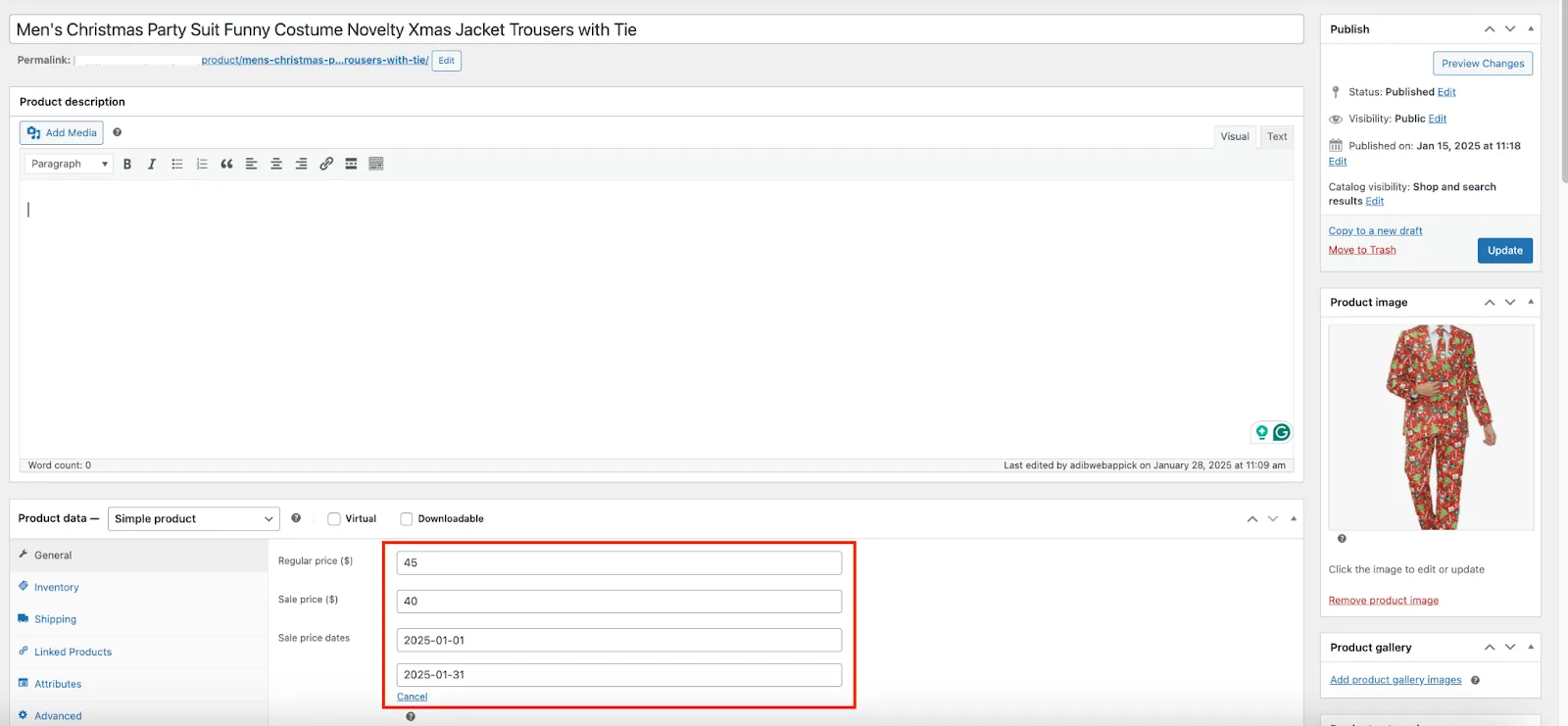
So, it got a 25% discount on it.
This strategy is ideal for amplifying promotions during specific sale periods, such as New Year or holiday sales, and driving more customer engagement.
9. Sale End Date Based Condition
The “sale end date” condition helps you provide discounts based on the ending date of a product’s sale price. It’s a great way to create urgency or reward purchases for products nearing the end of their promotional period.
Here’s an Example:
Let’s offer a $20 discount on products where the sale price ends anywhere between January 15, 2025, and February 15, 2025.
Once you set up a $20 discount, go to the Conditions section and follow these steps:
- Choose “Sale End Date” as the filter.
- Set the method to “Date Between”.
- Enter January 15, 2025, as the start date.
- Enter February 15, 2025, as the end date.
- Save it.
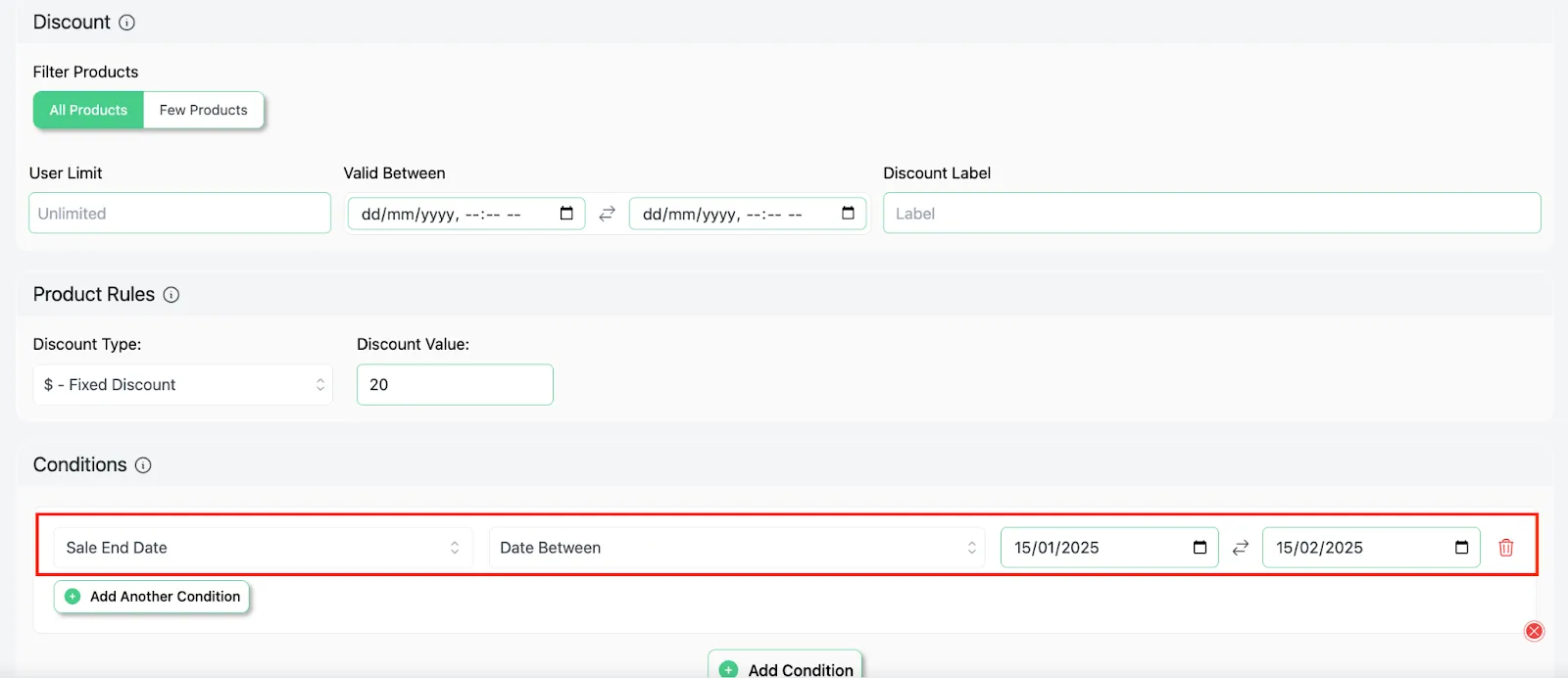
This setup ensures the discount applies only to products where the sale price ends within the specified date range.
For example, one of our products, “BLUEAIR Air Purifiers for Medium Rooms” had a sale price (from $230 to $200) ending on February 7, 2025.
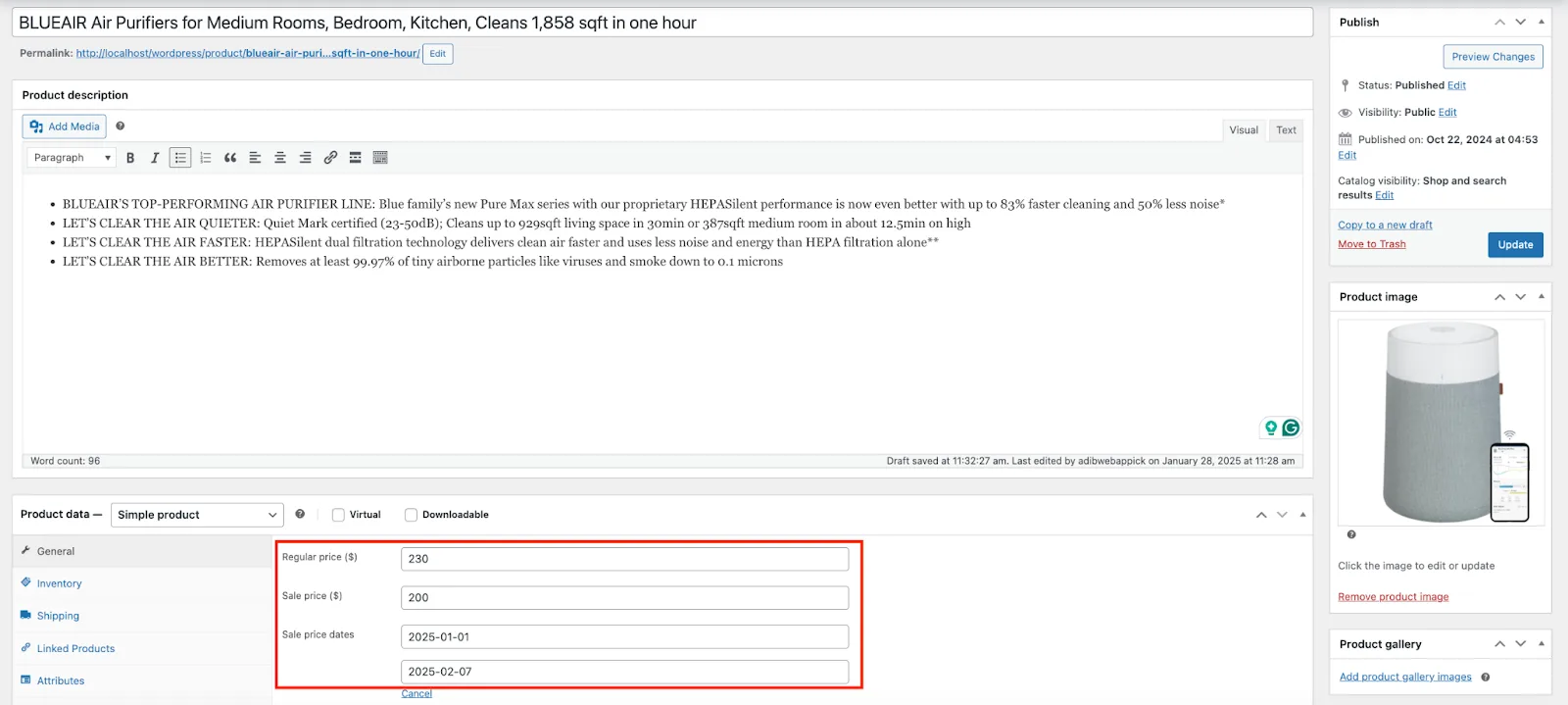
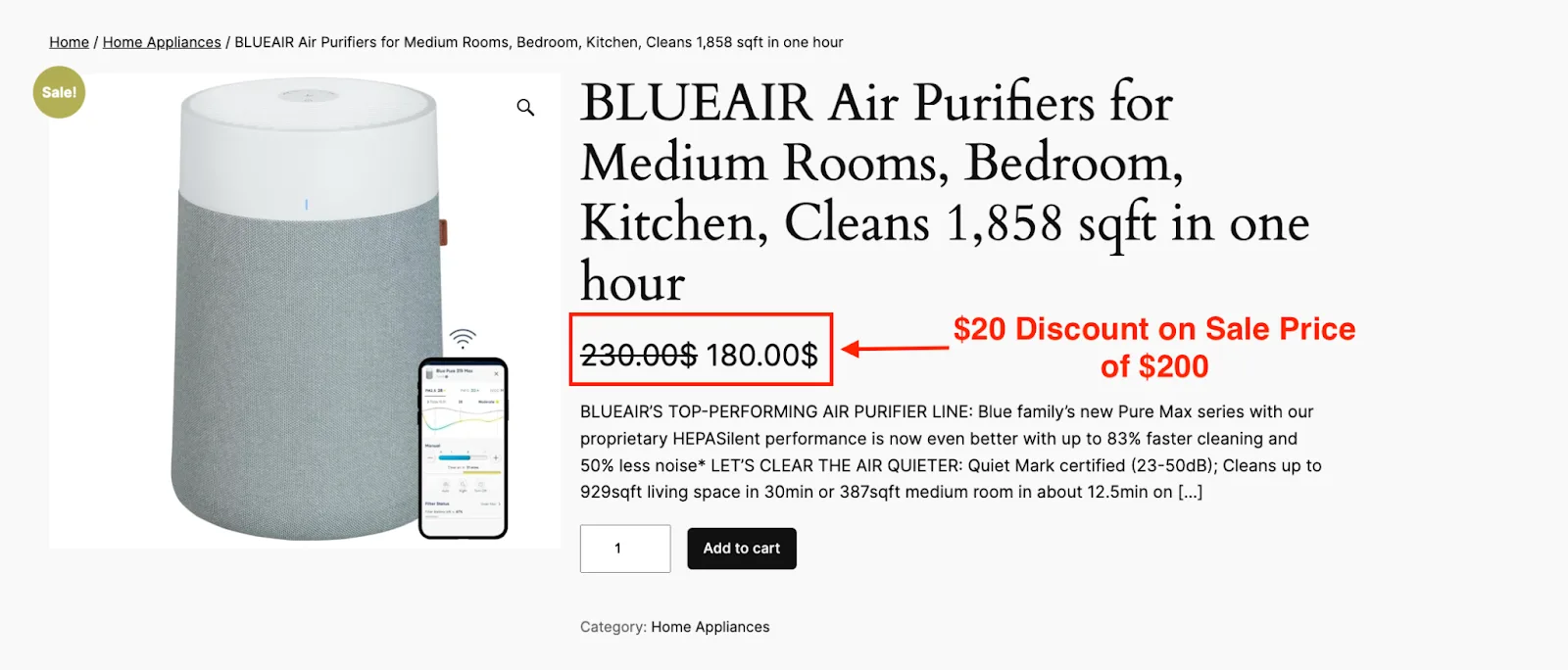
Because the sale end date fell within the specified range, the product received an additional $20 discount, reducing its price to $180.
This strategy is ideal for driving last-minute sales, clearing out seasonal inventory, and boosting customer engagement as sale periods come to a close.


