disco logo
  • Features
  • Pricing
  • Compare
  • Resources
    • Blog
    • Documentation
    • Changelog
    • Contact/Support
    • Disco Community
Login Get Disco Pro

Getting Started

1
  • Installation Process of Disco Plugin (PRO And Free)

Product Intent Discounts

4
  • Set Up Product Intent Discounts
  • Example 1: $20 Off All ‘Men’ Category Products
  • Example 2: 5% Off Product X for a Limited Time
  • Example 3: Flat $50 Off on Products Over $500

Cart-Intent Discounts

4
  • Set up Cart Intent Discounts using Disco Plugin
  • Example 1: 20% Cart Discount on Selected Categories
  • Example 2: Offer 10% Cart Discount for 10+ Items (Cart Quantity)
  • Example 3 : Offer $10 Off Product X When Cart Has 3+ Items (In Stock)

Free Shipping Discount

4
  • Set Up Free Shipping with DIsco Plugin
  • Example 1: Free Shipping for Location ‘X’ Customers
  • Example 2: Free Shipping on Category “A” Products
  • Example 3: Free Shipping on Specific Product During Promotion

Bulk Intent Discount

4
  • Set Up Bulk Intent Discount with Disco Plugin
  • Example 1: Bulk Percentage Discounts on All Products by Quantity
  • Example 2: Offer 5% Bulk Discount on Product X for 3+ Units (October Only)
  • Example 3: Offer $10 Off on 5+ Units from Category ‘A’

Bundle Discount

1
  • Set Up Bundle Discount with Disco Plugin

Campaign Setup

6
  • Product Rules Explain with Example
  • Bundle Rules Explain with Example
  • Bulk Rules Explain with Example
  • Cart Rules Explain with Example
  • Discount Rules (Filter Products, User Limit, Valid Between, Discount Label)
  • Discount Intent

Conditions

9
  • Items Count (Entire Cart) vs Item Count 
  • Set Up Discounts According to Product Stock Quantity in WooCommerce
  • Apply Discounts on Selected Categories in WooCommerce 
  • Create a Discount on a Specific Product Attribute in WooCommerce
  • Set Up Discounts by Brand in WooCommerce with Disco Plugin
  • Tax and Shipping Based Discount Conditions
  • Price Based Discount Conditions
  • Product Attributes Based Discount Condition
  • Product/Cart Item Based Discount Conditions

Ticket Solutions

1
  • Discount Applies but No Visual Badge or Offer Displayed

BOGO

5
  • Buy X Product, Get Y Product at a Discounted Price
  • Buy X, Get Y Free (Different Product)
  • Buy X from Category A & Get Y from Category B
  • Set Up BOGO Discount (Buy 1 T-Shirt, Get 1 T-Shirt Free)
  • Buy X Get X at Discount (Buy 3 Coffee Mugs, Get 3rd One 50% Off)

Campaign Display

3
  • Display Product Badge in WooCommerce
  • Display Bundle Discount Table in WooCommerce 
  • Display Bulk Discount Table in WooCommerce
View Categories
  • Home
  • Documentation
  • Conditions
  • Product Attributes Based Discount Condition

Product Attributes Based Discount Condition

1 min read

The Product Attributes condition allows you to apply discounts based on the specific attributes assigned to your products. 

Attributes are characteristics like color, size, brand, weight, Material, Age Group, etc. which you can set up in your WooCommerce store to describe your products better.

When you use this condition, the options you see will depend on the attributes you’ve already configured in your store.

For example:

  • If your store has attributes like color and size, you’ll see these two options.
  • If additional attributes like brand or weight are added, they will also appear, giving you more options to filter your discounts.

This flexibility lets you target discounts for specific product characteristics, enabling highly personalized and strategic offers for your customers.

1. Color Based Discount Conditions #

The Color attribute condition allows you to apply discounts to products based on their color. This is a perfect strategy for promoting specific color variations of your products.

To give you an instance:

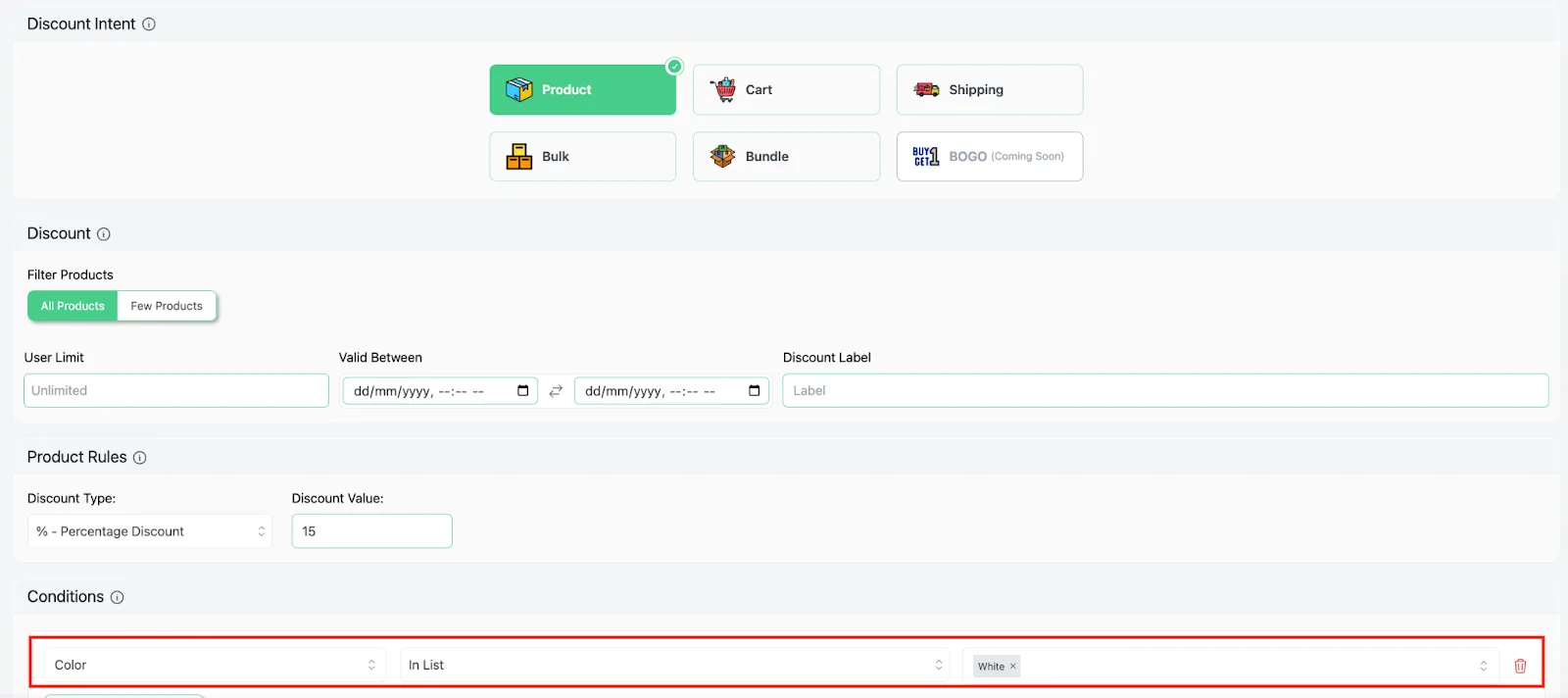
Let’s offer a 15% discount on all white-colored products.

Once you set up a 15% discount, go to the Conditions section and follow these steps:

  • Choose “Product Attributes” as the filter.
  • Select “Color” from the attribute list.
  • Set the condition to “Equals”.
  • Enter “White” as the value.
  • Save it.
AD 4nXe5OjrSaUgB

This setup ensures that the discount applies only to products with the color attribute set to white.

For example, our product “Classic White T-Shirt” (priced at $20) will now get a 15% discount, reducing the price to $17.

This strategy is ideal for promoting specific product variations, clearing out inventory in certain colors, or capitalizing on trends where certain colors are in high demand.

What are your Feelings

  • Happy
  • Normal
  • Sad

Share This Article :

  • Facebook
  • X
  • LinkedIn
  • Pinterest
Price Based Discount ConditionsProduct/Cart Item Based Discount Conditions

Leave a Comment Cancel Reply

Table of Contents
  • 1. Color Based Discount Conditions
disco logo

The best WooCommerce discount plugin for BOGO deals, bulk discounts, tiered pricing, user role pricing, and dynamic pricing rules.

Product

  • Features
  • Pricing
  • Free vs Pro
  • Documentation

Resources

  • Blog
  • Tutorials
  • FAQ
  • Changelog

Company

  • About WebAppick
  • Support
  • Feature Request
  • Disco Community

© 2026 Disco by WebAppick. All rights reserved.