disco logo
  • Features
  • Pricing
  • Compare
  • Resources
    • Blog
    • Documentation
    • Changelog
    • Contact/Support
    • Disco Community
Login Get Disco Pro

Getting Started

1
  • Installation Process of Disco Plugin (PRO And Free)

Product Intent Discounts

4
  • Set Up Product Intent Discounts
  • Example 1: $20 Off All ‘Men’ Category Products
  • Example 2: 5% Off Product X for a Limited Time
  • Example 3: Flat $50 Off on Products Over $500

Cart-Intent Discounts

4
  • Set up Cart Intent Discounts using Disco Plugin
  • Example 1: 20% Cart Discount on Selected Categories
  • Example 2: Offer 10% Cart Discount for 10+ Items (Cart Quantity)
  • Example 3 : Offer $10 Off Product X When Cart Has 3+ Items (In Stock)

Free Shipping Discount

4
  • Set Up Free Shipping with DIsco Plugin
  • Example 1: Free Shipping for Location ‘X’ Customers
  • Example 2: Free Shipping on Category “A” Products
  • Example 3: Free Shipping on Specific Product During Promotion

Bulk Intent Discount

4
  • Set Up Bulk Intent Discount with Disco Plugin
  • Example 1: Bulk Percentage Discounts on All Products by Quantity
  • Example 2: Offer 5% Bulk Discount on Product X for 3+ Units (October Only)
  • Example 3: Offer $10 Off on 5+ Units from Category ‘A’

Bundle Discount

1
  • Set Up Bundle Discount with Disco Plugin

Campaign Setup

6
  • Product Rules Explain with Example
  • Bundle Rules Explain with Example
  • Bulk Rules Explain with Example
  • Cart Rules Explain with Example
  • Discount Rules (Filter Products, User Limit, Valid Between, Discount Label)
  • Discount Intent

Conditions

9
  • Items Count (Entire Cart) vs Item Count 
  • Set Up Discounts According to Product Stock Quantity in WooCommerce
  • Apply Discounts on Selected Categories in WooCommerce 
  • Create a Discount on a Specific Product Attribute in WooCommerce
  • Set Up Discounts by Brand in WooCommerce with Disco Plugin
  • Tax and Shipping Based Discount Conditions
  • Price Based Discount Conditions
  • Product Attributes Based Discount Condition
  • Product/Cart Item Based Discount Conditions

Ticket Solutions

1
  • Discount Applies but No Visual Badge or Offer Displayed

BOGO

5
  • Buy X Product, Get Y Product at a Discounted Price
  • Buy X, Get Y Free (Different Product)
  • Buy X from Category A & Get Y from Category B
  • Set Up BOGO Discount (Buy 1 T-Shirt, Get 1 T-Shirt Free)
  • Buy X Get X at Discount (Buy 3 Coffee Mugs, Get 3rd One 50% Off)

Campaign Display

3
  • Display Product Badge in WooCommerce
  • Display Bundle Discount Table in WooCommerce 
  • Display Bulk Discount Table in WooCommerce
View Categories
  • Home
  • Documentation
  • BOGO
  • Set Up BOGO Discount (Buy 1 T-Shirt, Get 1 T-Shirt Free)

Set Up BOGO Discount (Buy 1 T-Shirt, Get 1 T-Shirt Free)

1 min read

This is an example of a BOGO ( Buy-1, Get-1 item offer ) designed to make shopping more rewarding.

This refers to the intent of Disco’s (Buy-X, Get-X) Item offer rule, where a person will receive the same type of product they have already purchased. It’s an attractive and effective strategy for delighting customers and increasing sales.

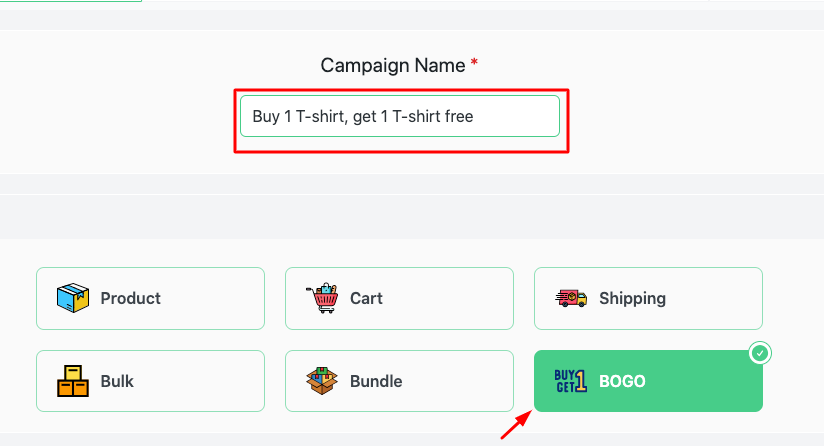
For this example, we’ll use  Buy-1 T-shirt, Get a free T-shirt for buying 1 T-shirt.

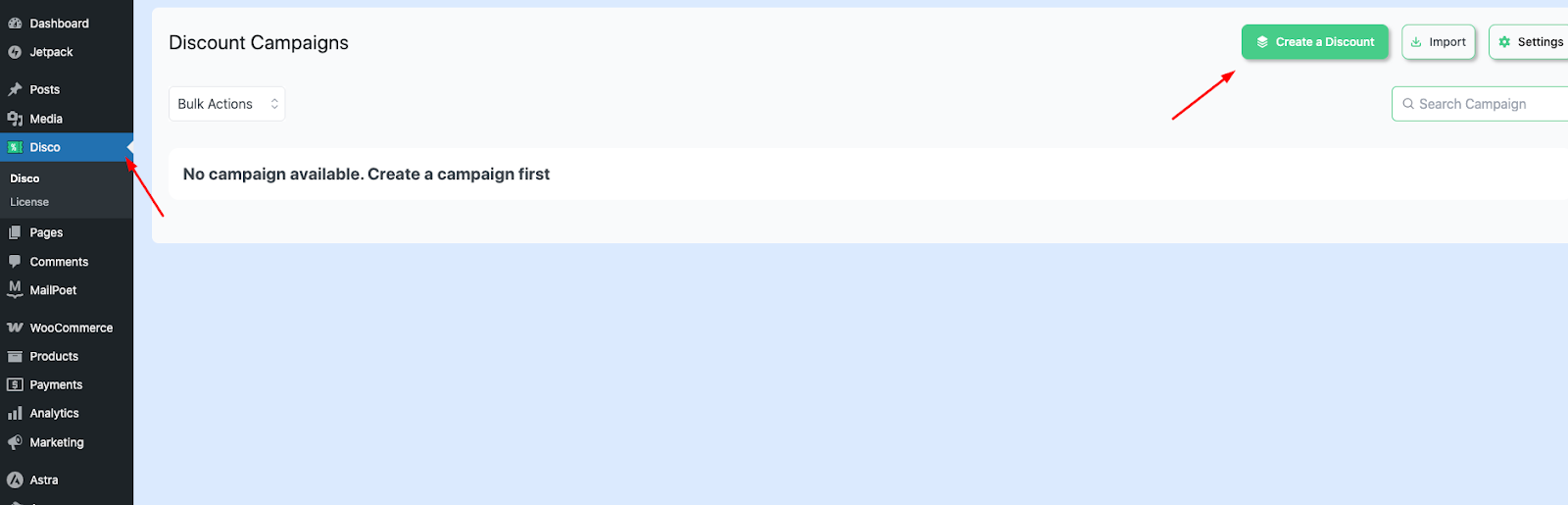
Step 1: On the left side of your WordPress panel, go to the Disco menu, which will lead you to the “ Create a discount ” option. 
AD 4nXeCyolz4xlFr0KNyxNZi3X71RAkLslUMJ 1coE7m7fkb63VR9IN7 BX 3hin60dKMFe7fGoObPTbJEf8u5cZv T8qVf23dLGK8mRmncnnBf3O4rZCjKqK4 H0 UL47h Qo6 g5yWQ

Step 2:  Add Campaign Name, then go down to the BOGO section.
AD 4nXexcrTk JsLgnuXJQf7WZK rE4fnC4ThhlTFpeOjOoNc8uasjnPsoydQx5xqiyJwMz5W 5fg38Lcy5 vJP3GMLay1AD6FmDYYxtf

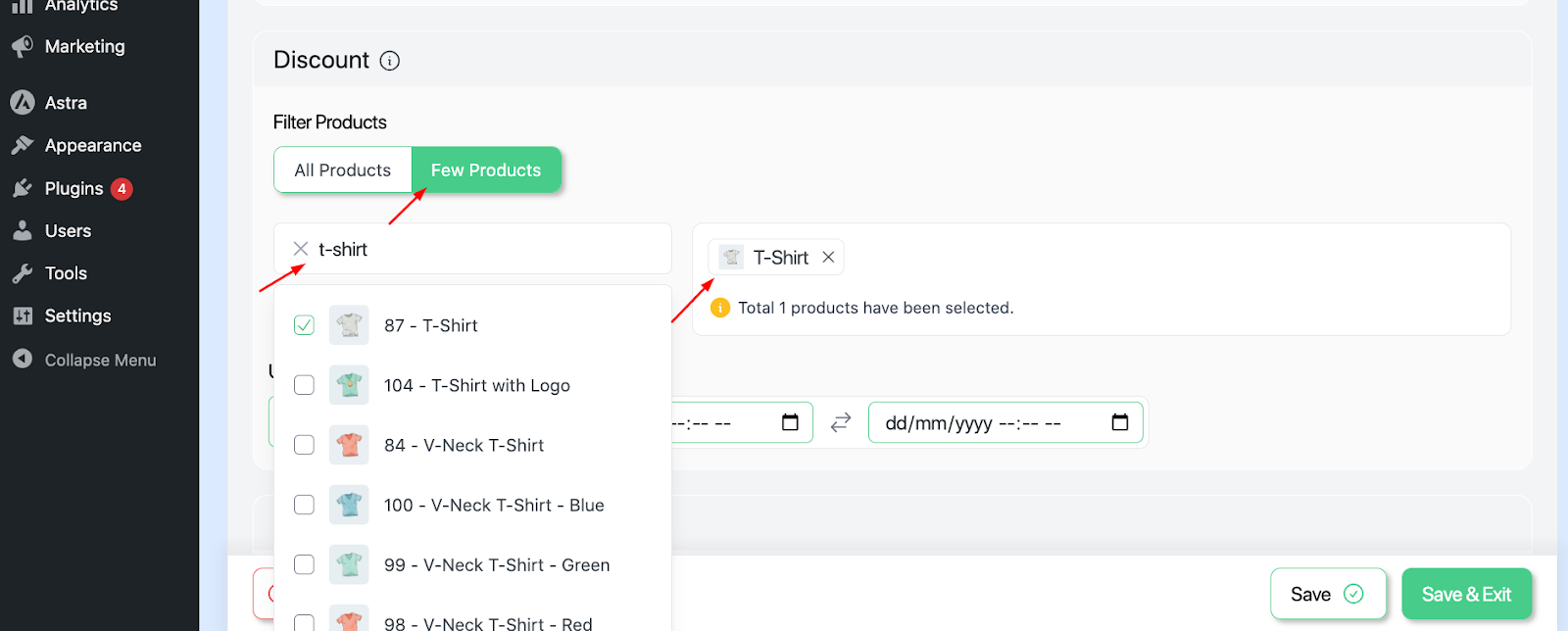
Step 3: Scroll down and choose “ All products / Few Products ” from the  Discount section.

In this example, we would choose “a few products ” since we only want this rule to be applied in a specific group of products. 
AD 4nXdjpFVOXdVzziwvFEQHYW5NTTj1UNah Y3WmsL vaoKcLhprbjuU7f2KufdWOJ5dpgOX0o6cAXRv6vrRKWhc U2fJujl NIzcsM3g0ZlHb4nCuHvpp6z0 0losIZ13LJihbWzlksg

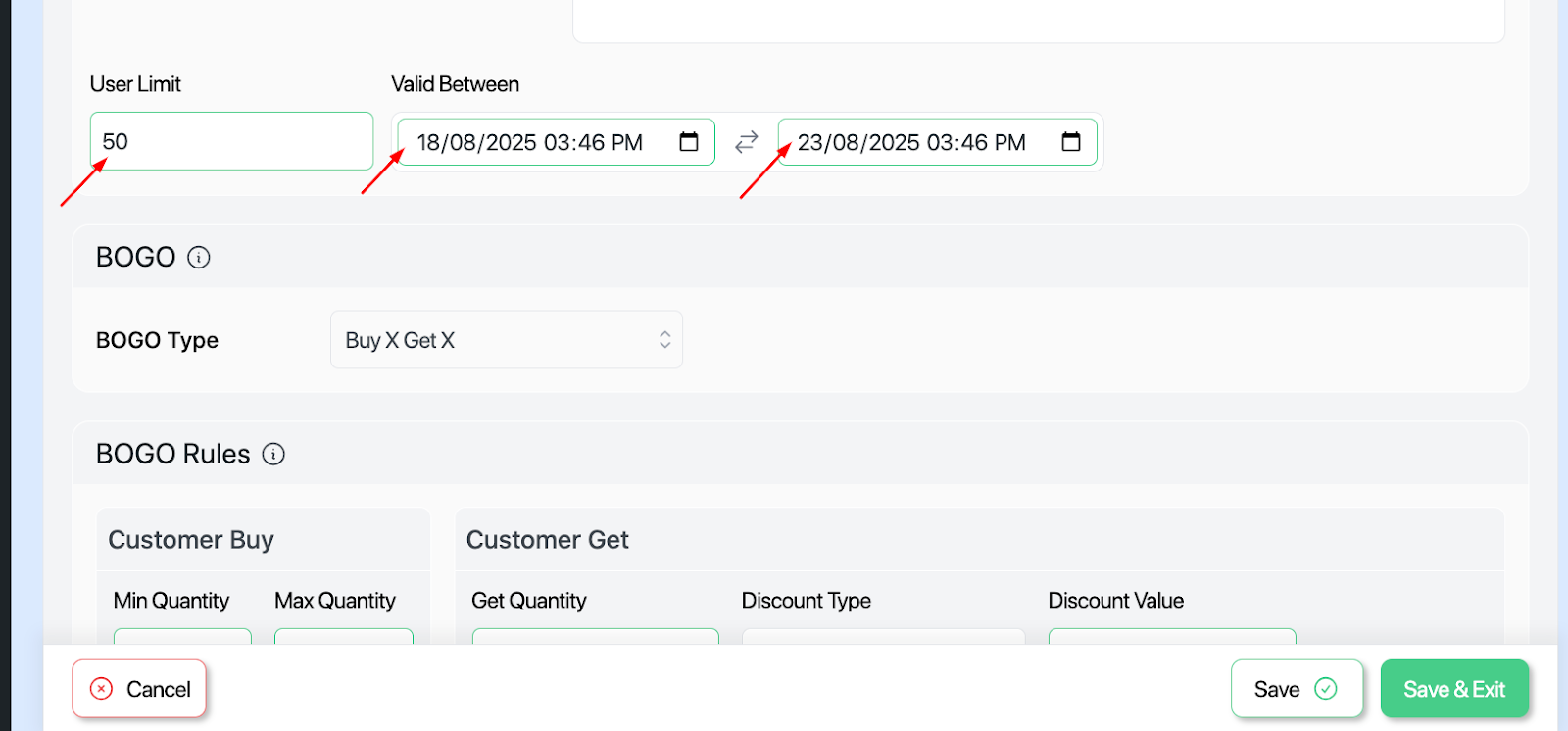
Step -4:  In the next stage, we’ll decide the user limit and validity date.

Here, the user limit refers to the number of times a specific customer can use discount rules. If we leave the user limit blank, it will indicate unlimited times.

Here we’ve taken user limit =50, start date- 18/08/2025, end date – 23/08/2025.The start date marks when the discount begins, while the end date indicates when the discount ends.
AD 4nXflTO8mJ5PTzAwY3Mvh02bBso1XyuVsfvnzggABDOPTyqBxoMBi6qHm7gUXcb30pKbKPdVccM6obvpXLWVbA6CUWp30VTVrGZuiGjzwe8wTHr0SZzX N5HCy 3AiE8hBoeTOcfYYQ

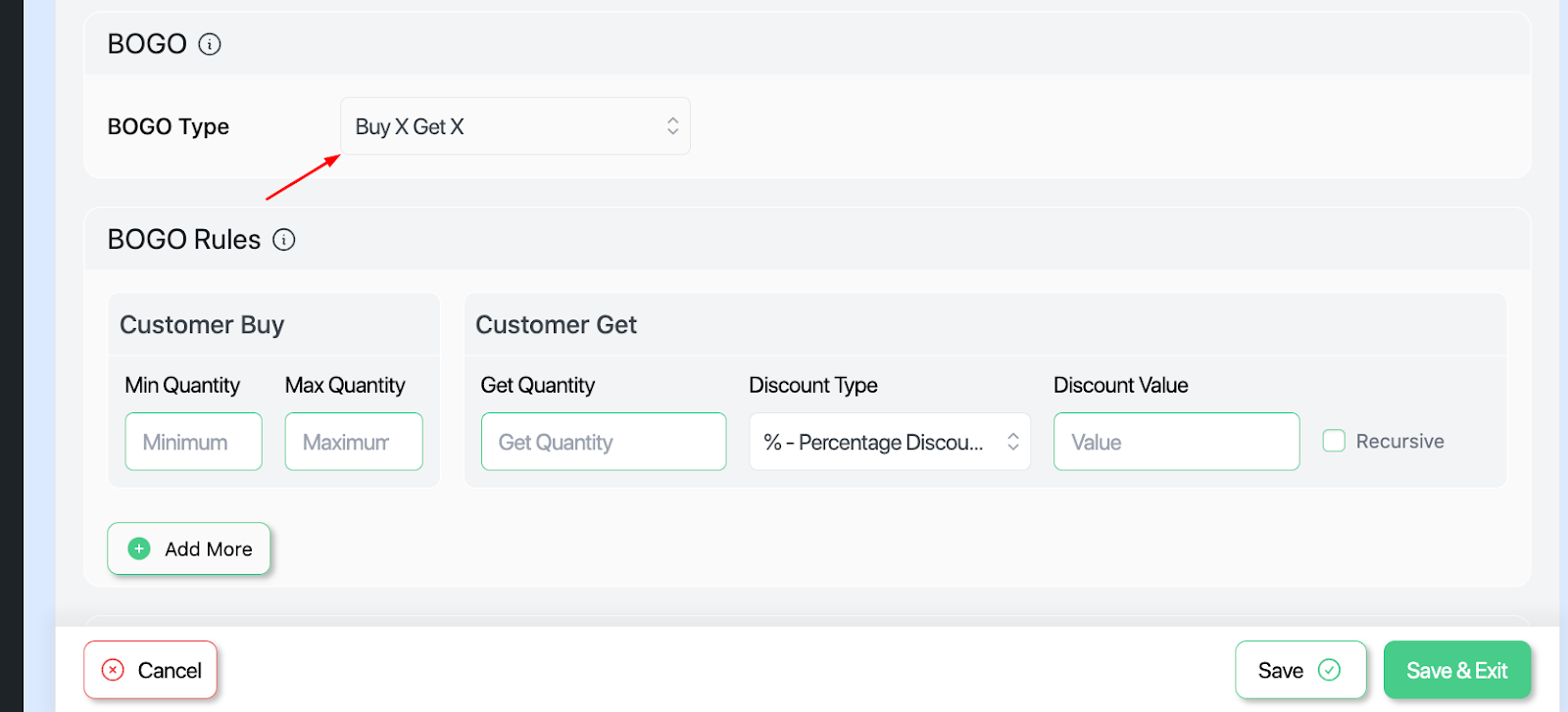
Step -5: Next, we’ll set the BOGO type. Here, we aim to give the same product for free.

Therefore , we would choose  “Buy-X, Get-X ” as the BOGO type .  Here, “ X” suggests the same product.
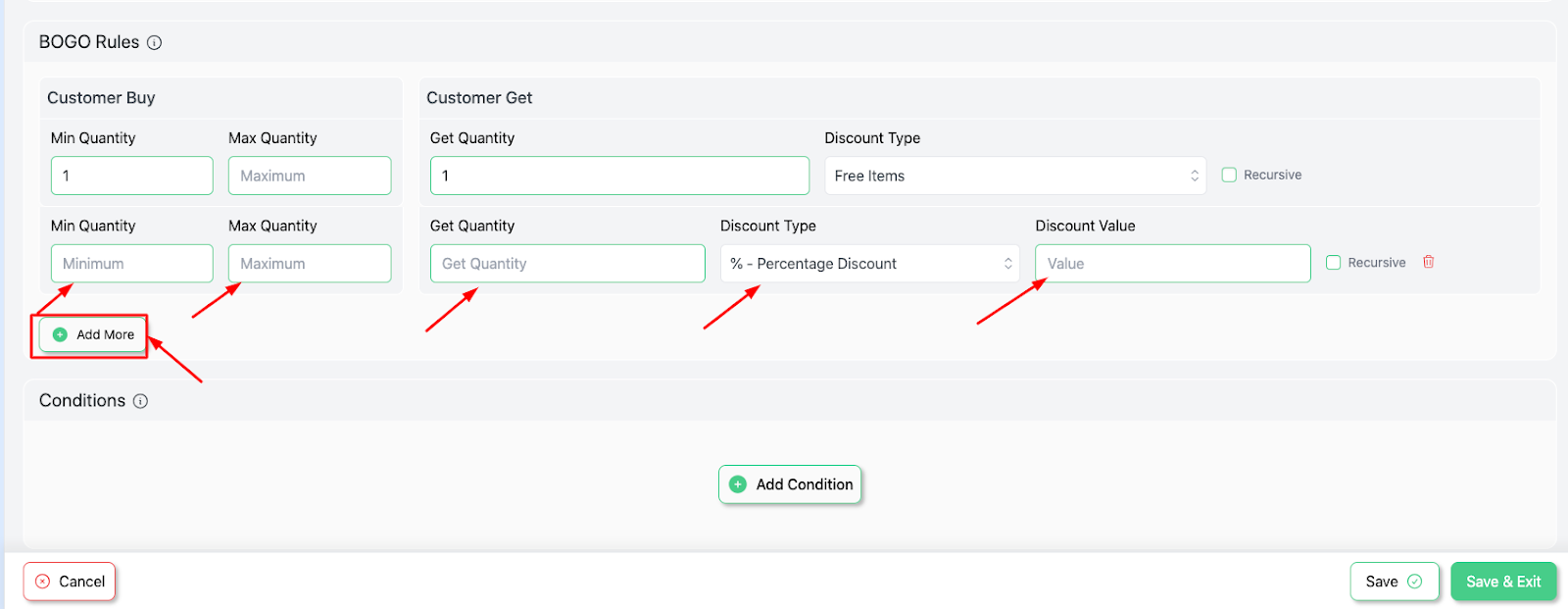
Step- 6: We’d also explore more options in the  BOGO Rules segment. 

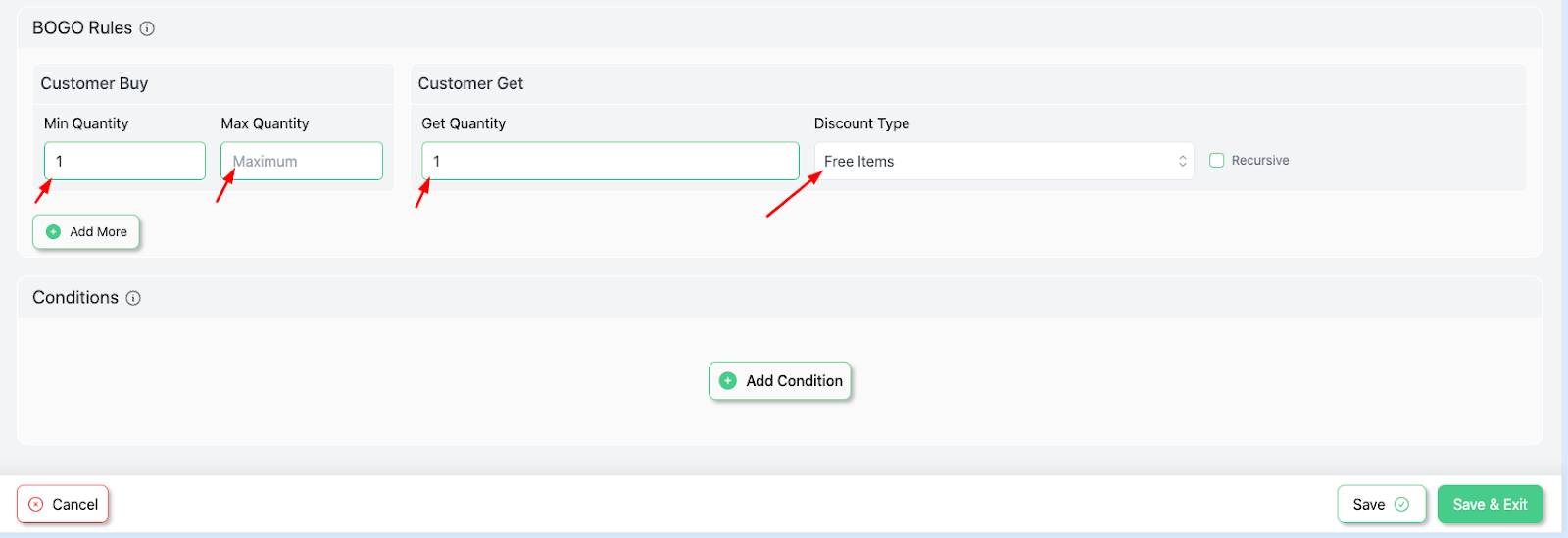
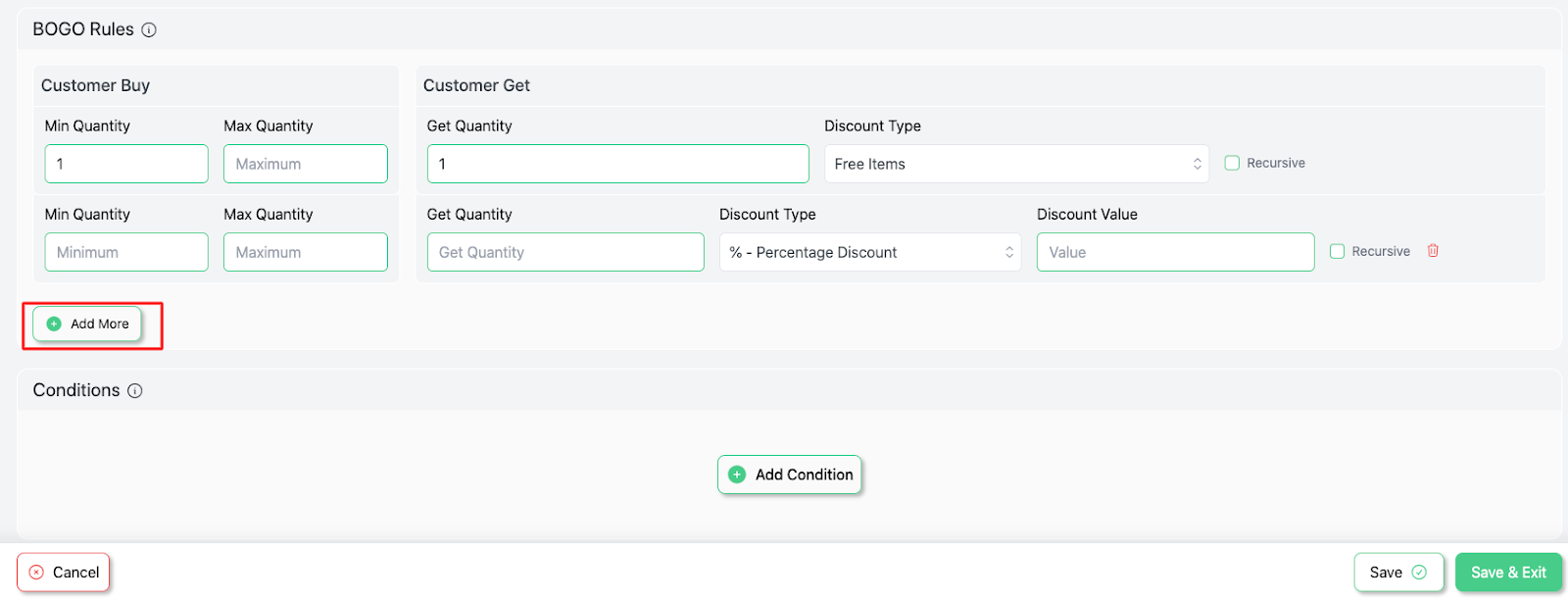
Here, we’ll have options like Mini Quantity and Max Quantity in the  Customer Buy section.

The Mini Quantity implies the minimum range of products the customer needs to buy. And the Max quantity indicates the upper limit or the maximum number of units the discount will apply to.  

For this example, we would enter Mini Quantity = 1, Max Quantity = Blank. Again, blank state referring to numerous times. Customers can add any number they want. 
AD 4nXdiyWiR fVTnsn X82aYuxsA3eL9PQBiyniHdobkrg6aHmqdv3qnoo Q41tCUCFBNd NC7wGd9aqLhhJ3XDDpx9KX5k2Ft9BPRZQKRdXqgJKF

We’ll also have a “ Customer Get ” segment where we’ll have options like – 

Get Quantity – determines how many items the customer gets 

Discount type – here, we’ll choose “ free items ” since we’re giving products for free.

Step 7: If we scroll down, we would come across the “ Add More ‘’ option, which’ll lead us into a similar segment as the previous one.

From here, customers can add more rules if they want.
AD 4nXfW1caE38Z4HcFwdj6Eb3gMBpxAEztbK1vNdtiARHllLJk0ad8J5l9TEQceO9vtX jkpJoPGRG6F157kV9hRyWTiPzN9hYVRTEGCU5Burfe3KbUT8nxGPgrNPHGxbA 2LtYNwDzrQ
AD 4nXd9yPkw2UFuo22yqyIwSAdYH6vpIq8da6huJmXyI1JlYzWahoMSWuRfuvImM47Sqa7lmbfpfN9g uSRO4KQZwyGpLOCKnkj6x pNK5dIvOFN54PEFBIkyxcXl8wfCofrp xCQly g

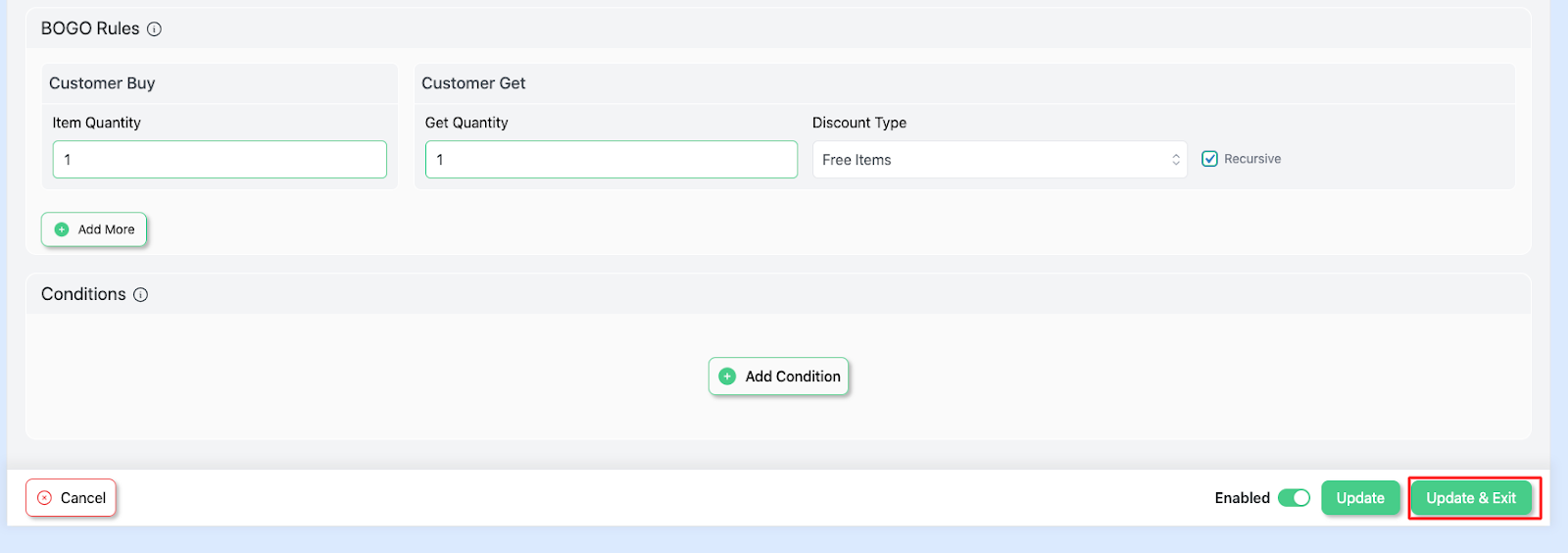
Step 8:  Simply save and exit.

AD 4nXdOC1CSx6TF1LFT16HaMpov91Cx0cHxpHVr7QFsoMpZ63huedd qbc3QtglaODH2JRosZzZ0potmzUENDbn3LsQOMtz5ud8yrA S

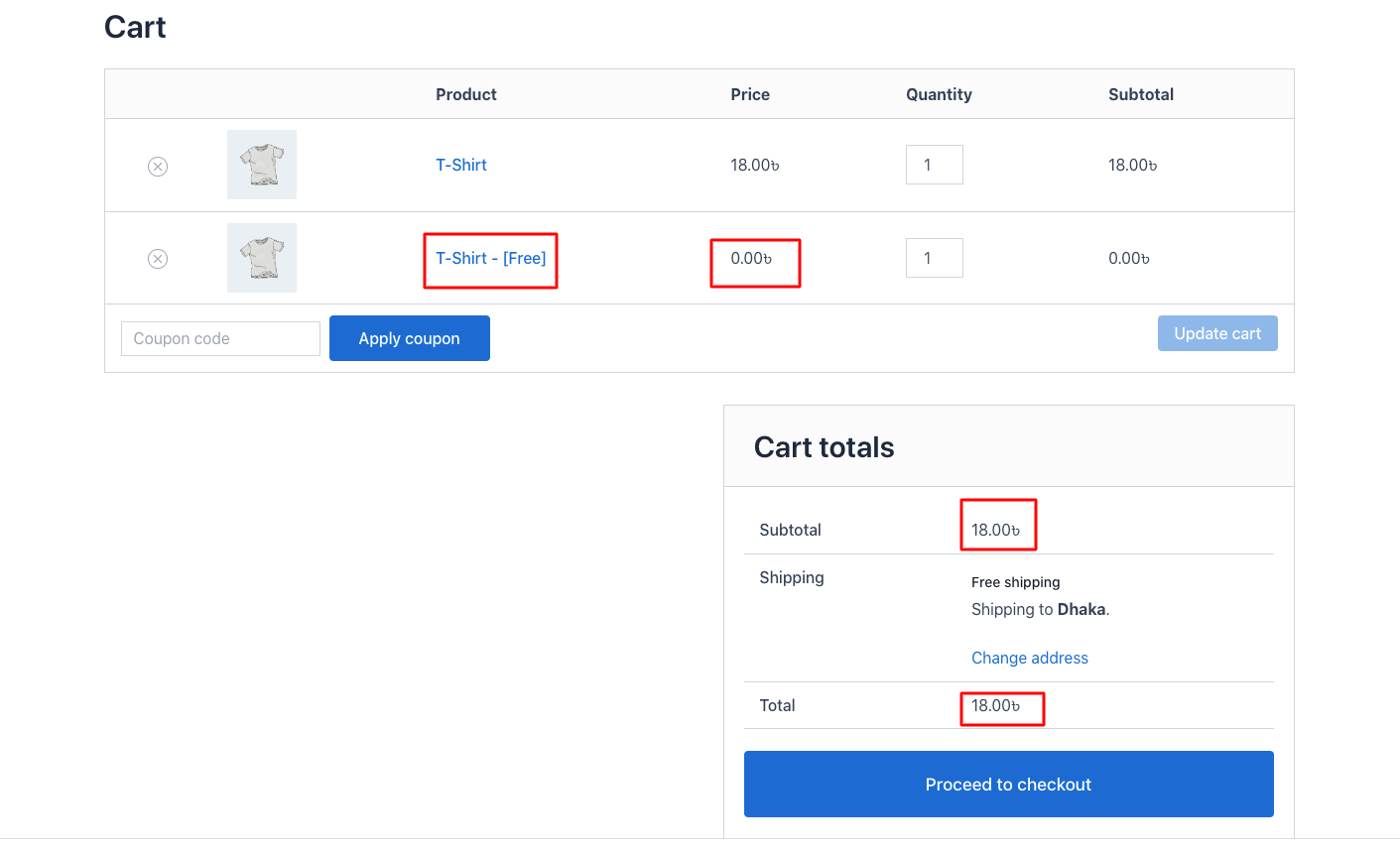
Step- 9: Test the rule in your store. 

If we add our “ T-shirt item = 1 ”, we’ll come across this.
AD 4nXdOglfQmrDdPjIIaep7 3LUCqySTVWNNlAyCKQRnBD4YkA5HIzn3Vj8Ea46b3qUScm

Get More Revenue with Disco Plugin #

Disco – WooCommerce Dynamic Pricing and Discounts is a smart pricing plugin that lets you create flexible discount rules—like bulk discounts, BOGO deals, and cart-based offers—to boost sales and conversions. It combines advanced rules with a simple setup for WooCommerce stores.

Try Free Version

What are your Feelings

  • Happy
  • Normal
  • Sad

Share This Article :

  • Facebook
  • X
  • LinkedIn
  • Pinterest
Buy X from Category A & Get Y from Category BBuy X Get X at Discount (Buy 3 Coffee Mugs, Get 3rd One 50% Off)

Leave a Comment Cancel Reply

disco logo

The best WooCommerce discount plugin for BOGO deals, bulk discounts, tiered pricing, user role pricing, and dynamic pricing rules.

Product

  • Features
  • Pricing
  • Free vs Pro
  • Documentation

Resources

  • Blog
  • Tutorials
  • FAQ
  • Changelog

Company

  • About WebAppick
  • Support
  • Feature Request
  • Disco Community

© 2026 Disco by WebAppick. All rights reserved.