
disco logo
  • Features
  • Pricing
  • Compare
  • Resources
    • Blog
    • Documentation
    • Changelog
    • Contact/Support
    • Disco Community
Login Get Disco Pro

Getting Started

1
  • Installation Process of Disco Plugin (PRO And Free)

Product Intent Discounts

4
  • Set Up Product Intent Discounts
  • Example 1: $20 Off All ‘Men’ Category Products
  • Example 2: 5% Off Product X for a Limited Time
  • Example 3: Flat $50 Off on Products Over $500

Cart-Intent Discounts

4
  • Set up Cart Intent Discounts using Disco Plugin
  • Example 1: 20% Cart Discount on Selected Categories
  • Example 2: Offer 10% Cart Discount for 10+ Items (Cart Quantity)
  • Example 3 : Offer $10 Off Product X When Cart Has 3+ Items (In Stock)

Free Shipping Discount

4
  • Set Up Free Shipping with DIsco Plugin
  • Example 1: Free Shipping for Location ‘X’ Customers
  • Example 2: Free Shipping on Category “A” Products
  • Example 3: Free Shipping on Specific Product During Promotion

Bulk Intent Discount

4
  • Set Up Bulk Intent Discount with Disco Plugin
  • Example 1: Bulk Percentage Discounts on All Products by Quantity
  • Example 2: Offer 5% Bulk Discount on Product X for 3+ Units (October Only)
  • Example 3: Offer $10 Off on 5+ Units from Category ‘A’

Bundle Discount

1
  • Set Up Bundle Discount with Disco Plugin

Campaign Setup

6
  • Product Rules Explain with Example
  • Bundle Rules Explain with Example
  • Bulk Rules Explain with Example
  • Cart Rules Explain with Example
  • Discount Rules (Filter Products, User Limit, Valid Between, Discount Label)
  • Discount Intent

Conditions

9
  • Items Count (Entire Cart) vs Item Count 
  • Set Up Discounts According to Product Stock Quantity in WooCommerce
  • Apply Discounts on Selected Categories in WooCommerce 
  • Create a Discount on a Specific Product Attribute in WooCommerce
  • Set Up Discounts by Brand in WooCommerce with Disco Plugin
  • Tax and Shipping Based Discount Conditions
  • Price Based Discount Conditions
  • Product Attributes Based Discount Condition
  • Product/Cart Item Based Discount Conditions

Ticket Solutions

1
  • Discount Applies but No Visual Badge or Offer Displayed

BOGO

5
  • Buy X Product, Get Y Product at a Discounted Price
  • Buy X, Get Y Free (Different Product)
  • Buy X from Category A & Get Y from Category B
  • Set Up BOGO Discount (Buy 1 T-Shirt, Get 1 T-Shirt Free)
  • Buy X Get X at Discount (Buy 3 Coffee Mugs, Get 3rd One 50% Off)

Campaign Display

3
  • Display Product Badge in WooCommerce
  • Display Bundle Discount Table in WooCommerce 
  • Display Bulk Discount Table in WooCommerce

Compatible Plugins

5
  • CURCY – Multi Currency for WooCommerce
  • FOX – Currency Switcher (WOOCS)
  • WPML + WooCommerce Multilingual
  • Aelia Currency Switcher
  • ACF – Advanced Custom Fields
View Categories
  • Home
  • Documentation
  • Conditions
  • Set Up Discounts by Brand in WooCommerce with Disco Plugin

Set Up Discounts by Brand in WooCommerce with Disco Plugin

2 min read

With the Disco Pro plugin, WooCommerce store owners can easily create brand-specific discounts.

The plugin allows you to customize discounts for any brand across all discount intents, making promotions simple and flexible.

Note: To proceed, you must have the Disco Pro plugin installed and activated before proceeding. Get the Disco Pro plugin now↗.

Step 1: Assign Products to Brands #

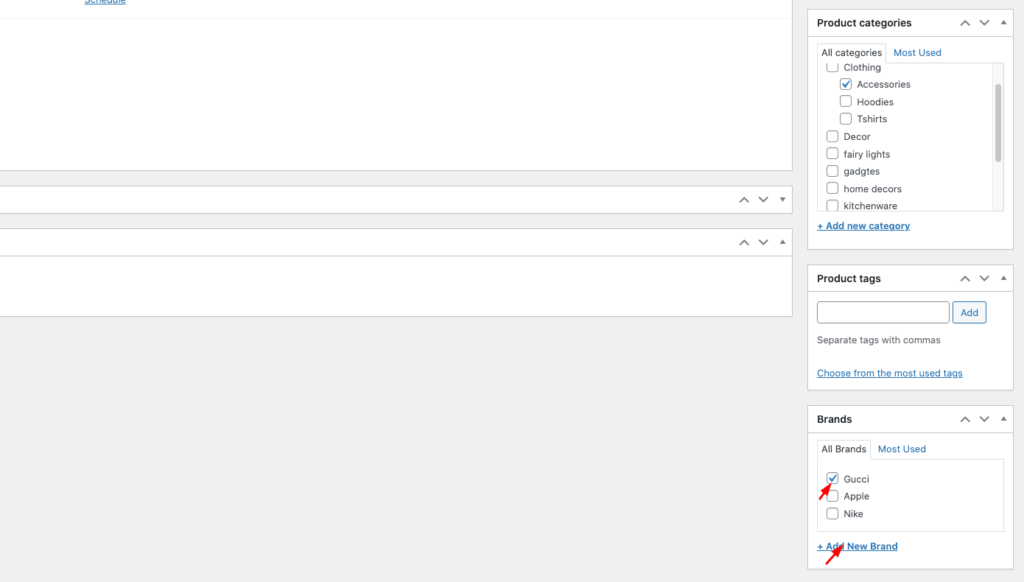
In WooCommerce 9.6, you can assign brand names directly without creating attributes or using extra plugins. Make sure each product is linked to the correct brand.

Example: Assign the brand Gucci to a bag. With the Disco plugin, you can then create brand-specific discounts using any discount intent.
Setup woocommerce brand

Step 2: Open Disco and Create a Discount #

Go to your WordPress Dashboard, find Disco, and click Create a discount to begin setting up your brand-based offer.
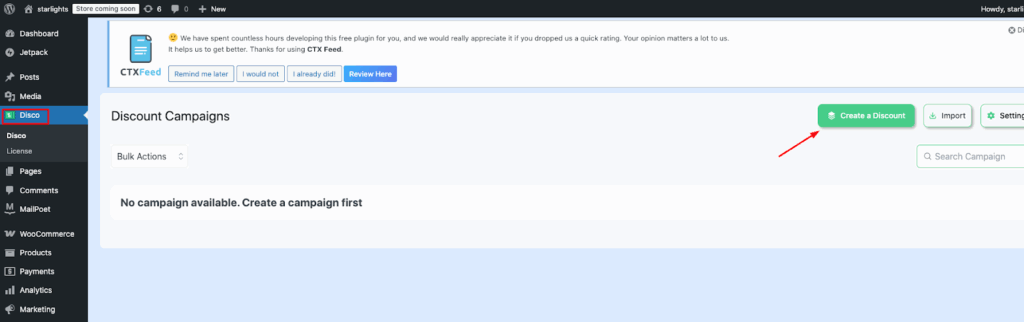
image 6

Step 3: Add Campaign Name and Select Discount Intent #

Enter a Campaign Name and choose your Discount Intent.

Example: Set the name as “10% Discount on Gucci” and select Product as the discount intent. Customers can pick whichever option best fits their needs.
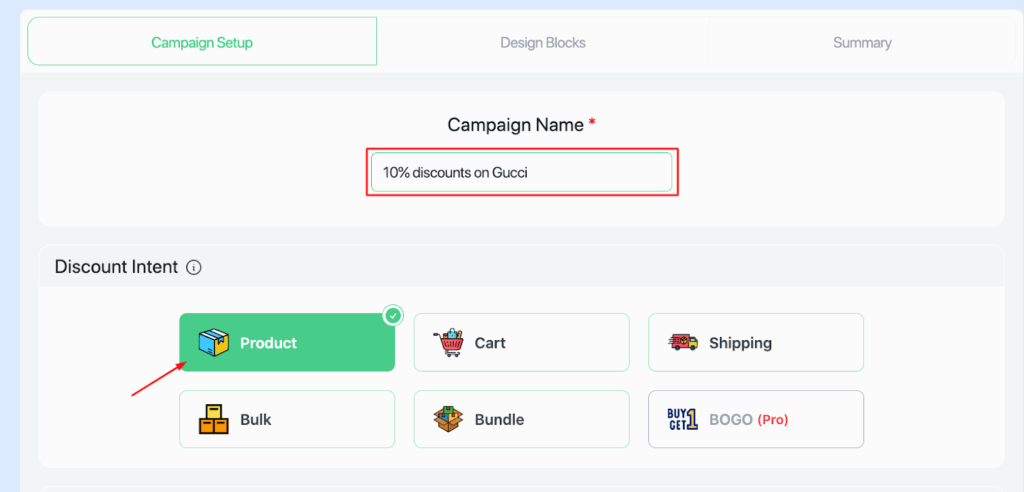
image 1

Step 4: Select All Products in Filter #

From the Filter section, choose All products. This means the discount rule will apply to every product initially.

Later, we’ll narrow it down specifically by WooCommerce brands.
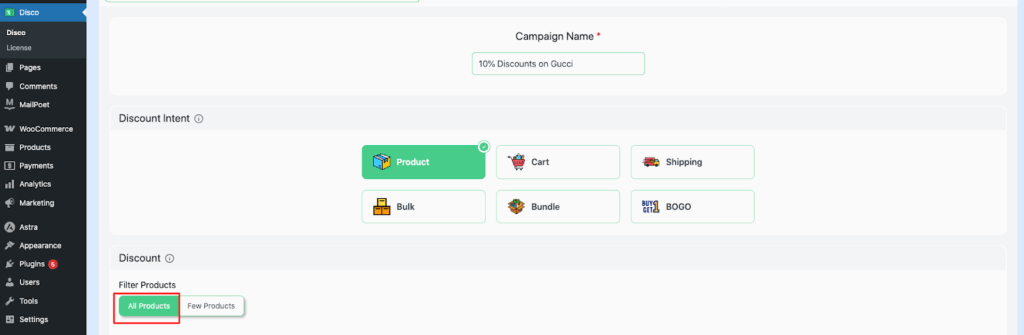
image 4

Step 5: Set User Limit and Validity Date #

Enter the User limit and the Validity date for the discount.

Example: Leave User limit blank so customers can use the discount multiple times. Set the Validity date from 1/09/2025 to 5/09/2025 to define the offer period.
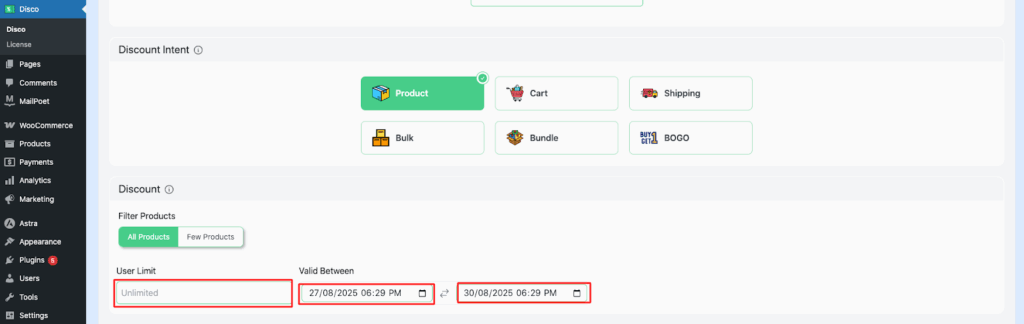
image 5

Step 6: Configure Product Rules (10% Discount) #

Set the Discount type to Percentage discount and enter the value as 10.

This will automatically deduct 10% from the original product price.
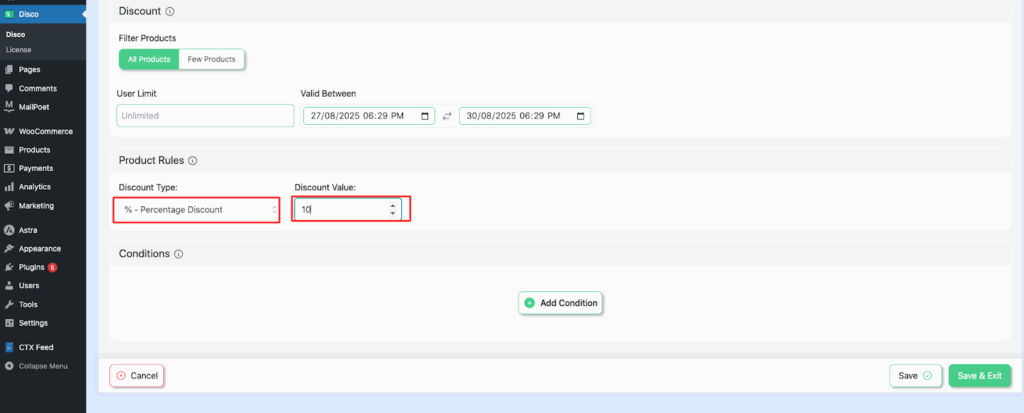
image 2

Step 7: Add Brand Conditions #

In the Conditions section, select WooCommerce Brand. Use the In list (Include) option so the discount applies only to products from the chosen brand.

Example: Search and select the brand Gucci to apply the discount specifically to Gucci products.
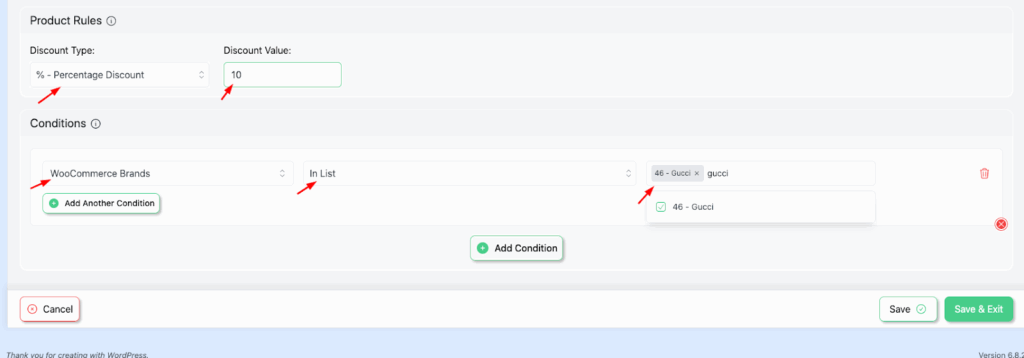
image 7

Step 8: Save and Launch the Campaign #

Click Save and Exit to activate your discount campaign. The rules will now apply based on the conditions you set.
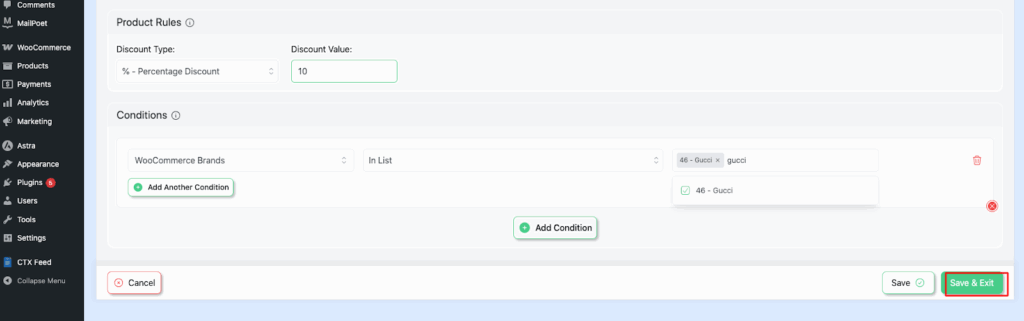
image 3

Step 9: Verify the Discount in Your Shop #

Go to your shop and check that the discount rule works. You should see the 10% discount automatically applied to Gucci products.
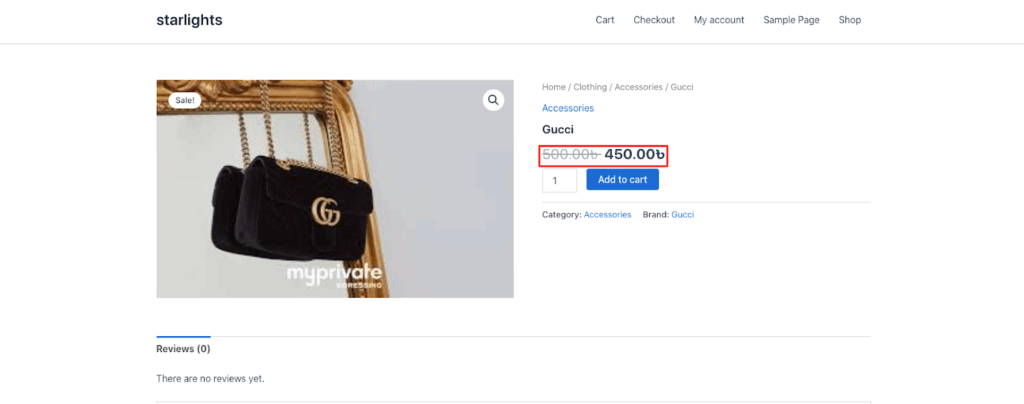
image 8

Get More Revenue with Disco Plugin #

Disco – WooCommerce Dynamic Pricing and Discounts is a smart pricing plugin that lets you create flexible discount rules—like bulk discounts, BOGO deals, and cart-based offers—to boost sales and conversions. It combines advanced rules with a simple setup for WooCommerce stores.

Try Free Version

What are your Feelings

  • Happy
  • Normal
  • Sad

Share This Article :

  • Facebook
  • X
  • LinkedIn
  • Pinterest
Create a Discount on a Specific Product Attribute in WooCommerceTax and Shipping Based Discount Conditions

Leave a Comment Cancel Reply

Table of Contents
  • Step 1: Assign Products to Brands
  • Step 2: Open Disco and Create a Discount
  • Step 3: Add Campaign Name and Select Discount Intent
  • Step 4: Select All Products in Filter
  • Step 5: Set User Limit and Validity Date
  • Step 6: Configure Product Rules (10% Discount)
  • Step 7: Add Brand Conditions
  • Step 8: Save and Launch the Campaign
  • Step 9: Verify the Discount in Your Shop
disco logo

The best WooCommerce discount plugin for BOGO deals, bulk discounts, tiered pricing, user role pricing, and dynamic pricing rules.

Product

  • Features
  • Pricing
  • Free vs Pro
  • Documentation

Resources

  • Blog
  • Tutorials
  • FAQ
  • Changelog

Company

  • About WebAppick
  • Support
  • Feature Request
  • Disco Community

© 2026 Disco by WebAppick. All rights reserved.