disco logo
  • Features
  • Pricing
  • Compare
  • Resources
    • Blog
    • Documentation
    • Changelog
    • Contact/Support
    • Disco Community
Login Get Disco Pro

Getting Started

1
  • Installation Process of Disco Plugin (PRO And Free)

Product Intent Discounts

4
  • Set Up Product Intent Discounts
  • Example 1: $20 Off All ‘Men’ Category Products
  • Example 2: 5% Off Product X for a Limited Time
  • Example 3: Flat $50 Off on Products Over $500

Cart-Intent Discounts

4
  • Set up Cart Intent Discounts using Disco Plugin
  • Example 1: 20% Cart Discount on Selected Categories
  • Example 2: Offer 10% Cart Discount for 10+ Items (Cart Quantity)
  • Example 3 : Offer $10 Off Product X When Cart Has 3+ Items (In Stock)

Free Shipping Discount

4
  • Set Up Free Shipping with DIsco Plugin
  • Example 1: Free Shipping for Location ‘X’ Customers
  • Example 2: Free Shipping on Category “A” Products
  • Example 3: Free Shipping on Specific Product During Promotion

Bulk Intent Discount

4
  • Set Up Bulk Intent Discount with Disco Plugin
  • Example 1: Bulk Percentage Discounts on All Products by Quantity
  • Example 2: Offer 5% Bulk Discount on Product X for 3+ Units (October Only)
  • Example 3: Offer $10 Off on 5+ Units from Category ‘A’

Bundle Discount

1
  • Set Up Bundle Discount with Disco Plugin

Campaign Setup

6
  • Product Rules Explain with Example
  • Bundle Rules Explain with Example
  • Bulk Rules Explain with Example
  • Cart Rules Explain with Example
  • Discount Rules (Filter Products, User Limit, Valid Between, Discount Label)
  • Discount Intent

Conditions

9
  • Items Count (Entire Cart) vs Item Count 
  • Set Up Discounts According to Product Stock Quantity in WooCommerce
  • Apply Discounts on Selected Categories in WooCommerce 
  • Create a Discount on a Specific Product Attribute in WooCommerce
  • Set Up Discounts by Brand in WooCommerce with Disco Plugin
  • Tax and Shipping Based Discount Conditions
  • Price Based Discount Conditions
  • Product Attributes Based Discount Condition
  • Product/Cart Item Based Discount Conditions

Ticket Solutions

1
  • Discount Applies but No Visual Badge or Offer Displayed

BOGO

5
  • Buy X Product, Get Y Product at a Discounted Price
  • Buy X, Get Y Free (Different Product)
  • Buy X from Category A & Get Y from Category B
  • Set Up BOGO Discount (Buy 1 T-Shirt, Get 1 T-Shirt Free)
  • Buy X Get X at Discount (Buy 3 Coffee Mugs, Get 3rd One 50% Off)

Campaign Display

3
  • Display Product Badge in WooCommerce
  • Display Bundle Discount Table in WooCommerce 
  • Display Bulk Discount Table in WooCommerce

Compatible Plugins

5
  • CURCY – Multi Currency for WooCommerce
  • FOX – Currency Switcher (WOOCS)
  • WPML + WooCommerce Multilingual
  • Aelia Currency Switcher
  • ACF – Advanced Custom Fields
View Categories
  • Home
  • Documentation
  • Conditions
  • Tax and Shipping Based Discount Conditions

Tax and Shipping Based Discount Conditions

3 min read

This guide will explain how to use the Disco plugin’s “Tax and Shipping” conditions and offer different discounts. 

1. Tax Class Based Condition #

The Tax Class condition allows you to apply discounts based on the tax classification assigned to your products. 

In WooCommerce, tax classes help categorize products under different tax rules, such as Standard, Reduced Rate, or Zero Rate.

This condition is useful for tailoring discounts based on tax policies or offering promotions on tax-exempt or lower-taxed items.

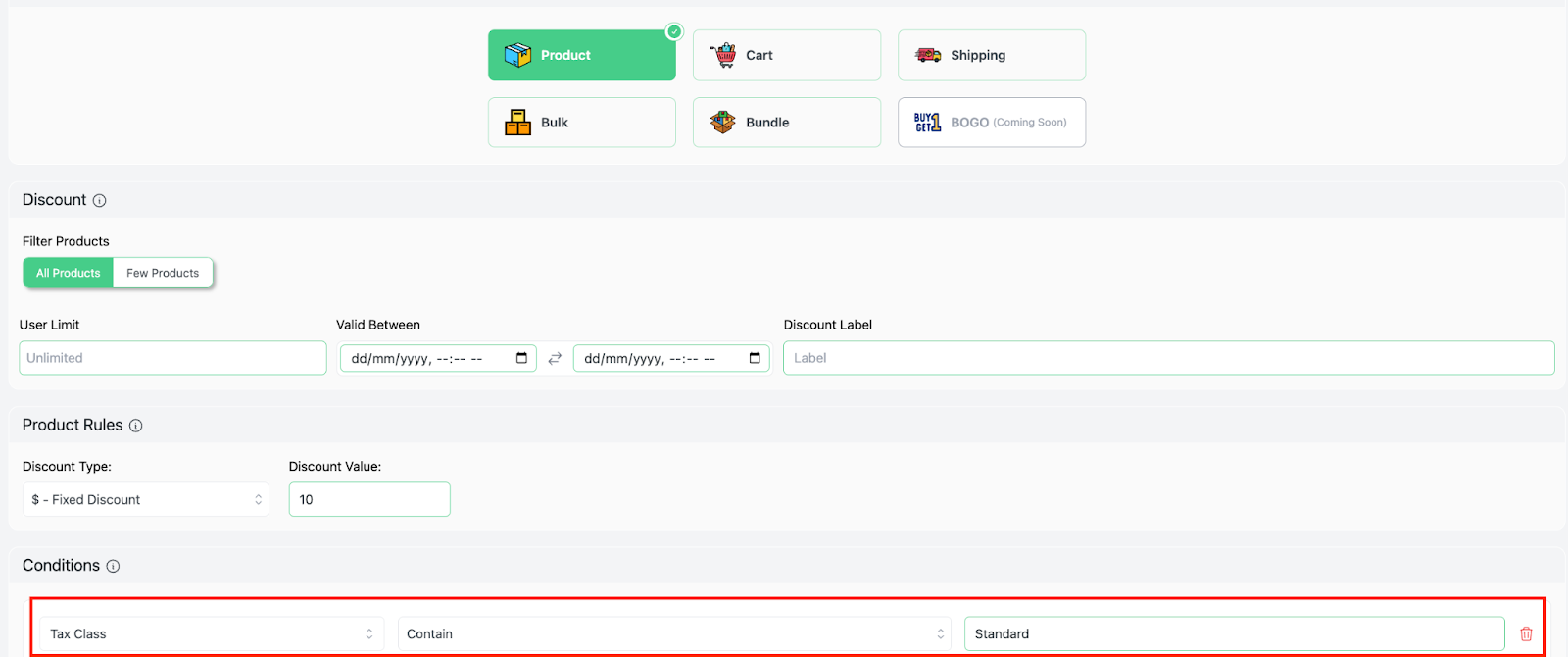
Let’s offer a $10 discount on products under the Standard Rate Tax class.

Once you set up a fixed 10 USD discount, go to the Conditions section and follow these steps:

  • Choose “Tax Class” as the filter.
  • Set the method to “Contain”. 
  • Input the Keyword “Standard”. 
  • Save it.
AD 4nXciC Zn8 hJ3RWYuxH4oSP7O T1PUJ

This setup ensures that the discount applies only to products categorized under the Standard Rate tax class.
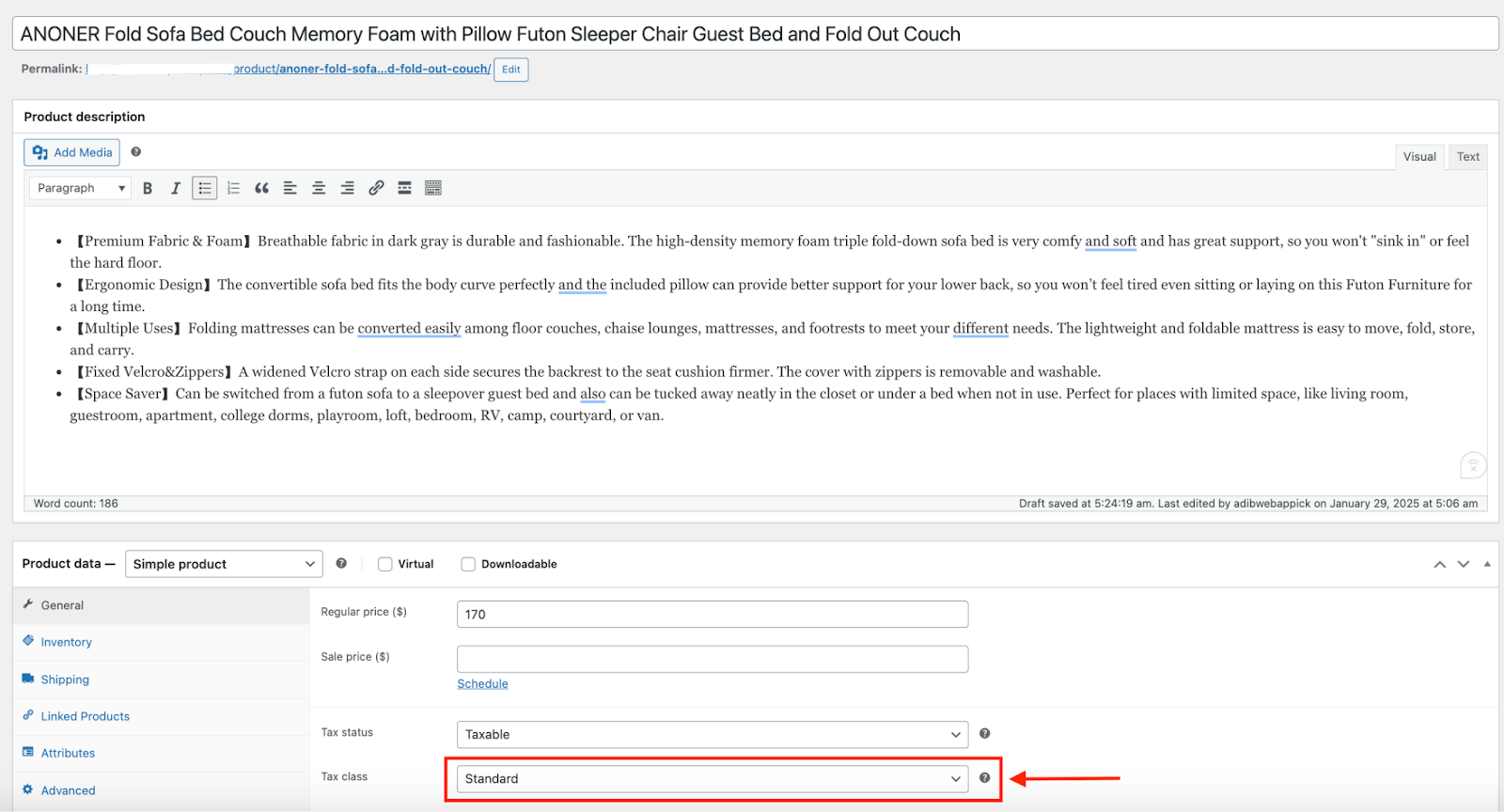
Here, our store sells furniture at the standard tax rate and if a product like “ANONER Fold Sofa Bed’ Winter Jacket” (priced at $170) falls under this tax class, it will receive a $10 discount, reducing the price to $160.
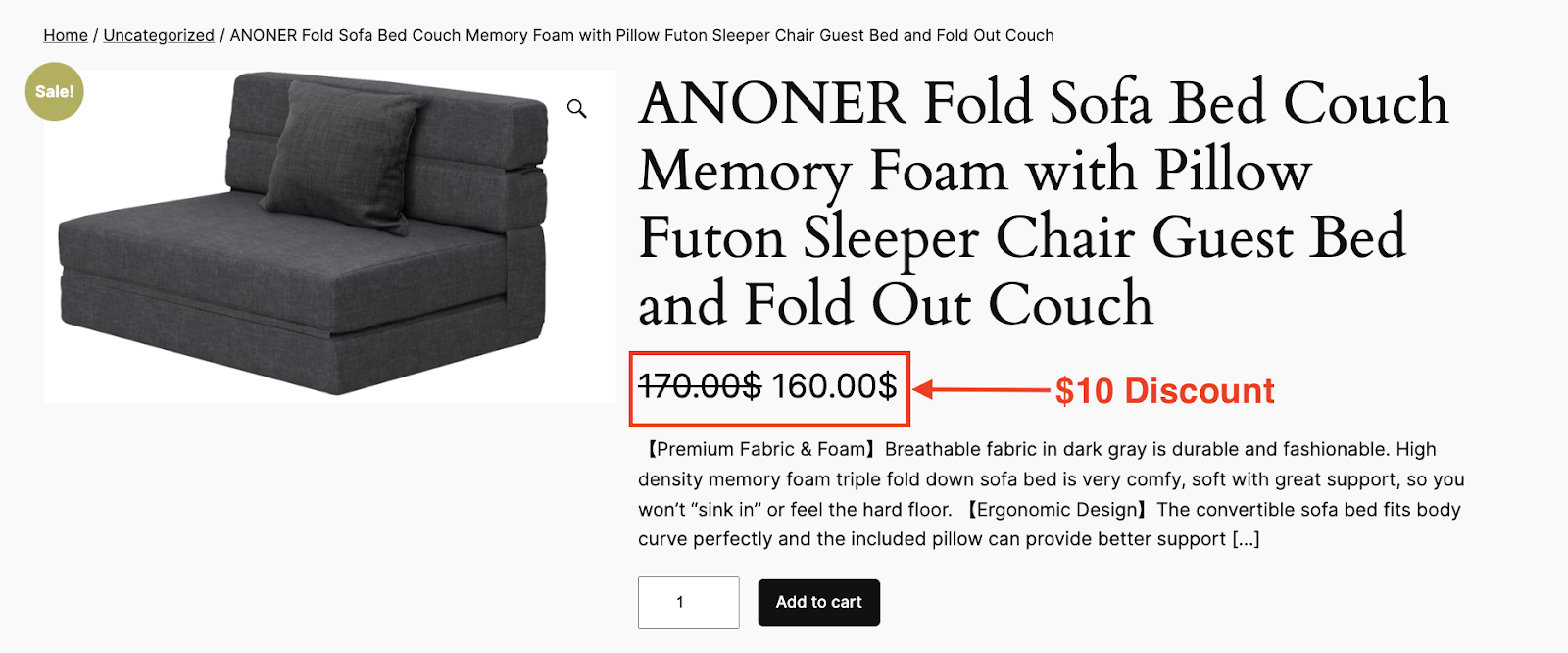
AD 4nXdNu9Tw3xH2dsnXnADzTF2ESdqMNBd8uVSKkgNR3lwsiy4UuFPU9Y4v4NNjfz AktM4 1wBk C y

2. Tax Status Based Condition #

You can apply discounts based on whether a product is taxable or non-taxable using the Tax Status condition. 

In WooCommerce, every product is assigned a tax status, which determines if taxes are applied during checkout. The available options are:

  • Taxable – Standard products that are subject to tax.
  • Shipping Only – Products that don’t have tax but may have taxable shipping charges.
  • None – Fully tax-exempt products that do not incur any tax.

This condition is useful if you want to create tax-aware promotions, such as offering discounts specifically for tax-exempt products or products that are normally taxed.

Here’s an Example: 

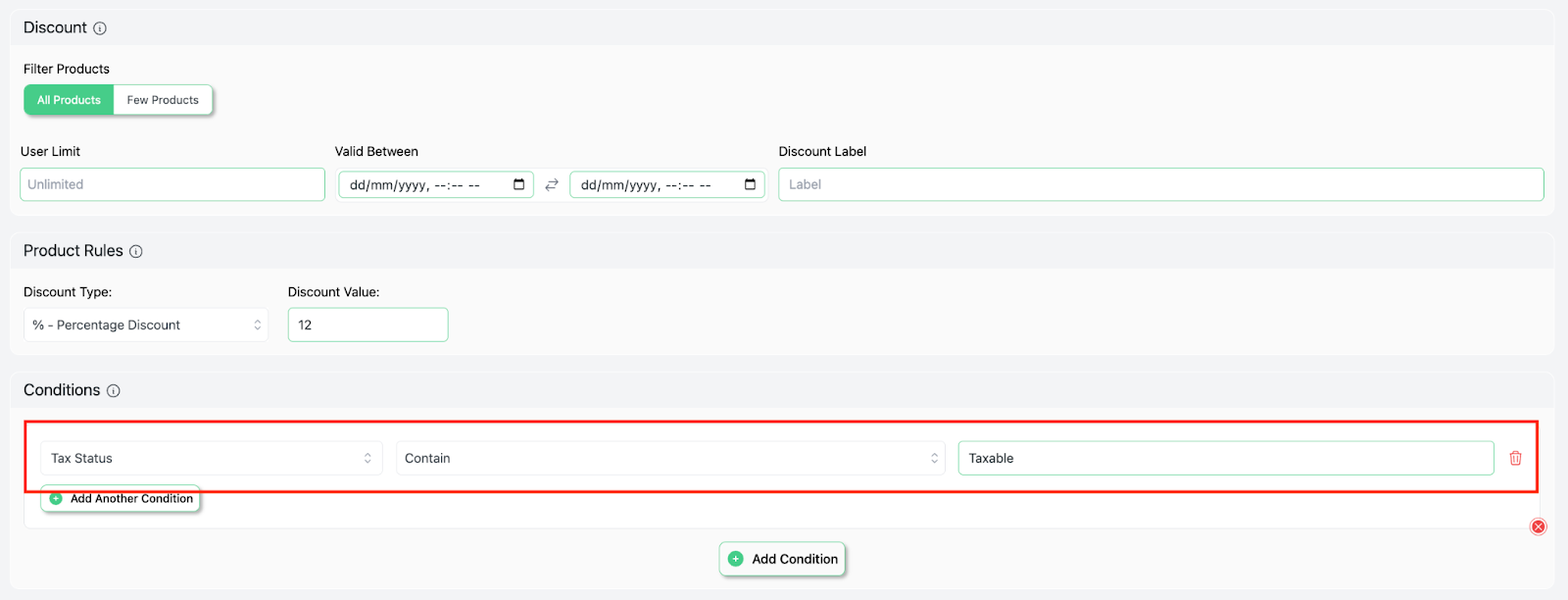
Let’s offer a 12% discount on all taxable products.

So, choose “All Products” and then set up a 12% discount. Go to the Conditions section and follow these steps:

  • Choose “Tax Status” as the filter.
  • Choose the method “Contain”.
  • Input “Taxable” as the value.
  • Save it.
AD 4nXd9I2HAHa3T6f1CdAAL546SGOh7 5FjLX5IEsmXC2iGN194Qf6Z07axw22ksDnakloU6R

This setup ensures that the discount applies only to products that are taxable.

An “Owala FreeSip Stainless Steel Water Bottle” (priced at $30) that falls under the Taxable tax status.

AD 4nXf0uqbmpBP8TrvVR5P6jgSBrGEWsA6kK6NIGYTK6HfFDPAzlYISRCUuQ W45vMsSC9latvrhyp Srrx7Lh7ehsnIxiqOSH6kdO5Xvqwc nmhKMP2wEGZegYAgBHvoqQO

So, it will now receive a 12% discount, reducing the price to $26.40.
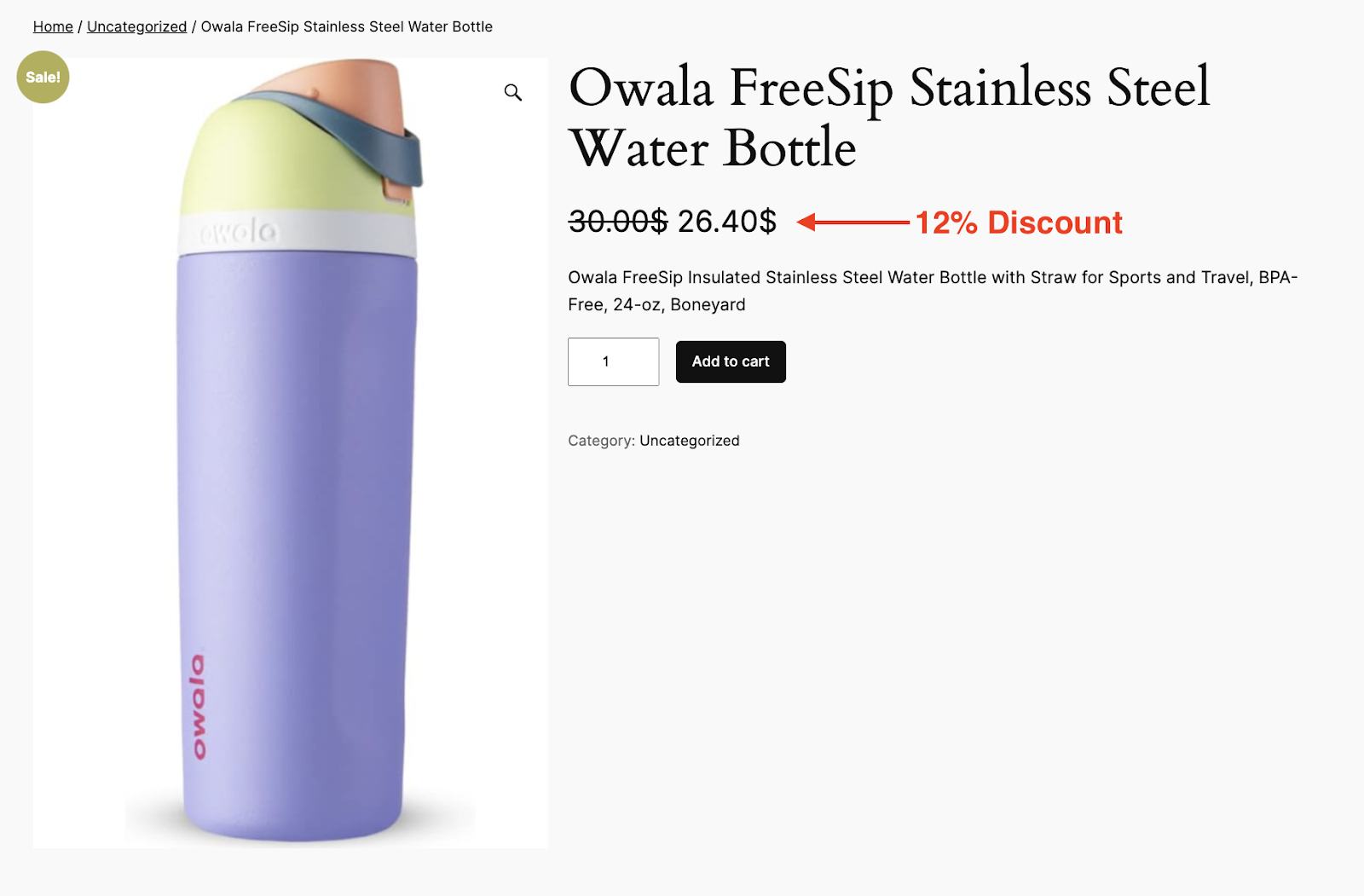
AD 4nXfiyIbei7cqqxerigDxLLlJopYOmatu6n PXyMHTMC1DrMFDdDp9gc8EB8jWjRUg6t0oFxMO7cSWs

3. Shipping Class Based Condition #

If you want to apply discounts based on the shipping classifications assigned to products, then the Shipping Class condition is for you. 

In WooCommerce, shipping classes help categorize products with similar shipping rules, such as Standard or Heavy Shipping classes. This condition is useful for offering targeted discounts based on how a product is shipped.

For Instance: 

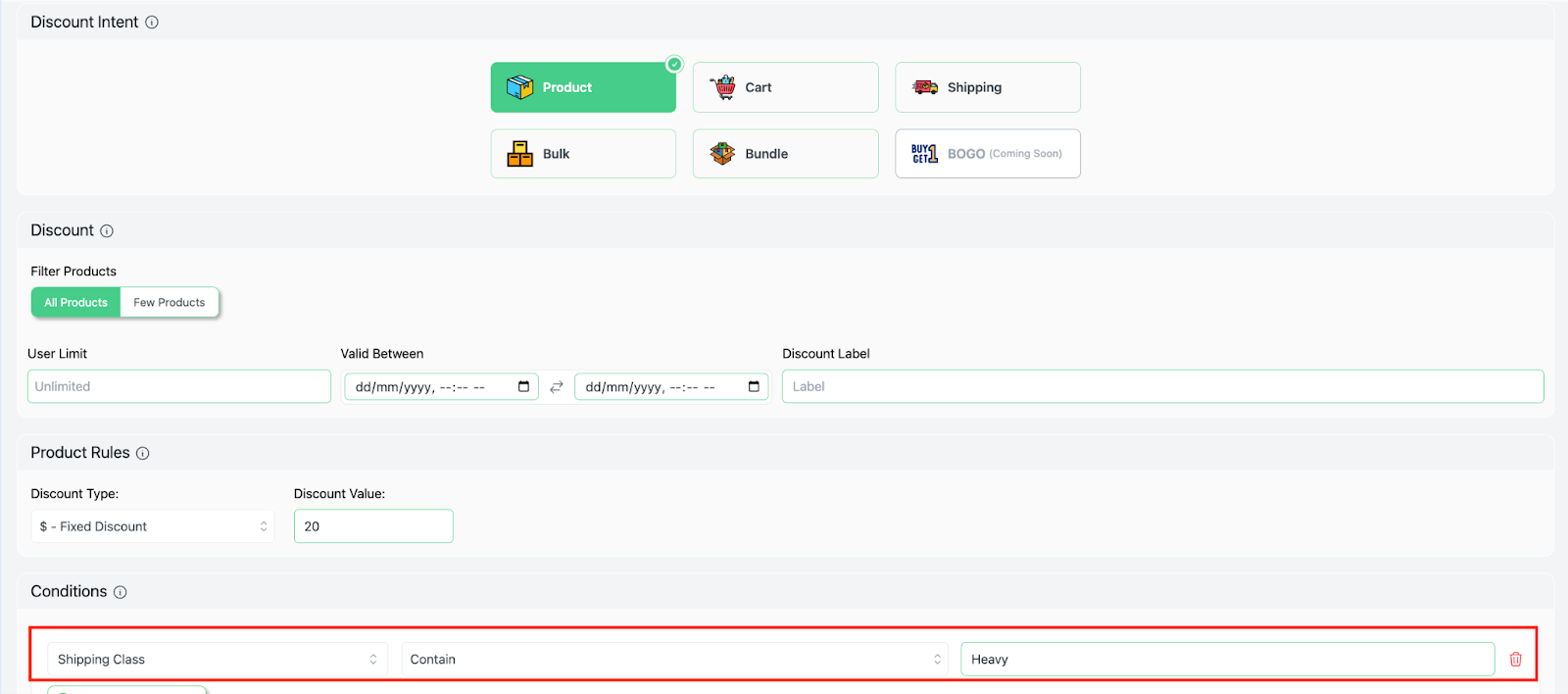
Let’s offer a fixed $20 discount on products that belong to the Heavy Shipping Eligible class.

Once you set up a $20 discount, go to the Conditions section and follow these steps:

  • Choose “Shipping Class” as the filter.
  • Set the method to “Contain“.
  • Input the keyword “Heavy” as the value.
  • Save it.
AD 4nXdQ1 X7kTas1iarII45E7yRTX0NCj5iLDSnbrINxiQgHadWgakDIIOsaGy HoxTF6WcYtrYh7EmGA8TRhYHtmnQhPnZLTx2PVG2bvtlPqmKkioftOsV5igg

This setup ensures that the discount applies only to products classified as eligible for Heavy shipping classes.

Now, our product “Panghuhu88 Folding Sofa Bed” falls under the ‘Heavy’ shipping class. 
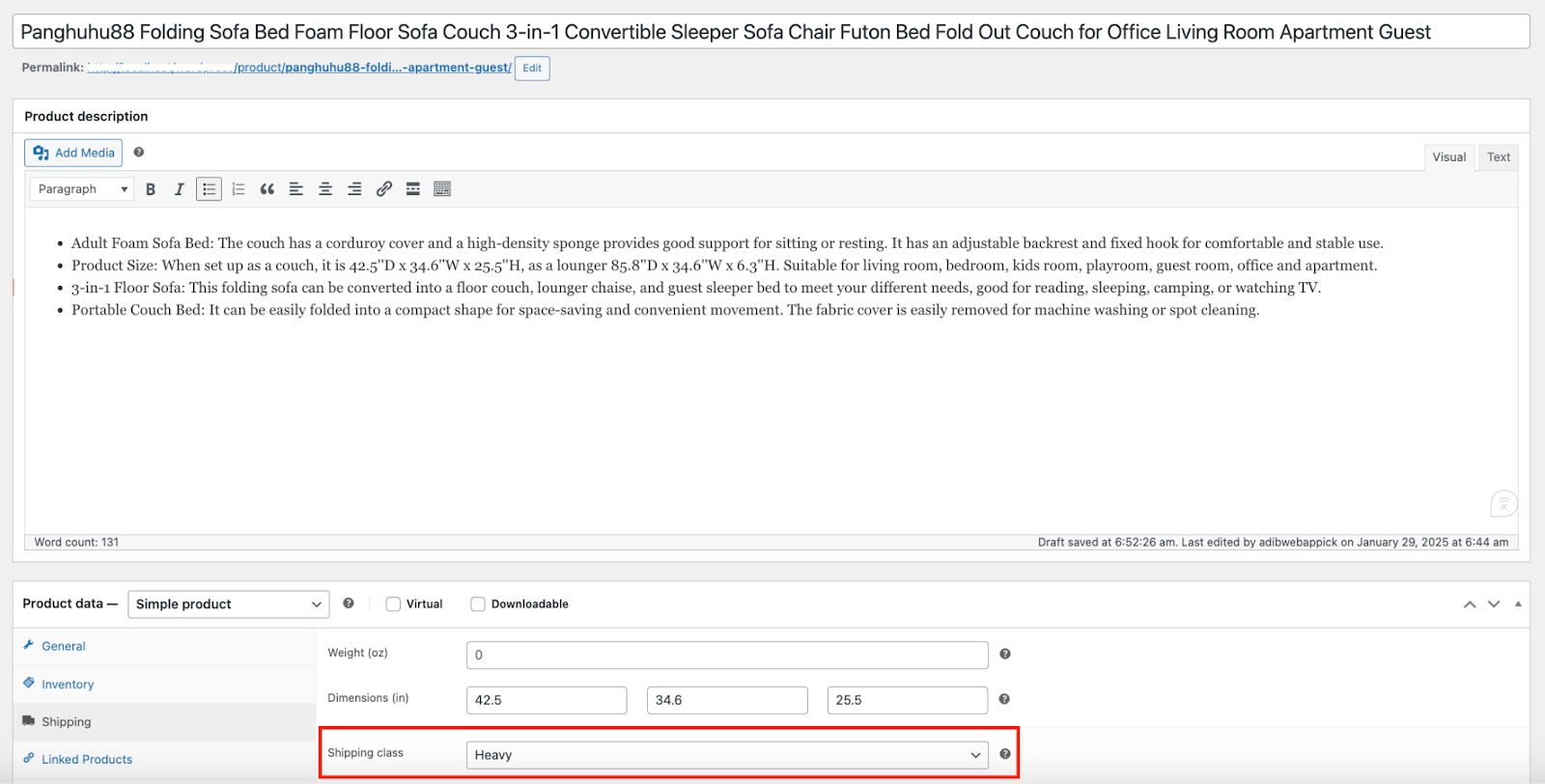
AD 4nXdfcJaQH1Z4FjYZMrXrASgO9JDum83tS3vCvbl7WIMUa 4l5q0mLU5UQqO1FFh cg6FZtL0eaFrQdg3bU 4ChonT

Therefore, it will get a $20 discount and the price will come down to $100 from $120. 
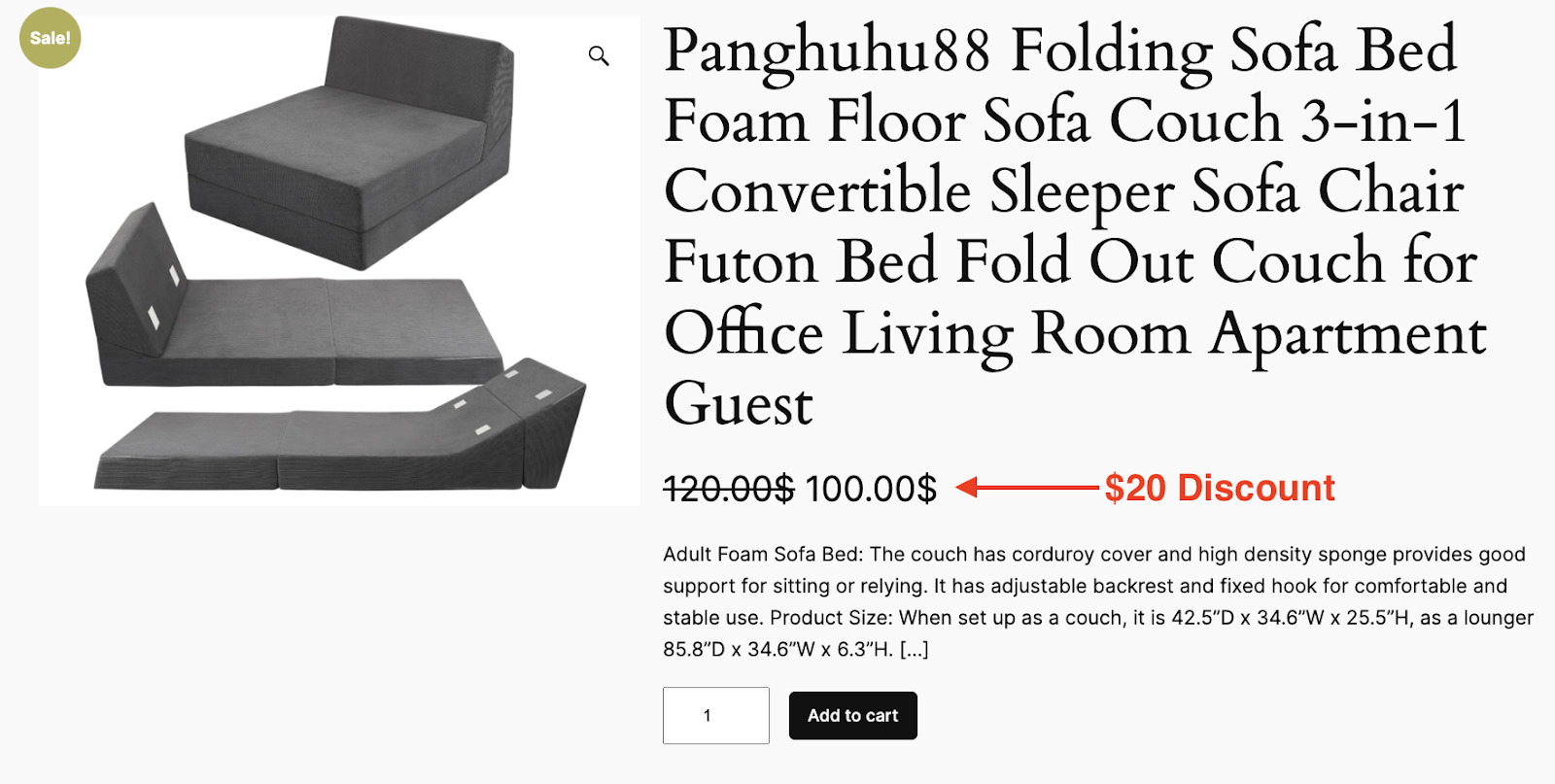
AD 4nXdWz1Evza4bIG7P8pwj5EJjhn0GJaiwdpzbV1JD3st2sTwDmEjeDa9X1xOg1oX QPZeOfgvCctTeRBbHjaipHxqj4Hwwi7Birs97CSA

What are your Feelings

  • Happy
  • Normal
  • Sad

Share This Article :

  • Facebook
  • X
  • LinkedIn
  • Pinterest
Set Up Discounts by Brand in WooCommerce with Disco PluginPrice Based Discount Conditions

Leave a Comment Cancel Reply

Table of Contents
  • 1. Tax Class Based Condition
  • 2. Tax Status Based Condition
  • 3. Shipping Class Based Condition
disco logo

The best WooCommerce discount plugin for BOGO deals, bulk discounts, tiered pricing, user role pricing, and dynamic pricing rules.

Product

  • Features
  • Pricing
  • Free vs Pro
  • Documentation

Resources

  • Blog
  • Tutorials
  • FAQ
  • Changelog

Company

  • About WebAppick
  • Support
  • Feature Request
  • Disco Community

© 2026 Disco by WebAppick. All rights reserved.