Quick Summary: Scaling Your AOV with Bulk Pricing:
A bulk discount table editor lets you create quantity-based bulk pricing offers and display them in a clear pricing table on your WooCommerce product pages. Customers immediately see how the discount increases with quantity, which encourages larger orders.
You’ll see this same concept called a few different things depending on the plugin or the store, a quantity discount table, a bulk pricing table, or a volume discount table. They all describe the same thing: a visible breakdown showing the price per unit at each quantity tier, right on the product page
WooCommerce’s built-in tools don’t support quantity-based pricing or volume discounts. You need a dedicated bulk discount plugin. Look for a solution that displays pricing tables on product pages, automatically applies discounts at checkout, and offers a simple no-code setup for both simple and variable products.
The results support this strategy. Bulk discounts increased Paperstone’s AOV by 18.94%, while the tiered loyalty program’s AOV increased to 13.71%.
Recommended plugin: Disco Plugin by WebAppick offers a free version that includes bulk pricing rules, six built-in promotional campaign types, and a beginner-friendly no-code setup.
Upgrade to Pro for the discount table display, BOGO deals, and advanced features like WooCommerce discount by role.
Why Your WooCommerce Store Needs a Bulk Discount Table?
You’re letting sales slip through your fingers because your pricing incentives are invisible. Customers are buying only one item when they should be buying five. WooCommerce has no native support for quantity tiers, pricing breaks, or discount tables on product pages.
Its default coupon system only offers basic discounts, forcing customers to enter a code manually. This added friction often leads to cart abandonment. A WooCommerce bulk discount table solves this by showing volume pricing upfront, without requiring coupon codes.
When customers see a clear quantity discount for multiple items, they’re more likely to increase their order size. That’s why automatic bulk pricing consistently outperforms coupon-based strategies in WooCommerce stores.
This guide walks through everything you need. You’ll find the most relevant plugin comparisons, a step-by-step setup for a working bulk discount table, and instructions to tailor it to your brand while configuring advanced rules. If you want higher-order values without extra traffic or ad spend, this is the right place for you.
Which Bulk Discount Plugin Should You Use?
Choosing the right WooCommerce bulk discount plugin depends on your budget, required features, and technical comfort level.
To help you decide, here’s a breakdown of six leading WooCommerce plugins for quantity discounts, focusing on the core features that matter most.
| Plugin | Price | Best For | Bulk Pricing Rules | Free Version | Setup |
| Disco Plugin (WebAppick) | Free / Pro available | Visual setup and easy campaign creation | Free | Yes (rules only) | No-code visual builder, 6 campaign types |
| YayPricing | Free / Pro available | Polished discount tables, simple BOGO rules | Free | Yes (core features) | Step-based setup |
| ELEX Dynamic Pricing | Free / Pro from $79/yr | Advanced rule controls | Free | Yes (limited) | Functional UI |
| Barn2 Discount Manager | From $99/yr (no free) | Beginner-friendly guided setup | Paid | No | Wizard-based |
What makes Disco stand out is the flexibility of its free version. It includes six campaign types, WooCommerce bulk pricing rules, and an easy visual interface that requires no coding.
It’s an ideal starting point for store owners who want simple bulk discounts for WooCommerce without an upfront investment.
We know running a store means every decision comes with a cost. Every penny counts and every move matters.
The Disco plugin was built with that reality in mind. We don’t want store owners to pay upfront before they’ve validated whether bulk pricing strategies work for them.
The Disco plugin free version offers everything you need to get started. Frontend pricing tables, BOGO, and role-based pricing are also available in the Pro plan, giving you room to expand when your store is ready for more advanced WooCommerce discount strategies.
How Bulk Discount Pricing Works in WooCommerce?
Bulk discount pricing uses a tiered structure where the per-unit price drops as quantity increases.
This is different from a simple coupon or site-wide sale. Instead, you define quantity ranges with corresponding discount values.
For example, buying 5 to 9 units might give a 10% discount, while ordering 10 or more could unlock 20% off. This volume discount model is widely used in wholesale, B2B, and subscription-based WooCommerce stores.
The key advantage of quantity discounts in WooCommerce is transparency. When shoppers see a clear pricing table showing how much they save per unit at each tier, they’re naturally motivated to buy more.
This approach works for both simple and variable products. It’s especially effective for consumable goods like office supplies, supplements, and packaging materials.
How to Set Up a Bulk Discount Table with the Disco Plugin?
Getting started with Disco only takes 3 steps. Here’s a quick overview before we dive into details:
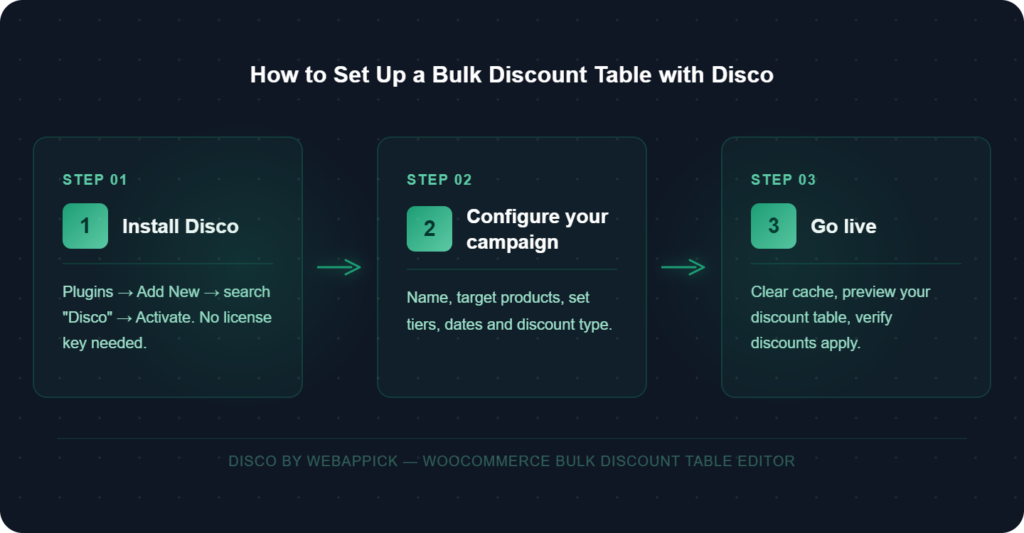
- Install and activate the plugin
- Configure your bulk discount campaign
- Go live. Clear cache, preview your discount table, and verify discounts apply.
Let’s walk through each one.
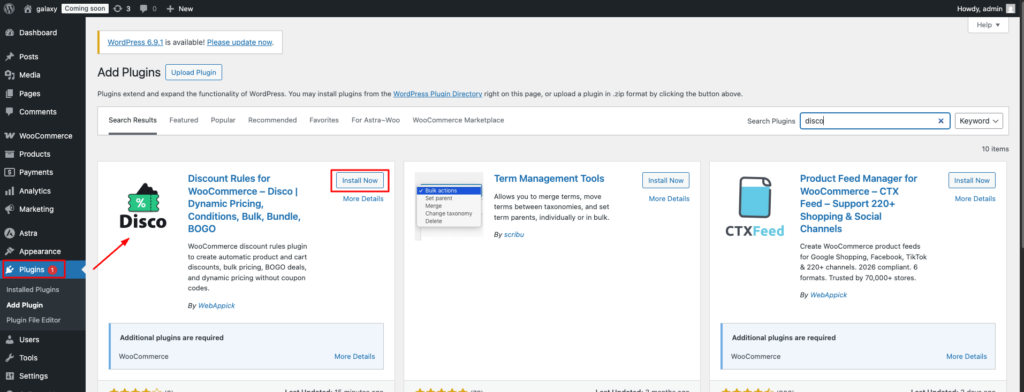
Step 1: Install and Activate
Go to your WordPress dashboard, then navigate to Plugins and click Add New.
Search for “Disco,” click Install, then activate. No license key is needed for the free version.
Step 2: Create Your First Bulk Discount Campaign
Click Create a discount and then complete the setup following the steps below:
Here’s what each step involves:
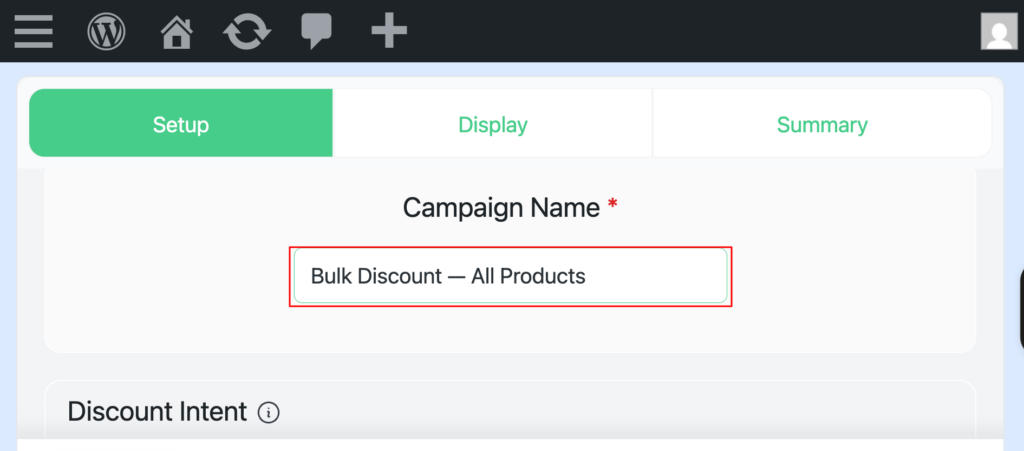
Name your campaign: Add a clear, descriptive name. For example, use “Bulk Discount: All Products” or “10+ Units Deal.”
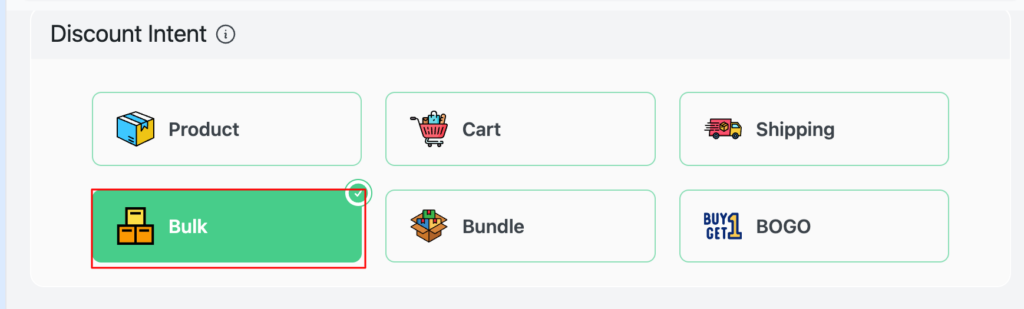
Select your campaign type: Choose bulk intent from your discount intent. This tells Disco that you want to create quantity-based pricing rules from Disco’s 6 available promotional types.
Choose target products: The Disco plugin allows you to filter discount campaigns to an individual product, a selected group of products, a specific WooCommerce bulk discount category, or your entire WooCommerce catalog.
For product-specific targeting, click on a few products from the filter section and select your desired products from the search bar.
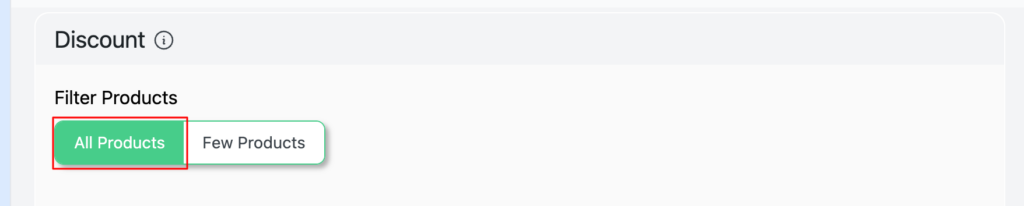
Set validity dates: A limited time frame for your campaign can create urgency that also increases bulk order sizes.
You can also leave the dates blank if you want the campaigns to run continuously.
| Disco’s Pro version allows you to set a user limit that restricts customers from overusing discount offers. |

Add quantity tiers and discount types: Here’s where the pricing logic lives.
Each tier needs three values: minimum quantity, maximum quantity, and discount value. Percentage discounts work best for a consistent margin across different price points.
Fixed discounts work best for predictable savings. Once your tiers are set, click Publish to activate the campaign.
Here’s an example tier structure for a product with a $20 base price:
| Quantity Range | Discount Type | Discount Value | Price Per Unit |
| 1 to 4 units | No discount | N/A | $20 |
| 5 to 9 units | Percentage | 10% | $18 |
| 10 to 14 units | Percentage | 20% | $16 |
| 15+ units | Percentage | 30% | $14 |
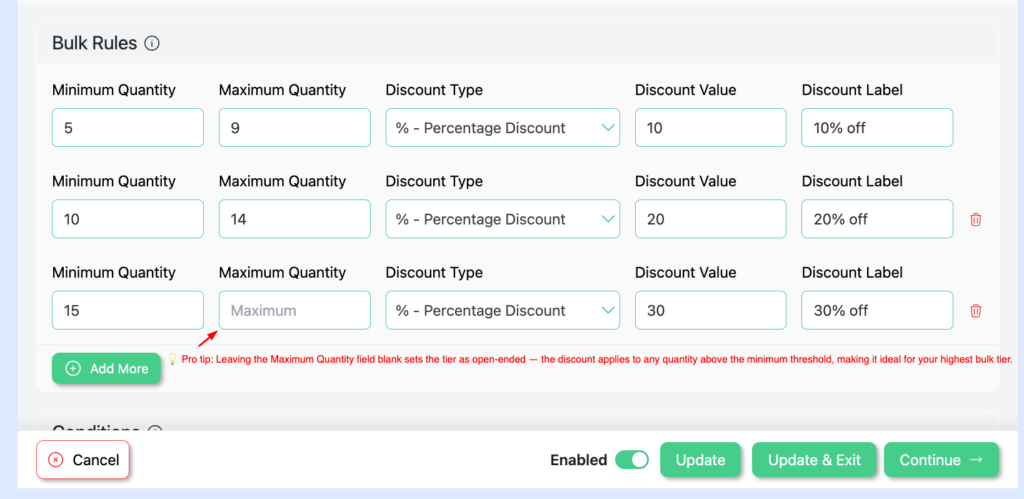
Pro tip:
Leaving the Maximum Quantity field blank sets the tier as open-ended. The discount applies to any quantity above the minimum threshold, making it ideal for your highest bulk tier
Step 3: Test and Verify
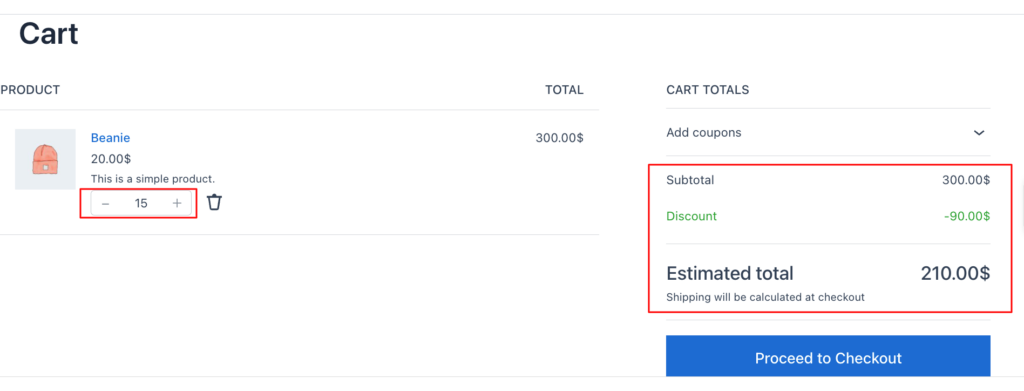
Go to your product page and add items in different quantities to the cart. On the cart page, the WooCommerce bulk discount will be applied automatically, showing the reduced amount deducted from the original price.
Test each tier to confirm that the correct volume discount is applied at every quantity threshold. Clear your browser cache and test in an incognito window to ensure accurate results.
Setting Up Bulk Discounts for Variable Products
Variable products (those with size, color, or other attribute variations) require special attention when configuring WooCommerce bulk pricing. With Disco, your bulk discount rules apply across all variations of a variable product by default.
If you need different pricing tiers for specific variations, you can create separate campaigns targeting individual product variations. This level of control is particularly useful for stores selling items where material cost varies significantly between sizes or configurations.
Customizing the Discount Table Display (Pro)
This section covers Disco Pro’s discount table features. The free version handles bulk pricing campaign setup and discount logic. This section explains how the frontend pricing table features work.
Start by enabling Disco’s Discount table with these simple steps:
- Click Continue after you’ve defined your campaign
- Select the Bulk table and select Edit now to customize the display
- Click Back, then Continue, then Publish your campaign
For a more detailed explanation, see the bulk discount table display documentation.
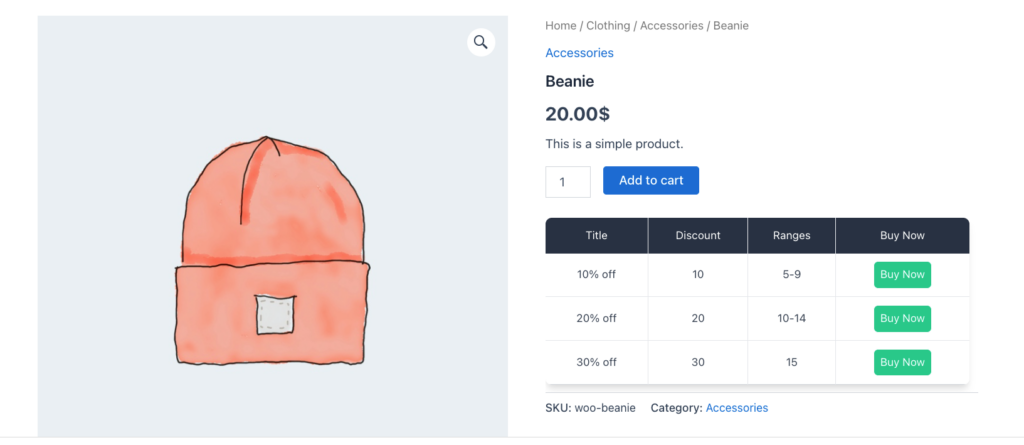
Table Position
Disco offers two placement options for the pricing table: before the add-to-cart button or after the add-to-cart button. The best practice is to show the WooCommerce bulk discount table before the add-to-cart option, where customers can easily see it during the buying process.
Branding and Visual Customization
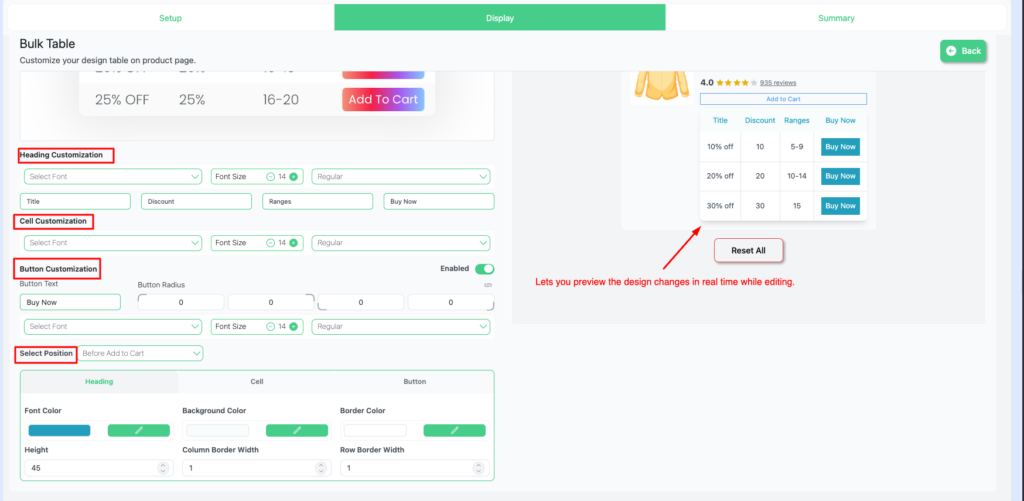
The default table functions well, but customizing it to match your brand gives it a more cohesive, professional look. Disco’s display settings let you customize three areas independently: the heading, cells, and button. Each one has its own settings section.
- Heading customization: Controls the font, font size, and font weight. You can also edit the default labels (Title, Discount, Ranges, and Buy Now) to align with your branding.
- Cell customization: Define unique font style, size, and weight independently from the headers. This ensures better readability and improves the table’s overall structure.
- Button customization: Control every aspect of the table button by editing its text, adjusting font size and weight, and individual corner rounding. Its placement can also be adjusted using the Select Position dropdown.
- Color control: The Heading, Cell, and Button elements can all be customized with separate font, background, and border colors.
Disco also provides controls for row heights and column border width to give you more control over the table’s spacing and overall density.
WooCommerce Discount by Role (Pro)
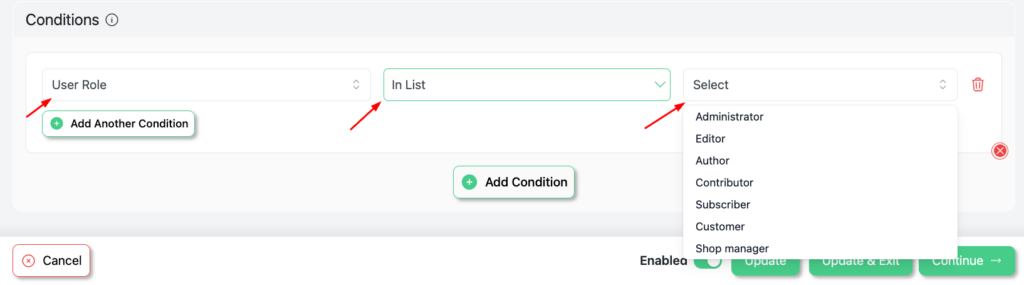
For B2B stores and membership-based WooCommerce shops, offering a discount by user role is a powerful pricing strategy. Disco Pro lets you create role-based pricing rules that automatically apply different bulk discount tiers to different customer groups.
For example, you might offer wholesale customers a 25% volume discount at 10 units, while retail customers receive only 15% at the same quantity. This feature is available in Disco Pro and works alongside your existing bulk discount campaigns.
WooCommerce Discount for Multiple Items: Best Practices
When setting up a WooCommerce discount for multiple items, keep these strategies in mind:
- Start with three tiers: a small, medium, and large quantity break. Too many tiers can overwhelm shoppers.
- Use percentage discounts for products across varied price points. Use fixed-amount discounts when you want predictable per-unit savings.
- Show the discount table above the add-to-cart button so it’s visible before the purchase decision.
- Combine quantity discounts with urgency tactics like campaign end dates to drive faster decisions.
- Test your tiers regularly. Review cart data to find the sweet spot where customers are most responsive.
Why WooCommerce Bulk Discount Tables Beat Coupon Codes
With discount tables, customers see their savings instantly before adding products to the cart. Coupon codes, on the other hand, create friction by requiring customers to take extra steps. They need to find the code, copy it, and apply it at checkout.
Sometimes this friction leads directly to cart abandonment. That’s why automatic bulk pricing with a visible discount table on product pages consistently outperforms manual coupon-based approaches. Customers trust transparent pricing and reward it with larger orders.
Conclusion: What You’ve Learned
- How to choose the right WooCommerce bulk discount plugin for your store
- How to set up Disco and create your first bulk pricing campaign with quantity tiers
- How to add quantity-based pricing with flexible discount options for simple and variable products
- How WooCommerce bulk discount tables outperform coupon codes
- A clear understanding of when upgrading to Disco Pro makes sense for features like discount by role, BOGO, and frontend pricing tables
You’ve completed the core setup, created your bulk pricing tiers, configured quantity-based discounts, and built your first campaign. A well-presented pricing incentive works as a strong nudge that encourages customers to place larger orders.
Disco’s free version covers the basics. When you’re ready for advanced features like pricing tables, BOGO campaigns, or role-based pricing, you can upgrade to Pro.
Want BOGO deals, role-based pricing, countdown timers, and product badges? See How Bulk Discount Pricing Works with Disco Pro.
Want to see the pricing table in action? This short walkthrough covers everything.
FAQs
What is a bulk discount?
A bulk discount is a pricing strategy in which the per-unit price decreases as the customer buys more. It’s a standard strategy widely used in wholesale and B2B stores, especially for items like office supplies, supplements, and packaging.
What is the bulk discount plugin in WooCommerce?
It’s a plugin that introduces quantity-based tiered pricing and displays a visible discount table on WooCommerce product pages. Since WooCommerce’s built-in system does not support quantity discounts or volume pricing, you need a third-party WooCommerce bulk discount plugin such as Disco or Flycart’s Discount Rules.
How to bulk edit prices in WooCommerce?
WooCommerce includes a basic bulk editor (found under Products, then All Products), which is limited to simple batch price edits. It doesn’t support dynamic pricing rules, tiered discounts, or a WooCommerce bulk table editor for quantity-based pricing. You’ll need a dedicated plugin to handle that.
Why do WooCommerce bulk discount tables beat coupon codes?
With discount tables, customers see their savings instantly before adding products to the cart. Coupon codes create friction by requiring extra steps. This friction often leads to cart abandonment. That’s why automatic WooCommerce bulk pricing with a visible table consistently performs better.
How to add a notice or offer to every WooCommerce product?
Disco lets you add promotional text, product badges, and cart notices that automatically display a discount message on all qualifying products, without individual edits.
Can I set up volume discounts for WooCommerce variable products?
Yes. Most WooCommerce quantity discounts plugins, including Disco, support variable products. Bulk pricing rules apply across all variations by default, or you can create variation-specific campaigns for more granular control.
What’s the difference between bulk discounts and BOGO deals?
Bulk discounts reduce the per-unit price based on quantity purchased. BOGO (Buy One Get One) deals offer free or discounted items when specific conditions are met. Both strategies increase order value, but they work differently. Disco supports both in its plugin ecosystem.
Can I place the bulk discount table anywhere on the page, not just before or after Add to Cart?
With Disco, the table’s built-in placement options are limited to before or after the Add to Cart button, which covers the highest-impact spot for most stores. If you need the table somewhere else entirely, such as embedded in a custom page template or a landing page, some other plugins on this list offer a shortcode you can drop in manually for full placement control. Worth checking if your use case needs that flexibility.