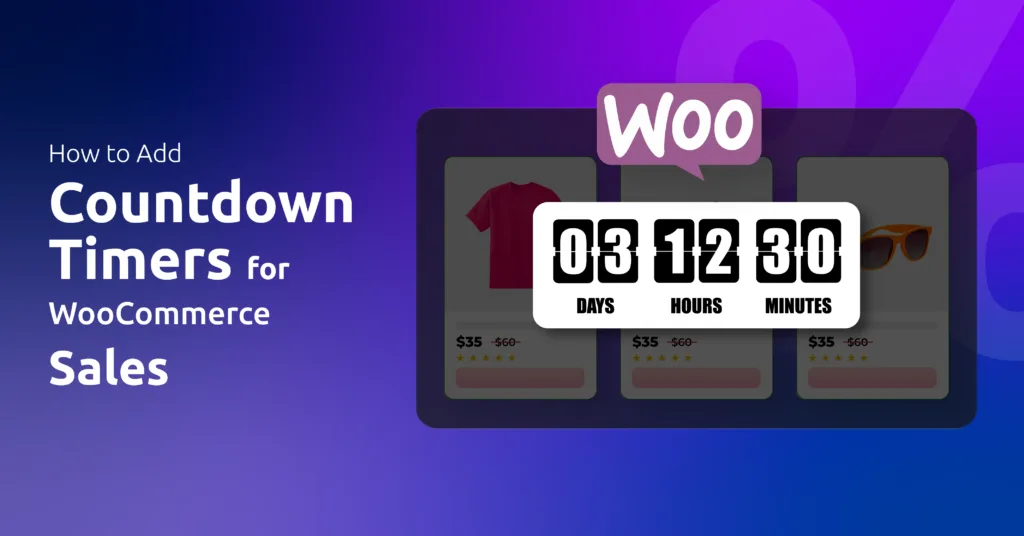
Did you know you can increase your conversion rate by a whopping 5%-40% by only running a countdown timer for your discount offerings?
Pretty sweet, right? Countdown timers tap into shoppers’ fear of missing out (FOMO), nudging them to act before deals vanish.
But how to add countdown timers for WooCommerce sales?
The easiest way to add a WooCommerce sales countdown timer , use Disco for a complete no-code seup. Create your discount campaign, enable Disco’s built-in countdown timer , set your sale dates and customize the design to fit your store. It stays in sync with your discount and disappears when the sale ends with no coding or extra plugin needed.
In this article, we will explore all possible methods and provide a step-by-step guide to adding a sales timer in WooCommerce. Let’s dive in.
How to Add Discounts and Countdown Timers in WooCommerce
Let’s be real: if you are trying to create urgency in WooCommerce with timers, manual coupons aren’t the ideal option. Like seriously, you are creating urgency, and they still have to search for the code, memorize it, and input it at checkout – too much work.
Also, the built-in tool is very limited, and you can’t offer dynamic discounts with it. Best option – an automated dynamic discount plugin such as Disco.
Disco is a free discount plugin that lets you create and offer automated, advanced discount campaigns in your Woo store with a few clicks. It’s incredibly easy to create any discount rule, be it a basic percentage discount, dynamic cart-based discounts, or deals for specific user roles.
This is the perfect tool to offer WooCommerce flash sales. Coming back to how to add countdown timers for WooCommerce sales, let’s find out how to use Disco and custom codes to achieve this.
Step 1: Creating the Discounts
Let’s say, for example, we want to – “Offer a 25% Discount on All Products for a Limited Time”
- Install the free WooCommerce discount plugin.

- Create a new rule.

- Select the Product intent, All Products, from the top.
- Set start and end times.
- Select and set the percentage value, and save to publish the discount.

- Disco automatically activates and displays the discounted amount on all pages along with a Sale badge.

Step 2: Confirm Your Product Price Type
Before launching, double-check that Disco’s Product Price is set correctly under Disco >> Settings >> Product Price Type. This setting decides whether your discount applies to Regular Price or the Sale Price. Since it affects every campaign on your store, it’s worth a 10-second look now to avoid pricing surprises once shoppers are already viewing the offer.

Step 3: Enable the Countdown Timer Block
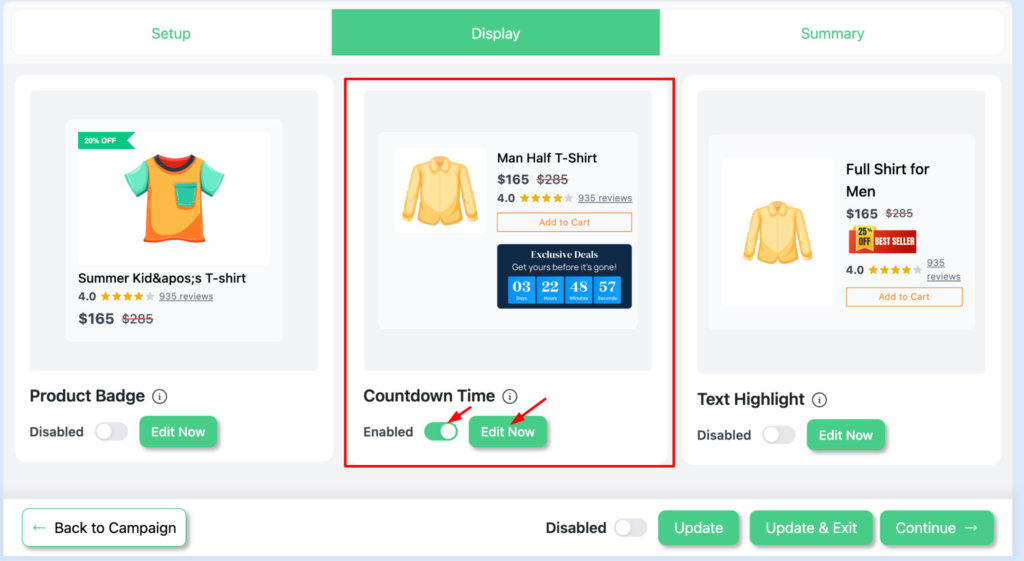
Click Continue to reach the Display tab. From there, turn on the countdown timer block and click Edit Now to open the customizer.

Step 4: Choose Your Timer Design
Pick a layout from the built-in designs: pink gradient, orange solid, dark navy, or purple gradient. Each option is fully customizable, letting you match it to your store’s branding and color palette.

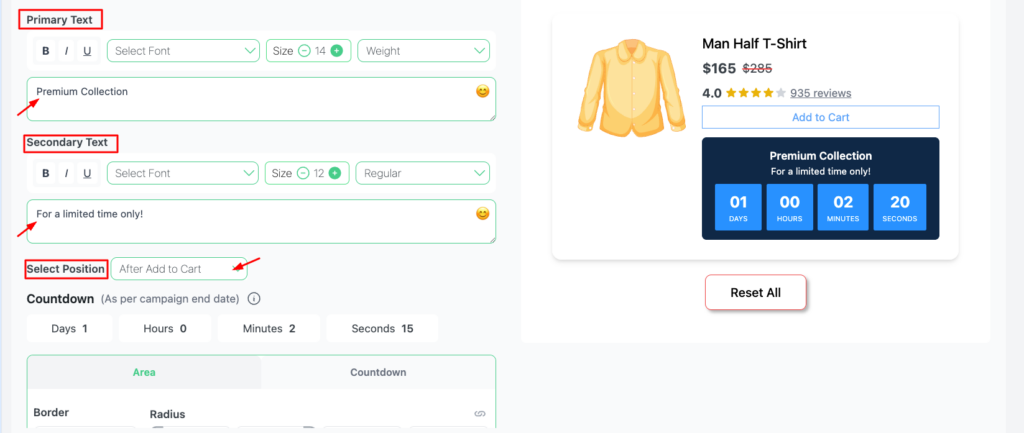
Step 5: Add Your Text and Set the Position
Write a primary heading like ” Flash Sale Ends Soon ” and a supporting line like ” Limited time only. Grab it before it’s gone.” Then choose where the time appears on the product page.
Here’s a placement tip: put the timer before the Add to Cart button, not after. Urgency needs to hit before the buying decision happens, because once shoppers scroll past the cart button, the timer has nothing left to do.

Step 6: Style, Save, and Publish
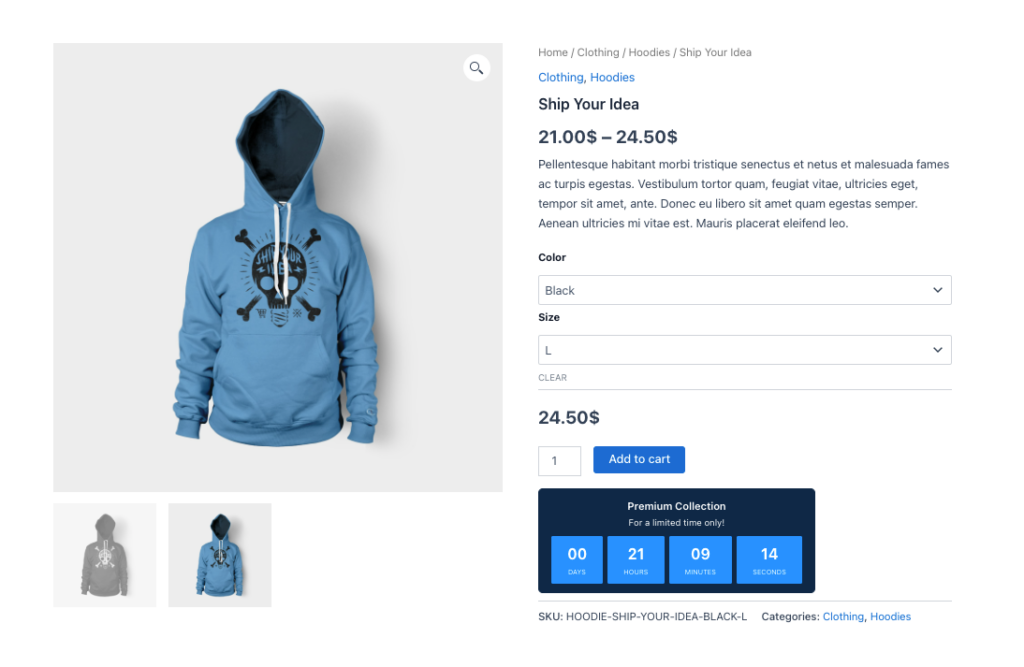
Finally, adjust the digit colors, label styling, background, and broader elements to fit your brand. Click Update to confirm the campaign is enabled, and hit Publish. The countdown now appears across all your campaign products and vanishes automatically the moment the timer hits zero. There’s no manual cleanup and no expired deals lingering on your storefront.

Why Use Countdown Timers for WooCommerce?
Let’s cut through the noise: online shoppers are drowning in options. You could have the best products on Earth, but if you don’t grab attention and spark action, you’re just another fish in the sea. Enter countdown timers—your secret weapon to turn “maybe later” into “buy now.” Here’s why they’re not just useful but essential:
1. FOMO Isn’t a Buzzword—It’s Brain Science
Your customers aren’t robots. They’re hardwired to avoid regret. A ticking timer exploits this flawlessly:
- Example: A “12-Hour Price Drop” timer triggers panic. Without it? Just another discount.
- Why it works: The brain prioritizes immediate loss over future gain. Missed deals hurt.
- Stat: Urgency-driven campaigns see 30%+ higher click-through rates (and fewer “I’ll think about it” exits).
2. Cart Abandonment’s Kryptonite
Picture this: A shopper adds a $200 jacket to their cart, then gets distracted by TikTok. A cart page timer whispers:
- “Your 20% discount expires in 8:32…”
- Result: That jacket gets bought now, not forgotten.
- Proven Fix: Stores using cart timers recover 1 in 5 abandoned carts on average.
3. Turn “Blah” Sales into Heart-Pounding Events
A sale without a timer is like a concert without a stage—no one feels the hype. Timers add drama:
- Flash Sales: “VIP Access Ends in 2:00:00” feels exclusive.
- Holiday Crunch: “Cyber Monday Delivery Cutoff: 3 Days Left” screams last chance.
- Real-World Win: An online store boosted Black Friday revenue by 72% using homepage timers.
4. Scarcity Without the Sleaze
Shoppers hate pushy sales tactics. Timers? They’re the polite version of scarcity:
- Example: “Only 3 Left + Sale Ends Tonight!” = Urgency + honesty.
- Trust Builder: Use timers for real scarcity (e.g., seasonal stock clearance).
- Avoid This: Fake timers that reset daily. Shoppers notice. Trust evaporates.
5. Email & Social Media’s Secret Weapon
Timers aren’t stuck on your website. Slap them into emails and social posts for nuclear FOMO:
- Email Hook: “Your 30% Off Code Expires in 24:00:00 ⏳”
- Instagram Story: Live timers for flash deals (e.g., “Next 50 buyers get free shipping!”).
- Result: 40% more clicks vs. static promo codes.
6. Flexibility for Any Business
Selling yoga mats or $10k software? Timers adapt:
- Physical Goods: “Pre-order Price Lock: Ends Sunday!”
- Digital Services: “Enrollment Closes in 48 Hours.”
- Memberships: “Founder’s Rate Expires at Midnight.”
7. The Silent Upsell Machine
Timers don’t just sell one product—they boost average order value:
- Bundle Deals: “Buy the Camera + Lens, Save $100 (Ends in 3:00:00).”
- Upsell Prompt: “Add this case for 50% off—deal dies with the timer!”
8. Data Goldmine for Smarter Sales
Timers aren’t just pretty widgets. They’re analytics tools:
- Track when shoppers convert (e.g., 80% buy in the last 2 hours).
- Use insights to tweak future campaigns (shorter deadlines? Bigger discounts?).
The Catch: Authenticity or Bust
Here’s the truth: Timers backfire if you’re shady. Shoppers smell BS from miles away.
- Do: Use timers for real deadlines (product launches, holiday sales).
- Don’t: Fake “24-hour sales” that reset daily. You’ll tank trust.
Final Word: Timers Are Strategy, Not Gimmicks
Countdown timers aren’t magic—they’re psychology meets strategy. When done right, they:
- Create urgency without desperation.
- Build trust through transparency.
- Turn browsers into buyers.
But here’s the kicker: You control the narrative. Use timers to tell a story (“This deal is special”)—not to manipulate.
Wrap up
Now that you know how to add countdown timers for WooCommerce sales, remember: these tools aren’t just about slapping a clock on your site.
They’re about crafting urgency that respects your shoppers. With Disco, your time stays tied to your real deadline and disappears the moment the sale ends, so every offer feels authentic. Set it up, keep your deadlines genuine, and watch hesitation turn into checkouts.
Ready to boost conversions without the sleaze? Implement your timer strategically, keep deadlines real, and watch as shoppers stop scrolling… and start buying.