WooCommerce has no tiered pricing table. Core WooCommerce offers sale prices and coupons (WooCommerce docs) but no built-in way to show “buy 6, pay less” on a product page, and a shopper who never sees the breaks has no reason to add a sixth item.
A WooCommerce tiered pricing table is the small grid near the add-to-cart button that lists each quantity range and its discount. It earns its place only when it reads the same rule that sets the price, so build the tiers once and let the table display them.
Why the table must read the same rule as the price
Many tutorials, including an earlier version of this page, solve display with a snippet in the theme’s functions.php file. The snippet hard-codes the ranges and percentages, while the real discount lives in a separate rule. Both say “6 to 10 units, 10% off” on the day you build them.
Then someone edits the rule for a sale, or adds a fourth tier, and forgets the snippet. Now the product page promises a price the cart won’t charge, and a shopper who spots that at checkout is the worst person to find it. A typed table in the product description has the same weakness, just without the code.
Build the tiers first
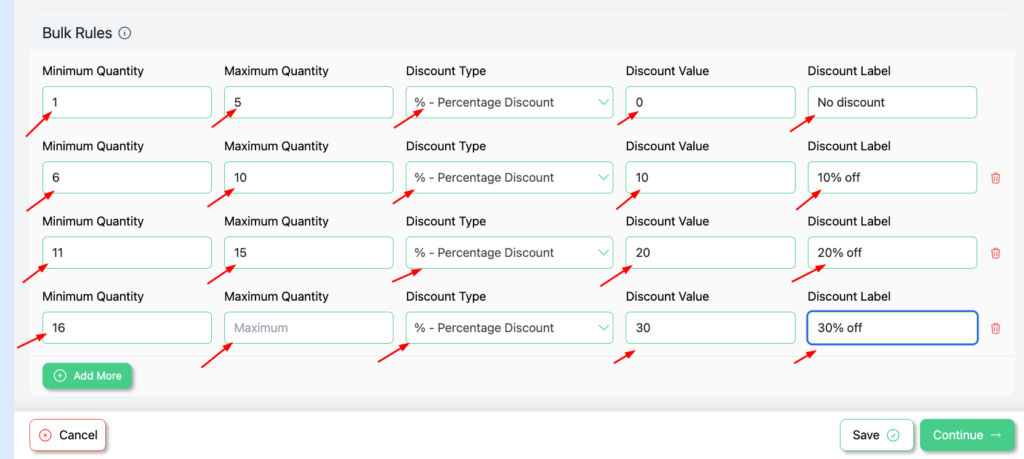
The tiers are a bulk campaign in Disco, and bulk campaigns are free. Choose the bulk type, add one row per range with a minimum, maximum, discount type and value, and leave the last maximum empty so the top range covers every larger order. Our guide to set up WooCommerce bulk discounts covers the edge cases, and tiered pricing vs volume pricing sorts out the vocabulary.
Show a tiered pricing table with the Disco Pro Bulk Table
Showing those tiers as a table on the product page is a Pro design block. According to Disco’s bulk table documentation, it’s switched on inside the same campaign:
- Finish the bulk rows and click Continue to reach the display step.
- Toggle Bulk Table on.
- Click Edit Now and pick one of the pre-made designs.
- Adjust colors, font size, button text, borders and spacing, and highlight the best tier if you want it to stand out.
- Finish from the summary step, then open a product the campaign covers.
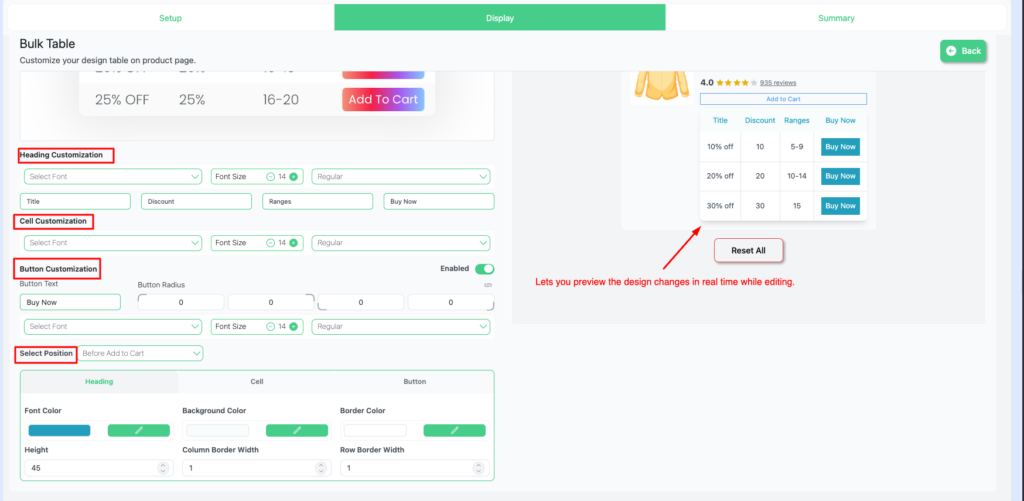
The editor shows a live preview next to separate settings for the heading, cells and button, plus a position setting for where the table sits on the product page. Because the table is configured inside the campaign, its ranges come from that campaign’s tiers.
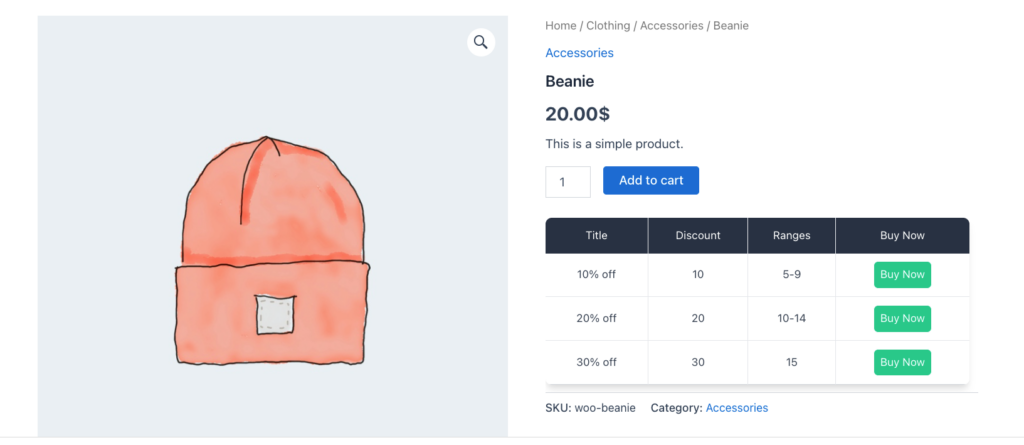
On the storefront each row shows a range, its discount and a buy button.
No Pro? A manual table that stays honest
The tiers still work in the free plugin; only the on-page table is Pro. Without it, write the breaks into the product description as a short list or table, for example “6 to 10 units: 10% off”.
Treat that text as part of the campaign: whenever a tier changes, edit the description in the same sitting and test a cart at each boundary. The more ladders you run, the more edits there are to remember.
The same logic applies to set offers: bundle discounts are free, and their on-page table is Pro too. For wholesale-only ladders, add a User Role condition to the bulk campaign; wholesale pricing in WooCommerce explains the role setup.
Build your tiers this week, and decide how shoppers will see them before launch. Get Disco free for the tiers, and see Disco Pro pricing for the Bulk Table.
FAQ
Is the tiered pricing table free in Disco?
No. Bulk tiers are free, but the table that displays them on the product page is a Pro design block.
What’s the difference between tiered and volume pricing?
Guides usually use tiered for a rate that changes band by band and volume for one rate across all units once a threshold is met.