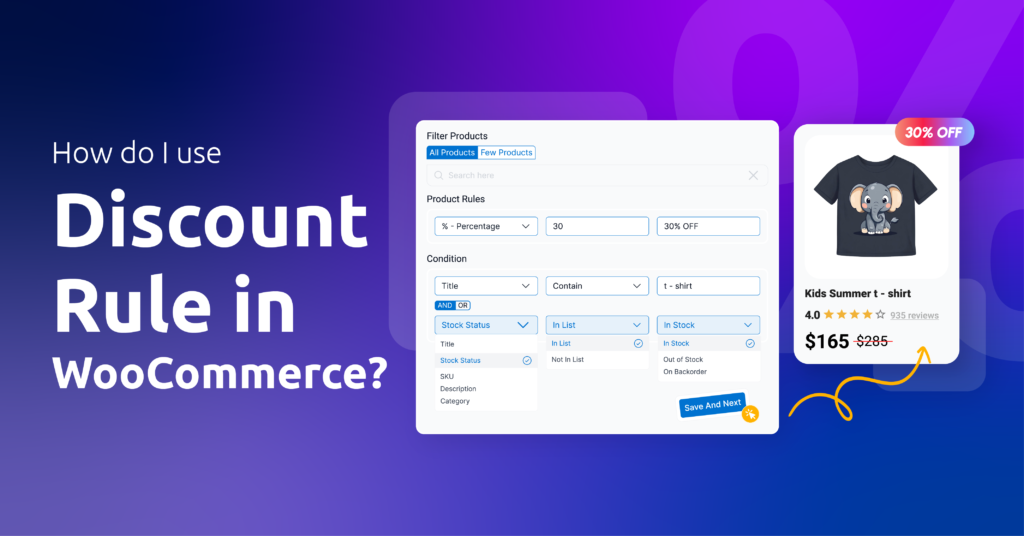
WooCommerce discount rule is a promotional pricing feature that reduces the cost of a product or a cart to encourage customers to make a purchase.
Think of it like a traffic signal, which controls the momentum of vehicles (whether the cars should move or stay still).
Similarly, WooCommerce discount rules decide whether a discount should be triggered.
Rather than using red/green lights, it employs discount rules to inspect if the customer has met certain conditions. And if it does, the discount is automatically applied.
In both cases, no human intervention or coupon codes were necessary.
So, how do you recognize your own flock of sheep? In other words-
How many variations of discount rules are possible?
In WooCommerce, discount rules operate through predefined rules or coupons.
There’s no fixed number of discount rule variations in WooCommerce.
Although the number of individual features is finite, the possible combinations are astronomically large.
Here‘s a breakdown of the different variations of WooCommerce discount rules :
- Percentage discount: A percentage discount deducts a fixed percentage from the original price. For example, a 10% discount on shoes.
- Fixed discount: A fixed discount reduces the price of a specific product by a fixed amount. Such as $15 off discount on a $60 shirt
- Fixed cart discount: A fixed cart discount subtracts a specific dollar amount from the total order value. For instance, $25 off orders over $200.
- Quantity-based discounts: A quantity-based discount activates when a customer purchases a specific quantity of products. For example, buy 5 items and get a 20% discount.
- Buy one, get one (BOGO) discount: A BOGO discount rewards customers with a free or discounted item when they purchase another item.
- Cart-condition discount: A cart condition is triggered by cart conditions such as cart total, number of items, or applied products. For example, a 20% discount on the entire cart if the cart total exceeds $150.
- User-role-based discount: A user-role-based discount targets a specific group of customers. Such as 35% off for VIP customers.
- Coupon-based discounts: A coupon-based discount activates when a valid coupon code is entered. Example- Use code FREEBEE20 to get a 20% discount.
Why Traditional Coupons Aren’t Enough
As technology advances, customers are placing greater value on the feeling of being served.
A stronger customer experience leads to better purchasing outcomes. Statistically, 61% customers will spend 5% more for a good experience.
Traditional coupon codes require customers to do all the manual labour. Every extra tap increases the chance of a drop off. This frustrates the customers to their core and becomes the ultimate reason for conversion decline.
Here’s what the advanced discount plugin does for you :
- Automatically applies discounts based on cart conditions
- Increases average order value (AOV)
- You can offer customized deals for the targeted group of people without affecting the general price.
- It clears the inventory in no time
Choose your fighter
Using a third-party plugin will give you more access to advanced discount rule features.
While there are many options available, the most popular include DISCO, Discount rules by WooCommerce by Flycart, and more.
Protip: Ensure the plugin you pick offers strikeout pricing, which highlights the original price alongside the new price. It creates a psychological trigger among customers and encourages them to purchase more
How to Set Up Your First Discount Rule? (Product-based)
Here are step by step you can follow
Step 1: Install and activate the Disco plugin
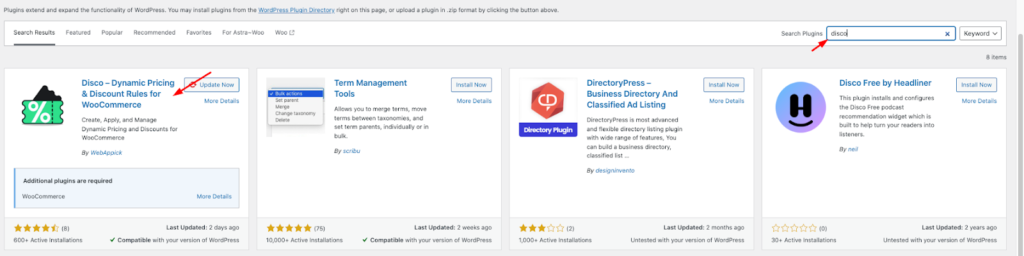
Step 2: Go to your WordPress dashboard and create a new discount rule

Step 3: Add a campaign name (e.g, 10% off on shoes)
It works as a unique identifier and organizational label for grouping related rules.
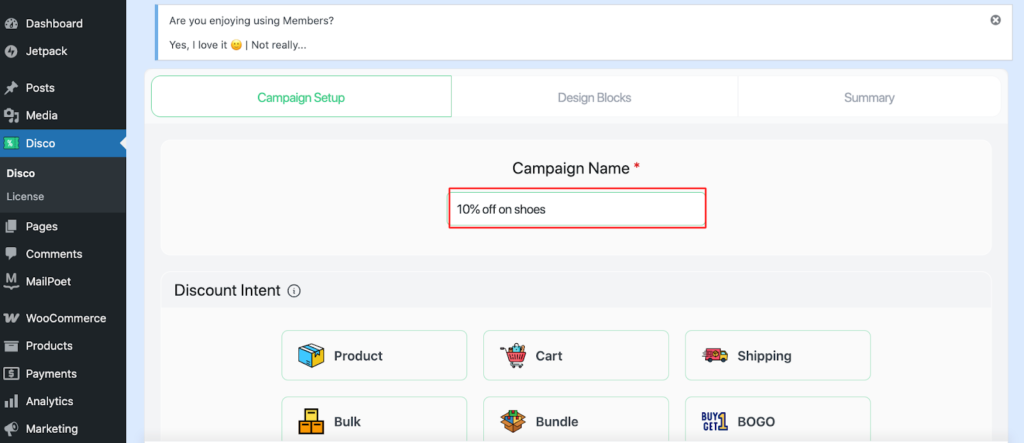
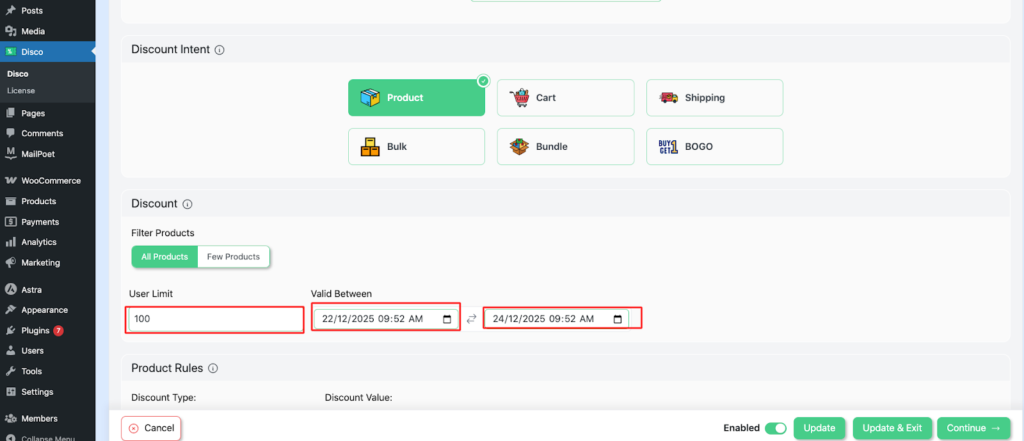
Step 4: Choose your discount intent (e.g., product-based intent)
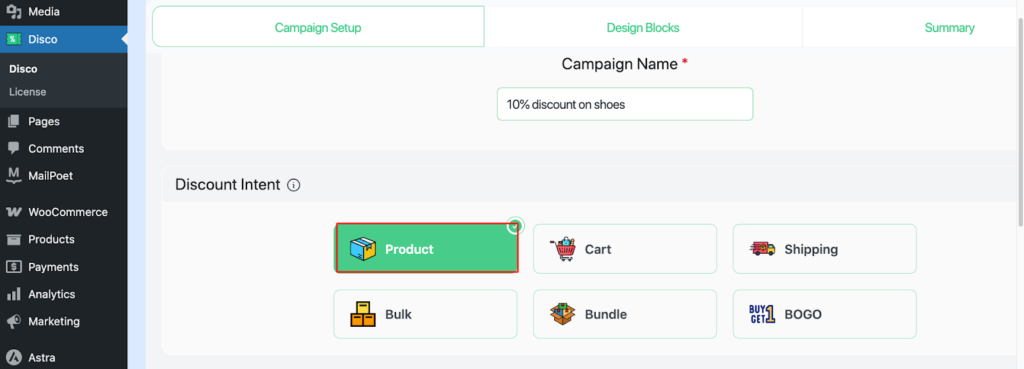
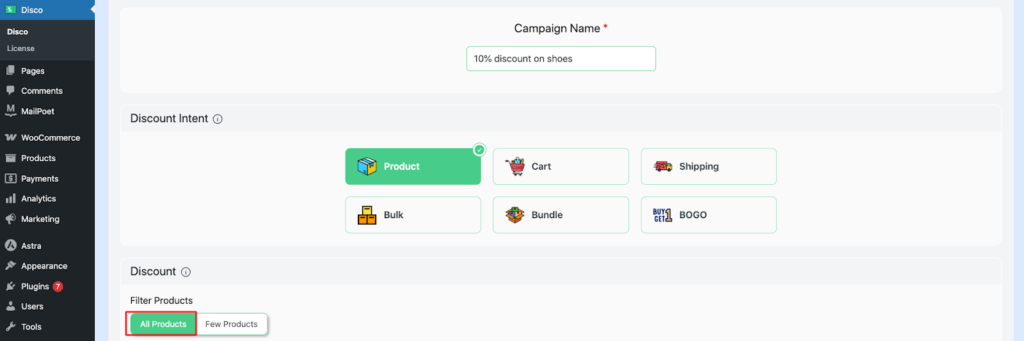
Step 5: Scroll down to the discount section, tap on All products
Later in the conditions section, narrow down the products to categories.
Step 6: Set User limit and Validity date
For this scenario, we’ll set the User limit to 100 and the Validity date from December 22, 2025, to December 24, 2025.
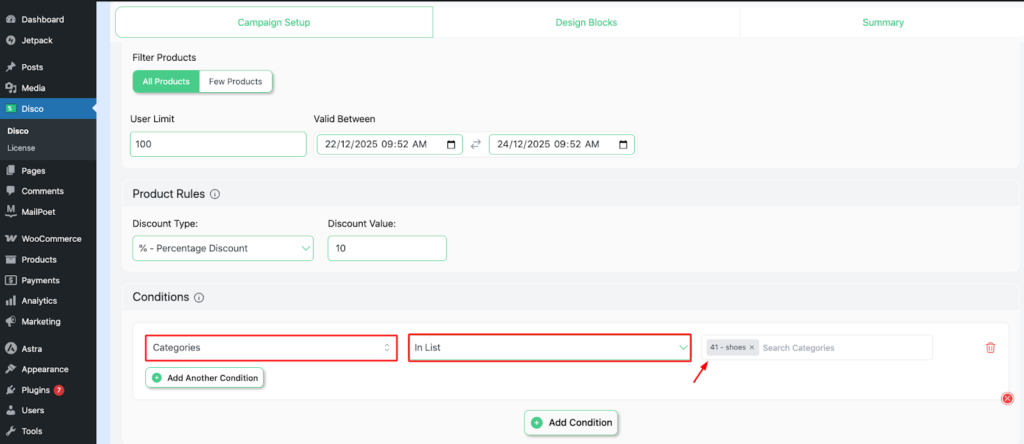
Step 7: Set your Discount type and discount value
In this example, set the discount value as a percentage and enter 10.

Step 8: Add conditions
Here, select categories – in list (included )- shoes. This ensures that your discount is applied to the entire category of shoes.
Step 9: Save and launch the campaign.
Your campaign is now live.
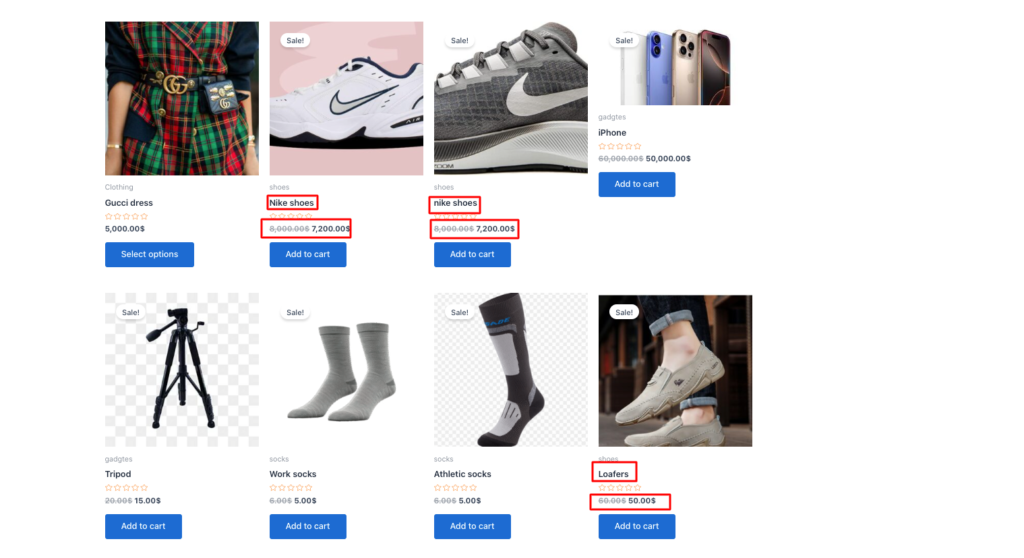
Step 10: Verify the discount on the category page.
Visit your store to check if the discount is applied.
Advanced strategies to maximize AOV
- The Gamified strategy :
Gamified strategy is an excellent method to attract customers with a hunter-gatherer mindset. Because people love the sense of accomplishment, it adds value to their self-perception.
A gamified strategy makes the shopping experience a game. Like video games, it has progress bars, tiers, rewards, and points. It makes the shopping experience rewarding, challenging, and fun, rather than transactional.
The very reason why gamification elements can increase customer engagement by 48%.
For example :
Use a dynamic pricing that increases in value as the cart quantity and subtotal grow
- Spend $50 → 10 % off
- Spend $100 →20% off
Strategic Product Bundling
Don’t just offer simple discounts. Strategically bundle the products to “ complete the look .” In other words, combine “ frequently bought together “ products and sell them at a discounted price.
You can use different types of product bundles. Such as –
- Pure Bundles: Sell product bundles on a set. Example : Camera + Tripod+ SD Card → 15 % discoun
- Mixed Bundles: Offer singles or discounted combos.(e.g., shirts $20 each, 3-pack $50)
- Frequently Bought Together: Analytics-driven pairs (e.g., phone + case)
Cart-based conditional rules
A cart-based conditional rule refers to a logic mechanism in WooCommerce platforms that controls what should happen if the cart meets certain conditions.
A cart-based conditional rule relies on specific key components, such as quantity, subtotal amount, particular products, categories, or combinations thereof.
With the Disco plugin, you can easily create cart-based conditional discounts.
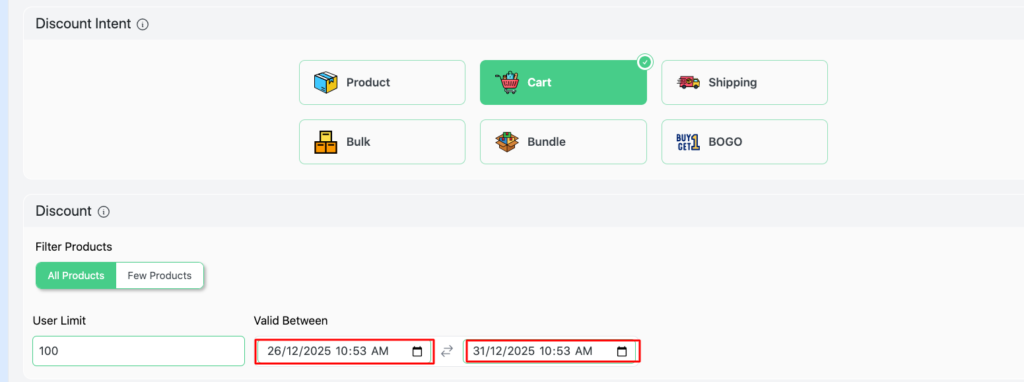
Step 1: Select cart-based intent

Step 2: Filter products → All products

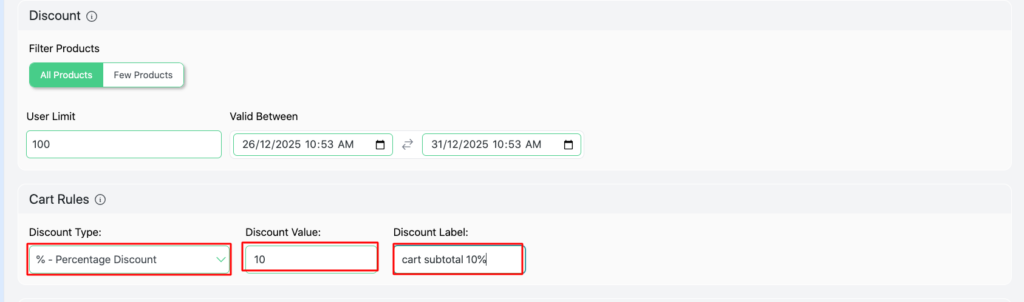
Step 3: Set user limit→ 100 (Or any number you prefer)

Step 4: Set Validity date (e.g., 26/12/2025 -31/12/2025)
Step 5: Configure Cart rules → Percentage discount→ Discount value →10,
Discount label→ Cart discount 10%
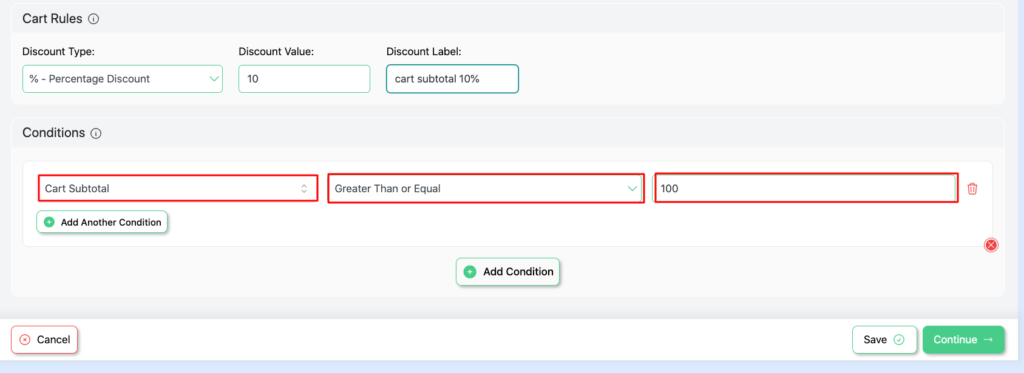
Step 6: Add conditions →Cart subtotal →Greater than or equal →100
(This signifies that if the cart subtotal is greater than or equal to $100, the discount will be applied automatically.)
Step 7: Save and Exit
Step 8: Verify if the discount is applied

Create discounts that unlock only when the customer fulfills the cart-based conditional rule. Customers hate missing out. This psychological trigger could be the biggest gravitational pull for purchasing.
Example: Add one more product to receive 20% off your entire order.
Personal pricing for Customers
Personal pricing refers to setting unique prices for individual customers based on their characteristics, behavior, or purchase history.
It is also called customer-specific pricing, individualized pricing or personalized pricing.
Businesses adjust prices for each customer to:
- Reward loyalty
- Encourage repeat purchases
- Match the customer’s buying behavior
- Increase sales or profit
- Offer discounts to specific customers
Use your very own personalized offerings for customers based on specific roles. Customers feel valued by this kind of acknowledgement.
- 5% off for new subscribers
- 10% off for regular customers
Create Personalized pricing with Disco, following the simple steps :
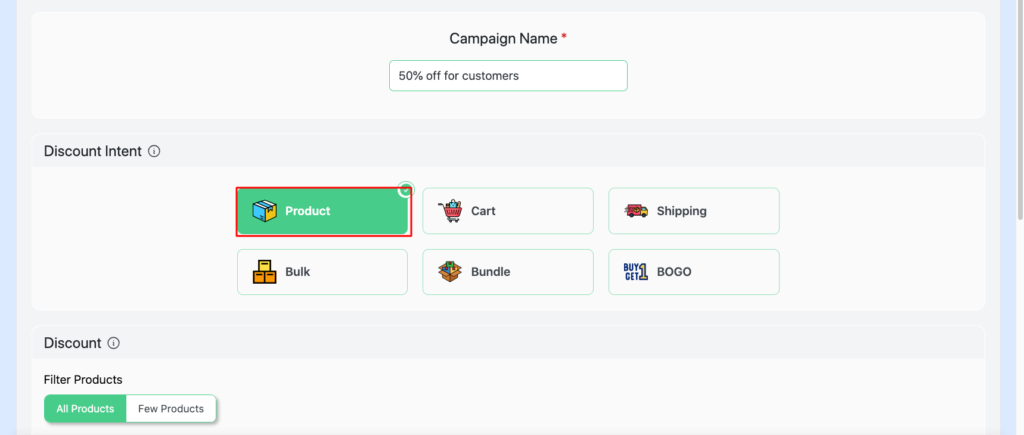
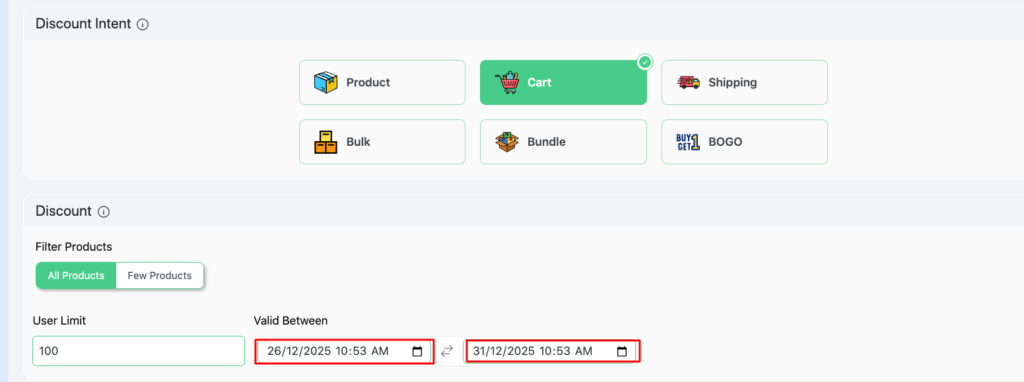
Step 1: Select → Product intent
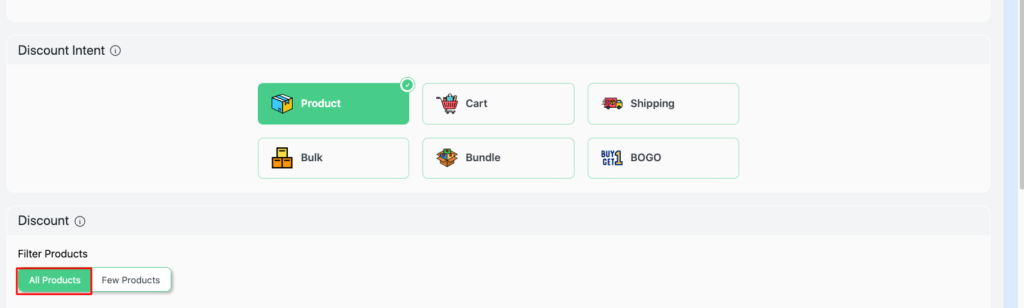
Step 2: Filter products → All products
Step 3:Set user limit→ 100 ( Or any number you prefer)

Step 4: Set Validity date (e.g., 26/12/2025 -31/12/2025
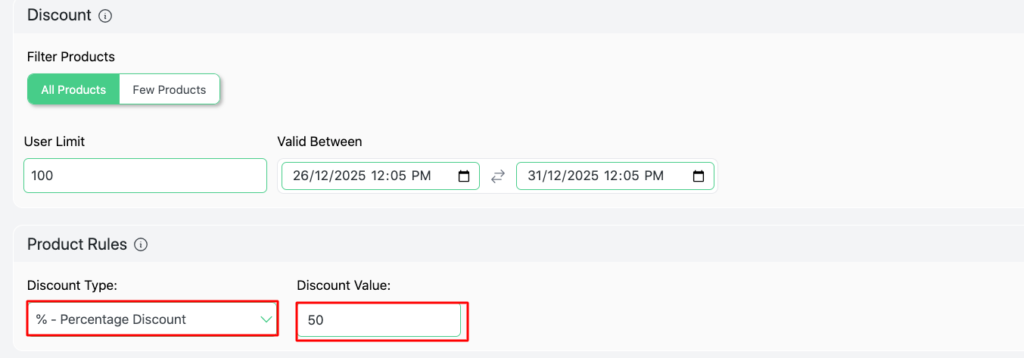
Step 5: Set Product rules →Discount type- percentage discount, Discount value-50
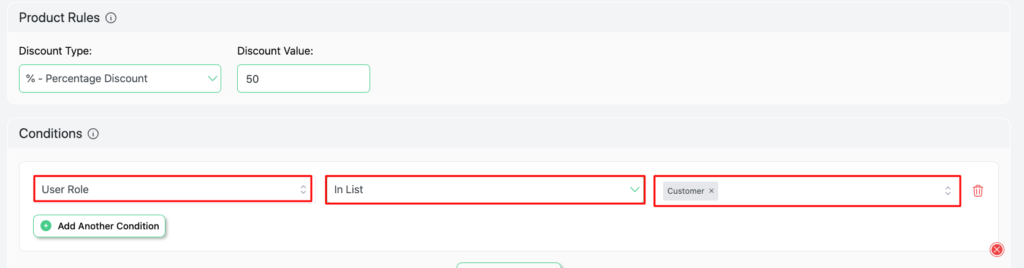
Step 6: Set conditions→ User roles → Customer
Step 7: Save and Exit
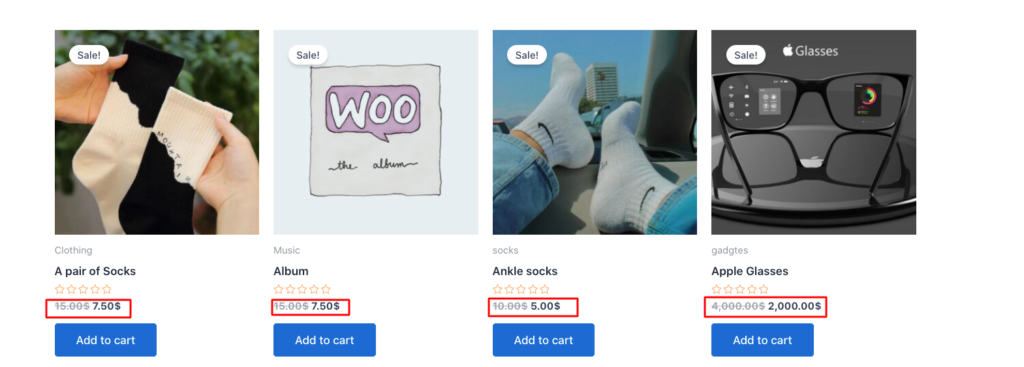
Step 8: Visit your store and verify your discount
- Flash Sales :
Flash sales are e-commerce events that align heavily discounted prices with products’ limited-time offerings.
It’s a perfect dynamic for boosting sales, clearing out inventory, attracting new customers, and increasing website traffic. “Time pressure” is like adding fuel to the fire. It accelerates decisions that lead to impulsive buying.
Example:
- Next 24 hours → Spend $200, get 10% off.
- 30% discount on any products for the next 3 hours.
With the Disco plugin, you can customize your time the way you want, following the steps below:
Step 1: Select Product-intent
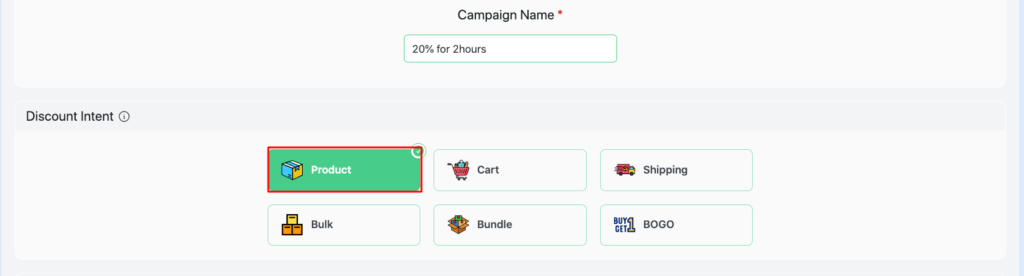
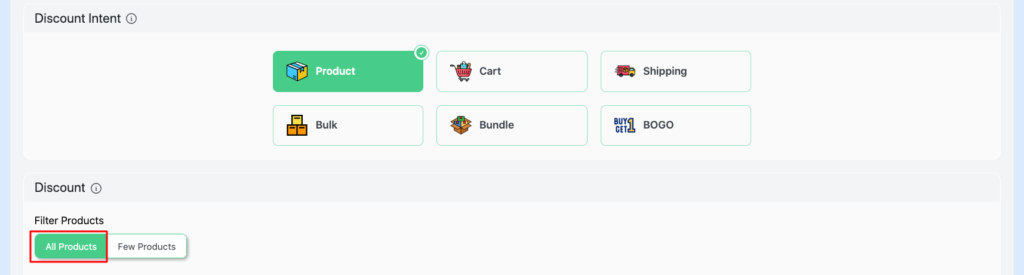
Step 2: Filter products → All products
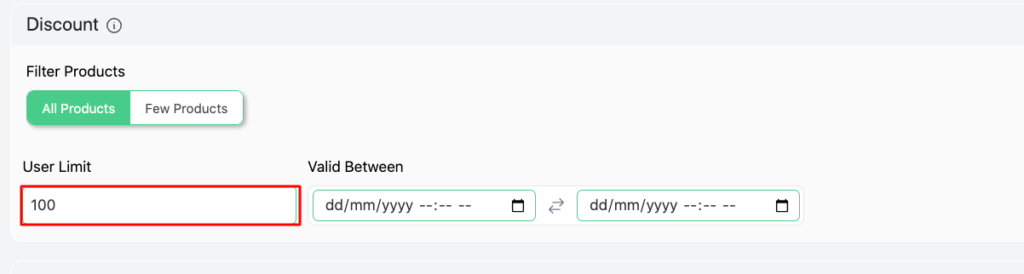
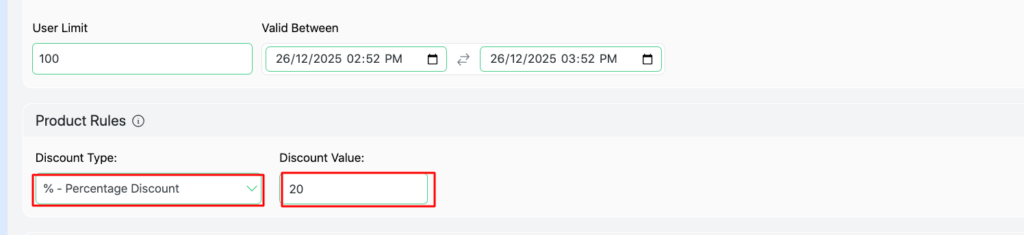
Step 3: Set User limit (.eg,100)
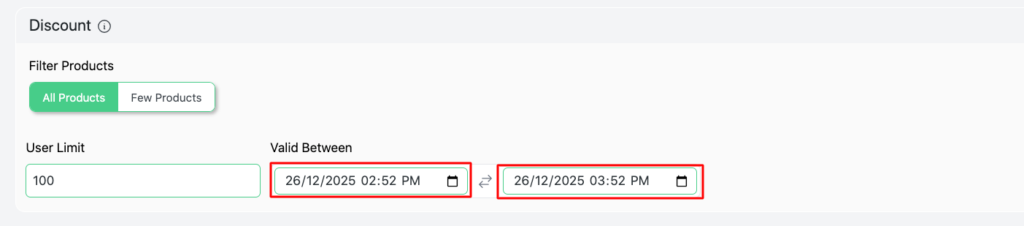
Step 4: Set the time limit/validity date for your discount – 26/12/25 (2:52 PM→ 3:52 PM)
Step 5: Set Product rules→ Discount type → Percentage discount , discount value-20
Step 6: Save and Exit
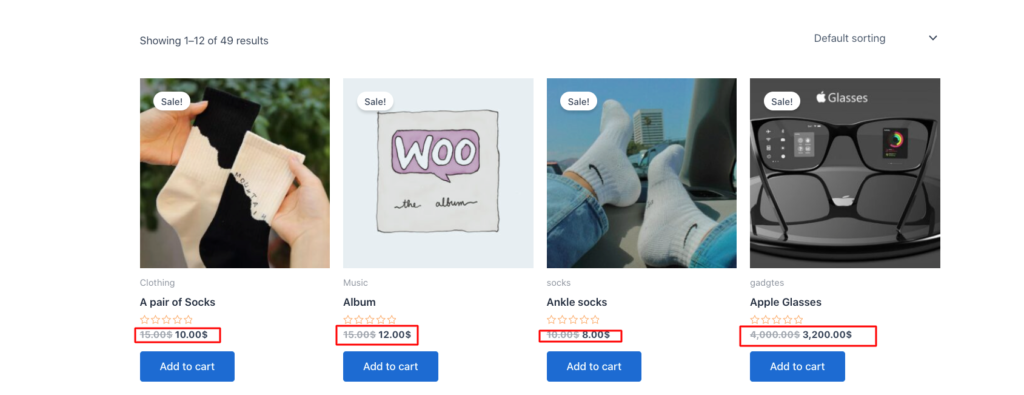
Step 7: Verify if the discount works.
- Common Pitfalls and Fixes
Here is a concise overview of the most common pitfalls store owners encounter when using discounts on WooCommerce, paired with practical fixes for immediate implementations.
Over-discounting margins
The store owners must calculate an accurate measurement for discounting and sorting out margins. Otherwise, over-discounting will lead to bankruptcy.
Here’s what they can do –
- Use time limits and usage caps to control discounts.
- Exclude high margin items.
- Use tools like Google Analytics to monitor previous discounts analysis.
Coupon abuse and stackable discounts
Sometimes, the customers combine multiple discounts or promotions that erode profits. To prevent that from happening, set usage restrictions.
Example: “ One coupon per order “
Apply discounts automatically instead of public coupons. Also, avoid coupon stacking unless necessary.
Ignoring mobile user experience
It is essential to keep your online stores mobile-friendly. Approximately 63% retail e-commerce sales were made by mobile devices.
Make sure to:
- Use mobile-friendly banners and pop-ups.
- Thoroughly test the discount process in mobile platforms.
- Display short, visible messages above the cart and checkout buttons.
Poor discount Targeting
Avoid applying the same discount offer to customers, as it won’t be fair to all.
Acknowledge customers based on their needs and preferences.
Personalize discounts based on user roles. Such as – 20% discount for VIP customers.
What are the discount rules in WooCommerce?
Discount rules are predefined conditions that reduce the sale price of a product/ a cart from the original price when the conditions are met, such as “ Spend $100 and get $10 off. ”
Does WooCommerce support discount rules by default?
WooCommerce only offers basic coupons by default. If you want to use more advanced pricing rules – BOGO deals, cart conditions, quantity discounts, or role-based pricing, you have to add the dynamic pricing plugin like Disco.
How can discount rules maximize average order value (AOV)?
Use different strategies, such as tiered discounts ( Buy 3 potato chips, get 15% off), bundle discounts ( shampoo + hair conditioner + hair oil = $15 off), and BOGO deals ( Buy a Coffee Mug, get a Coffee Mug free).
What is cross-selling using behavioral data?
It analyzes previous purchase history and recommends products based on customers’ preferences (e.g., Laptop + mouse).
You can use plugins like FunnelKit to display “frequently brought together ” products.
What types of discounts can I set?
With the advanced pricing plugin, you can create a wide variety of discounts to suit different sales strategies. These include percentage discounts, which reduce prices by a certain percentage, and fixed discounts that subtract a specific amount.
You can also set up promotional offers, such as Buy One, Get One deals, as well as bulk pricing tiers that reward customers for purchasing larger quantities.
In addition, the plugin allows for category-specific discounts, user role-based pricing for targeted offers, and cart subtotal discounts that apply when a customer’s total purchase reaches a certain amount.
Can I create a quantity-based or tiered pricing discount?
With dynamic pricing plugins like Disco, you can easily create bulk discounts.
Such as –
Buy 2-5 items – 5% discount
Buy 6-10 items – 10% discount
Buy 10+items – 15% discount