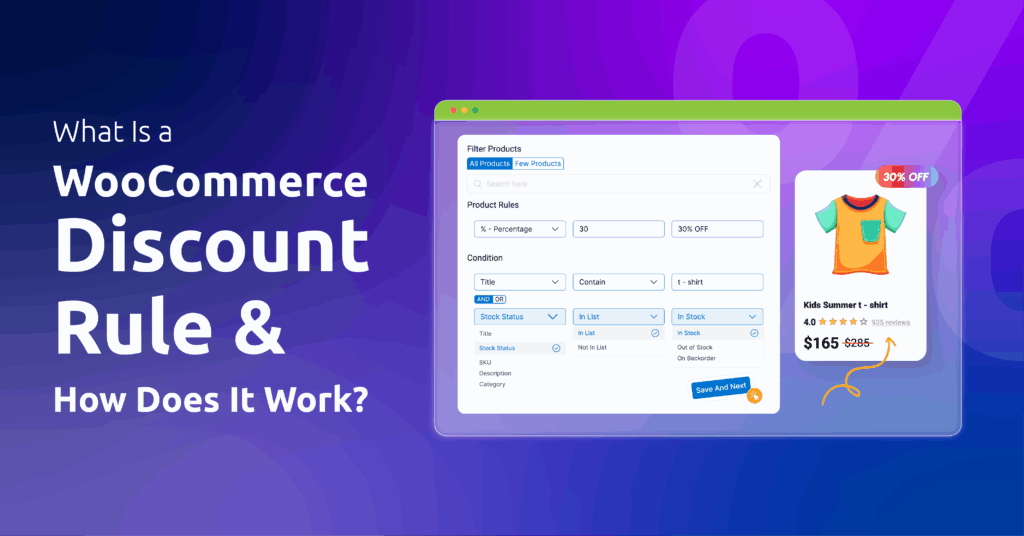
Out of the box, WooCommerce lowers prices two ways: a sale price typed into each item’s edit screen, or a coupon code. Core coupons come in three kinds (percentage, fixed cart and fixed product), and WooCommerce does not apply them automatically, so shoppers must enter the code themselves. WooCommerce discount rules close that gap: they watch the cart and apply themselves whenever their conditions match, so there’s no code to leak.
Each rule is four decisions, and the first carries most of the weight. Choose the type from the offer you want to make, use conditions only to narrow who qualifies, and settle how rules meet coupons before anything goes live.
What a WooCommerce discount rule is made of
Disco calls a rule a campaign, and building one means answering four questions in order:
- Type decides what gets discounted: a product, the whole cart, a quantity tier, a set of products, a free item, or shipping.
- The discount sets how much: a percentage, a fixed amount, a fixed amount per cart item, or a free item for BOGO.
- Conditions say who or what qualifies, such as a category, a subtotal or a user role.
- An optional schedule sets start and end dates.
Why does type go first? It fixes what the saving attaches to. Set up as a product campaign, “10% off” reduces each matching item; set up as a cart campaign, it reduces the order total. So choose the type from the offer you’re describing before adding any conditions.
Pick the rule type from the offer you’re describing
Say the offer the way a shopper would hear it, then read across the row.
| The offer, in plain words | Disco campaign type | Tier |
|---|---|---|
| “20% off all hoodies this week” | Product | Free |
| “$10 off when you spend $100” | Cart | Free |
| “Buy more, pay less per item” | Bulk (tiered quantity) | Free |
| “Save when you buy these together” | Bundle | Free |
| “Buy one, get one free” | BOGO / Buy X Get Y | Pro |
| “Free shipping over $75” | Free shipping | Free |
Three rows hide a detail. Quantity tiers cost nothing, but displaying them as a pricing table on the item’s page is a Pro design block; you can still set up bulk discounts in WooCommerce without it. BOGO needs Pro, so the guide to create a BOGO offer in WooCommerce assumes an upgrade. Bundles count per item or across products you select, which rules out “any three items from a category”.
Build your first discount rule: 10% off one category
The example below marks down a Shoes category by 10%; substitute whatever you sell.
- Install Disco from WordPress.org and activate it.
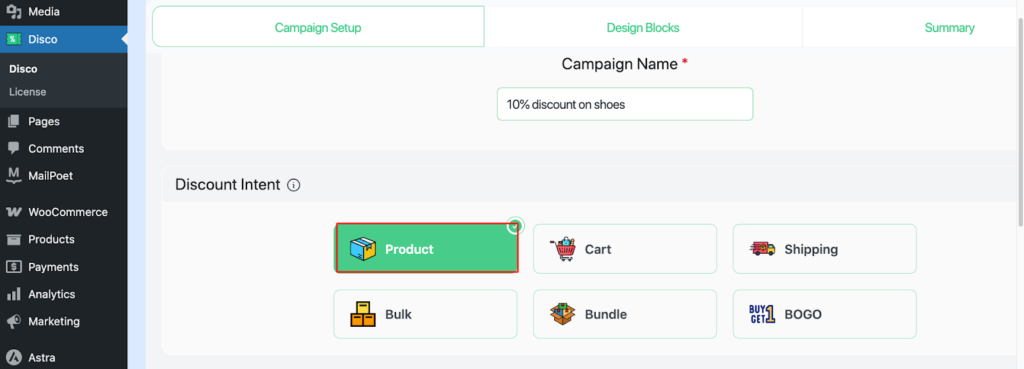
- Open Disco from your dashboard and start a new campaign. Name it something you’ll recognize in six months, like “10% off shoes”.
- Choose the product type. On screen, this grid is labelled Discount Intent.
- Leave the product filter on all products; step 6 narrows it.
- Set the type of reduction to percentage and the value to 10.
- Add a condition: Categories, in list, Shoes.
- Enter start and end dates if the sale should switch itself off. Leave them empty for no end date.
- Save, then open a shoe in your shop. With strikethrough display switched on for product pages, the original price appears crossed out beside the new one.
Why a category condition rather than hand-picked items? Next month’s arrivals get covered without editing anything.
Two more WooCommerce discount rules worth building
A cart threshold: 10% off from $100
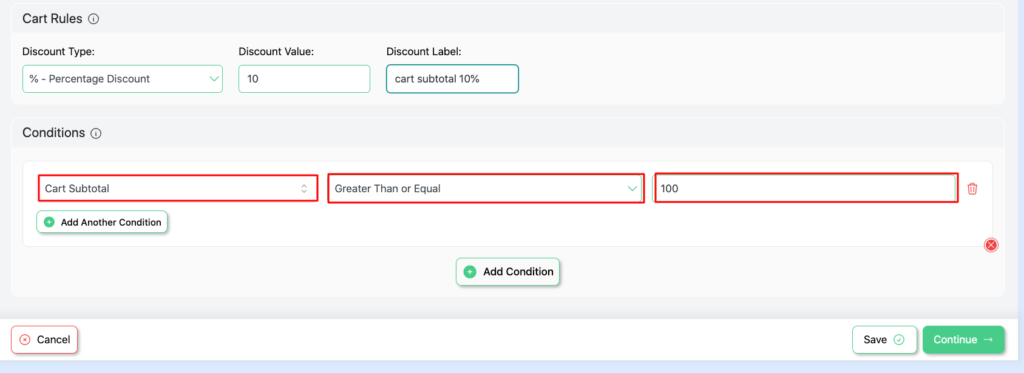
Pick the cart type, enter 10% and a label, then add Cart Subtotal, greater than or equal to, 100. The saving kicks in at $100. Our guide to automatic cart discounts based on subtotal adds fixed amounts and free-shipping thresholds. Test with a cart sitting just under the line.
A price for one customer role
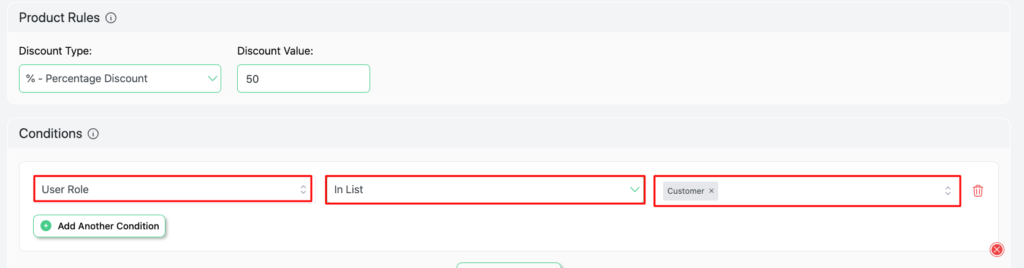
Wholesale accounts, members and staff usually sit in their own WordPress user role. Repeat the earlier build, make User Role the condition, and list whichever role earns the price. Logged-in versus guest works identically, and both ship free; history-based conditions such as first-time versus returning buyers or order count are Pro. B2B stores can go further with role-based pricing in WooCommerce. The same pattern repeats for every role you sell to.
When discount rules meet coupons, and each other
Before a second rule goes live, settle two questions about collisions.
Overlap comes first. When several product campaigns match one item, Disco doesn’t add them up. One store-wide setting picks either the lowest or the highest qualifying amount, with no priority order to arrange. Say a 10% shoe sale and a 15% clearance offer are both product campaigns. Those sneakers get 10% or 15%, never 25%.
Then coupons. Disco can run alongside them, or you can switch it to “Disco only”, which rejects every WooCommerce coupon. To a shopper, that rejected code just looks broken. Coupon trouble takes other shapes too. One user on the WordPress.org forum reported codes being accepted without lowering anything: “The latest update causes an issue with woo coupon codes” (thread). Support couldn’t reproduce it on a test site, and the thread is marked resolved. Whatever caused that case, the sequence holds: coupon mode, overlap mode, then a test order in a private window. Still stuck? WooCommerce discount rules not applying lists the remaining checks.
Trial the category rule on one inexpensive item first and confirm the crossed-out price. Layer the threshold and role versions afterwards, testing each new overlap as it appears. Get Disco free to start, and compare Disco Pro pricing if BOGO or history-based conditions are on your list.
Related guides: What is Dynamic Pricing in WooCommerce? (Examples & Best Plugin) · 7 Best WooCommerce Discount Plugins (Free & Paid)
FAQ
Does WooCommerce have discount rules built in?
Not automatic ones. Core coupons apply only when a shopper enters the code, so rules that apply themselves need a plugin.
Can I give wholesale customers a different discount?
Yes. Give wholesale buyers their own user role, then target it with a User Role condition, which the free plugin includes.
Is BOGO free in Disco?
No, BOGO / Buy X Get Y needs Pro. The other five types are free.