Out of the box, the WooCommerce admin offers one way to take money off a whole cart: a coupon the shopper has to type. If the code never reaches them, nothing happens, however full the basket gets.
A WooCommerce cart discount is a reduction based on the cart as a whole, usually its subtotal, instead of individual products. Build it as a coupon with a minimum spend, or as an automatic rule with a plugin such as Disco, which kicks in the moment the basket qualifies.
Decide the threshold before the reward
Two questions, in a fixed order: what must the cart reach, and what does the shopper get once it does?
The threshold normally measures the subtotal, meaning products added up before shipping. Whether tax sits inside that figure depends on how your store displays prices, so check rather than assume. Test a $100 rule twice, at $99 and at $101. Only then pick the reward: 10% off, $10 off, or a fixed amount per item.
The coupon route: minimum spend
Core WooCommerce handles this under Marketing, then Coupons. Create a code, choose the discount type and amount, then open Usage restriction and enter the threshold in Minimum spend.

It works and costs nothing. The catch is distribution: only people who know the code and remember to enter it benefit. That suits newsletter or influencer offers where the code is the point.
Set up an automatic WooCommerce cart discount in Disco
Cart campaigns with subtotal conditions are part of the free Disco plugin. Following Disco’s cart discount documentation, a “10% off orders over $100” rule looks like this:
- In the Disco menu, click Create a Discount and give the campaign a clear name.
- Choose Cart as the discount intent.
- Under Discount, keep All Products, or pick Few Products to limit which items qualify.
- Optionally set start and end dates in Valid Between.
- In Cart Rules, choose Percentage Discount, enter 10, and add a label such as “10% off”.
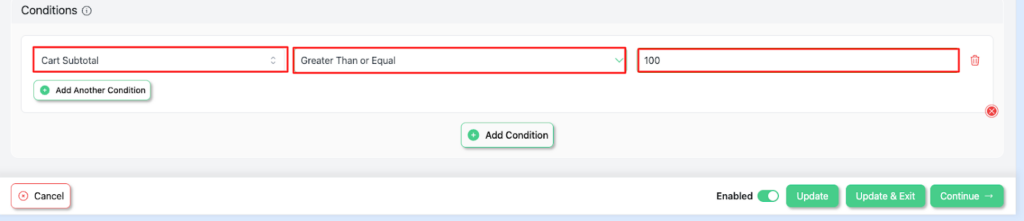
- Click Add Condition, pick Cart Subtotal, choose Greater Than or Equal, and type 100.
- Click Save & Exit, then build carts on both sides of $100.
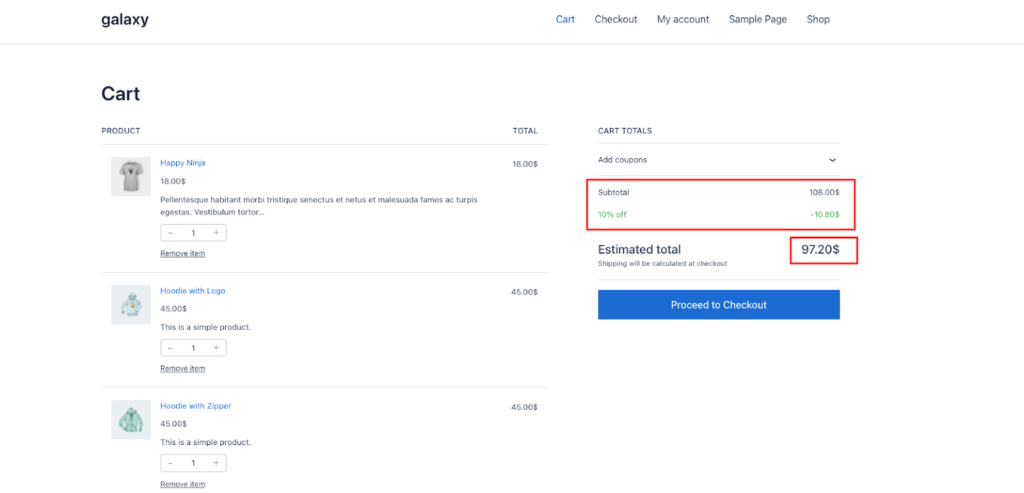
Once the subtotal reaches $100, the reduction appears as its own line in the totals, no code involved.
The setup screen also shows a User Limit field. It belongs to Disco Pro and caps how many orders can use the campaign across the whole store, not uses per shopper. Leave it empty for an always-on rule.
Pick the right kind of cart discount
Cart Rules offers three reward types. A percentage grows with the order. A fixed amount stays flat however much is spent, keeping cost predictable; our fixed cart discount guide covers it in depth. Fixed discount per cart item deducts the same sum from each item individually.
Related setups have their own walkthroughs:
- Money off particular products rather than the whole cart: fixed product discount.
- Bigger rewards at higher spend levels, such as 10% at $100 and 15% at $150: tiered subtotal discounts.
- Delivery instead of money off: that’s a separate Shipping campaign, explained in free shipping over an amount.
Disco’s free plan also accepts a cart quantity condition in place of the subtotal, for offers like “10% off when you buy 5 or more”.
Settle the threshold, then the reward, and try both edges before announcing anything. Get Disco free for automatic cart discounts, or see Disco Pro pricing for the User Limit and design blocks.
Related guide: How to Set Up Automatic Coupons in WooCommerce
FAQ
Are automatic cart discounts free in Disco?
Yes. Cart campaigns with subtotal conditions work in the free plugin. The User Limit field, which caps total orders across the store, is a Pro feature.
Should I use a coupon or an automatic cart discount?
Use a coupon when the code itself is the point, such as a newsletter offer. Use an automatic rule when every shopper who reaches the threshold should get the discount.
Does shipping count toward the cart subtotal?
No. The subtotal is the products before shipping, so a delivery charge won’t push a $95 cart over a $100 threshold. Tax handling depends on your store settings.