Advanced discounts in WooCommerce are how growing stores move past plain coupon codes and start running promotions that actually drive sales: BOGO offers, bulk pricing, role-based deals, and automatic cart rules.
The demand is already there. Before they click “buy,” around 91% of American shoppers go looking for a discount, according to Capital One Shopping Research (2025).
Your customers are not just browsing out of habit. They are looking for a reason to buy from you. Yet most WooCommerce stores hand them nothing but a basic coupon field.
As Smart Marketer founder Ezra Firestone has argued, brands that only ever run sales tend to burn out, because promotions only work at scale when they are paired with relevant messaging and genuine customer value.
In other words, discount smarter, not harder.
The rest of this guide shows you exactly how to add advanced discounts in WooCommerce that are automatic, strategic, and free of manual busywork.
Why WooCommerce Coupons Aren’t Enough?
For a simple “10% off” promo, native WooCommerce coupons do the job. The trouble starts the moment you want something more sophisticated: BOGO deals, quantity pricing, wholesale tiers, or automatic cart rewards.
Here is what is most likely happening in your store right now:
- Cart abandonment. 70% of online carts never reach checkout, and 15% of shoppers leave when they cannot find a discount code (Capital One Shopping Research).
- Complex setup. Bulk discounts in native WooCommerce often need a pile of plugins that conflict with each other, which means more troubleshooting and fewer sales.
- Lost revenue. With no automatic upsells or triggers, you leave money on the table on every order.
- Wasted time. Every promotion means creating, distributing, and maintaining coupon codes — time spent on maintenance instead of growth.
It is not you, it is the coupons. WooCommerce coupons were built for basic discounts, not for a real promotional strategy.
The same research shows 80% of American shoppers will try a brand for the first time when offered a discount, and 87% say a discount is the single strongest reason they complete a purchase instead of abandoning the cart.
The demand exists. Your discount system is just not ready for it yet.
WooCommerce Native Coupons vs. Disco Plugin
Here is what you gain when you trade manual coupons for automatic advanced discounts:
| Feature | WooCommerce Native | Disco |
|---|---|---|
| Auto-applied discounts | Relies on manual coupon codes | Applied automatically |
| BOGO promotions | Complicated to configure | Dedicated campaign type |
| Bulk pricing campaigns | Requires extra plugins | Included by default |
| Role-based pricing | Not available | Fully supported |
| Advanced cart rules | Limited (coupon minimum spend) | Full rule builder |
| Urgency timers | Not available | Pro feature |
| Gift promotions | Not available | Built in |
| Scheduled promotions | Basic coupon expiry only | Automatic start and end dates |
| Time to launch | Manual setup each time | Live in minutes |
2000+ active WooCommerce stores trust the Disco plugin, which holds a 5.0-star rating and has an average order value increase of 23%.
Here are the discount types you will be running today:
| Discount type | Best for | Example |
|---|---|---|
| BOGO deals | Boosting average order value | Buy 2 shirts, get 1 free |
| Bulk pricing | Wholesale and B2B | Buy 5+ items, get 10% off |
| Customer role pricing | Exclusive member pricing | VIP customers get 20% off |
| Cart-based rules | Encouraging larger orders | Spend $100, get $15 off |
| Scheduled promotions | Seasonal sale events | Auto-launches on Black Friday |
What are advanced discounts in WooCommerce and how does it work?
Advanced discounts in WooCommerce are rule-based, automatic price reductions that go beyond standard coupon codes. Instead of asking customers to type a code, you set conditions cart total, quantity, customer role, or date and WooCommerce applies the matching discount automatically as shoppers add items to the cart.
Out of the box, WooCommerce only lets you create a flat or percentage discount that customers enter at checkout. It is useful but limited: it treats every shopper the same and depends on them remembering a code.
Advanced discounts work differently. You define a condition and an action. If the cart hits a certain amount, then apply a discount. If a customer buys ten units, then drop the per-unit price. WooCommerce checks those rules as people shop and adjusts pricing in real time, so the savings appear in the cart without anyone typing anything.
This unlocks the offers stores actually want to run: buy-one-get-one deals, bulk and tiered pricing, “spend $100 for free shipping,” category-specific sales, member-only pricing, and scheduled promotions that switch on and off by date. The one catch is that WooCommerce core cannot do most of this alone — the built-in coupon system handles simple cases, but automatic rules and conditional logic need a discount plugin to add that layer.
The real power, though, goes beyond automation. A handful of well-documented buying behaviors do the heavy lifting:
- The zero-price effect. Research on zero pricing (Shampanier, Mazar & Ariely, 2007) found a free item feels more valuable than an equivalent discount, which is why “Buy 2, Get 1 Free” often beats a mathematically identical 33% off.
- The goal-gradient effect. Shoppers push harder as they near a reward, which is why “spend $12 more for free shipping” lifts cart value (Kivetz, Urminsky & Zheng, 2006).
- Mental accounting. Richard Thaler’s work (1999) shows the brain files discounts as “savings,” not “spending,” making larger purchases feel justified.
- The pain of paying. Prelec & Loewenstein (1998) documented that handing over money causes real discomfort, and checkout friction makes it worse. Automatic discounts remove that friction so shoppers simply enjoy the savings.
There is no trickery here. You are just building discount rules around how shoppers actually think.
Before You Start
Take 30 seconds to confirm the essentials before you dive in:
- WooCommerce is active (Plugins → Installed Plugins)
- At least one published product for testing
- Admin access to install plugins and create rules
With all three in place, you are ready. No coding and no developer fees required Disco Plugin free covers it, and it is compatible with Elementor, Divi, and the major WordPress themes. For edge-case setups, see the documentation.
How to Set Up Advanced Discounts in WooCommerce?
To set up advanced discounts in WooCommerce, start by installing the Disco plugin.
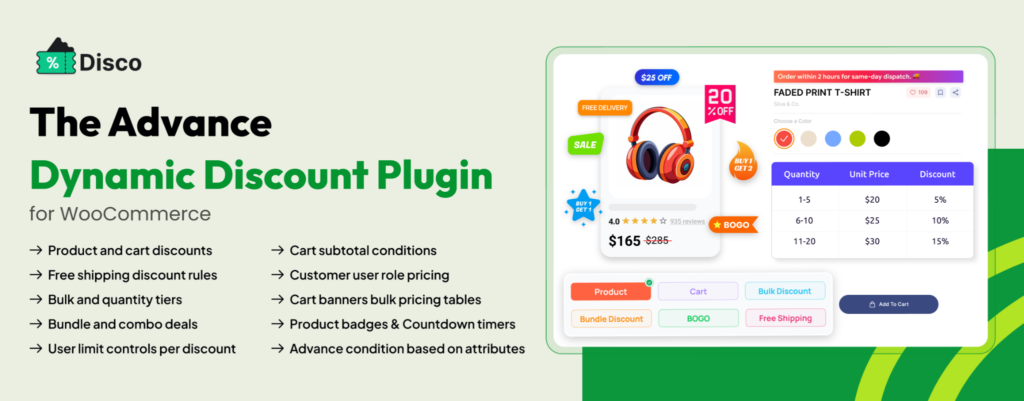
Disco is an advanced WooCommerce discount plugin that lets you create and automate discount campaigns without code, from simple product discounts to complex promotional rules built to increase sales and engagement.
What You Can Do with the Disco Plugin
- Create bulk and quantity-based discounts
- Run Buy One Get One (BOGO) offers
- Apply cart-based discounts
- Offer product-specific discounts
- Create category and tag-based promotions
- Set up free shipping discounts
- Build bundle discount campaigns
- Offer user-role-based pricing
- Schedule discounts for specific dates
- Create advanced rules with multiple conditions
Its rule builder lets you create and manage powerful discount campaigns in a few clicks.
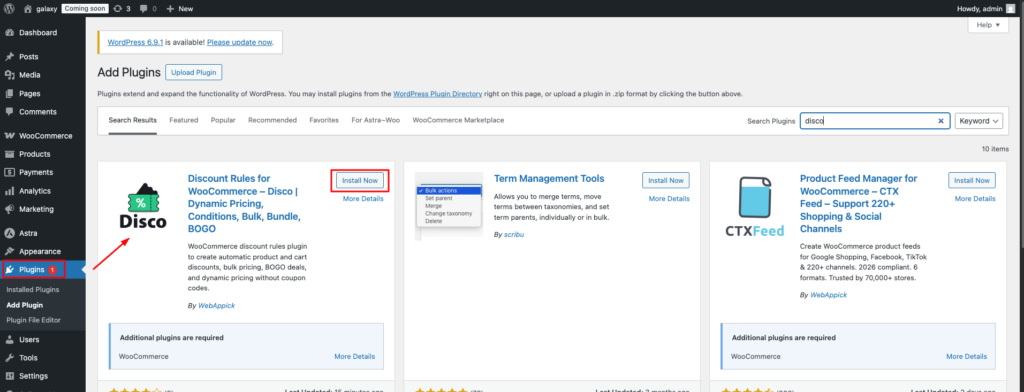
To install: from your WordPress dashboard, go to Plugins → Add New → search “Disco” → Install → Activate.
That is it — Disco is now live in your WooCommerce store.
Every Disco campaign follows the same four essential steps:
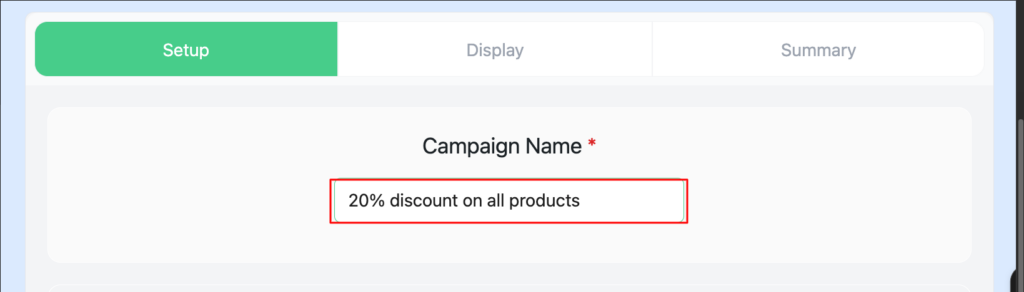
Step 1: Set Campaign name. Give it a clear internal label, such as “20% off all products,” so it is easy to spot when you are juggling several.
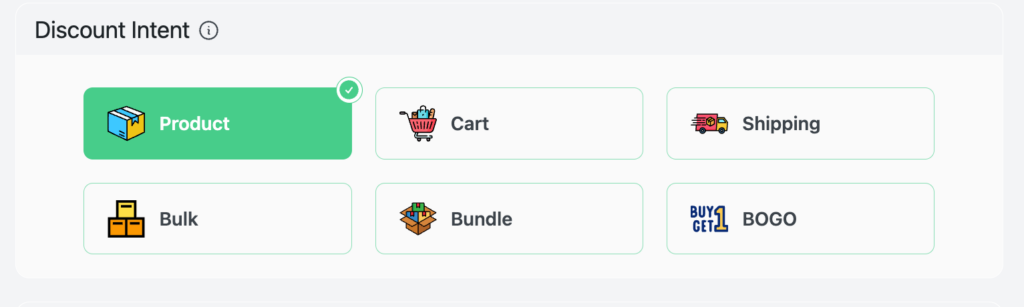
Step 2: Discount intent. Pick your discount type: product-based, cart-based, bulk, bundle, free shipping, or BOGO. For this example, select product intent.
Step 3:Filter products. Define the scope — the products, categories, or attributes the discount applies to.

Step 4: User limit and validity dates. Decide who can use it and when the campaign starts and ends.

That is the foundation for every campaign. For a detailed tour of each setting, see How to Set Up Discounts in WooCommerce: Step-by-Step Guide.
Now let’s build each advanced rule type.
Advanced Discount Rule 1: BOGO / Buy X Get Y
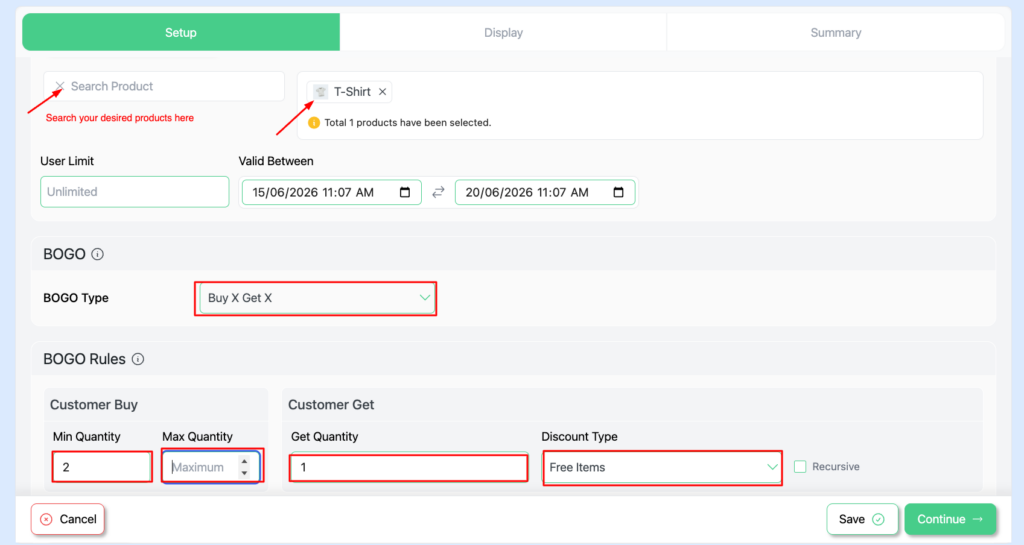
Head to Disco → New Rule → BOGO / Buy X Get Y, then set:
- Buy quantity: how many items are required to qualify
- Get quantity: how many items are rewarded
- Discount type: free, percentage off, or fixed discount
- Qualifying product or category: where the rule applies
Click Save and Publish, and your discount launches automatically.
In practice: Buy 2 shirts, get 1 free. Once the customer adds 2 items, Disco applies the third for free instantly. Speed matters consumer research shows 64% of shoppers decide faster when a discount is available. Remove the friction between intent and action, and the sale is yours.
For Buy X Get Y across different products or category-based BOGO, see the BOGO documentation or the WooCommerce BOGO setup guide.
Advanced Discount Rule 2: Bulk and Tiered Pricing
Go to Disco → New Rule → Bulk Pricing and set up your tiers:
| Quantity | Price Per Item | Discount |
| 1-5 items | $10 | No discount |
| 6-10 items | $9 | 10% off |
| 11-15 items | $8 | 20% off |
| 16+ items | $7 | 30% off |
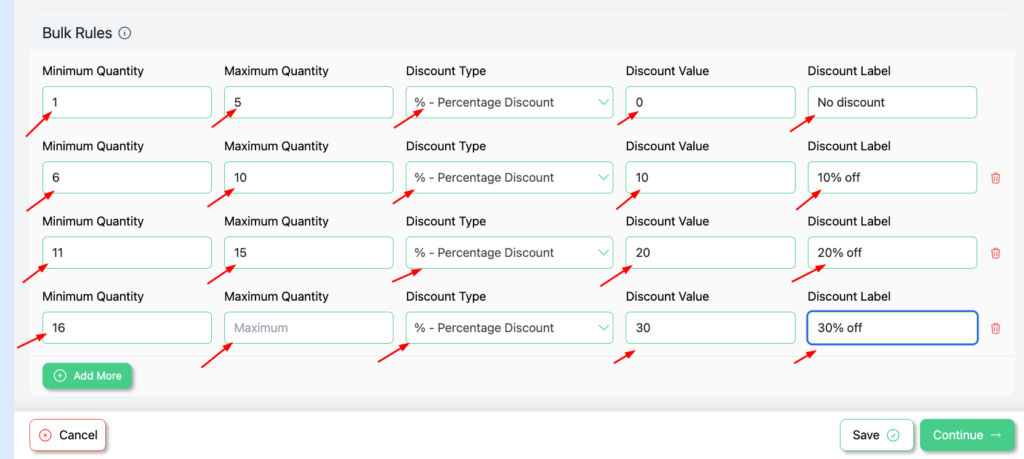
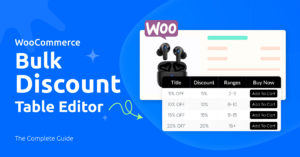
Enable the Bulk Pricing Table in Disco’s Display section and your tiers appear right on the product page — no shortcodes or widgets needed. Customers spot the savings before they add to cart, and that visibility alone lifts order sizes.
For more options, check the bulk pricing documentation and the bundle pricing guide. To match the table to your store’s style, see the WooCommerce Bulk Discount Table Editor guide.
Advanced Discount Rule 3: User-Role Pricing
Create a new rule and complete the four foundation steps above, then scroll to the Conditions section and:
- Select user role: wholesale, VIP member, logged-in customer, subscriber, or any custom role you created.
- Set the discount: a percentage or a fixed amount.
- Save and publish.
From then on, every customer in that role sees their price everywhere: product pages, cart, and checkout.
In practice: a subscriber logs in and automatically sees a product at $75, while everyone else sees the regular $100.
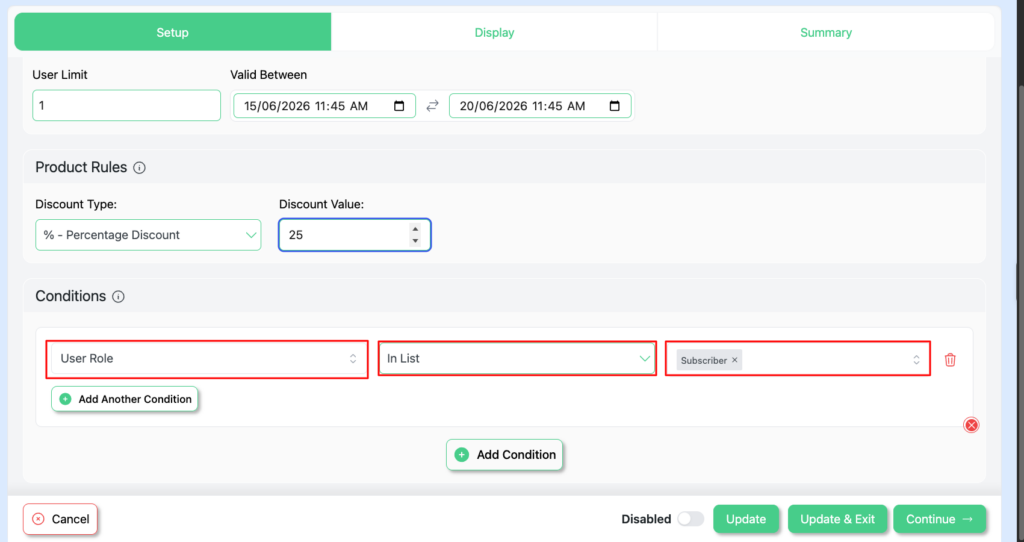
Want the theory? Start with What Is Role-Based Pricing in WooCommerce? For the steps, follow How to Offer Role-Based Pricing in WooCommerce.
Advanced Discount Rule 4: Cart-Condition Discounts
Open Disco → New Rule → Cart Conditions, then pick what triggers the deal:
- Cart subtotal reaches a threshold (e.g., $500)
- Cart contains certain products (item count)
- Cart hits a minimum quantity (item quantity)
- Total weight of cart items
- Payment method
Then choose your reward:
- Percentage off
- Fixed amount off
- Fixed discount per cart item
In practice: “spend $100 and get 10% off.” The discount applies the moment the customer reaches the threshold, and that visible reward nudges them to the finish line.
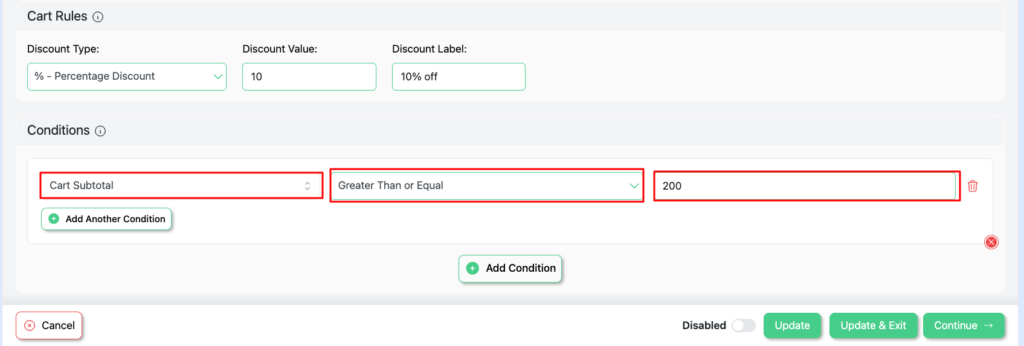
Full setup: Cart Discounts documentation and the Reducing Cart Abandonment guide.
Advanced Discount Rule 5: Scheduled Campaigns
Every Disco rule includes scheduling. Open any rule → select Validity between → set the start and end date and time → Save.
In practice, your Black Friday sale starts automatically on November 27 at midnight and ends on November 30 at 11:59 PM.
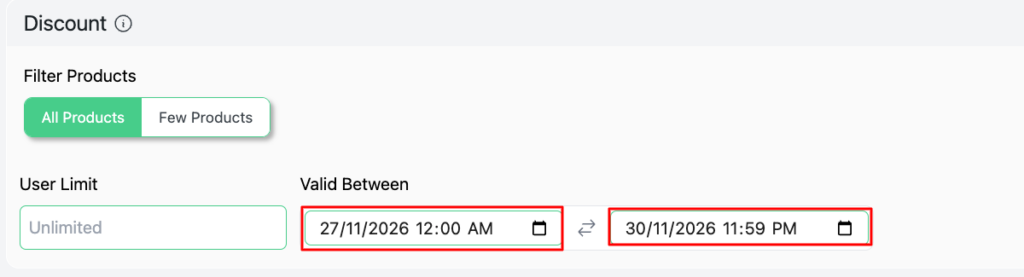
Pro users can add countdown timers and a live timer on product pages and in the cart that drive urgency with zero setup.
For the full strategy, see the WooCommerce Black Friday sales guide.
Common Advanced Discount Mistakes (and How to Fix Them)
Even with the right plugin, a few setup issues trip up most stores. Here is what to watch for when your advanced discounts in WooCommerce do not behave the way you expect:
- Discount not applying at checkout. Usually, a scope or condition mismatch — double-check that the rule’s product filter and minimum quantity actually match the test cart. Confirm that the validity dates have started.
- Two discounts stacking when they shouldn’t. Set rule priority and decide whether discounts combine or run exclusively. Without a priority order, overlapping rules can compound unexpectedly.
- Conflicts with other plugins. Running several pricing plugins at once is the most common source of conflict. Deactivate redundant discount plugins and let one rule engine own pricing.
- Bulk pricing table is not showing. Make sure the table is enabled in the Display section and that your theme template renders custom product-page content (Elementor and Divi both do).
- Role-based price visible to the wrong users. Verify that the condition targets the exact role and that guests are excluded if the deal is members-only.
When in doubt, test every rule with a real product and a clean cart before you announce a campaign. A two-minute test saves a public pricing mistake.
Conclusion
Your next promotion does not have to be a fire drill. The only thing working at midnight should be your Black Friday sale, not you.
You have just seen how to replace clunky coupon codes with automatic advanced discounts in WooCommerce that run around the clock: BOGO deals triggered by qualifying orders, bulk pricing tables shown on the product page, user-role deals, cart conditions that reward customers the instant they hit a threshold, and scheduled campaigns that launch on their own.
Your customers already expect a deal — nearly 91% of them check for one. The only question is whether your discount strategy is ready for them. Set it up once, launch the campaign, and let Disco handle the rest.
Try Disco free | See everything Disco can do
Frequently Asked Questions
Is there a free way to set up advanced discounts in WooCommerce?
Yes. Disco’s free plan is available on WordPress.org with no credit card and no time limit, and basic discounts take minutes to create. For BOGO offers, bulk pricing, tiered discounts, and role-based pricing, upgrade to Pro.
How do I create a tiered pricing table in WooCommerce?
Native WooCommerce does not support a tiered pricing table, so you need a plugin like Disco. The flow is simple: create a new rule, select bulk intent, define your discount tiers, then save and publish. Disco shows the pricing table on the product page automatically.
Can WooCommerce apply discounts automatically without a coupon code?
WooCommerce’s built-in system relies on coupon codes. Disco removes that friction by applying discounts automatically at checkout, with no codes required.
What is the best free WooCommerce bulk discount plugin?
Disco is one of the strongest free options for WooCommerce bulk discounts. The free version covers percentage, fixed, and cart discounts — enough for most stores to start — and carries a 5.0-star rating with 2000+ active installs. Pro unlocks bulk pricing tiers, BOGO, and role-based discounts.
How do I set up a BOGO deal in WooCommerce without coding?
Install Disco from WordPress.org, then go to Disco → New Rule → BOGO / Buy X Get Y, define the Buy and Get quantities, choose the discount type, and click Save and Publish. Disco handles the rest automatically at checkout.