Who should trigger the discount: you, the shopper, or the cart? That question decides how to set up discounts in WooCommerce. Core WooCommerce offers a sale price you type on a product and a coupon the shopper enters at checkout. A plugin adds a third option, a rule that applies itself whenever the cart qualifies.
Start with the core options, and add automatic rules only where nobody should have to type anything.
Three ways to set up discounts in WooCommerce, and who triggers each
| Method | Who triggers it | Best for | Where it lives |
|---|---|---|---|
| Sale price | You, product by product | A handful of items marked down | WooCommerce core |
| Coupon code | The shopper, by entering a code | Emails, influencers, one-off customers | WooCommerce core |
| Automatic rule | The cart, when conditions match | Storewide sales, quantity tiers, role pricing | A plugin such as Disco |
Put a sale price on one product
Open the product in WordPress and find the price fields in its Product data panel. WooCommerce’s own guide puts it plainly: “Enter amounts for Regular price, Sale price, and Cost of goods as applicable” (WooCommerce docs). Update the product to apply it.
That works for five products. For fifty, hand-editing each listing is where mistakes creep in, and every price has to be put back the same way when the sale ends.
Create a WooCommerce coupon
These steps follow the official coupon guide.
- Go to WooCommerce, Settings, General and tick “Enable the use of coupon codes”, then save.
- Open Marketing, Coupons and click Add new coupon. Type the code shoppers will enter, such as SAVE10.
- Pick a discount type: percentage discount, fixed cart discount, or fixed product discount. Free shipping isn’t a type here; it’s a separate “Allow free shipping” checkbox.
- Enter the amount and, optionally, an expiry date.
- Under Usage restriction, set what matters: a minimum spend, “Exclude sale items” so codes don’t stack on marked-down products, specific products or categories, or allowed email addresses.
- Under Usage limits, cap redemptions per coupon or per user, then publish.
Codes never apply on their own, so a coupon only works once someone enters it. Our guide on how to add a discount code in WooCommerce walks through code setup in more detail.
Make a discount apply itself with a rule
Our example takes 10% off everything for one weekend in Disco’s free version.
- Install Disco from WordPress.org and activate it.
- Click Create a Discount, name it “Weekend 10%”, and choose the product type.
- Keep the product filter on all products.
- Set the discount type to percentage and the value to 10.
- In Valid Between, enter the start and end date and time.
- Save, then open any product. With strikethrough display on, the original price appears crossed out.
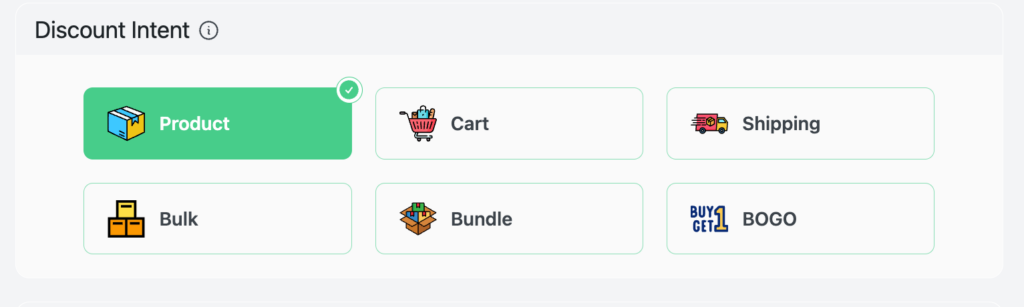
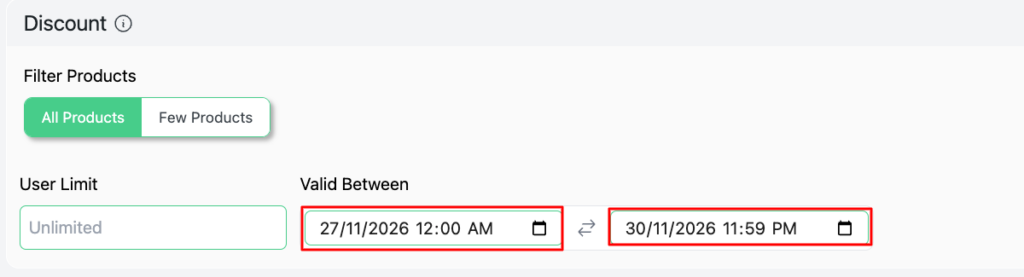
The campaign switches on and off by itself. Every rule is the same four decisions, explained in WooCommerce discount rules, and an open-ended storewide version is covered in discount every product in WooCommerce for stores that want no end date.
Common variations change one setting each:
| Variation | What changes | Tier |
|---|---|---|
| Category sale | Add a Categories condition | Free |
| Spend threshold | Cart campaign plus a Cart Subtotal condition | Free |
| Quantity tiers | Bulk campaign, one min/max row per tier, last maximum left empty | Free (the on-page pricing table is Pro) |
| Free shipping over an amount | Shipping campaign plus a subtotal condition; adds a $0 rate for the whole order beside your other rates | Free |
| Buy one, get one | BOGO campaign | Pro |
Each has a dedicated walkthrough: category discount, cart discounts based on subtotal, bulk discounts in WooCommerce and free shipping discounts. Leaving that last bulk maximum blank is what lets the top tier cover every larger order.
Coupon or rule?
Choose a rule when everyone who qualifies should get the price without asking, and a coupon when the discount is something you hand out or must tie to particular email addresses.
One user asked on the Disco forum: “I am trying to setup discounts for specific customers email addresses when they login” (thread). Support explained that Disco doesn’t target by email and suggested its customer condition, which picks individual accounts and is free. When an offer truly belongs to an address, a WooCommerce coupon with allowed emails fits better.
Disco can operate alongside coupons; its “Disco only” setting rejects every coupon, so leave that off while codes are live.
Choose the method for your next promotion today. Get Disco free for the rules, and check Disco Pro pricing if BOGO is part of the plan.
Related guide: Top 10 Best WooCommerce Discount Strategies to Boost Sales
FAQ
How do I stop a coupon applying to items already on sale?
Edit the coupon, open Usage restriction and tick “Exclude sale items”.
Can I limit a WooCommerce coupon to one customer?
Yes. Add their address under allowed emails, and set the per-user limit to one if it should work once.
Is Disco free?
Five of its six campaign types are free, scheduling included. BOGO needs Pro, as do some conditions and the display blocks.