The short answer:
A WooCommerce sale badge not showing usually traces back to one of ten causes. A sale price that isn’t lower than the regular price, a wrong sale schedule or timezone, a stuck WP-Cron, caching serving a stale page, a theme hiding the badge with CSS, a plugin conflict stripping the output, missing variation-level pricing, an outdated template override, a page builder skipping WooCommerce hooks, or stock and catalog visibility settings. Find your match below and apply the fix.
Your dashboard says the sale is live. The sale price is set, the product is published, the discount is active. But the storefront shows no on-sale badge. Somewhere between the backend and the frontend, the WooCommerce sale flash went missing, and the platform gives you no error to explain why.
During an active promotion, every hour that badge stays hidden is an hour shoppers scroll past your discounted products without noticing the deal.
The missing sale badge is one of the most reported WooCommerce display problems, and with WooCommerce powering over 4.6 million stores and holding 33% of the e-commerce platform market (2025), you are not alone.
The good news: there are a fixed set of reasons a WooCommerce sale badge won’t display, and each has a clear solution. Work through them in order and you will have the badge back live fast.
Prefer a full overview first? Read our complete guide on adding, customizing, and removing WooCommerce sale badges.
WooCommerce Sale Badge Not Showing: Quick Fix Checklist
Short on time? These five checks resolve most missing sale badge cases before you dig into the full list:
- Confirm the sale price is lower than the regular price and the product is published, not draft.
- Check the sale schedule dates and your store timezone under Settings, then General.
- Re-save the product to wake a stuck WP-Cron and refresh the sale status.
- Clear your caching plugin and CDN, then hard-refresh the page.
- For variable products, set the sale price on each variation, not just the parent.
Find Your Issue Fast
Match your symptom to the most likely cause, then jump to the fix.
| Symptom | Most Likely Cause | Jump To |
|---|---|---|
| Badge never appeared after setting the sale price | Reason 1: Sale price not lower than regular price | Sale price section |
| Badge was visible, then vanished mid-campaign | Reason 2 or 3: Schedule or WP-Cron issue | Schedule section |
| Badge is correct in admin but gone on the live site | Reason 4: Caching plugin or CDN serving a stale page | Caching section |
| Badge shows on shop but not the single product page | Reason 5 or 8: Theme CSS or outdated template | Theme section |
| Badge missing on shop or category pages only | Reason 5: Theme or CSS override | Theme section |
| Badge disappeared after a plugin or theme update | Reason 6: Plugin or theme conflict | Plugin section |
| Variable product has discounted variations but no badge | Reason 7: Variation-level pricing missing | Variation section |
| Badge gone after a WooCommerce core update | Reason 8: Outdated template override | Template section |
| No badge on page-builder layouts (Elementor, Divi, Bricks) | Reason 9: Custom loop skips WooCommerce hooks | Page builder section |
| Badge missing on out-of-stock or hidden products | Reason 10: Stock status or catalog visibility | Stock section |
Reason 1: Sale Price Not Set or Saved Correctly
This is the most common cause and the quickest to fix.
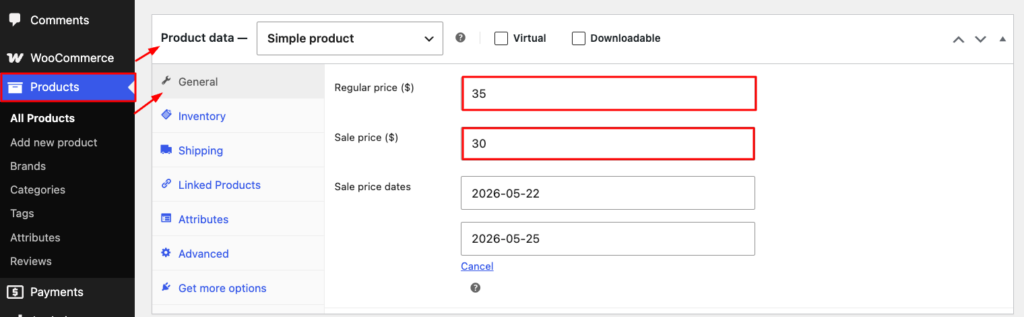
The sale badge logic is simple. WooCommerce needs two things: a sale price must be set, and it must be lower than the regular price.
If either fails, the badge disappears with no warning. This is also the top reason your WooCommerce sale price is not showing on the product page.
Because there is no error message, this slips past people easily. Common triggers: an incomplete bulk edit, a cleared regular price, or a sale price typed into the wrong field.
Fix:
Go to Products → Edit Product → General. Confirm the sale price is lower than the regular price, save the product, and check it is published rather than sitting in draft.
Reason 2: Sale Schedule Dates Wrong or Not Yet Active
If you scheduled the sale under the sale price field, the badge only appears inside that date range. Outside it, WooCommerce will not show the badge even with a valid sale price.
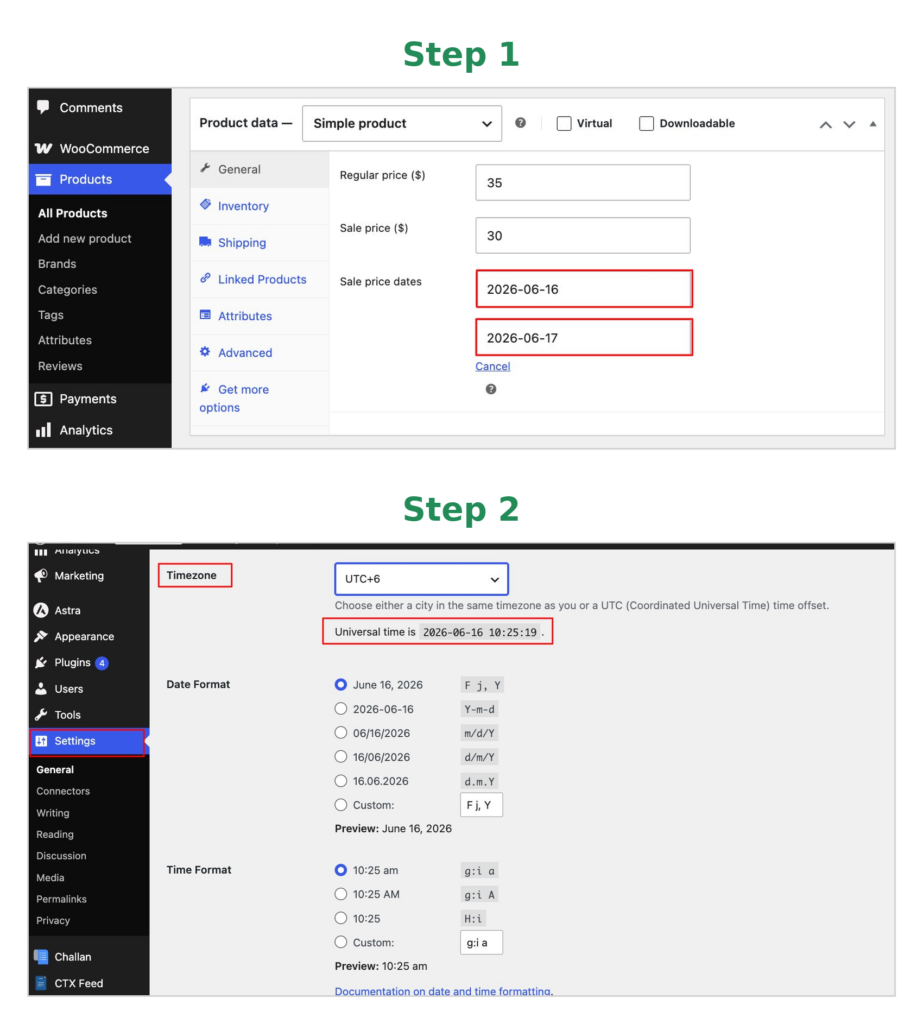
The most overlooked part is timezone. Your store runs on the timezone set under Settings → General, which can differ from your local device time. That gap can make a scheduled sale go live late or trigger at the wrong hour.
Fix: Open Products → Edit → Sale Price → Schedule and review the start and end dates. Then confirm your timezone under Settings → General so it matches the clock you planned around.
Reason 3: A Stuck WP-Cron Stopped Your Scheduled Sale
This looks like a WooCommerce bug, but it is a scheduling problem.
WooCommerce uses a scheduled task named woocommerce_scheduled_sales to move products in and out of sale status. The catch: WordPress’s built-in scheduler, WP-Cron, is not tied to a real clock. It only fires when someone visits your site.
If no visitors land during the scheduled window, the sale may not activate on time. WooCommerce keeps the products at regular price, so the discount and badge stay off. This is a documented issue in WooCommerce’s GitHub repository, so it is not something you did wrong.
Fix: Work down this list until the badge returns:
- Set up a server-side cron job. Disable WP-Cron and replace it with a real clock-based cron through your hosting panel. This is the most reliable long-term fix for scheduled sales.
- Re-save the product. Open the editor, make a small change or just click Update. This forces WooCommerce to recheck the sale status and usually restores the price and badge instantly.
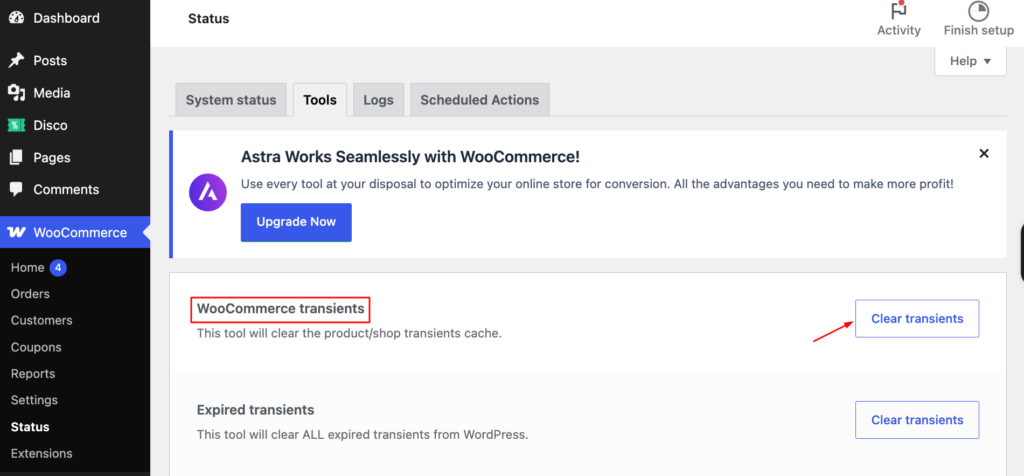
- Clear product transients. Go to WooCommerce → Status → Tools → Clear product transients.
Reason 4: Caching Plugin or CDN Serving a Stale Page
If the badge shows for you while logged in but is hidden for visitors, caching is the likely cause, not WooCommerce itself.
Caching plugins like WP Rocket, W3 Total Cache, and LiteSpeed Cache, plus CDNs like Cloudflare, serve stored copies of your pages. If the cached version was saved before your promotion started, shoppers keep seeing the old page at regular price while you see the live discount in admin.
This is not just plugin cache. Caching is a common reason products show outdated pricing, displaying the regular price instead of the sale price. Even after clearing server and plugin caches, browser-level caching can repeat the problem. WooCommerce’s own docs recommend excluding dynamic pages from caching since they carry customer-specific pricing and cart data.
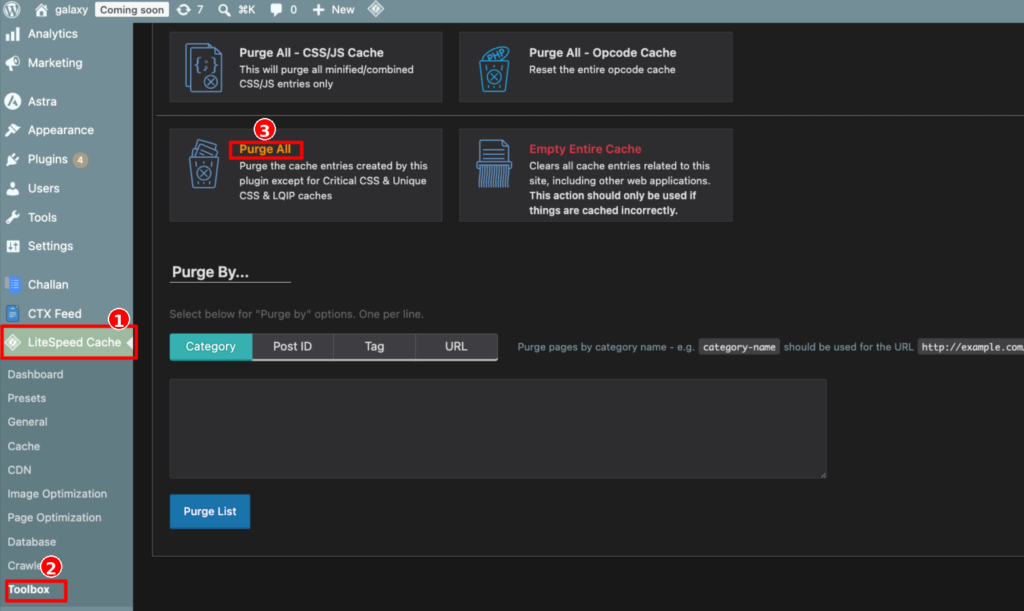
Fix: After launching a campaign, clear caches in order: plugin first, then CDN. If shoppers still see stale prices, ask them to hard-refresh (Ctrl+Shift+R / Cmd+Shift+R). Long term, exclude shop and product pages from full-page caching.
WooCommerce outputs the badge through the sale-flash.php template, but many themes override it. Some hide the badge with CSS (.onsale { display: none; }) or remove it from the template, sometimes by design and sometimes as a side effect of a theme update.
With over 2,746 WooCommerce themes on WordPress.org alone (Barn2, Jan 2026) and thousands more elsewhere, badge behavior depends heavily on your theme. Astra alone powers roughly 11% of WooCommerce stores, and builders like Divi and Flatsome are widely used. Astra can render badges with transparent backgrounds that vanish on light images, Flatsome’s positioning logic can clash with CSS, and Divi can produce duplicate badges or drop them after a cache clear.
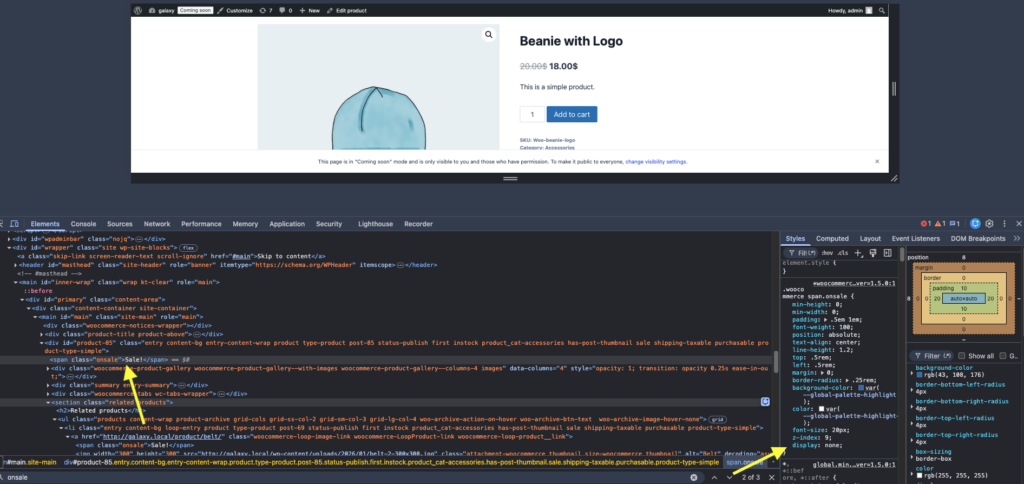
Fix: First check your theme Customizer for a sale badge or on-sale badge toggle that may be off. If there is none, open DevTools (right-click, then Inspect on the product image) and search for .onsale in the Elements panel.
If the element is present but has display: none, that confirms a CSS override. If the markup is missing entirely, the template or a plugin removed it (see Reasons 6 and 8). Confirm theme blame by switching to Storefront temporarily; if the badge appears, your theme is the cause.
Reason 6: A Plugin Is Stripping the Badge Output
WooCommerce builds badges through the woocommerce_sale_flash filter. When another plugin hooks into that filter or into get_price_html, it can remove the badge without meaning to.
The usual suspects are page builders, dynamic pricing and discount plugins, product label plugins, and some SEO tool. It often appears right after an update changes a filter or hook priority.
A known example is dynamic pricing plugins that suppress the default badge while applying their own discount.
Fix: Install the free Health Check & Troubleshooting plugin and enable Troubleshooting mode, which disables plugins only for your session so visitors are unaffected. If the badge returns, a plugin is interfering.
Reactivate plugins one at a time until it disappears again to pinpoint the conflict. For a manual approach, start with whatever was updated most recently.
Reason 7: Variable Product Badge Not Reflecting Variation Sales
This trips up many stores running promotions on variable products like clothing, footwear, or accessories.
WooCommerce only triggers the sale badge when a sale price is set on the individual variation, not the parent. Set it on the parent only, or on just some variations, and the badge quietly disappears.
This is a long-documented core limitation that also affects the struck-through regular price.
Fix: Go to Product Data → Variations and check each variation. Make sure the sale price is saved at the variation level. If you run a storewide discount through a plugin, confirm it supports variation-level badge display, because not all discount plugins do.
Reason 8: Outdated or Overridden Template Files
If the badge vanished after a WooCommerce core update, an outdated template override is a strong suspect. Many themes copy WooCommerce templates into a /woocommerce folder to customize them. When WooCommerce updates loop/sale-flash.php or related files, the theme’s older copy keeps overriding the new core version, so the badge markup may never render. The badge showing on the shop page but not the single product page is a classic sign of one outdated template among several.
Fix: Go to WooCommerce → Status → Templates and look for files flagged with a version mismatch (for example, sale-flash.php out of date). Update your theme to the latest version so its templates match WooCommerce core.
If you maintain custom overrides in a child theme, copy the current template from wp-content/plugins/woocommerce/templates/ and reapply your changes. If you do not need the customization, delete the override so core handles the badge.
Then use Status → Tools → Clear template cache to refresh.
Reason 9: Page Builder Layout Skips WooCommerce Hooks
Page builders like Elementor, Divi Builder, Bricks, and WPBakery often replace the default product loop with their own custom widget or template.
If that custom layout does not include the WooCommerce hook that prints the badge (woocommerce_before_shop_loop_item_title), the on-sale badge simply never gets added, even though the sale price is correct. Some builder layouts also stack other elements on top of the badge and cover it.
Fix: Check whether your builder’s product or archive widget has a built-in sale badge or on-sale flash option and enable it. If it does not, add the badge back through the builder’s custom code or theme functions, or use a dedicated sale badge plugin that injects the badge independently of the builder layout.
Test responsiveness too, since some builder layouts hide or cover the badge on certain screen sizes.
Reason 10: Stock Status or Catalog Visibility Hiding the Product
Sometimes the badge is missing because the product itself is not displaying as expected. An out-of-stock product can be hidden or styled so the badge does not appear, especially if you enabled Hide out of stock items from the catalog under WooCommerce → Settings → Products → Inventory.
A product set to Catalog, Search, or Hidden under catalog visibility may also not surface where you expect, so its badge never shows on shop or category pages. Some themes additionally hide the on-sale badge on sold-out items by design.
Note the distinction here: this is your sale badge disappearing because of stock settings, not a separate out-of-stock badge. If you’re specifically looking to add a dedicated “Out of Stock” label (distinct from the sale badge, shown instead of it once inventory hits zero), that’s a different, more deliberate display, not a bug to fix, but a feature to set up, and most badge plugins, including Disco, support both badge types independently.
Fix: Confirm the product is in stock and its Catalog visibility (in the Publish box on the edit screen) is set to Shop and search results.
Review the out-of-stock setting under Inventory if discounted items are disappearing from the catalog. If your theme hides badges on out-of-stock products and you want them shown, adjust the relevant .outofstock span.onsale CSS rule.
For a step-by-step guide to display the exact percentage off on your sale badge, read How to Show Percentage Discount on WooCommerce Sale Badge.
Stop Missing Badges for Good
Fixing the immediate issue is great. But if you would rather not run this troubleshooting each time you launch a sale, it helps to control the badge at the source instead of relying on the theme default.
Disco – Advance Discount Rules for WooCommerce with Sales Badges, Countdown Timers & Pricing Tables
Disco is an advanced WooCommerce discount plugin and sale badge tool that keeps your discounts and badges in sync. When a campaign is active, Disco lets you enable a custom WooCommerce sale badge from the Display tab, then set its text, color, and position anywhere on the product page from your dashboard.
Because Disco prints the badge itself, it shows even when the theme’s default on-sale badge is hidden or stripped. It also adds countdown timers, cart notices, and pricing tables, so dynamic discounts and badges stay aligned across shop, category, and product pages.
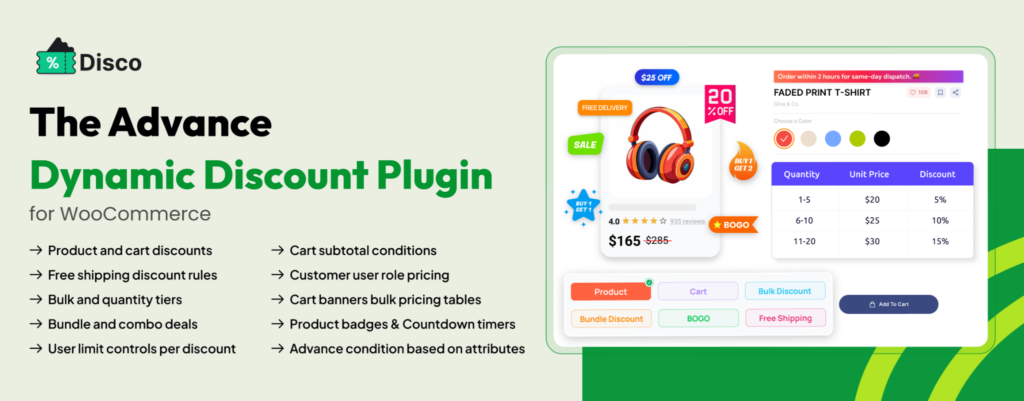
What you can do with Disco:
- Display and customize a sale badge automatically, independent of your theme
- Control badge text, color, and position in a few clicks
- Launch bulk and quantity-based discount campaigns
- Apply discounts to products, whole categories, or the entire cart
- Add countdown timers, cart notices, and pricing tables to drive urgency
- Schedule campaigns in advance and let them run automatically
To see how Disco’s badge display works, read Display Product Badge in WooCommerce. To restyle it, How to Change WooCommerce Sale Badge Text, Color & Size covers every option.
Frequently Asked Questions
Why is my WooCommerce sale badge not showing even though the sale price is set?
The badge only appears when the sale price is lower than the regular price and the product is published. If both are true and it still does not show, the cause is usually caching, a theme CSS override, a plugin conflict, or an outdated template. Work through Reasons 1, 4, 5, 6, and 8 in order.
Why is the sale badge not showing on product variations?
WooCommerce only flags a variable product as on sale when a variation has a sale price. If you set the price on the parent only, the badge will not show. Fix: go to Product Data → Variations, check each variation, and confirm the sale price is saved there.
How do I change the sale badge text in WooCommerce?
By default WooCommerce hardcodes “Sale!” as the badge text. Change it by hooking into the woocommerce_sale_flash filter with a snippet, or skip the code and use a plugin like Disco to edit the text from your dashboard. Full walkthrough: How to Change Sale Badge Text in WooCommerce.
How do I change the sale badge color in WooCommerce?
The default badge inherits its color from your theme’s .onsale class. Change it with a custom CSS rule under Appearance → Customize → Additional CSS: .onsale { background-color: #e63946; }
Can I show the discount percentage on the badge instead of “Sale!”?
Not by default. The standard WooCommerce badge does not calculate or display the percentage. Use a snippet hooked into woocommerce_sale_flash, or a custom sale badge plugin like Disco that shows the percentage natively. See How to Show Percentage Discount on WooCommerce Sale Badge.
Why does the sale badge show on the shop page but not the single product page?
This points to an outdated or overridden template, or a single-product layout that drops the badge hook. Check WooCommerce → Status → Templates for a version mismatch, update your theme, and clear the template cache. If you use a page builder for the product page, confirm its layout still outputs the on-sale badge.
How do I enable the WooCommerce sale badge if it is disabled?
Some themes and builders add a toggle to switch the on-sale badge off. Check your Customizer or WooCommerce settings for a show sale badge option and turn it on. If your theme has no such control, a plugin like Disco enables a custom sale badge independently, so it shows even when the default badge is hidden.
Why is my scheduled sale not showing today even though the date is correct?
WooCommerce relies on WP-Cron to activate scheduled sales, and it only runs when someone visits your store. With no visitors during the window, the badge will not switch on. Fix: clear product transients under WooCommerce → Status → Tools, or re-save the product to force a recheck of the sale status.
Is a missing “out of stock” badge the same issue as a missing sale badge?
Not quite, they’re two different badge types. A sale badge signals an active discount; an out-of-stock badge signals unavailable inventory, and WooCommerce doesn’t display one by default at all, unlike the sale badge, which exists natively but can break for the reasons above. If your sale badge specifically disappears once a product sells out, that’s Reason 10. If you want a dedicated out-of-stock label added to your store, that needs a plugin or a template addition, since core WooCommerce has no built-in equivalent.
Want to take your WooCommerce sale badge further? WooCommerce Sale Badge: Complete Guide to Adding, Customizing & Removing It.