The default WooCommerce Sale badge tells shoppers nothing. It does not answer the only question they actually care about: Is this deal worth it?
With Disco Plugin, you can replace that vague label with a dynamic Percentage Discount on WooCommerce Sale Badge like “30% off” automatically, for free, in under 2 minutes.
No code. No theme edits required. It works on both simple and variable products.
This guide covers the percentage-badge setup in depth. For the full picture of sale badge customization, text, color, shape, and position, see our complete WooCommerce sale badge guide.
Research confirms that percentage discounts outperform dollar-off offers for products priced below $100. This pricing principle is called the Rule of 100.
Avoid over-discounting, though, as it gradually erodes perceived product value.
Your competitors display “30% off.” Your store still says “Sale” and that gap is costing you clicks.
Why the Default WooCommerce Sale Badge Hurts Conversions?
WooCommerce does not natively support a percentage-off badge on WooCommerce product listings. It only shows a generic Sale label with zero context, zero specifics, and no real urgency.
Shoppers scroll past it because it forces them to do the math themselves.
Studies cited by Monetate show that effective product badges can lift conversions by up to 55%. An academic research paper by Thomas (2024) found the same result. With cart abandonment averaging 70% (Baymard Institute), every extra step you add is a favor to your competitor.
When a shopper sees “30% OFF,” they make a value judgment in seconds. When they see “Sale,” they have to run a price check, open a calculator, and second-guess themselves.
Leading retailers like Amazon and ASOS already display percentage or dollar-off badges. Clarity and transparency build shopper trust, and trust drives sales.
The deeper psychological reason: principles like anchoring and loss aversion make a specific discount feel more immediate, more valuable, and more compelling than a vague label ever could.
How to Show Percentage Discount Sale Badge on WooCommerce Using Disco Plugin?
Disco Plugin automatically calculates the discount percentage, displays it on your WooCommerce sale badge, and keeps it accurate as prices change.
A free version is available on WordPress.org with no credit card needed.
Here is the full 9-step setup process:
Step 1: Install and Activate Disco
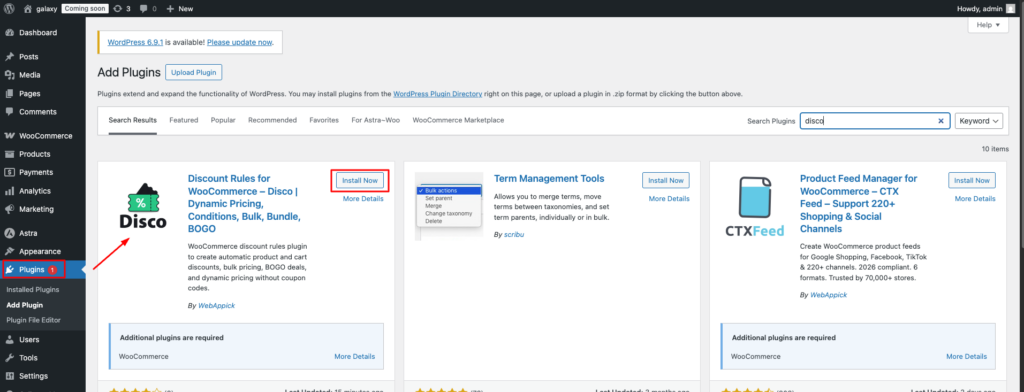
Go to your WordPress dashboard, navigate to Plugins, and click Add New.
Search for “Disco” in the search bar. Install the plugin and click Activate. The Disco menu will appear automatically in your sidebar.
Step 2: Create a New Discount Campaign
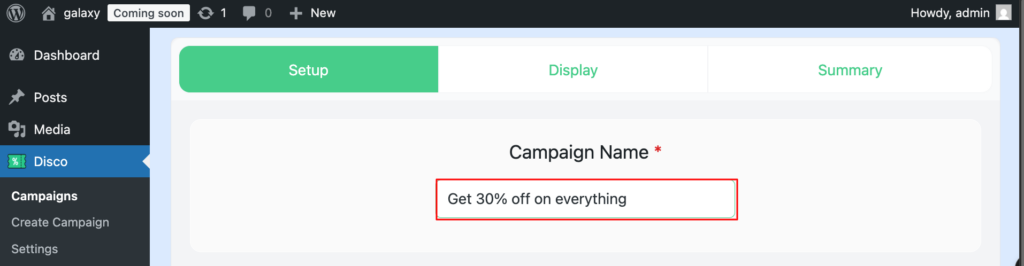
From the sidebar, click Disco and select Create a Discount. Add a clear campaign name such as “Get 30% off on everything” and then click to proceed.
Step 3: Set Your Discount Intent
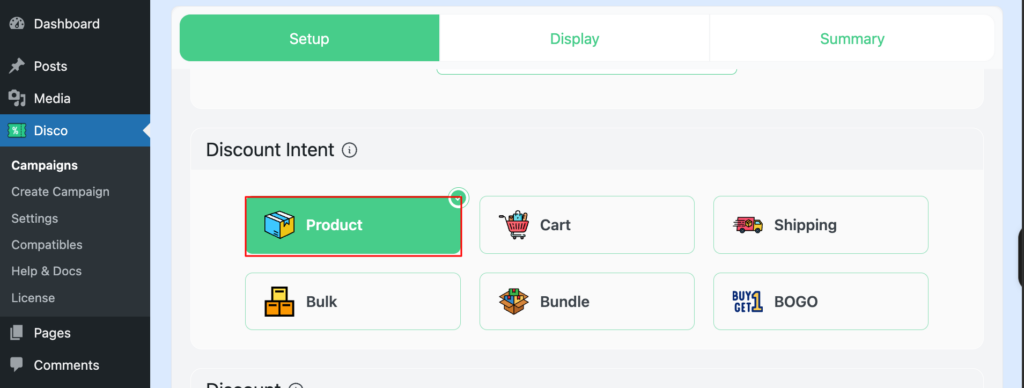
Disco supports six campaign types. Select the one that matches your goal:
- Product
- Cart
- Shipping
- Bulk
- Bundle
- BOGO
For WooCommerce percentage discount badge, choose Product as the intent.
Step 4: Filter Products
Choose whether the discount applies to:
- All Products
- Specific Categories
- Specific Products
For a sitewide sale badge, select All Products.

Step 5: Set User Limit and Campaign Validity Date
Schedule your campaign with a start date and end date. For example, 14/05/2026 to 18/05/2026. Leave it blank if you want the campaign to run continuously.

Pro tip: Disco’s Pro version lets you control discount usage per customer or per order, which is ideal for limiting first-order WooCommerce discounts.
Step 6: Set the Discount Type
Under Product Rules, set the Discount Type to % Percentage Discount and enter your discount value. For example, enter 30 for a 30% discount.
Disco will automatically calculate the exact discount and display it on your WooCommerce sale badge. No manual updates needed.

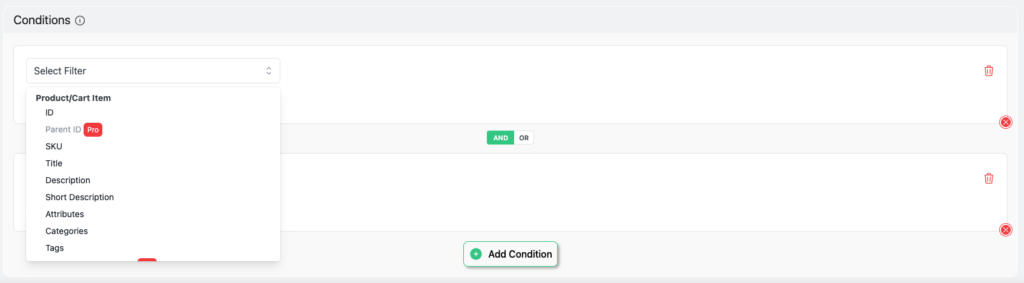
Step 7: Set Conditions (Optional)
You can add targeting conditions based on:
- Product price or ID
- Product title
- User role
- Cart subtotal
- Purchase history
Step 8: Enable the Product Badge Display
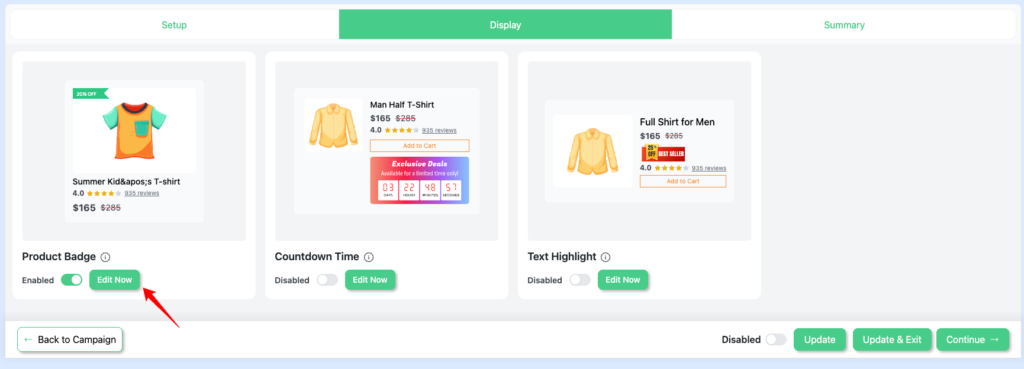
After configuring your campaign settings, click Continue to move to the Display Tab.
Note: Sales Badge, Countdown Timer, and Text Highlight on the product page are available in the Pro version.
Select Product Badge, then click Edit Now.
Customize the badge text, shape, color, and placement directly from the dashboard. No CSS or custom code required.
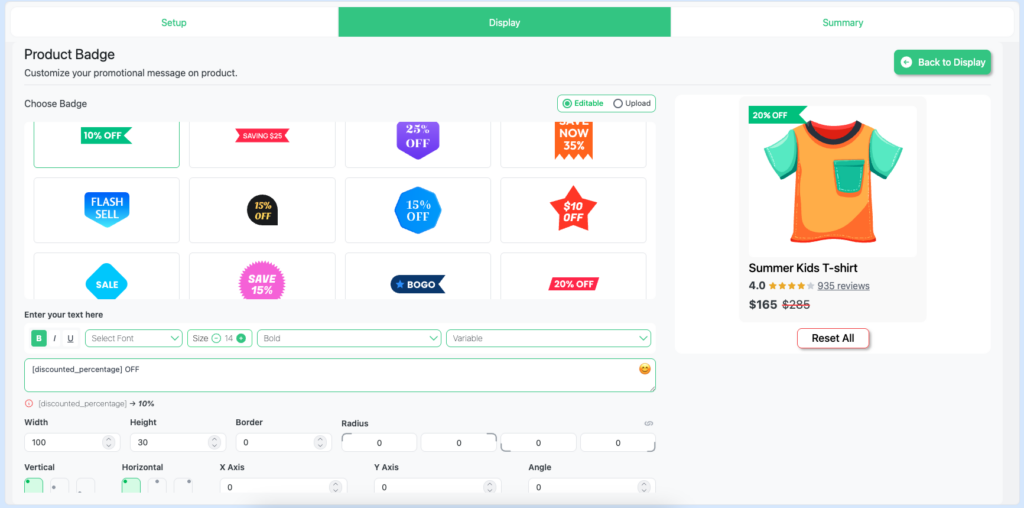
Once satisfied, toggle the badge to Enabled.
Step 9: Save and Preview
Click Save and Publish. Then visit your store to verify that the percentage discount badge is showing correctly on all qualifying products.
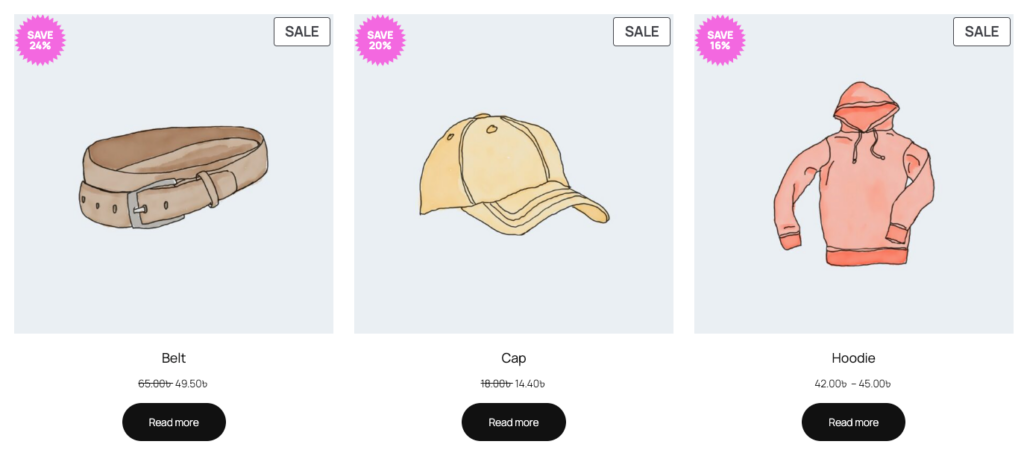
How to Display Percentage Discount on WooCommerce Variable Products?
Standard WooCommerce handles variable products poorly. If only some variations are on sale, the badge disappears entirely.
Disco solves this. It shows the correct percentage badge whenever any variation is discounted, so your variable product listings never miss a sale opportunity.
How to Change the WooCommerce Sale Badge Without Code?
With Disco, you can customize every detail of your WooCommerce sale badge from the WordPress dashboard:
- Badge text and percentage format
- Background color and badge shape
- Position on the product image
- Display rules by product or category
No editing of functions.php. No child theme. No CSS knowledge required.
Percentage vs. Fixed Discount: How to Pick the Right Format
Not every discount works best as a percentage. According to the Rule of 100, a pricing psychology concept popularized by Wharton professor Jonah Berger in Contagious: Why Things Catch On, the right format depends entirely on the product price point.
Here is how it works in practice:
- A $40 T-shirt at 25% off saves the shopper $10. “25% off” feels bigger than “Save $10” because 25 is a larger number than 10.
- A $300 jacket at the same discount saves $75. Now “Save $75” feels more impressive than “25% off” because 75 outweighs 25.
The key threshold is $100. Below that price, percentage discounts create a stronger perception of value. Above it, fixed dollar savings feel more appealing.
| Product Price | Recommended Format | Example | Why It Works |
| Below $20 | Percentage discount | 50% off | Higher numbers feel more appealing |
| $20 to $100 | Percentage discount | 30% off | Percentage beats the dollar amount |
| $100 to $500 | Either format | Save $50 or 25% off | Test both to find what converts |
| Above $500 | Fixed dollar discount | Save $200 | Big dollar savings hit harder |
One important note: Research from KPMG UK and the National Numeracy study shows that 35% of adults feel anxious when dealing with math, and around 17 to 20% of US adults experience the same.
For these shoppers, even a simple percentage requires cognitive effort. The fix is not to remove the percentage badge. It is to show the final sale price right next to the badge so shoppers never have to calculate anything manually.
For most WooCommerce stores selling products under $100, percentage discount badges remain the strongest choice.
Will the Percentage Badge Update Automatically?
Yes. Disco runs on a dynamic, rule-based system. Any pricing change is automatically reflected across every badge in your store. No manual product edits are required.
Does Disco Work with Elementor?
Elementor can sometimes conflict with WooCommerce sale badges inside product widgets. Disco avoids this issue entirely by hooking into WooCommerce’s native hook system rather than Elementor’s template layer.
Your Store Just Got Sharper
You have replaced a vague Sale label with a clear, specific value statement. Same traffic. Same products. But now every discount is understood instantly.
Better badges lead to higher click-through rates. Higher click-through rates drive more conversions without spending more on ads.
Try Disco Free. No code. Available on WordPress.org.
Want to learn more ways to improve your WooCommerce discount strategy? Check out our WooCommerce discount strategy guides.
Frequently Asked Questions:
How do I show a percentage discount instead of Sale on WooCommerce badges?
Install Disco, set up a percentage discount rule, and enable the product badge under the Display Tab. Disco calculates the percentage automatically and shows it on every qualifying product with zero code involved.
What is the best plugin to show % off badges automatically in WooCommerce?
Disco connects the discount rule directly to the badge system, so the displayed percentage is always accurate and updates automatically with any pricing change. Unlike standalone badge plugins, the discount logic and badge display are unified. A free version is available on WordPress.org.
How do I display the percentage discount on WooCommerce variable products?
Standard WooCommerce removes the badge if only some variations are on sale. Disco fixes this by showing the correct percentage badge whenever any variation is discounted.
How do I change the WooCommerce sale badge without code?
With Disco, you control badge text, percentage display, colors, shapes, and placement entirely from the WordPress dashboard. No functions.php, no CSS, and no child theme needed.
Will the percentage badge update automatically if I change the discount?
Yes. Disco’s rule-based system reflects every pricing change automatically across all badges in your store.
How do I display the discount percentage on the sale badge in Elementor?
Elementor can conflict with WooCommerce badge rendering in product widgets. Disco sidesteps this by running through WooCommerce’s native hook system instead of Elementor’s template layer.