Every WooCommerce sale badge has two layers. PHP decides the words; CSS decides the look. Treat them as one job and you get a beautifully styled label announcing the wrong number.
WooCommerce prints that label whenever a product’s sale price sits below its regular price, so if you haven’t set the sale price in WooCommerce yet, start there. Out of the box it reads “Sale!” in a corner of the product image.
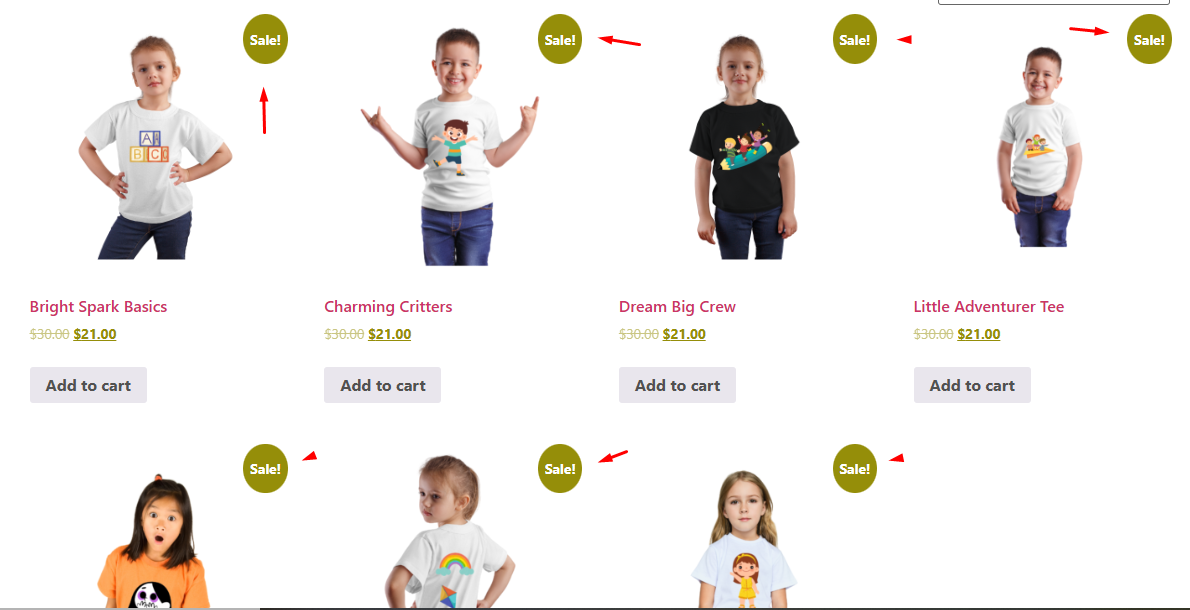
To change sale badge text in WooCommerce, edit the words. To recolor, resize or move it, edit the style. Pick the layer first.
Change the sale badge text in WooCommerce with one filter
One template, loop/sale-flash.php, produces the wording. It checks $product->is_on_sale(), then passes <span class="onsale">Sale!</span> through a filter called woocommerce_sale_flash (WooCommerce source). Whatever your callback returns replaces it.
Drop this into a child theme’s functions.php or a code snippets plugin:
add_filter( 'woocommerce_sale_flash', function( $html, $post, $product ) {
    return '<span class="onsale">' . esc_html__( 'Deal', 'your-text-domain' ) . '</span>';
}, 10, 3 );
Keep the onsale class so existing theme styling still applies, and choose wording that stays true everywhere: “Deal”, “Clearance”, “Members price”.
Never hard-code a number. This filter fires on every discounted item, so “Save 30%” also lands on something marked 10% off, or $2 off. An earlier version of this page shipped exactly that snippet.
Computing the percentage fixes the figure, with a catch. The usual snippet divides get_sale_price() by get_regular_price(), which works for prices typed into a product’s sale field. Disco applies campaign discounts live instead of saving them there, so such code isn’t guaranteed to notice a Disco discount and may report whatever WooCommerce has stored.
Plugins that print percentages meet the same edge. One merchant on the Discount Rules for WooCommerce forum set fixed-amount quantity discounts and wrote: “But the sales badge of the product looks not correct. It shows -100% on the product.” (thread). Support pointed them to that plugin’s badge settings. A percentage label is only right when it reads the same discount the cart charges.
Change the badge color, size and position with CSS
Stylesheets can’t touch wording, but they control everything else. Classic themes render .woocommerce span.onsale. Block themes usually use .wc-block-components-product-sale-badge; if a rule doesn’t take, right-click the label, choose Inspect, and copy whatever class appears.
Paste this into Appearance > Customize > Additional CSS. On a block theme, use Appearance > Editor > Styles instead.
.woocommerce ul.products li.product,
.woocommerce div.product { position: relative; }

.woocommerce span.onsale,
.wc-block-components-product-sale-badge {
    background-color: #e63946;
    color: #ffffff;
    font-size: 14px;
    padding: 8px 12px;
    border-radius: 999px;
    position: absolute;
    top: 12px;
    right: 12px;
    left: auto;
}
That first rule matters most. Because the label is absolutely positioned, it needs a positioned parent; without position: relative on the product container, offsets have nothing to measure from, which explains most “it won’t move” complaints. Swap border-radius to 4px for soft corners, or 50% with equal width and height for a circle.
Watch contrast. White on mid-red reads fine; pale yellow on white disappears.
Let the campaign write the badge with Disco Pro
Filters and stylesheets live apart from your discounts, so somebody must remember to update them. Disco’s Product Badge removes that chore by building the label inside the campaign that sets the price. It’s a Pro feature, while the product discount underneath runs on the free plugin.
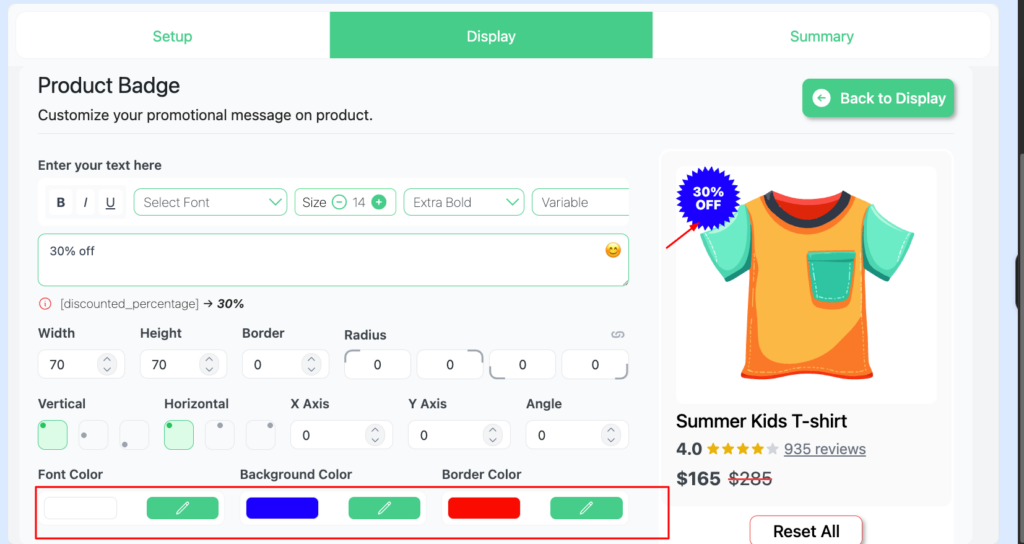
Disco’s product badge documentation lists these steps:
- Build a product campaign, then click Continue at the bottom of the editor to reach the display step.
- Toggle Product Badge to Enabled and click Edit Now.
- Pick an editable design: arrows, ribbons, circles, stars or other shapes.
- Type your text with a placeholder.
[discounted_percentage]inserts the campaign’s percentage and[discounted_amount]its currency value, so “SAVE [discounted_percentage]” renders as “SAVE 30%” on a 30% campaign. - Set the size and corner radius. Then place it: top, middle or bottom, then left, center or right, with pixel offsets and an angle.
- Choose font, background and border colors, click Update, then finish from the summary step.
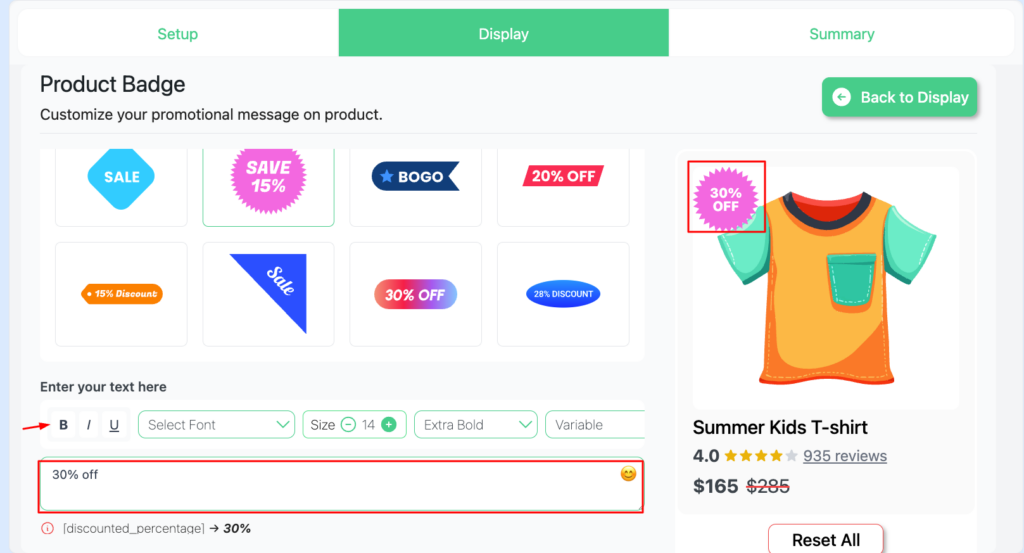
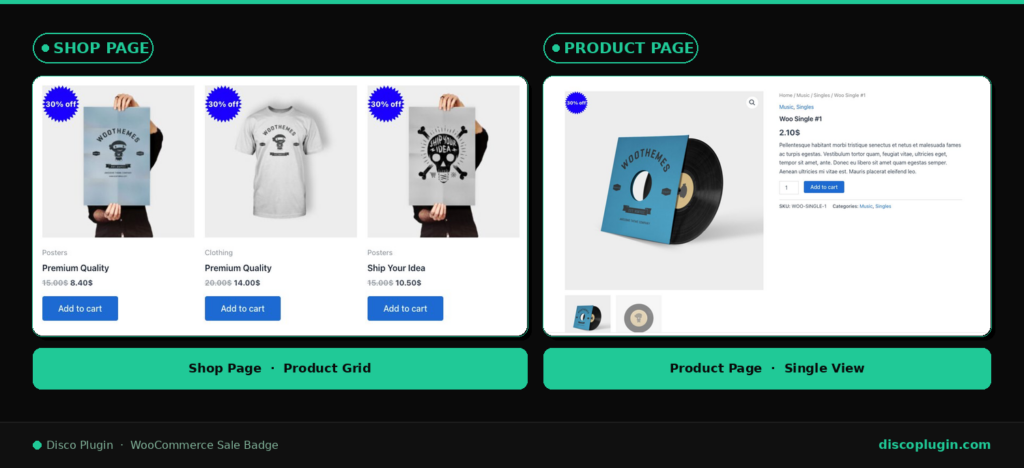
A live preview shows what each placeholder resolves to before saving, and on the storefront the docs say the discount value is filled in automatically. Type the placeholder rather than a literal like “30% off” (the screenshots below show a typed label), so the text follows the campaign instead of repeating one number.
Remove or hide the sale badge
To drop the default label everywhere, return an empty string from the same hook: add_filter( 'woocommerce_sale_flash', '__return_empty_string' );. Hiding .onsale with display: none also works, though the markup still loads. For a Disco badge, switch Product Badge off in that campaign’s display step; other campaigns keep theirs.
Badge gone when you wanted it? Work through sale badge not showing before rewriting code.
Decide what yours must say before touching anything. Plain words need only the filter. Numbers should come from the discount itself; for percentage labels in depth, see how to show the percentage discount on the badge, and for tools, sale badge plugins compared. Get Disco free for discounts, and check Disco Pro pricing for the Product Badge.
FAQ
Can CSS change the WooCommerce sale badge text?
No. CSS only changes appearance. Wording comes from the woocommerce_sale_flash filter or from a badge tool.
Is the Disco product badge free?
No. Product discounts are free in Disco. The Product Badge with its designs and placeholders is a Pro feature.
Why does my custom badge show the wrong percentage?
A fixed label repeats one number on every product, and a snippet reading the stored sale price may not see discounts a plugin applies live. Make the text come from the discount that actually applies.