
Did you know 49% of shoppers will abandon your cart if you don’t accept payments in their local currency?
True that. The cross-border eCommerce market will be worth a staggering $2.499 trillion in 2025, which means multi-currency acceptance is a key player in growing your market share.
Benefits?
- Improved customer experience
- Reduced shopping cart abandonment
- Increased sales
- Competitive advantage
- Simplified international transactions
- Improved financial management
And more. Now, the real question is twofold: how do you add multi-currency in WooCommerce, and how do you manage a multi-currency store once it’s live?
How do you add multi-currency support, and how do you manage a multi-currency store once it's live?
To add multi-currency to WooCommerce, install a free plugin like CURCY – Multi Currency for WooCommerce. Go to the plugin’s settings, add the additional currency, and click the Update Rate button to update the exchange rate automatically. The plugin displays a switcher at the storefront and automatically shows the correct prices once a shopper picks their currency.
In this guide, we will walk you through step by step how to add multiple currencies in WooCommerce, how to manage multi-currency stores with WooCommerce long-term, and compare the best WooCommerce multi-currency plugins on the market, including CURCY, FOX, YayCurrency, YITH, and Aelia.
Let’s get started.
How to Add Multi-Currency in WooCommerce?
The core WooCommerce only allows you to set one currency at a time in your store.
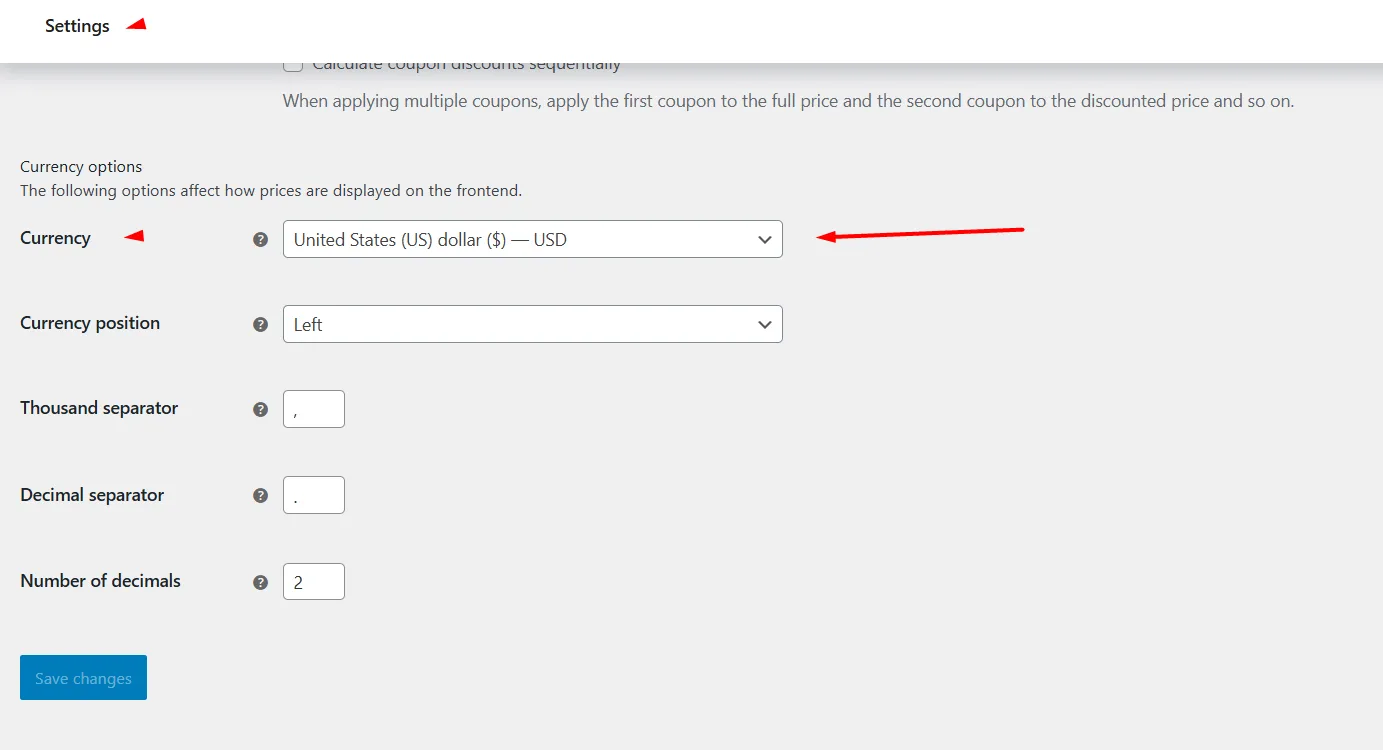
However, there are a plethora of WooCommerce multi-currency switcher plugins available on the market, which make offering multiple currencies in your store as easy as possible.
Let us guide you in setting up multi-currency options using a free currency switcher for WooCommerce plugin in quick steps.
Step 1: Install a WooCommerce Currency Switcher Plugin
Log in to your WordPress back panel and –
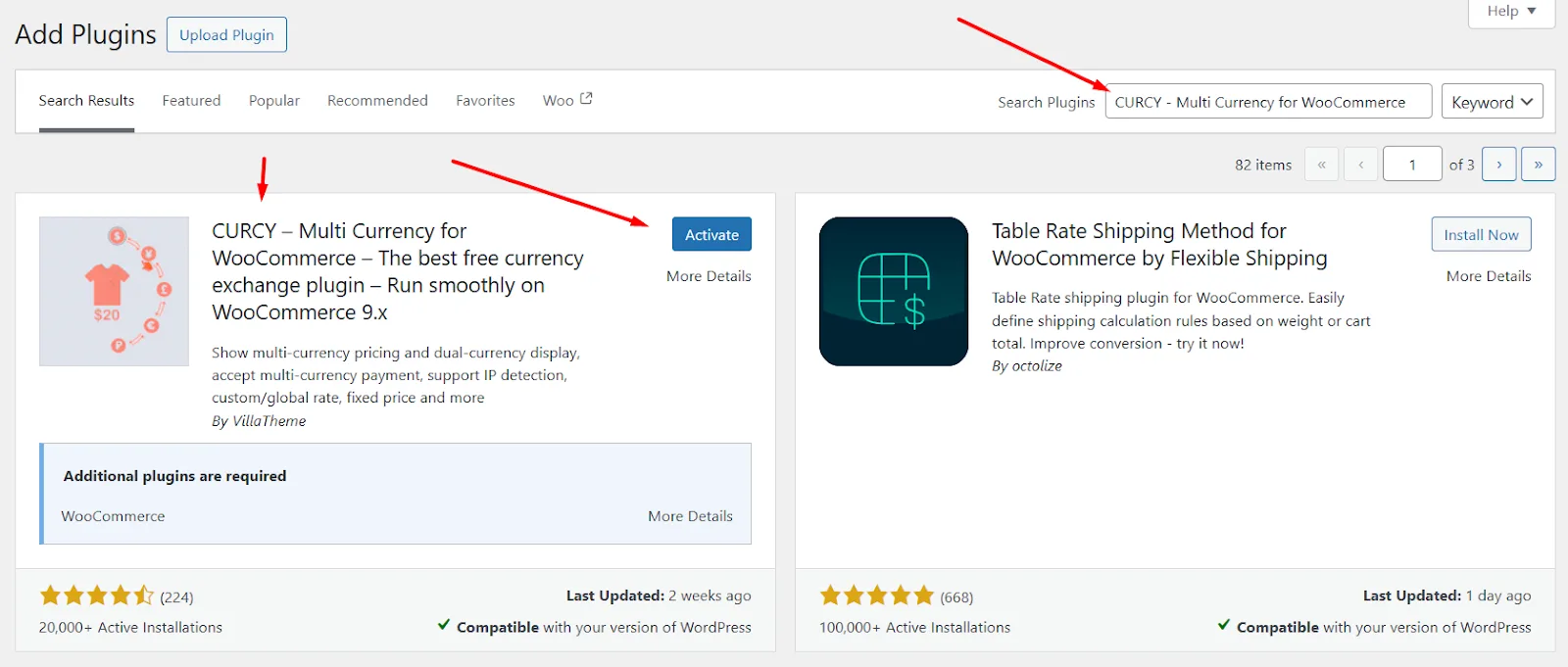
- Navigate to Plugins >> Add Plugin.
- Search for the CURCY Multi-Currency for WooCommerce plugin.
- Install and Activate.
Step 2: Add and Enable a Currency
To add a second currency along with your default currency, follow these steps.
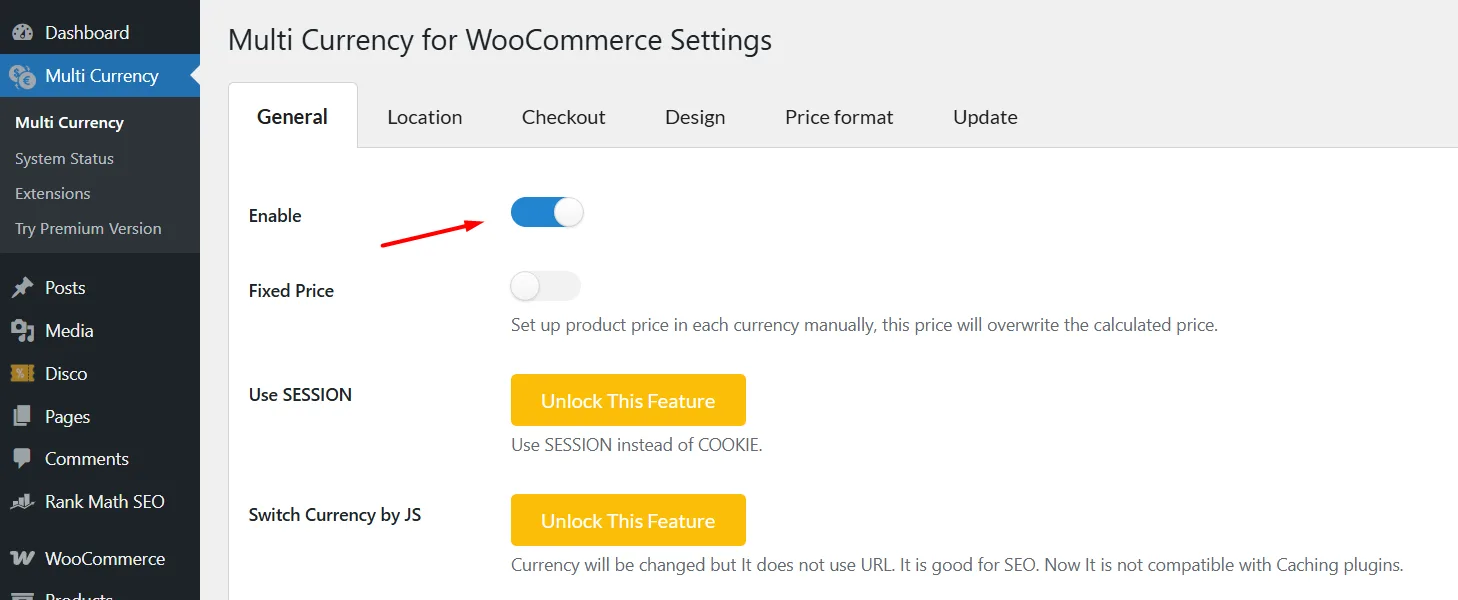
- Go to the Multi Currency menu on the left panel in WordPress.
- Under the General tab, scroll down to the Currency Options section.
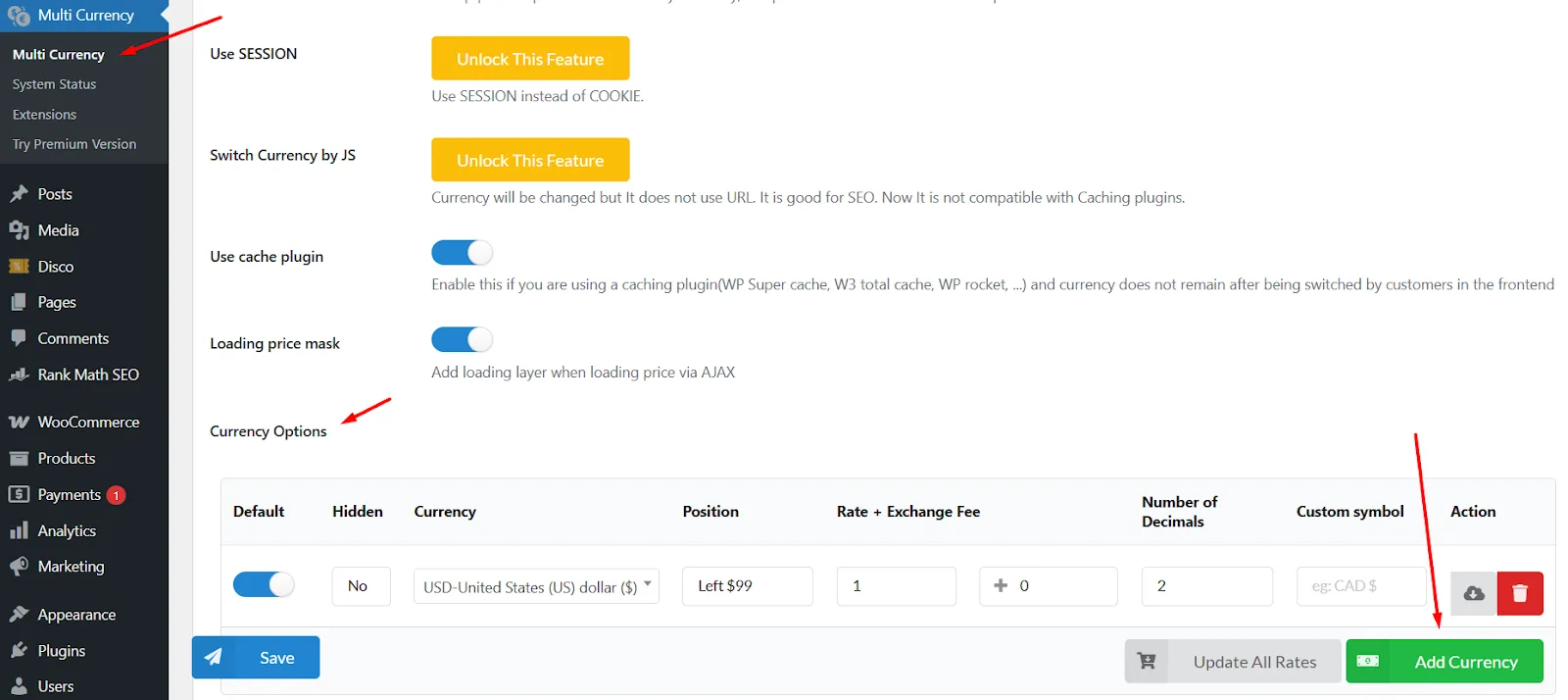
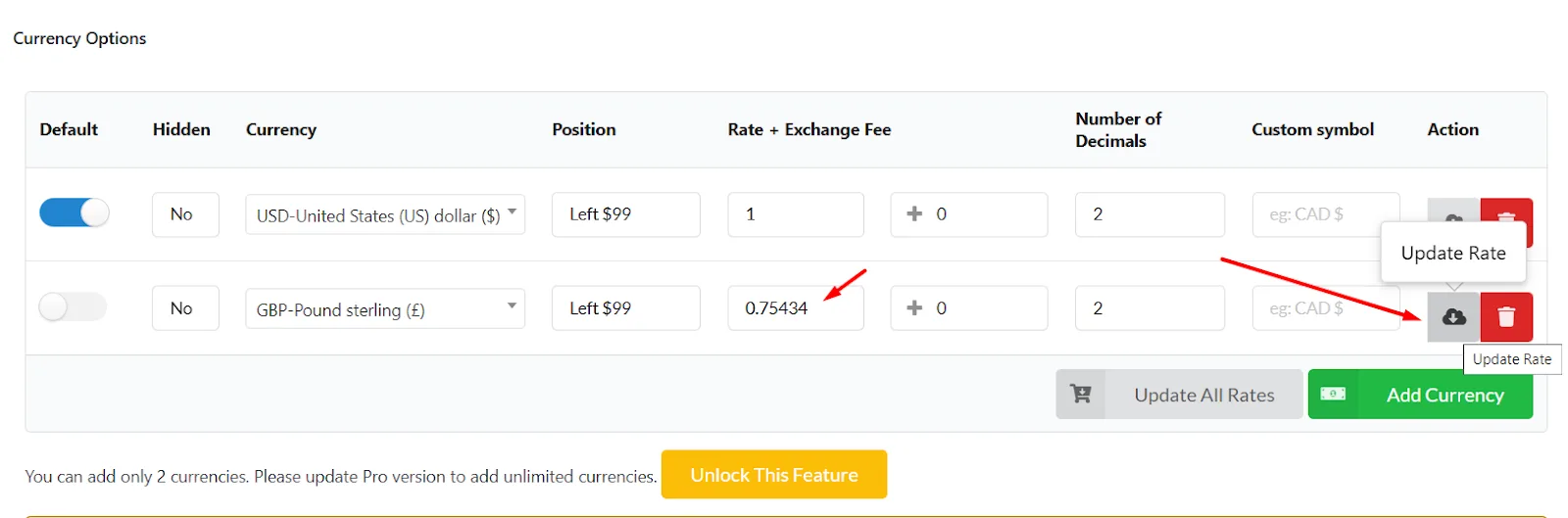
- Click the Add Currency button.
- Select the currency.
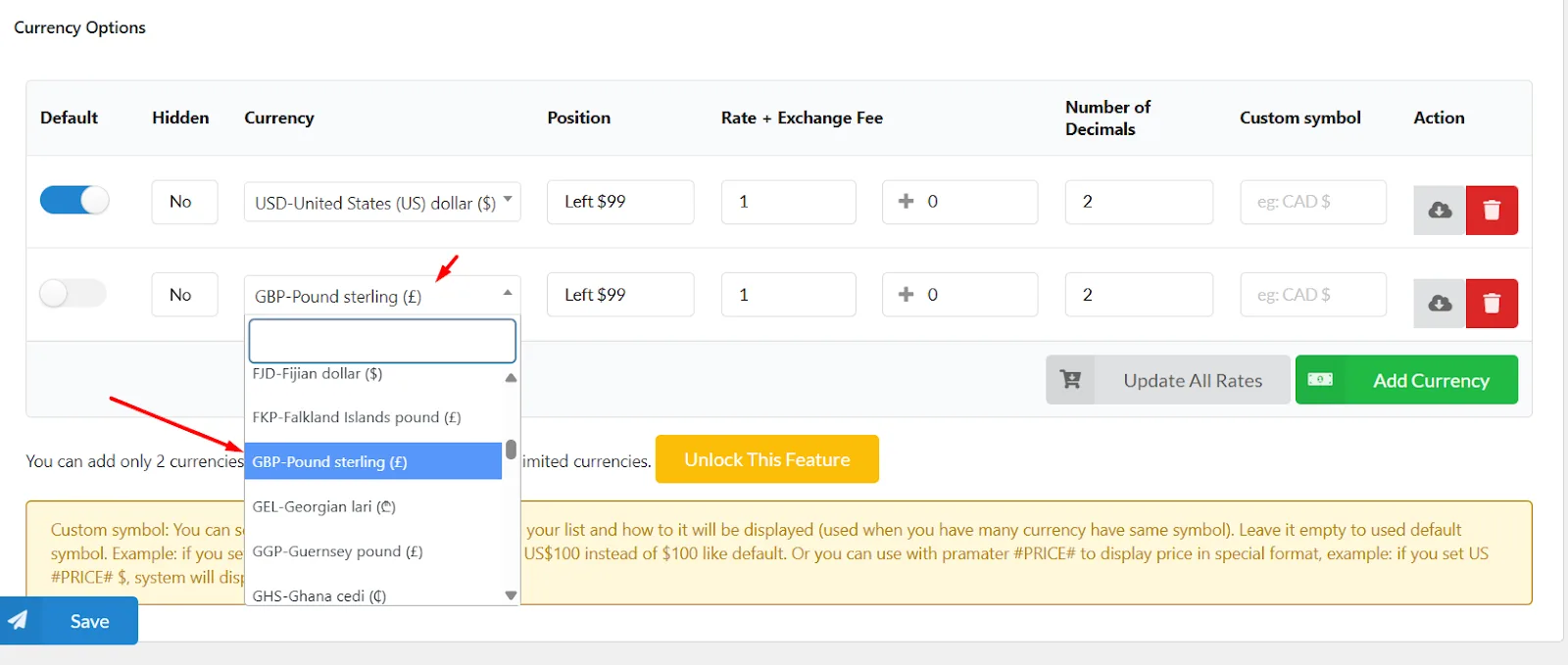
- Scroll back to the top of the page and toggle Enable.
Step 3: Configuring Exchange Rates
- Click the Update Rate button in the new currency settings to automatically set the correct exchange rate.
- Toggle Enable in the Checkout tab to allow customers to pay in their choice of currency.
Step 4: Display Currency Switcher in WooCommerce
To display a currency switcher for WooCommerce at the storefront,
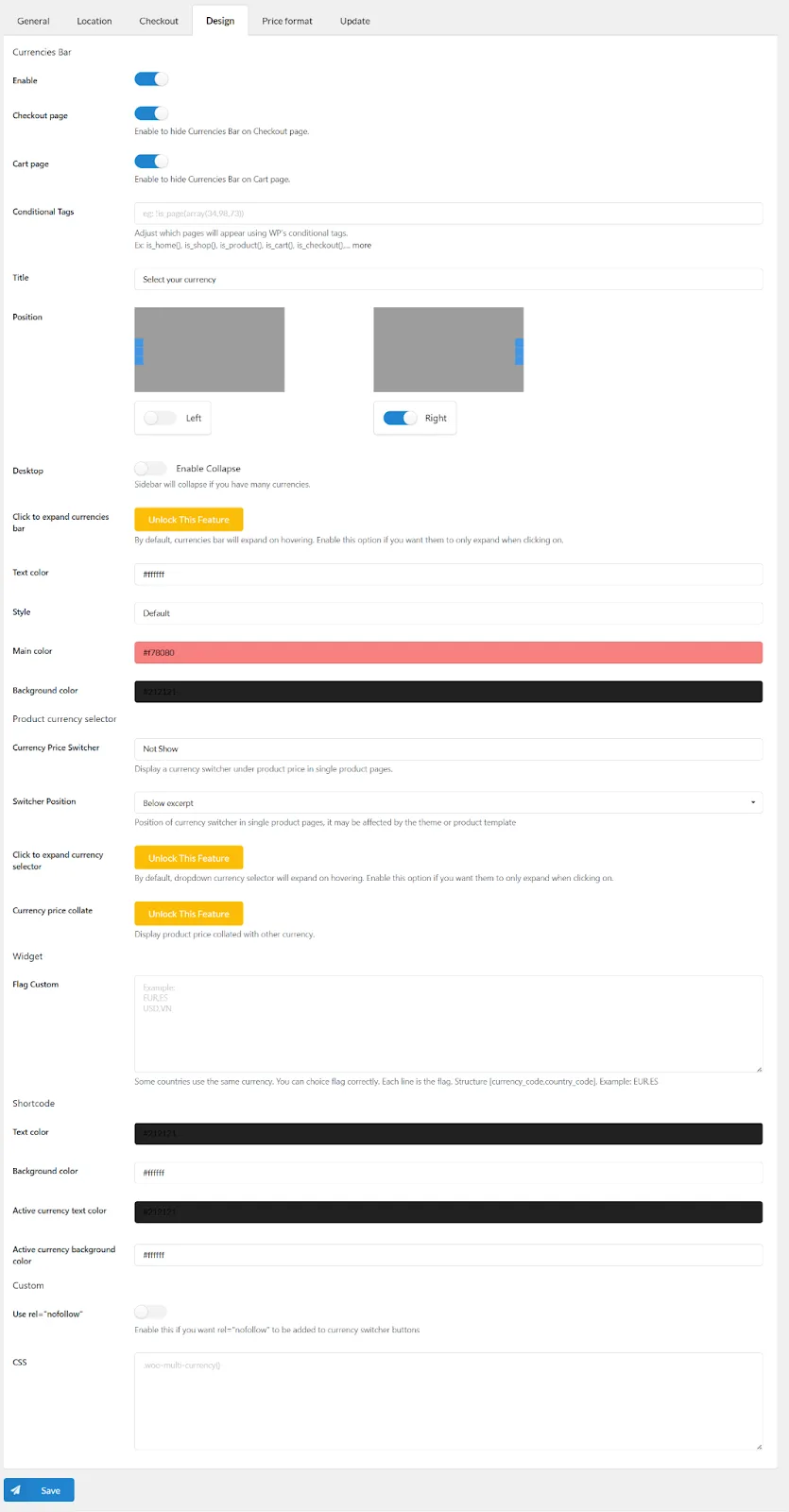
- Go to the Design tab and toggle to enable the option.
- Customize the design and position of the currency bar as per your requirements.
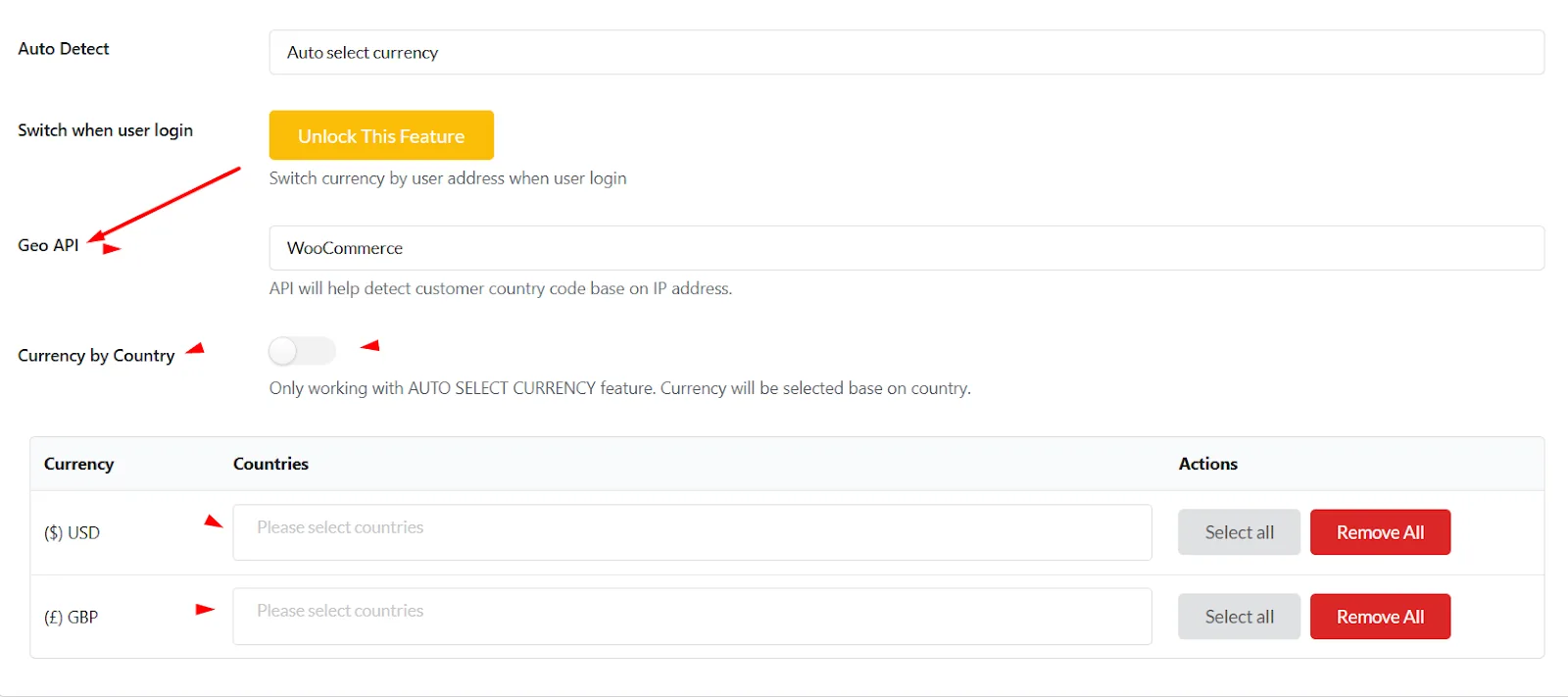
Step 5: Setting Up Auto-Currency Detection (Optional)
The WooCommerce currency converter plugin also allows you to automatically detect a customer’s location and display prices in their local currency.
- Go to the Location tab and select the Auto Select Currency option.
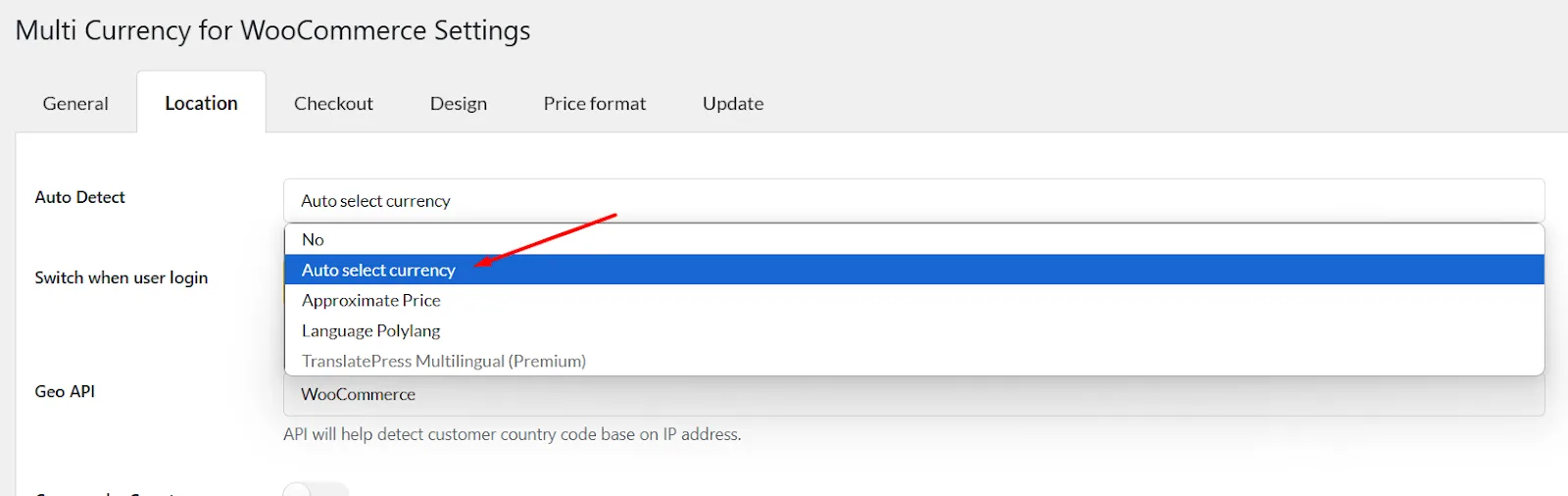
- The GEO API setting will automatically detect the customers’ location through their IP addresses and display the correct currency.
- Alternatively, you can set currency by country from the following settings.
Note: CURCY is also a WooCommerce multilingual currency switcher, as it supports multilingual plugins like Polylang.
Step 6: Test from the Front

- Go to your Shop or any product pages. It should now display a WordPress currency switcher.
- Clicking on the currency options will automatically change the currency and display accurate prices based on exchange rates.
Most WooCommerce multi-currency plugins, including CURCY, FOX, and YayCurrency, work directly with Stripe and PayPal multi-currency processing, so shoppers can pay in the currency they selected without you having to open a separate merchant account for every region.
One of the greatest benefits of CURCY is that it supports discount plugins like Disco to display discounted prices out of the box. No additional extensions needed.
For example, here’s a 15% Woo percentage discount created through Disco, and the CURCY currency converter plugin displays the discounted prices accurately even upon currency changes.

This is how to add multi-currency in WooCommerce: no hassle or tech jargon, simple steps.
Top WooCommerce Multi-Currency Plugins: A Comparative Look
As we mentioned before, there are a large number of plugins available on the market. Finding the best WooCommerce multi-currency plugin may feel like finding a needle in a haystack.
No worries, we’ve done the digging for you. Here’s a quick side-by-side comparison, followed by a closer look at each plugin.
| Plugin | Free Version | Currencies (Free) | Geo-Detection | Best For |
|---|---|---|---|---|
| CURCY (VillaTheme) | Yes | 2 | Yes (GeoIP) | Beginners who want a fast, free setup |
| FOX (RealMag777) | Yes | 2 | Yes (GeoIP) | Stores that need multiple exchange-rate APIs |
| YayCurrency | Yes | Core features only | Premium only | Stores using Stripe, PayPal, or subscriptions |
| YITH Multi Currency Switcher | Premium only | Unlimited (paid) | Yes | Stores already using other YITH plugins |
| Aelia Currency Switcher | Premium only | Unlimited (paid) | Yes | Larger stores needing several rate providers |
CURCY – Multi Currency for WooCommerce by VillaTheme

CURCY is a WooCommerce plugin that enables multi-currency support for online stores. It lets customers switch between currencies and pay in their preferred currency.
The plugin offers both manual and automatic exchange rate setups, with geolocation features to detect customers’ native currencies based on their IP addresses. The free version supports basic currency switching, while the CURCY WooCommerce multi currency premium version extends functionality with unlimited currencies, payment gateway restrictions, and automated rate updates. Store owners looking for the CURCY WooCommerce multi currency settings will find the configuration panel organized into General, Design, Location, and Checkout tabs, which map directly to the setup steps above.
Key Features:
- Let customers view prices in multiple currencies via a currency bar, switcher, or shortcode.
- Supports payments in different currencies when enabled.
- Auto-detects customer location using WooCommerce or external geoAPI services.
- Displays approximate prices alongside the default currency.
- Allows manual exchange rate setup with optional exchange fees.
- Permits custom currency symbols (e.g., USD, US,,).
- Enables fixed pricing per currency to override calculated rates.
- Premium version removes the 2-currency limit (free version restriction).
- Uses sessions (premium) instead of cookies to save the selected currency.
- Forces a specific currency during checkout (premium).
- Supports WPML (Premium) and Polylang for multilingual stores.
- Allows bulk fixed-price imports via CSV (premium).
FOX – Currency Switcher Professional for WooCommerce by RealMag777

FOX – Currency Switcher Professional (formerly WOOCS) is a powerful WooCommerce plugin designed to simplify multi-currency operations for global online stores. It allows customers to view prices and complete transactions in their preferred currency, with real-time exchange rate conversions and geolocation-based currency detection.
The plugin supports unlimited currencies in its premium version, while the free version permits two currencies, making it adaptable for both small businesses and large enterprises. With features like dynamic price formatting, payment gateway restrictions, and compatibility with WPML and Polylang, FOX ensures seamless localization.
Its integration with caching plugins and advanced API tools makes it a flexible choice for stores prioritizing user experience and technical scalability. Whether managing fixed pricing rules or automating currency detection, FOX streamlines multi-currency workflows efficiently, answering your headache of how to add multi-currency in WooCommerce perfectly.
Key Features
- Auto-detects customer location via GeoIP to display localized currencies.
- Supports 7+ exchange rate APIs (e.g., Google Finance) with manual/auto updates (hourly to monthly).
- Displays currency switcher as a widget, shortcode [woocs], or customizable drop-down/flags.
- Enables checkout in selected currency with optional payment gateway restrictions.
- Applies fixed prices, user role-based pricing, or country-specific rates per product.
- Integrates with WPML/Polylang for language-based currency switching.
- Shows approximate prices in GeoIP-detected currencies on product/cart pages.
- Works with caching plugins when enabled, ensuring smooth currency switching.
- Stores orders in transaction currency for accurate record-keeping.
- Offers shortcode [woocs_price] for dynamic price displays in promotional content.
Premium Features: Unlimited currencies, bulk price imports, advanced API access, and priority support.
YayCurrency – WooCommerce Multi-Currency Switcher by YayCommerce
YayCurrency simplifies global sales by enabling WooCommerce stores to display prices and accept payments in multiple currencies. Designed for ease of use, it offers automatic exchange rate updates and localized checkout experiences without requiring technical skills.
The multi currency WooCommerce plugin free version supports core multi-currency functions, while the premium tier unlocks advanced tools like country-based pricing and unlimited currencies. This makes it ideal for businesses targeting international markets.
The plugin integrates smoothly with popular WooCommerce extensions like Stripe, PayPal, and subscription tools. Its customizable currency switcher adapts to store layouts via widgets or shortcodes, which ensures prices remain clear across product pages, carts, and emails.
YayCurrency prioritizes transparency with currency-specific sales reports and psychological pricing adjustments, helping stores maintain profitability while expanding globally.
Key Features:
- Auto-updates exchange rates via reliable APIs at customizable intervals (30 minutes to 7 days).
- Displays currency switcher on product pages, carts, and checkout using the [yaycurrency-switcher] shortcode.
- Applies conversion fees and rounds prices (e.g., .99 endings) for psychological pricing strategies.
- Generates sales reports filtered by currency for performance tracking.
- Sends order confirmations in the customer’s selected currency for clarity.
- Customizes currency formats (symbols, codes, flags) and separators (thousands/decimals).
- Allows currency switching during checkout while recording transactions in the chosen currency.
- Works with caching plugins and third-party extensions like Stripe, PayPal, and WooCommerce Subscriptions.
- Offers “Pretty Price Ending” to round converted prices (e.g., 10.99 instead of 10.87).
- Supports role-based pricing and B2B/wholesale plugins for flexible sales models.
Premium Features:
- Unlimited currencies, including cryptocurrencies like Bitcoin.
- GeoIP detection for automatic currency display based on customer location.
- Detailed analytics broken down by currency and product category.
YITH Multi Currency Switcher for WooCommerce
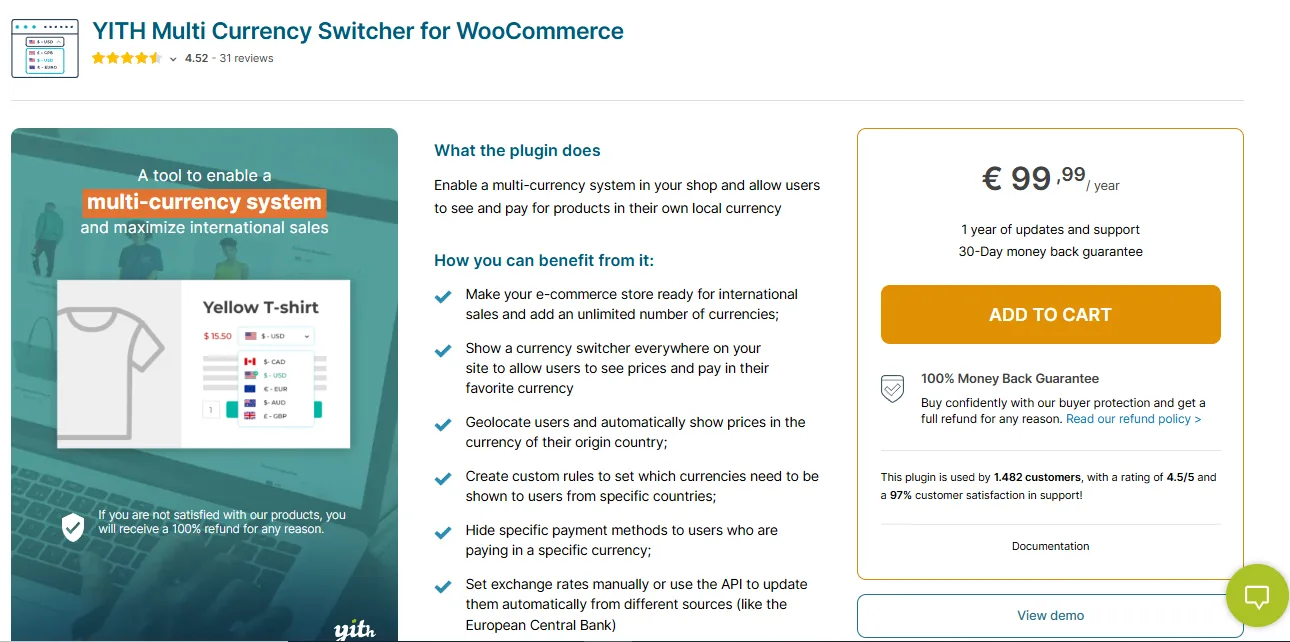
YITH Multi Currency Switcher empowers WooCommerce stores to expand globally by enabling multi-currency transactions and localized pricing. The plugin automatically detects customer locations to display prices in their local currency, while allowing manual or API-driven exchange rate updates (e.g., European Central Bank).
With unlimited currency support and geolocation rules, businesses can tailor experiences for international audiences while maintaining control over payment methods and pricing strategies.
The plugin integrates seamlessly with YITH’s ecosystem, including booking systems and dynamic pricing tools, ensuring cohesive functionality. Its user-friendly interface simplifies currency formatting, shortcode/widget placement, and coupon customization. Backed by a 30-day refund policy and dedicated support, YITH balances flexibility for advanced users with simplicity for beginners.
Key Features
- Adds unlimited currencies with custom symbols, flags, and decimal/thousand separators.
- Auto-updates exchange rates via APIs (European Central Bank, Google Finance) at set intervals.
- Detects customer location to display geolocated currencies automatically.
- Hides specific payment gateways based on selected currency (e.g., disable PayPal for USD).
- Creates country-specific currency rules to override default geolocation.
- Forces a default checkout currency while allowing browsing in local currencies.
- Offers sticky currency switchers, Gutenberg blocks, and widgets for flexible placement.
- Sets manual prices per product/currency or uses automated rate conversions.
- Customizes coupon values and shipping costs per currency.
- Integrates with YITH plugins (Booking, Subscriptions) for unified management.
Aelia Currency Switcher for WooCommerce
Aelia Currency Switcher / WooCommerce Currency Switcher lets you display prices and process transactions in multiple currencies, improving conversions by letting customers shop in their preferred currency. The plugin automatically updates exchange rates via providers like Open Exchange Rates, OFX, and the Turkish Central Bank, while offering manual rate adjustments for precise control.
With geolocation-based currency detection and payment gateway restrictions, it simplifies global sales for merchants and ensures clarity for customers. The plugin ensures seamless integration with WooCommerce, storing transaction currencies for accurate order tracking.
Key Features
- Auto-detects customer location to display geolocated currencies.
- Updates exchange rates automatically via Open Exchange Rates, OFX, or Turkish Central Bank APIs.
- Filters payment methods based on selected currency (e.g., hide options for specific currencies).
- Saves customers’ currency preferences for persistent use across visits.
- Allows product-specific base currencies for automatic price calculations.
- Supports manual pricing per currency (no rate conversion required).
- Tracks order currencies for accurate sales reporting.
- Reduces credit card conversion fees by enabling local currency payments.
- Integrates with Open Exchange Rates for reliable rate updates.
How to Manage a Multi-Currency WooCommerce Store: Advanced Tips & Best Practices
A. Clearly Communicate Currency Options to Customers
Place the WooCommerce multiple currencies widget in visible areas (header, footer, product pages). Use flags + currency codes (e.g., USD, €) for clarity. Add tooltips explaining that conversion rates are approximate. Mention supported currencies in checkout FAQs to avoid confusion.
B. Managing Price Rounding and Aesthetics
Round converted prices to psychologically appealing endings (e.g., 19.99 vs. 19.87). Set rules per currency: JPY/TWD remove cents, EUR/USD keep two decimals. Use consistent thousand/decimal separators (1,000.00 vs. 1.000,00).
C. Handling Fixed Pricing vs. Dynamic Conversion
Use fixed prices for luxury goods, subscriptions, or region-specific promotions. Apply dynamic rates for generic products. Example: Fix iPhone price in EUR for the EU market, but convert T-shirt prices automatically.
D. SEO Considerations for Multi-Currency
If using separate URLs (e.g., /us/, /eu/), implement hreflang tags to avoid duplicate content. Use schema markup for prices (e.g., priceCurrency property). Avoid currency parameters in URLs (?currency=EUR) for SEO-friendly indexing.
E. Accounting and Reporting
Use plugins that track order currencies natively (e.g., YITH, Aelia). Export reports in the base currency for tax filing. Reconcile exchange rate fees monthly to match bank statements.
F. Regular Monitoring
Set alerts for rate fluctuations (e.g., +5% changes). Test checkout flow after plugin updates. Renew GeoIP databases quarterly for accurate location detection. Audit fixed prices annually against market trends.
Wrap Up
This was our guide on how to add multi currency in WooCommerce. Setting up WooCommerce multiple currencies may sound like a daunting task, however, with the right tools it’s pretty straightforward as we have shown you above.
Be sure to –
- Use free plugins (CURCY, FOX) for basic switching or invest in premium tools (YITH, Aelia) for advanced features.
- Communicate currency options clearly to reduce cart abandonment.
- Prioritize plugins with geolocation, fixed pricing, and multi-language support for global stores.
- Monitor exchange rates and test checkout flows regularly to ensure accuracy.
- Revisit your setup periodically; managing a multi-currency WooCommerce store is an ongoing job, not a one-time setup.
By following these steps, your WooCommerce store can attract international customers, reduce fees, and boost sales.
Ready to go global? Choose your plugin and expand your store’s reach today.
Related guide: How to Set Up WooCommerce Pricing by Location (Step-by-Step Guide)
Multi-Currency WooCommerce FAQs
Does WooCommerce support multi-currency out of the box?
No. Core WooCommerce only lets you set one store currency at a time. To offer multiple currencies, you need a currency switcher plugin such as CURCY, FOX, YayCurrency, YITH, or Aelia.
How do I change currency in WooCommerce?
Go to WooCommerce u003e Settings u003e General and change the Currency dropdown to update your single default currency. To let customers switch between several currencies instead, install a multi-currency plugin and add the extra currencies from its settings panel.
Can I offer different currencies along with different languages in my WooCommerce store?
Yes. Plugins like CURCY, FOX, and Aelia integrate with WPML and Polylang, so you can pair a language switcher with a currency switcher and let shoppers pick both independently. The currency and language selectors work as separate settings, so a customer can browse in French while still paying in USD if that’s what you’ve configured.
How do I offer multiple currencies during checkout?
Enable the Checkout option in your currency plugin’s settings (in CURCY this is under the Checkout tab) so the currency a shopper selects while browsing carries through to payment.
Are there free multi-currency plugins for WooCommerce?
Yes. CURCY, FOX, and YayCurrency all offer free versions that support two currencies with manual or automatic exchange rates. Premium versions remove that limit and add features like fixed per-product pricing and payment gateway restrictions.
How do I set up a multi-currency display for my online store?
Install a currency switcher plugin, add your additional currencies with either manual or auto-updated exchange rates, then enable the currency bar or switcher widget in the plugin’s design settings so it appears on your storefront, product pages, and cart.