Quick Answer :
To run a sale in WooCommerce, go to Products u0026gt; All Products, choose a product, and enter a lower sale price. For automated, scheduled, or storewide discounts, use the Disco plugin to apply rules across all products in a few clicks
Looking for a fast way to increase customer engagement? According to statistics, 93% of consumers are more inclined to purchase from retailers that consistently offer discounts, with promotions playing a major role in reducing cart abandonment.
It is not “motivation” that is challenging; it is execution. Coupons fail to apply at checkout, sale pricing refuses to show up on the shop page, or a flash sale runs without a clear end date and quietly drags on for weeks.
In the hectic race of daily store management, you can either manually run every promotion in your WooCommerce store, or you can lean on a well-planned, automated strategy to level up your game.
WooCommerce’s built-in discount tools and advanced discount plugins make sure you do not bring a knife to a gunfight when a competitor launches their next storewide sale or flash sale.
In this guide, you will learn how to run a WooCommerce sale using both the platform’s built-in system and the Disco plugin. That includes 8 proven ways to run any kind of WooCommerce sale, from a single product discount to a fully automated, scheduled storewide sale, each explained with numbered steps so you know exactly which method fits your goal.
We will also look at how each method is configured and the specific benefit it brings to your store’s conversion rate and average order value.
Why is running a sale essential for WooCommerce’s success?
Capital One Shopping’s research confirms that 86% of online shoppers are more likely to try a new business because a coupon or discount was available . On the cart abandonment side, the data is even more direct: extra, unexpected costs, most commonly shipping fees, taxes, and handling charges, are the number one reason for cart abandonment, cited in roughly 48% of abandoned carts, according to research compiled from the Baymard Institute . A well-timed WooCommerce sale or a threshold discount, such as a free-shipping unlock at a set cart value, directly addresses this single biggest point of friction.
1. Increased Average Order Value (AOV)
Promotional offers are the incentive that turns visitors into customers. Minimum-spend promotions like “Spend $75, get 20% off” consistently nudge shoppers to expand their carts, resulting in a larger cart value even when the margin per item decreases.
2. Clear Dead Inventory With Minimal Waste
It is far more profitable to sell inventory at a small discount than to keep paying storage fees on it. Running a sale is one of the simplest ways to turn dead stock that will not move at full price into working cash.
3. Boost Traffic and Engagement
The easier we make it for customers to find a good deal, the more they are drawn back to the store. A visible sale increases both visibility and engagement, and shoppers subconsciously perceive discounted items as “higher value,” which strengthens the relationship with your brand over time.
What Are the Different Ways You Can Create a Sale in WooCommerce?
A successful WooCommerce sale involves a combination of smart marketing, a seamless customer experience, and the right promotional offer for the moment. Good strategy matters at every stage, from choosing the discount type to setting it up so it starts and ends on its own.
Here in this guide, we will walk through every way you can run a WooCommerce sale, including built-in options and the more advanced rules you can set up with a discount plugin like Disco.
1. Product Discount
A product discount is a specific type of promotion that reduces the price of an individual product or a group of products.
In WooCommerce, this is done by setting a regular price and a sale price in the product settings. When the sale price is active, it automatically overrides the regular price on the product page and in the shop, and WooCommerce shows a strikethrough on the original price so shoppers can see the savings at a glance.
Here are some product discount example guides you can follow:
- How Do I Add A 20% Discount in WooCommerce?
- How to offer a Flat 50% off on products over $500
- How to Add Discounts on All Products in WooCommerce
How to Add a WooCommerce Product Discount (Single Product)
- Go to your WordPress dashboard, then Products > All Products.
- Select a product and click Edit.
- Go to the Product Data panel.
- Enter the Regular Price and the Sale Price. The sale price will automatically override the regular price.
- Visit your store to confirm the sale price is showing correctly.
Want the sale to run only for a set window? Click the Schedule link right next to the sale price fields to set an exact start and end date. This is the built-in way to run a scheduled WooCommerce sale without touching the price again once it ends.

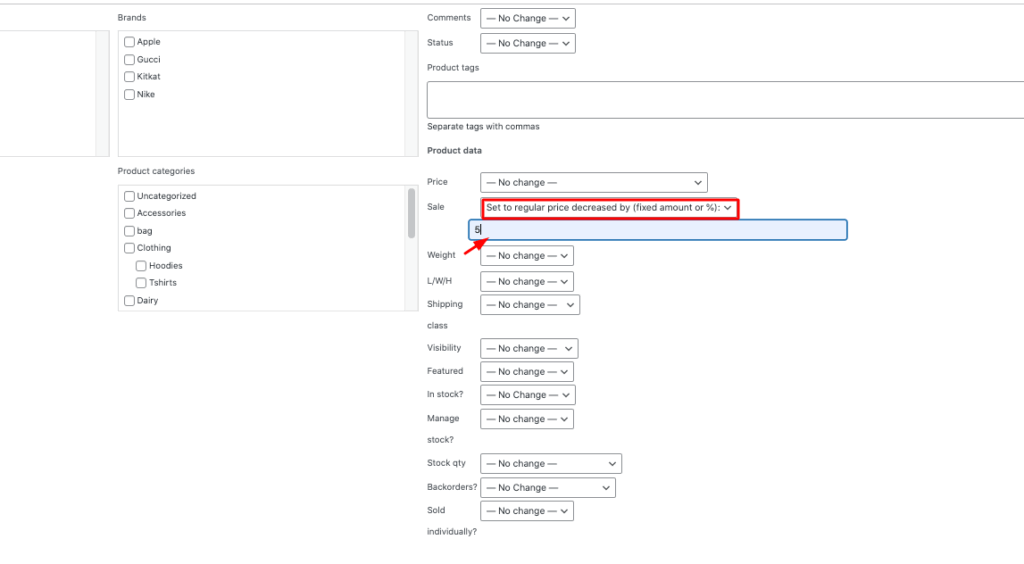
How to Add a WooCommerce Bulk Discount (Multiple Products)
- Select Products, then All Products.
- Select all the products you want to put on sale.
- Open the bulk actions menu, choose Edit, then click Apply.
- Navigate to Product Data, then Sale Price.
- Choose one of the Sale Price options: Set to regular price decreased by (fixed amount or percentage).
- Enter a value and save your changes.
- Visit your store to confirm the bulk sale price is applied.
For a more detailed walkthrough, follow this guide on How to Set Up Bulk Discounts in WooCommerce.
How to Display On-Sale Products in WooCommerce
Once a sale price is live, most stores also want to show shoppers which products are on sale, either through a dedicated shop filter or a homepage section. WooCommerce keeps this information in the product_visibility taxonomy under the on-sale term, and it can be pulled with the wc_get_product_ids_on_sale() function if you are working with custom code or a shortcode-based on-sale products block. If you would rather not touch code, the Disco plugin’s product-based discount rules automatically flag discounted items, so an on-sale badge and filter are available out of the box.
2. Flash Sale
This is a promotional strategy that offers products at a discounted price for a limited timeframe.
It triggers a sense of urgency among shoppers. That inner FOMO (fear of missing out) is what leads to faster, more impulsive buying decisions.
Example Campaigns:
- Get 20% off on all electronics for 48 hours only.
- 45% discount on shoes only this Saturday.
How to Create a Flash Sale (Basic WooCommerce)
- Go to Product Data, then Inventory.
- Enable stock management (track stock quantity for this product).
- Enter a stock quantity, such as 100.
- Enable “Sold individually (limit purchase to 1 item per order)” if you want to cap how much any one customer can claim.
- Visit your store to test the rule. The sale ends automatically once the stock quantity runs out.
To take a more advanced approach, install the Disco Plugin. Create bulk, product, BOGO, cart, shipping-intent, and dynamic discounts with advanced rules, and set up any type of WooCommerce discount in just a few clicks.
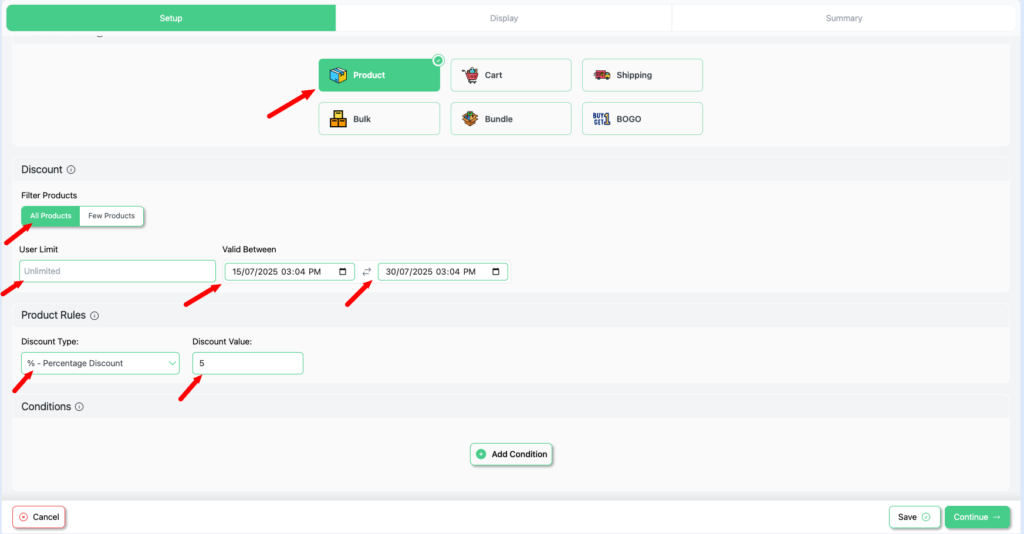
How to Create an Advanced Flash Sale With the Disco Plugin
- Go to Disco, then Create a New Discount.
- Name your campaign, for example “5% discount on all products.”
- Choose your discount intent, for example product-based.
- Choose the filter and select All Products.
- Set the user limit (how many people can claim this offer) and the validity date (the expiry date for the promotion).
- Set the discount type, for example, a percentage discount, and the discount value, for example, 5%.
- Save and exit to launch your campaign.
Full guide: How to Set Up WooCommerce Flash Sale? Just 5 Minutes.
3. Cart-based discount:
A cart-based discount applies to the customer’s entire shopping cart rather than a single item. WooCommerce offers some limited cart-based discounts on its own, while a discount plugin gives you more control over thresholds and conditions.
Here is documentation on how to set up Cart Intent Discounts using the Disco Plugin.
Example Campaigns:
- Percentage discount, for example 5% off the total cart.
- Fixed discount, for example $20 off the total cart.
- Minimum spend (spend at least $20 to get 20% off) and maximum spend (spend above $50 to get 15% off) requirements.
- Free shipping unlocked with a coupon or cart threshold.
How to Create a Cart-Based Discount Using the Disco Plugin
- Go to your WordPress dashboard, then Disco, then Create a New Discount.
- Name your campaign, for example “20% off entire cart.”
- Select your discount intent. For this example, choose cart-based intent.
- Pick a filter. We will select All Products for this segment.
- Set the user limit and validity date. Here we will set the user limit to unlimited and the validity date to 27/10/2025 to 31/10/2025.
- Save, Exit, and test the rule.
With the Disco plugin, you can combine different types of cart discount rules with ease.
Other cart intent discount example guides:
- How to set up a 20% Cart Discount on Selected Categories
- How to Offer 10% Cart Discount for 10+ Items (Cart Quantity)
- How to Offer $10 Off Product X When Cart Has 3+ Items (In Stock)
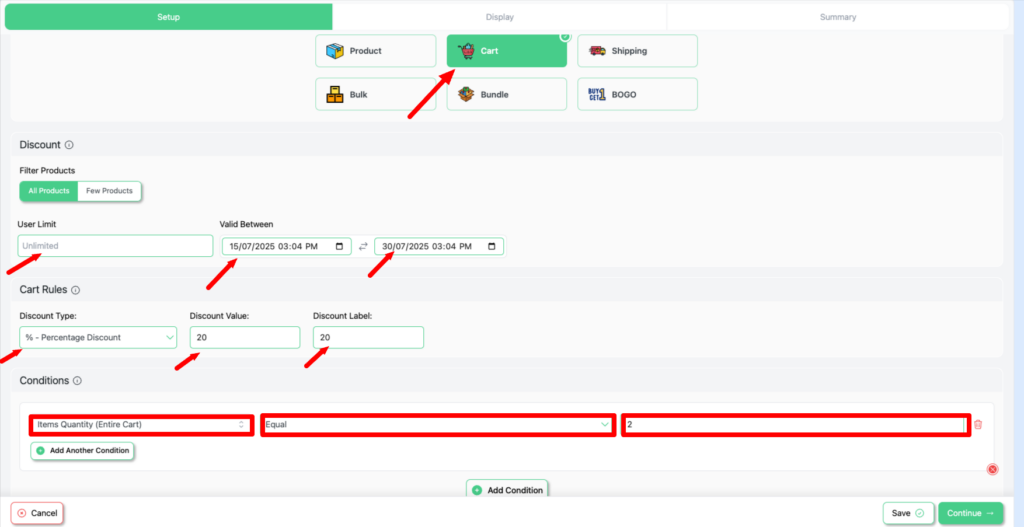
Using the Disco Plugin to Create Advanced Cart Discounts
- From your WordPress dashboard, go to Disco.
- Create a new rule and name your campaign, for example “Buy any 2 products from a category and get a 20% discount.”
- Choose the discount intent: cart-based intent.
- Filter products to All Products.
- Set the user limit (leaving it blank makes it unlimited) and the validity date, for example 20/10/2025 to 24/10/2025.
- Set the cart rules: discount type, for example percentage discount, and discount value, for example 20.
- Set Condition: Item Quantity (Entire Cart) → Equal → 2
Run a storewide sale across your entire catalog in one click — Try Disco Free
4. Product Category Discount
A product category discount is a promotional strategy that applies a discount to a specific category rather than a single item. It increases average order value, clears out old category-wide stock, and boosts conversions.
Example Campaigns:
- 30% off all shoes.
- Buy any accessories and save 20%.
How to Create a Product Category Discount Using the Disco Plugin
- Create a discount from the WordPress dashboard.
- Select your discount intent: cart-based.
- Select All Products. Later, you will narrow down the products from the Conditions section.
- Configure the user limit and validity date.
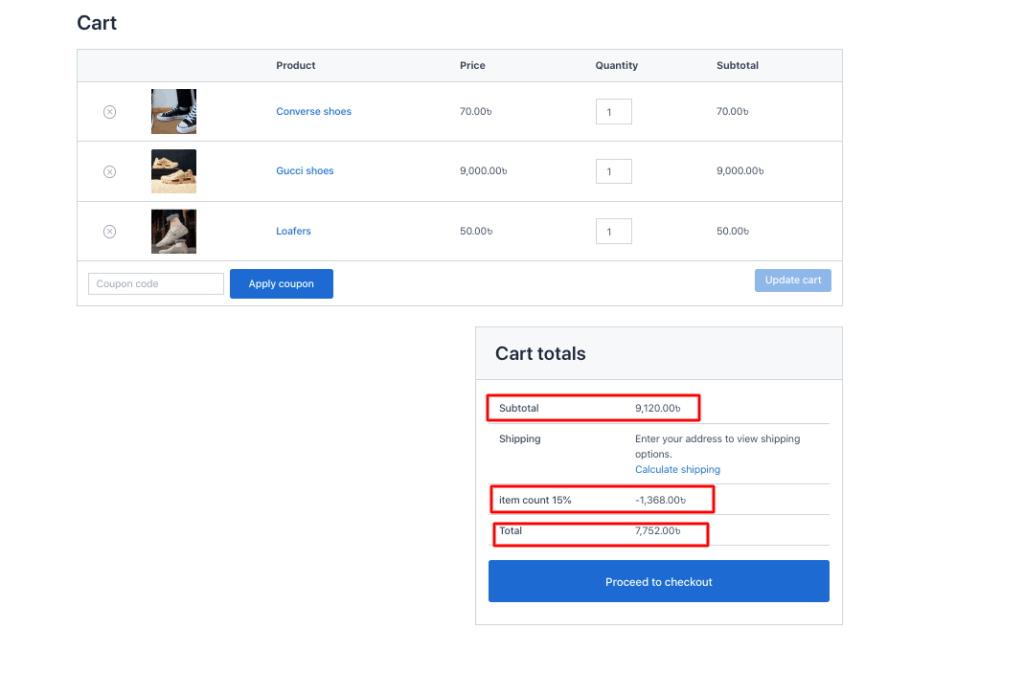
- Add cart rules: discount type as percentage discount, discount value as 15, discount label as “item count 15%.”
- Add conditions. Enter the value as Item Count, Equal to 3, and Categories, In List, shoes.
5. Discount Coupons:
Coupons are discount codes that can be created, managed, and automated as part of a broader promotions strategy.
WooCommerce has its own built-in coupon tools. Smart coupon strategies, and having a clear set of WooCommerce coupon codes ready to go, are an effective way to drive more profitable sales, such as:
- Percentage-based discounts, for example 15% off all products.
- Fixed discounts, for example $50 off your cart.
- Free shipping, for example free shipping applied at checkout.
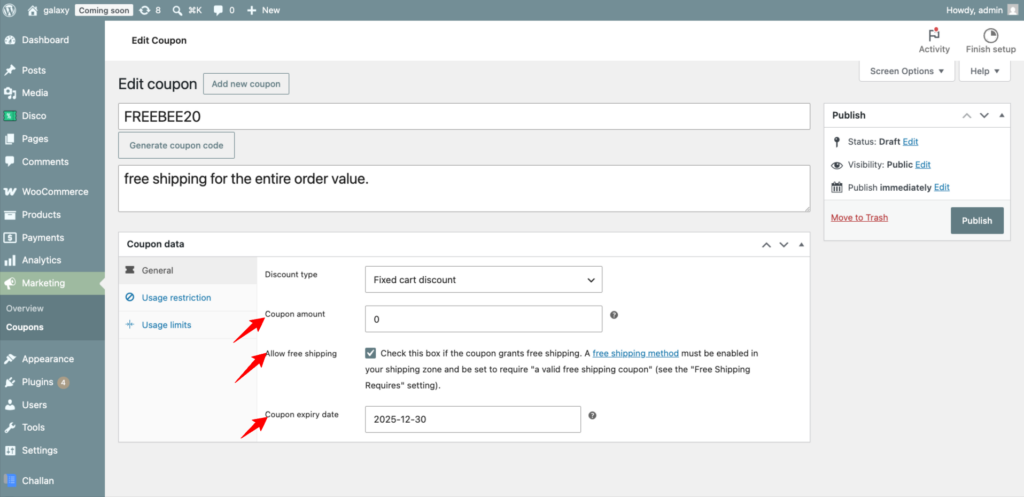
How to Create Coupons With WooCommerce’s Built-In System
- Go to Marketing, then Coupons.
- Click Add New Coupon.
- Enter a new coupon code, for example FREEBEE20.
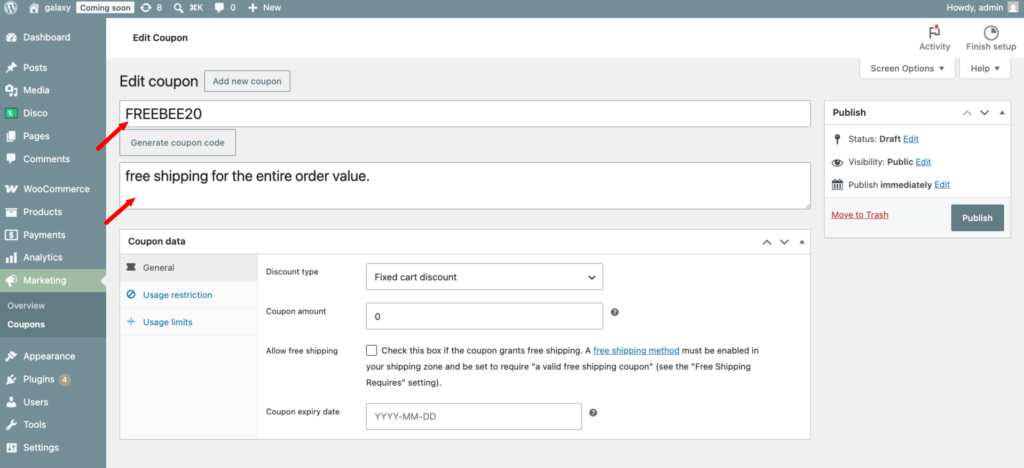
- Add a description, for example “free shipping for the entire order value.”
- Navigate to General Settings.
- Select the discount type, for example, a percentage discount.
- Allow free shipping by checking the small box.
- Set the validity date, for example, 30-10-2025
Create unlimited smart coupons with advanced conditions — Try Disco Free
6. Buy One, Get One (BOGO):
BOGO stands for Buy One, Get One, a high-impact promotion where buying one item triggers a reward of a second item, either free or at a discount.
You can generate unlimited, customized BOGO deals with the Disco plugin. A well-run buy one get one free WooCommerce campaign is effective for increasing average order value while building brand excitement. For example:
- Buy a camera, get a tripod free.
- Buy 1 T-shirt, Get 1 T-shirt free.
- Buy 3 coffee mugs, get the 3rd one 50% off.
How to generate a “Buy One, Get One” deal in WooCommerce:
- Go to your WordPress dashboard, click Disco, then Create New Rule.
- Choose your discount intent, BOGO.
- Filter products, then select a few products, for example a laptop.
- Set the user limit (any number, or leave it blank for unlimited) and the validity date, for example 30/10/2025.
- Select the BOGO type: Buy X, Get Y product.
- Enter the values for the BOGO rules. Min Quantity 1, Max Quantity 1. In the Customer Gets section, select the reward product, for example, a laptop bag, set Get Quantity to 1, and set the discount type to Free Item.
- Save and Exit
7. Storewide Sale
A storewide sale applies one discount across every product in the shop at once, which is why it is the go-to move for events like Black Friday, a site anniversary, or a seasonal clearance. The tricky part with a native WooCommerce storewide sale is that it means bulk-editing every product’s sale price by hand, and reversing it once the sale ends is just as manual.
With the Disco plugin, a storewide sale is really just a product-based discount rule with the filter set to All Products, plus a validity date so it turns off automatically.
How to Run a Storewide Sale in WooCommerce With Disco
- Go to Disco, then Create a New Discount.
- Name your campaign, for example “Site-wide 20% off.”
- Choose the discount intent: product-based.
- Set the filter to All Products so the rule applies store-wide.
- Set the discount type and value, for example percentage discount at 20%.
- Set the validity date so the storewide sale starts and ends on its own.
- Save and Exit, then check a few product pages to confirm the discount is showing.
8. Scheduled Sale
A scheduled sale is any discount that is set up in advance to start and stop on its own, without you logging in to switch it on or off. This matters more than it sounds like it should. A flash sale that quietly keeps running past its deadline stops feeling urgent, and a storewide sale that never gets turned off just becomes your new regular price.
WooCommerce’s native Schedule option (available next to the sale price field) lets you set a start and end date for a single product’s sale price. Disco extends the same idea to every discount type, including cart, category, BOGO, and storewide rules, each with its own validity date field.
How to Schedule a WooCommerce Sale
- For a single product, go to Product Data, enter the sale price, then click Schedule and set the start and end date.
- For any rule-based discount, open Disco, create or edit the rule, and set the Validity Date field to the exact window you want the sale to run.
- Save your changes and let the sale start and end automatically. No manual price reversal needed.
Decision Guide: Which Method Should You Use?
| Your Goal | Recommended Sale Type |
| Clear out slow-moving products | Product Discount |
| Drive urgency around a specific event | Flash Sale (48 hours or less) |
| Offer a full store discount during Black Friday or a holiday | Storewide Sale |
| Increase average order value | Cart-based discount with a minimum threshold |
| Give exclusive rewards to subscribers or loyalty members | Discount coupon with usage limits |
| Encourage more units per order | BOGO deal |
| Run a sale that starts and ends without manual work | Scheduled sale or an automatic Disco rule |
Build any BOGO deal in minutes with no code — Try Disco Free
Wrapping Up Your WooCommerce Sale Strategy
The key to running a successful sale in WooCommerce is designing an experience that creates genuine urgency for the buyer. A great strategy makes the shopper feel like they got a real win, not just a lower number on the price tag.
With the Disco plugin, generating, personalizing, and analyzing your sales becomes far easier, whether you are running a single flash sale or a full storewide promotion. Start small, measure the results, and keep tweaking your discount strategy based on how customers actually respond.
Related guides: WooCommerce Black Friday Sales: Set Up Your 2026 Campaign · How to Set Best Selling Products in WooCommerce?
Frequently Asked Questions (FAQs)
u003cstrongu003eQ1. How long should a flash sale in WooCommerce run for maximum impact?u003c/strongu003e
It’s better to keep it betweenu003cstrongu003e 6 and 48 hours. u003c/strongu003eFor brand birthdays or product launches, a 24-hour sale works best. Weekend promotions require enough exposure time; a 48-hour sale is most effective. Anything beyond that removes the urgency effect that makes flash sales work. If your promotions require more time, it’s better to structure them as scheduled sales instead of flash sales. u003cbru003e
u003cstrongu003eQ2. Can I combine WooCommerce’s built-in discounts with an advanced plugin, such as Disco?u003c/strongu003e
Yes, indeed. You can operate WooCommerce’s native discounts and Disco rules simultaneously. However, it’s essential to test all combinations of rules before going live. This can prevent unintended stacking effects.
u003cstrongu003eQ3. Do sale prices affect SEO?u003c/strongu003e
u003cstrongu003eSale pricesu003c/strongu003e do not directly affect SEO ranking. However, it does have some powerful impacts, such as increased u003cstrongu003eCTR (Click-Through Rates),u003c/strongu003e better engagement, and more organic traffic, among others.
Q4.How do I run a storewide sale in WooCommerce?
With WooCommerce Native, you can create a percentage sale for all products through bulk editing. However, it’s very time-consuming, hard to reverse, and it has no automatic expiry. For that reason, it is recommended to create a single product-based discount rule using Disco. It offers you preferences such as setting the discount for all products /a few products ( In this case, u003cstrongu003efilteru003c/strongu003e tou003cspan style=u0022margin: 0px;padding: 0pxu0022u003e u003c/spanu003eu003cstrongu003eall products )u003c/strongu003e, adding a validity date, and automating the activation or deactivation process.
Q5. Can I schedule a WooCommerce sale to start and end automatically?
Yes, you can. With WooCommerce’s Native system, you have to set dates on every product manually. Conversely, Disco has a distinct validity date field for every discount rule that allows you to set an exact start and end date and time.
Q6. How do I prevent customers from stacking multiple discounts?
In the WooCommerce native settings, enable u0022Exclude sale itemsu0022 to ensure the coupon won’t stack on products already assigned to a sale price. Disco offers more flexibility in this segment by allowing you to define when it applies and when it doesn’t.
Q7. What is the best WooCommerce discount plugin?
The choice depends on what you’re looking for. For a free, simple creation coupon, you can stick to WooCommerce’s built-in system. For more advanced and complex rules, such as storewide automatic discounts, flash sales with precise validity dates, BOGO deals, cart-based rules, and role-based pricing,u003cemu003e Disco is the best of both worlds.u003c/emu003e In other words, it is designed specifically for WooCommerce, and it handles all discount types within one unified interface.
Q8.Can I run a BOGO deal in WooCommerce without a plugin?
WooCommerce has no native functionality. You might require custom code or an order management tool that doesn’t necessarily address complications. An advanced discount plugin like Disco is the practical solution for this quest.
u003cstrongu003eQ9. How do I show only on-sale products in my WooCommerce shop?u003c/strongu003e
WooCommerce tags every discounted product with the on-sale term inside the product_visibility taxonomy, which developers can pull with wc_get_product_ids_on_sale() to build a custom on-sale products page or shortcode. If you are not comfortable with code, the Disco plugin automatically flags products covered by an active discount rule, so you get an on-sale filter without writing anything.u003cbru003e
u003cstrongu003eQ10. Can I set up a coupon that rewards a customer’s next order in WooCommerce?u003c/strongu003e
Yes, though it is not a built-in WooCommerce feature by default. A next-order coupon usually needs either a plugin that auto-generates a code after checkout or a workflow you build with a discount plugin’s automation rules. This works well alongside a storewide sale or seasonal promotion, since it turns a one-time sale shopper into a repeat customer.u003cbru003e